How to Use Samsung DEX on Mac (2026 Guide)
Samsung never shipped Samsung DEX for Mac. Here's how DEX actually works, why Mac got left out, and how to get a real DEX (or Pixel desktop mode) window running on your Mac with PhoneDesk.
How to Use Samsung DEX on Mac (2026 Guide)
If you've searched for a way to run Samsung DEX on Mac, you've probably already hit the wall: Samsung ships DEX for Windows, and Samsung ships DEX for a monitor with the right cable — but Samsung has never shipped a native "Samsung DEX for Mac" app. Search results are mostly old Samsung support pages telling Windows users to install DEX for PC, or forum threads from 2021 asking if it's even possible on macOS.
It is possible. It just needs a different tool than the one Samsung built, because Samsung didn't build one for macOS. This guide covers how DEX actually works under the hood, why Mac got left out, and the two realistic ways to get a real DEX desktop window running on your Mac today — one free and manual, one that takes about 90 seconds per session.
What Samsung DEX Actually Is
Samsung DEX (Desktop Experience) is a desktop UI mode built into One UI on Samsung's higher-end phones and tablets. Instead of the normal home screen and app grid, DEX renders a taskbar, resizable app windows, and drag-and-drop file support — a genuine desktop environment running on your phone's own hardware. Plug a Galaxy phone into a monitor with the right USB-C cable (or a DEX-compatible dock) and the phone's screen goes dark while the monitor shows the desktop session. Pair a Bluetooth keyboard and mouse and you've effectively got a phone-powered PC.
The catch is the "right cable" part. DEX outputs over USB-C DisplayPort Alt Mode, which most Macs (especially anything with only USB-C/Thunderbolt ports and no native DP Alt Mode passthrough for external devices) don't handle the way a Windows monitor or Samsung DEX Station does. Plug a Galaxy phone straight into a MacBook via USB-C and, more often than not, nothing happens — the Mac doesn't know what to do with a DEX video signal, and Samsung never built software to bridge that gap.
Why Samsung Never Built DEX for Mac
Samsung's entire DEX strategy has been built around displacing a Windows PC, not a Mac. DEX for PC (the actual Windows companion app) exists because Samsung wants Galaxy phones positioned as a Windows laptop replacement for enterprise and education. There's no equivalent business case for Samsung to build and maintain a macOS app for a competing ecosystem — so they haven't, and public roadmaps give no indication they will.
That leaves Mac users with two real paths:
- Screen mirroring apps (Vysor, standard AirDroid-style tools) — these mirror the phone's actual screen, phone UI and all, into a window. It works, but you're looking at a stretched or letterboxed phone interface, not a real desktop layout, and you're not using DEX at all — just casting the normal Android screen.
- ADB + scrcpy over USB debugging — Android's own developer tools can launch a display session, including DEX itself, without needing Samsung's proprietary video pipeline. This is the actual technical path that works reliably, but out of the box it's a command-line tool: you install adb and scrcpy, enable Developer Options and USB debugging, find your device ID, and run flags like
scrcpy --new-displayor DEX-specific launch flags from a terminal every single time.
Setting Up Samsung DEX on Mac via ADB and scrcpy (Manual Method)
If you want to do this yourself without any third-party app, here's the actual manual process:
- Install adb. Easiest route is Homebrew:
brew install android-platform-tools. - Install scrcpy. Also via Homebrew:
brew install scrcpy. - Enable Developer Options on the Galaxy phone. Settings → About phone → tap Build number seven times.
- Turn on USB debugging. Settings → Developer options → USB debugging (toggle on).
- Connect the phone to the Mac — USB cable for the first run, since you need to accept the "Allow USB debugging" prompt on the phone.
- Confirm the Mac sees the device: run
adb devicesin Terminal and confirm your phone's serial number shows up as "device," not "unauthorized." - Launch DEX through scrcpy. Depending on your scrcpy version and phone model, this is a specific command with display and resolution flags — get it wrong and you'll get a black screen, a mirrored (not DEX) window, or a crash.
- Repeat steps 5-7 every time you want a session, because none of this persists — there's no menu bar shortcut, no saved device profile, no one-click launch. If you want Wi-Fi instead of USB, you're manually running
adb tcpip 5555andadb connect <ip>:5555and re-pairing whenever the connection drops.
This works. It's also exactly the kind of repetitive, terminal-dependent setup most people try once, get frustrated by, and give up on — which is why "samsung dex mac" search results are full of people asking if there's an easier way.
How PhoneDesk Automates Samsung DEX on Mac
PhoneDesk is a macOS menu bar app that does exactly what the manual adb/scrcpy process above does — it actually bundles adb and scrcpy under the hood — except it handles all of it for you and turns "run several terminal commands correctly" into "click one button in the menu bar."
Here's what changes:
- No terminal. PhoneDesk bundles adb and scrcpy internally, so there's nothing to install separately and no commands to memorize or get wrong.
- Auto-discovery. Plug in a Galaxy phone with USB debugging on and it just shows up in the menu bar — name, resolution, and Wi-Fi port detected automatically.
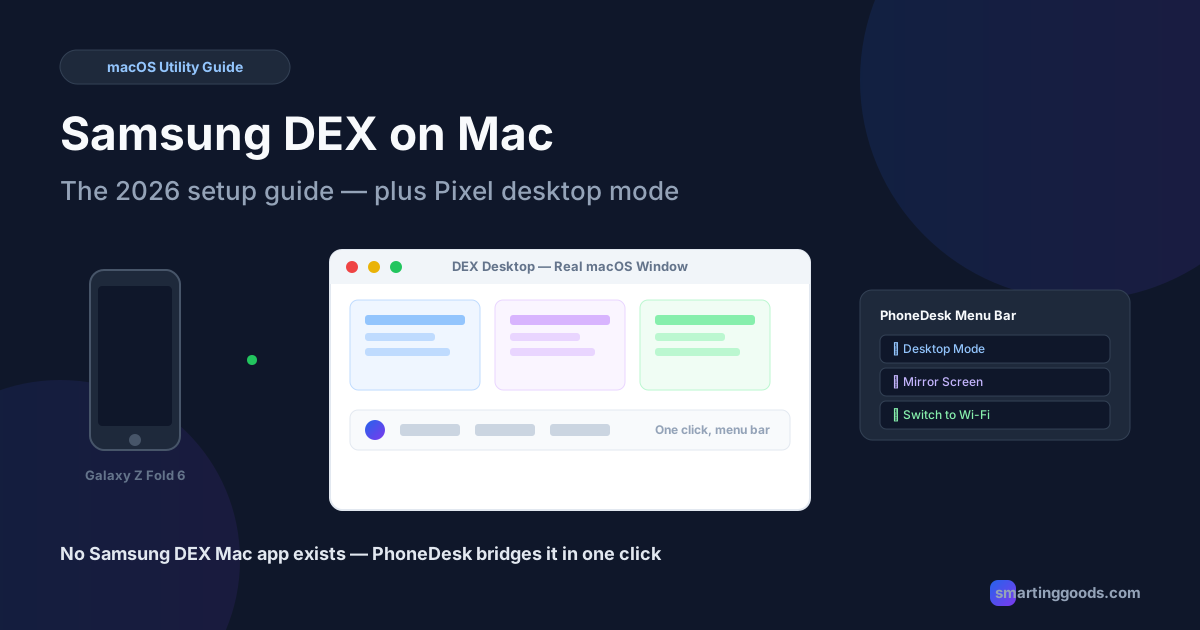
- Real DEX window, confirmed on Galaxy Z Fold 6. Click "Desktop Mode" and DEX opens as a normal, resizable macOS window — not a mirrored phone screen squeezed into a box.
- USB to start, Wi-Fi after. Connect once over USB to pair, then switch to wireless with one click from the same dropdown — no re-typing
adb connectcommands. - Fully wireless pairing, too. Skip USB entirely and pair straight from Android's own Wireless debugging screen using a QR code or pairing code — no drivers to install on the Mac side.
- No Dock icon, no clutter. It lives quietly in the menu bar. Desktop Mode, Mirror Screen, and Switch to Wi-Fi are one click away, per device.
- Invisible virtual-display option. If you'd rather the phone's own screen stay dark during a DEX session (instead of showing the small on-device overlay Android requires by default), there's a virtual-display variant for that — it needs one root device property flipped, and PhoneDesk walks you through it.
It's a $25 one-time purchase — lifetime license, unlimited devices on one Mac, no subscription — with a 14-day no-questions refund if it's not for you. Get PhoneDesk here and have DEX running as a Mac window in about two minutes.
If You Have a Pixel Instead of a Galaxy
Samsung isn't the only one with a phone-to-desktop mode. Starting with Android 15 (Android 15 QPR1, specifically), Google added a genuine desktop windowing mode to Pixel phones — confirmed working on the Pixel 9 Pro. Connect it to an external display and you get resizable, taskbar-driven app windows, similar in spirit to DEX, natively in Android.
The Mac support gap is identical to Samsung's: Google didn't build a "Pixel desktop mode for Mac" app either. The same adb/scrcpy foundation applies, and the same problem exists — doing it manually means terminal commands every session.
PhoneDesk drives Pixel desktop mode the same way it drives Samsung DEX: auto-detected in the menu bar, one click to launch as a real window, confirmed working on the Pixel 9 Pro. If you're searching "pixel desktop mode" or "google pixel desktop mode" looking for the Mac side of this, it's the same app, same workflow, same one-click launch.
Devices without native desktop mode (most other Android phones with USB debugging enabled) still connect through PhoneDesk for full screen mirroring — you just won't get the dedicated desktop windowing layout, since that piece depends on Samsung or Google having built it into the phone's software.
Samsung DEX for Mac vs. scrcpy vs. Screen Mirroring Apps
If you're comparing your options, here's the honest breakdown:
| Samsung DEX for PC (Windows) | Raw scrcpy (Terminal) | Vysor / mirroring apps | PhoneDesk | |
|---|---|---|---|---|
| Runs on macOS | No | Yes | Yes | Yes |
| Real DEX desktop window | N/A (Windows only) | Yes, with correct flags | No — mirrors phone UI | Yes |
| Setup per session | N/A | Manual terminal commands | Click to connect | One click, menu bar |
| Wireless pairing | N/A | Manual adb connect |
Varies | QR code / pairing code |
| Auto device discovery | N/A | No | Partial | Yes |
| One-time cost | Free (Windows only) | Free | Free / paid tiers | $25 lifetime |
Raw scrcpy is the right call if you're comfortable in a terminal and only need this occasionally. Vysor and similar apps are fine for basic mirroring but don't give you an actual DEX desktop layout. PhoneDesk is built specifically for people who want the real DEX (or Pixel desktop mode) experience on a Mac, repeatedly, without touching a command line.
Troubleshooting Samsung DEX on Mac
"My phone doesn't show up when I connect it." Confirm USB debugging is actually enabled (Settings → Developer options) and that you tapped "Allow" on the USB debugging permission prompt that appears on the phone screen the first time you connect. If you don't see the prompt, unplug, reconnect, and check the notification shade.
"I get a mirrored screen instead of a DEX window." That usually means the session launched in standard mirroring mode rather than triggering DEX specifically. DEX requires the right launch flags (with raw scrcpy) or, in PhoneDesk, simply clicking "Desktop Mode" instead of "Mirror Screen" — they're separate one-click actions for exactly this reason.
"Wireless mode worked once, then stopped after I restarted my phone." This is expected, not a bug — Android drops the Wi-Fi ADB connection on every reboot for security reasons. Reconnect over USB once (or re-pair wirelessly via the QR/pairing code) after each phone restart, then Wi-Fi mode is back and stays connected until the next reboot.
"It worked over USB but wireless pairing won't connect." Make sure the Mac and phone are on the same Wi-Fi network — wireless ADB doesn't work across different networks or with client isolation enabled on some routers/guest networks.
Frequently Asked Questions
Q: Does Samsung DEX work on Mac natively? A: No — Samsung has never released a native DEX app for macOS, only DEX for PC (Windows). Getting DEX running on a Mac requires a third-party tool built on Android's adb/scrcpy tools, either set up manually via Terminal or through an app like PhoneDesk that automates the process.
Q: Which Samsung phones support DEX in a Mac window via PhoneDesk? A: Native desktop-mode windowing through PhoneDesk is confirmed working on the Galaxy Z Fold 6. Other Galaxy phones with DEX support and USB debugging enabled will generally connect as well; if a specific model's DEX session doesn't launch as a window, PhoneDesk still provides full screen mirroring as a fallback.
Q: Does this work with Pixel phones too, or just Samsung? A: Both. PhoneDesk drives Samsung DEX and Google's native Pixel desktop mode (confirmed on the Pixel 9 Pro) using the same one-click workflow. Other Android phones without a built-in desktop mode connect for screen mirroring instead.
Q: Do I need to install adb and scrcpy separately? A: No. PhoneDesk bundles both internally, so there's nothing extra to install on the Mac — you only need to enable USB debugging on the phone side.
Q: Is there a free way to run Samsung DEX on Mac? A: Yes — installing adb and scrcpy yourself via Homebrew and running the correct launch commands from Terminal is free and uses the same underlying technology. It just requires re-running terminal commands every session and manually re-pairing after reboots, which is the exact friction PhoneDesk is built to remove for $25 one-time.
Q: Does the phone screen have to stay on during a DEX session? A: By default, Android shows a small on-device overlay during a desktop-mode session. PhoneDesk also offers an invisible virtual-display variant that keeps the phone's screen off entirely, which requires flipping one root device property.
Get Samsung DEX Running on Your Mac Today
Samsung and Google both built real desktop modes into their flagship phones — DEX on Galaxy devices, native desktop mode on the Pixel 9 Pro — but neither company built the Mac bridge to use them. Raw adb and scrcpy prove it's technically possible; they just leave you running terminal commands every time you want a session.
PhoneDesk closes that gap: plug in (or pair wirelessly), click Desktop Mode from the menu bar, and your phone opens as a real, resizable window on your Mac. USB or fully wireless, no Dock icon, no repeated setup, no drivers to hunt down.
Try PhoneDesk for Mac → — $25 one-time, lifetime license, unlimited devices, 14-day no-questions refund.