 PhoneFiles
Samsung Galaxy guide
How to transfer files from a Samsung Galaxy to a Mac
Samsung phones add a few twists of their own when you plug them into a Mac: a permission prompt, USB settings with different names, and Smart Switch quietly holding the connection. We tested everything here on a Galaxy Z Fold6. Here's what to do, from the fastest method to the cable-free one.
1.Set the USB connection to Transferring files
A Galaxy only charges over USB until you tell it otherwise.
- Plug the phone into the Mac with a data cable (the one that came with the phone is safest).
- Swipe down from the top of the screen and tap the USB notification, e.g. “Charging this device via USB”.
- Under Use USB for, choose Transferring files / Android Auto.
2.Unlock the phone and tap Allow
Samsung asks “Allow access to phone data?” the first time a computer connects. Tap Allow. If the phone stays locked, or the prompt is dismissed, the Mac sees an empty phone. A Galaxy still set to charging looks exactly the same, so check step 1 again if nothing appears.
3.Quit Smart Switch (and Photos)
Only one Mac app can use the phone at a time. Samsung Smart Switch for Mac takes the connection while it's open, and so do Photos, Image Capture and Preview. Quit them, then unplug and replug the phone.
4.Browse and copy with PhoneFiles
PhoneFiles shows your Galaxy like a folder on your Mac: every folder, with real thumbnails for photos and videos. Your camera photos are in DCIM → Camera, screenshots in DCIM → Screenshots, downloads in Download.
- Drag photos, videos or whole folders to Finder; drop files from the Mac onto the phone.
- Press space to preview a photo or play a video straight from the phone.
- Even a camera folder with thousands of photos lists in a couple of seconds.
If PhoneFiles can't reach the phone, it tells you which of the steps above is missing, including which app is holding it.
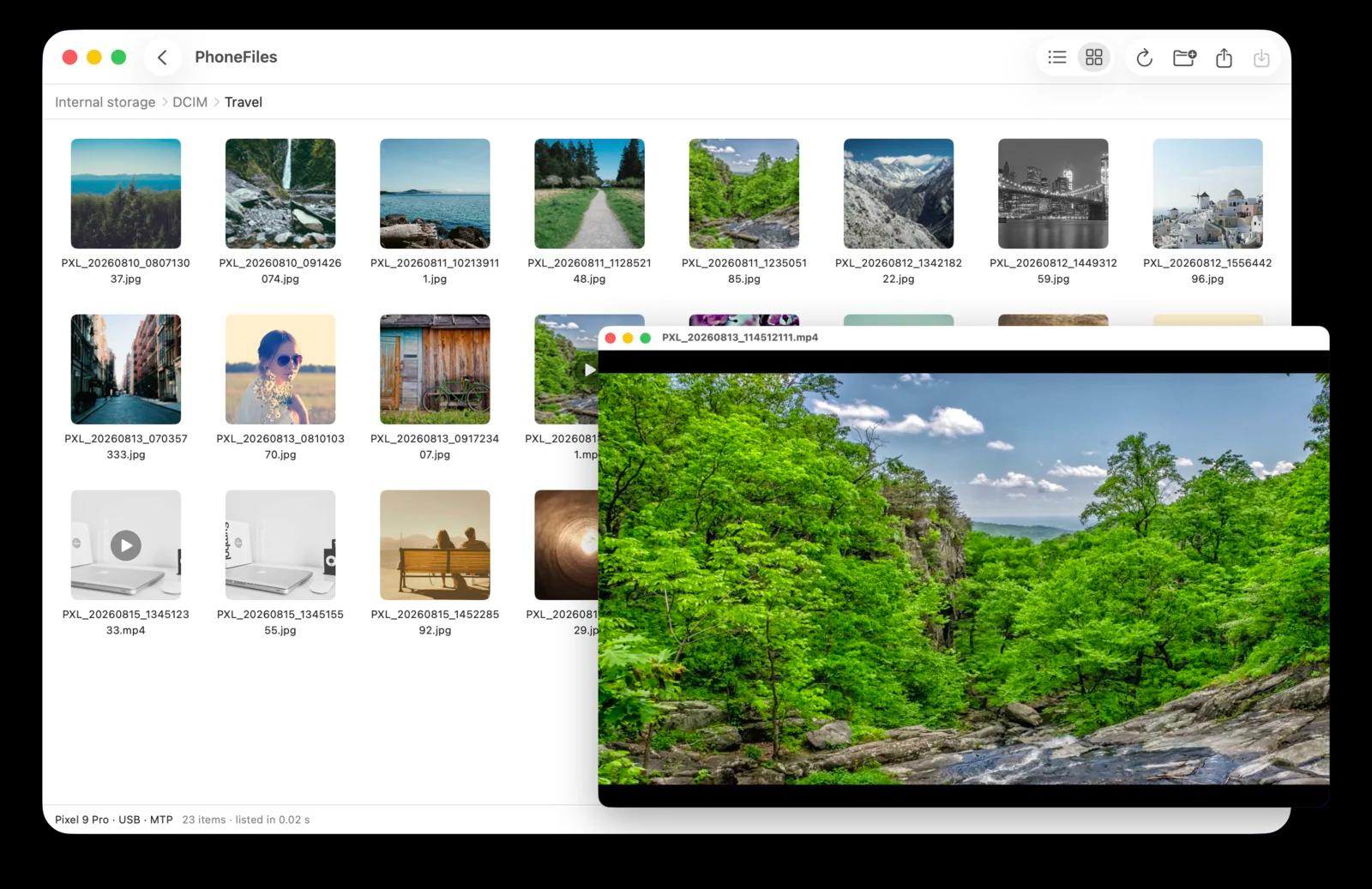
Your Galaxy, like a folder on your Mac
Thumbnails, drag and drop both ways, videos that play instantly. Tested on the Galaxy Z Fold6. USB or Wi-Fi, $19 once.
5.No cable? Use Wi-Fi
Install the free PhoneFiles phone app on your Galaxy (your Mac can copy it over the cable for you), allow access to files, and pair once by checking that both screens show the same 6-digit code. After that, your Galaxy appears in PhoneFiles whenever it's on the same Wi-Fi. Transfers are encrypted and never leave your network.
Samsung tip: Galaxy battery saving can pause apps in the background. If the phone stops appearing over Wi-Fi, set PhoneFiles to Unrestricted under Settings → Apps → PhoneFiles → Battery.
Other options
- Image Capture (built into macOS): choose Transferring images in the USB settings, open Image Capture, and import. Camera photos only, one way.
- Google Photos: back up on the phone, download on the Mac. Slow for videos, and compressed unless set to original quality.
- Still stuck? See 8 fixes for Android File Transfer not working on Mac and every way to move photos from Android to Mac.
Questions
Does Samsung Smart Switch transfer files to a Mac?
Smart Switch for Mac is built for backing up a Galaxy and moving to a new one, not for browsing and copying individual files. While it’s open it also holds the USB connection, so other file transfer apps can’t reach the phone. Quit it before transferring.
Can I use Quick Share from a Samsung phone to a Mac?
Not officially: Quick Share works between Galaxy devices and with Windows PCs, but there is no Quick Share app for Mac. Use a USB cable, Wi-Fi with PhoneFiles, or a cloud service.
Why does my Mac show an empty Samsung phone?
The phone is locked, you haven’t tapped Allow on "Allow access to phone data?", or USB is still set to charging only. Unlock it, tap Allow, and choose Transferring files in the USB settings.
Can a Mac open Samsung’s HEIF photos?
Yes. If your Galaxy saves "High efficiency pictures" (HEIF/HEIC), macOS opens them natively in Preview and Photos.
PhoneFiles: Android File Transfer for Mac
Plug in and browse, or go wireless. $19 once, with a refund if it can't connect to your phone.