 PhoneFiles
Troubleshooting guide
Android File Transfer not working on Mac? 8 fixes that work
You plug in your phone, open Android File Transfer, and get “No Android device found”, “Could not connect to device” or “Can't access device storage”. We hit every one of these while building our own Android file transfer app for Mac, and the causes are almost always the same handful. Work through these in order; most people are fixed by step 1 or 2.
1.Switch the phone from “Charging only” to File transfer
By default most Android phones only charge over USB. Your Mac sees the phone, but the phone offers no files, so you get “No Android device found”.
- On the phone, swipe down from the top of the screen.
- Tap the USB notification, e.g. “Charging this device via USB”.
- Choose File transfer (on some phones “Transferring files” or MTP).
The phone may switch back to charging after you unplug it, so check this every time.
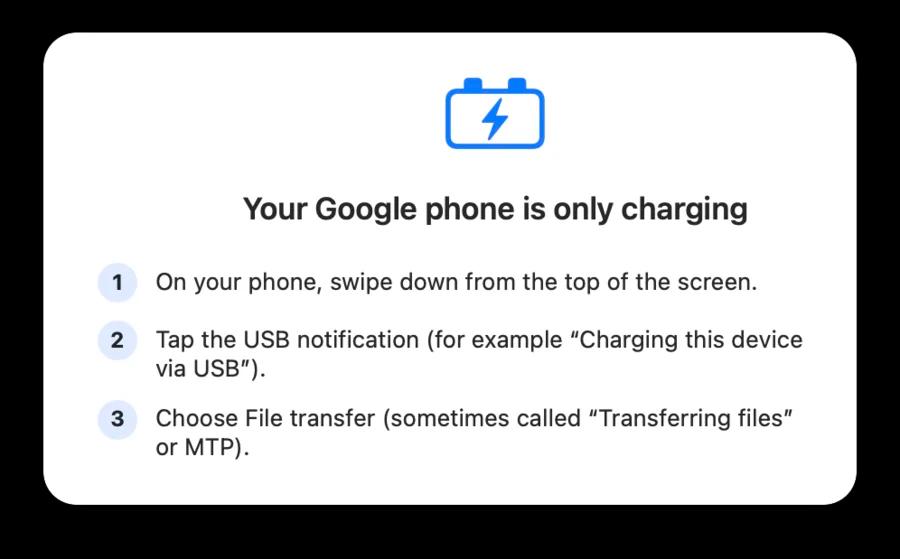
PhoneFiles spots a phone that's only charging and says exactly what to tap.
2.Unlock the phone and tap Allow
A locked phone won't share its storage, which is what “Can't access device storage” means. Unlock it while it's plugged in. Samsung phones also ask “Allow access to phone data?”: tap Allow, or the Mac sees an empty phone. On Samsung, a phone still set to charging looks exactly like this too, so do step 1 as well.
3.Quit Photos, Image Capture, Preview and Smart Switch
Only one app can talk to the phone at a time. Photos, Image Capture and Preview use a macOS camera service that quietly takes the phone the moment it's plugged in, and Android File Transfer then fails with “Could not connect to device”. Samsung Smart Switch does the same.
- Quit Photos, Image Capture, Preview and Smart Switch (⌘Q in each).
- Unplug the phone and plug it back in.
- Stop Photos opening by itself: open Image Capture, select your phone, and set “Connecting this phone opens” to No application.
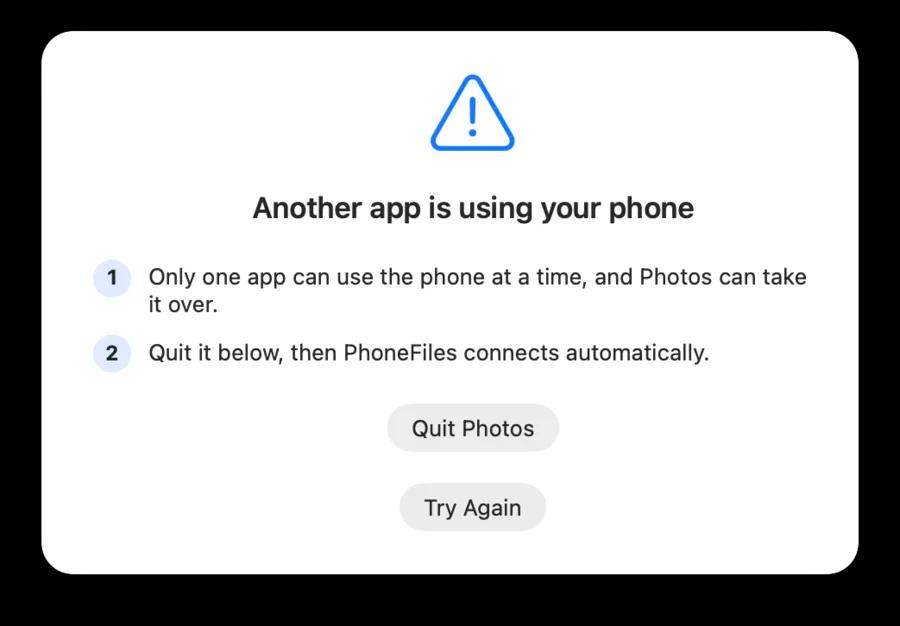
PhoneFiles names the app that's holding your phone and offers to quit it.

Skip the guesswork
PhoneFiles detects each of these problems and tells you what to do, then shows your phone like a folder: thumbnails, drag and drop, videos that play instantly. USB or Wi-Fi.
4.Allow the accessory to connect (Apple silicon Macs)
On Mac laptops with Apple silicon, macOS asks “Allow accessory to connect?” the first time a new USB device is plugged in. If that prompt was dismissed, the phone is ignored. Unplug and replug, and click Allow. The setting lives in System Settings → Privacy & Security → Allow accessories to connect.
5.Use a data cable, and plug straight into the Mac
Many USB cables only carry power. If your phone never offers a File transfer option, try the cable that came with the phone. Plug directly into the Mac rather than through a hub or monitor, and try another port.
6.Restart both ends
Unplug the phone, restart it, then plug it back in and choose File transfer again. If the Mac still doesn't respond, restart the Mac too. This clears a stuck USB connection on either side.
7.Big files over 4 GB
Android File Transfer often fails on very large files, such as long 4K videos, with no useful error. Copy them with a tool that handles large files, or over Wi-Fi.
8.Accept that Google's app is gone
Google no longer offers Android File Transfer for Mac: the download was withdrawn in 2024 and it gets no updates, so it's only going to get less reliable on new versions of macOS. Your options now:
- Image Capture (built into macOS) imports photos from many phones. Photos only, one direction.
- Google Photos or Google Drive: upload from the phone, download on the Mac. Fine for a few files, slow for big videos.
- PhoneFiles, our app: every file in both directions, real photo and video thumbnails, videos that play straight from the phone, and Wi-Fi included. Plain USB needs no setup on the phone.
More guides: how to transfer photos from Android to Mac, Samsung Galaxy to Mac, Pixel to Mac, and Android File Transfer alternatives.
Questions
Why does Android File Transfer say "No Android device found"?
Usually the phone is connected only for charging. Swipe down on the phone, tap the USB notification and choose File transfer. If that option is missing, the cable is probably charge-only.
Why does it say "Could not connect to device"?
Another Mac app is holding the phone. Quit Photos, Image Capture, Preview and Samsung Smart Switch, unplug the phone and plug it back in.
Is Android File Transfer discontinued?
Yes. Google no longer offers Android File Transfer for Mac; the download was withdrawn in 2024 and the app no longer gets updates.
How do I transfer files from Android to Mac without Android File Transfer?
For photos only, macOS’s built-in Image Capture works with many phones. For all files, both directions, videos and Wi-Fi, use an app such as PhoneFiles.
PhoneFiles: Android File Transfer for Mac that works
Plug in and browse, or go wireless. $19 once, with a refund if it can't connect to your phone.