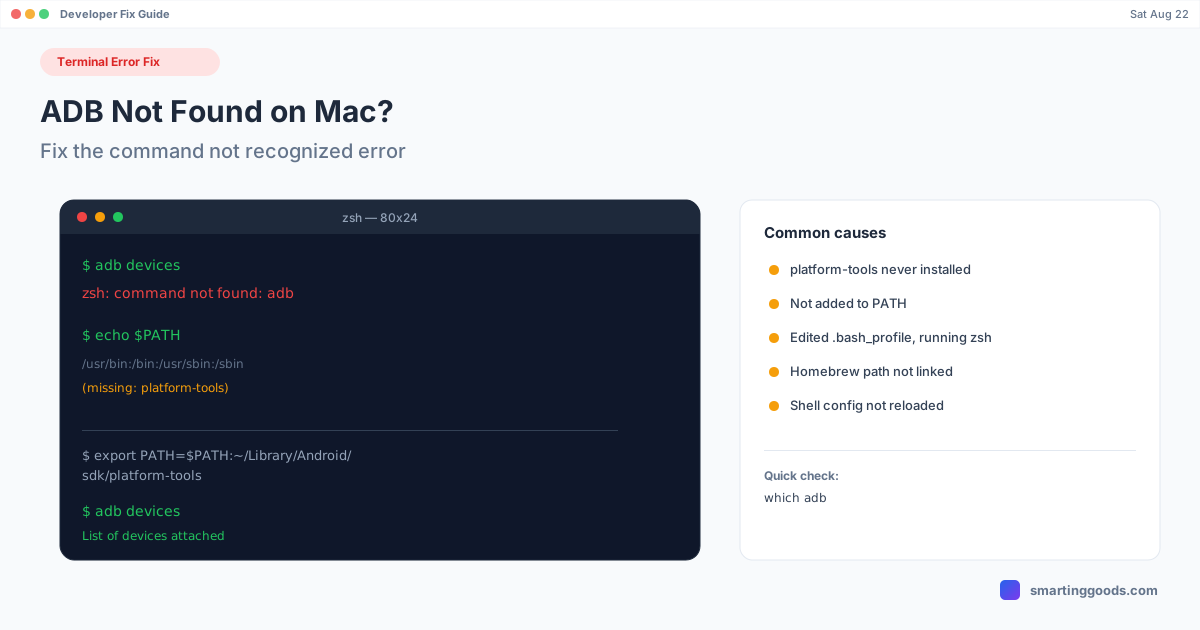
ADB Not Found on Mac? Fix the Command Not Recognized Error
"zsh: command not found: adb" — here's exactly why your Mac can't find adb, and how to fix the PATH issue for good instead of re-exporting it every session.
ADB Not Found on Mac? Fix the Command Not Recognized Error
You type adb devices in Terminal and get zsh: command not found: adb (or -bash: adb: command not found if you're still on bash). This isn't a broken install — in almost every case, adb is either not installed at all, or it's installed somewhere your shell doesn't know to look. Both are quick to fix, and the second one is the more common cause once you've actually installed Android's platform-tools.
Why This Happens
adb (Android Debug Bridge) isn't a system binary — it doesn't ship with macOS, and it isn't automatically added anywhere your shell searches. It comes from Android's platform-tools package, and your shell only finds commands that live in a directory listed in its PATH environment variable. If platform-tools was never downloaded, or it was downloaded but its folder was never added to PATH, you get the exact same "command not found" error either way — which is why this trips up people who are certain they "already installed it."
Step 1: Check Whether adb Is Actually Installed
Before touching PATH, confirm whether the binary exists at all:
find ~/Library/Android/sdk/platform-tools -name adb 2>/dev/null
find ~/Downloads -name adb 2>/dev/null
If either command returns a path, adb is installed — skip to Step 3 (PATH). If nothing comes back, you need to install platform-tools first.
Step 2: Install Android Platform-Tools
You have two reasonable options.
Option A — Homebrew (recommended if you have it):
brew install android-platform-tools
Homebrew installs the binary and — on Apple Silicon Macs — usually puts it somewhere already covered by Homebrew's own PATH setup (/opt/homebrew/bin), so this path often works without extra PATH configuration. Confirm with which adb after installing.
Option B — Direct download from Google:
Download the SDK Platform-Tools zip directly from Google's official Android developer site, then unzip it somewhere permanent — ~/Library/Android/sdk/platform-tools is the conventional location if you don't already have Android Studio's SDK path, since Android Studio expects it there too. This method requires the manual PATH step in Step 3 — Google's zip doesn't touch your shell config for you.
Step 3: Add platform-tools to Your PATH
This is the step almost everyone gets wrong, and it's the actual fix for "I installed it but it still says not found."
First, figure out which shell you're running (macOS Catalina and later default to zsh; older systems default to bash):
echo $SHELL
If you're on zsh (default on macOS 10.15+), add this line to ~/.zshrc:
export PATH="$PATH:$HOME/Library/Android/sdk/platform-tools"
If you're on bash, the equivalent goes in ~/.bash_profile:
export PATH="$PATH:$HOME/Library/Android/sdk/platform-tools"
Adjust the path if you installed platform-tools somewhere else (check the folder you unzipped in Step 2).
Step 4: This Is Where Most People Get Stuck — Reload the Shell Config
Editing .zshrc or .bash_profile does nothing until that file is actually reloaded. If you edited the file and adb still isn't found, you almost certainly just need this:
source ~/.zshrc
(or source ~/.bash_profile for bash). Closing and reopening the Terminal window also works, since a new window reloads the config automatically — but editing the file in one tab and testing in the same tab without sourcing it is the single most common reason people report "I already fixed the PATH and it's still broken."
The zsh vs. bash Trap
If you followed an old tutorial or Stack Overflow answer that told you to edit ~/.bash_profile, and your Mac is on Catalina or later (default shell is zsh), your edit did nothing — zsh doesn't read .bash_profile at all. This is the single most common reason someone swears they "already added it to PATH" and it's still not working. Run echo $SHELL to confirm which shell you're actually in, and make sure you're editing the matching file (.zshrc for zsh, .bash_profile or .bashrc for bash).
Verify the Fix
Once you've sourced the config, confirm it worked:
which adb
adb version
adb devices
which adb should print the full path to the binary. adb devices should print "List of devices attached" (with your device listed if USB debugging is on and the phone is connected) rather than the command-not-found error.
Still Not Found After All of This?
A few less common causes, in order of likelihood:
- Typo in the exported path — double-check the folder name matches exactly (case-sensitive, and it's
platform-toolswith a hyphen, not an underscore). - Multiple shell config files fighting each other — if you have both
~/.zshrcand~/.zprofilewith conflicting PATH exports, the order they're sourced in can override your edit. Consolidate into one file. - Terminal app vs. iTerm2 config mismatch — if you use both, confirm you edited the config file for the one you're actually testing in; both generally read the same
.zshrc, but custom iTerm profiles can override shell startup behavior. - Oh My Zsh or another framework overwriting PATH later in the file — if you use a zsh framework, make sure your
export PATHline comes after the framework's own initialization, not before it (frameworks sometimes reset PATH during their own startup).
A Note If You're Not a Developer and Just Want DEX or Screen Mirroring
If you landed here because a screen mirroring or Samsung DEX tool told you to install adb manually, it's worth knowing that's not universally required — some tools bundle adb internally so you never touch a terminal at all. PhoneDesk, for instance, ships adb inside the app itself; you plug in your phone or pair wirelessly and it's detected automatically, with no PATH configuration, no Homebrew, and no shell config to edit. That's obviously not a substitute for a real adb install if you're actually developing or testing Android apps — but if the terminal work above was a means to an end (getting your phone's screen or DEX session onto your Mac) rather than the actual goal, it's worth knowing there's a path that skips it.
See what PhoneDesk does with a bundled adb on the PhoneDesk overview page.
Frequently Asked Questions
Q: Do I need Android Studio installed to use adb? A: No. Android Studio includes platform-tools as part of its SDK, but you can install just the platform-tools package on its own via Homebrew or Google's direct download — a full Android Studio install isn't required for adb specifically.
Q: Why does adb devices work in one Terminal tab but not another?
A: This almost always means the PATH export was only run in the current shell session (typed directly, not saved to a config file) rather than added permanently to .zshrc or .bash_profile. Add the export line to your shell config file so it persists across every new terminal window.
Q: I'm on an M1/M2/M3 Mac — does that change anything?
A: Not for adb itself; platform-tools works the same on Apple Silicon and Intel Macs. The only difference is Homebrew's default install path (/opt/homebrew on Apple Silicon vs. /usr/local on Intel), which matters if you're manually referencing Homebrew's bin directory in PATH.
Q: Is there a way to use ADB-based tools without setting up adb manually? A: Yes — some macOS apps bundle their own adb binary internally so there's no separate install or PATH step. PhoneDesk is one example: it uses adb under the hood for Samsung DEX, screen mirroring, and file transfer, but handles the binary itself, so you never see a terminal.
Bottom Line
"adb not found" on Mac comes down to one of two things almost every time: platform-tools was never installed, or it was installed but never added to the shell's PATH (or added to the wrong file — bash config on a zsh system is the classic trap). Run which adb to see where you stand, fix the PATH in the config file that matches your actual shell, and source it before testing again.
If you were setting this up specifically to mirror a phone screen, run Samsung DEX, or transfer files rather than for app development, PhoneDesk bundles adb internally so none of this is necessary — plug in and it's detected. $25 one-time license, no subscription. See everything PhoneDesk does →