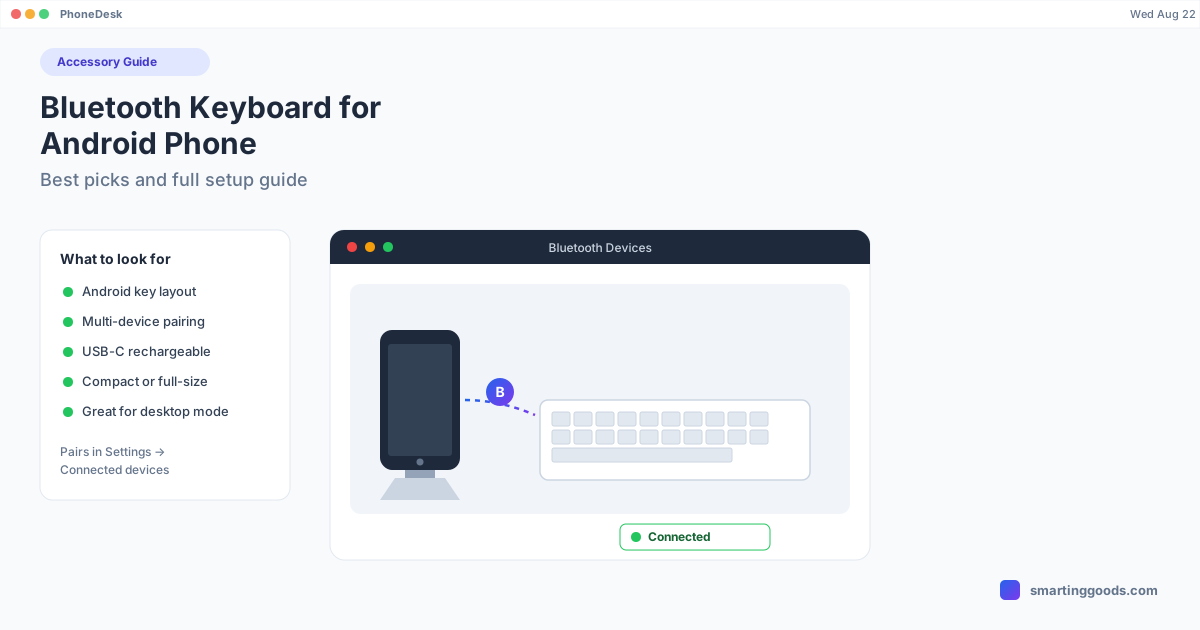
Bluetooth Keyboard for Android Phone: Best Picks and Full Setup
Typing on glass gets old fast. Here are the best Bluetooth keyboards for Android phones, exact pairing steps, and how a keyboard turns desktop mode into something you can actually work in.
Bluetooth Keyboard for Android Phone: Best Picks and Full Setup
If you're trying to use an Android phone for actual typing — long messages, emails, notes, or a desktop-mode session — the on-screen keyboard stops being viable fast. A Bluetooth keyboard for your Android phone fixes that instantly, and pairing one takes about 30 seconds once you know where the settings are hiding.
This guide covers what to actually look for in a keyboard, five picks that work well across price points, the exact pairing steps, and the handful of things that trip people up (wrong keyboard layout, key remapping, multi-device switching).
Why Use a Bluetooth Keyboard with Your Android Phone?
The obvious case is speed — typing on glass tops out around 40-50 words per minute for most people, while a physical keyboard comfortably does 60-80+. But the better reason is posture and workflow. Once you pair a keyboard, your phone stops being a thing you hunch over and starts being a thing you type at, the way you would a laptop.
This matters even more if you're running any kind of desktop mode — Samsung DEX, Pixel's desktop mode, or just mirroring your screen to a bigger display. A desktop-style interface with a touchscreen keyboard is an awkward combination; the whole point of desktop mode is that it behaves like a computer, and computers have keyboards. Add a Bluetooth keyboard and the experience clicks into place — you get real shortcuts (Cmd/Ctrl-style combos, tab-switching, arrow-key navigation) that the on-screen keyboard simply can't offer.
It's also just useful stand-alone: texting from across the room, typing on a phone mounted on a stand, or replacing a laptop entirely for lightweight writing.
What to Look for in a Bluetooth Keyboard for Android
Not every Bluetooth keyboard is built with Android in mind — a lot of the market is iPad-first, which matters more than you'd expect.
- Android-specific key layout. Keyboards designed for iOS often have a Command key where Android needs a Search or Meta key, and dedicated Home/Recent-apps/Back keys are a genuine convenience once you've used them. Look for "Android," "Windows," or "multi-OS" in the listing, not "for iPad."
- Multi-device pairing. Good keyboards pair with 2-3 devices and switch between them with a key combo (usually Fn + a number). Useful if you also use the same keyboard with a Mac or tablet.
- Battery life and charging. Bluetooth keyboards range from AAA-powered (lasts months) to internal rechargeable (weeks per charge, USB-C ideally). Either is fine — just check it's USB-C, not micro-USB, in 2026.
- Size and portability. Full-size keyboards have a number pad and dedicated arrow keys but don't travel well. Compact/60% keyboards fit in a bag but drop some keys behind Fn-layers.
- Backlighting, if you'll use it in low light — genuinely optional for most people, but nice for evening use.
Best Bluetooth Keyboards for Android Phones (2026)
Logitech K380 Multi-Device — The default recommendation for a reason: compact, reliable Bluetooth pairing across up to 3 devices with an Easy-Switch dial, AAA batteries that last around 2 years, and genuinely good key feel for the size. Works cleanly with Android's key layout out of the box.
Logitech MX Keys Mini — Same multi-device pairing as the K380 but with a much better typing feel (scissor-switch keys, slight key sculpting) and USB-C rechargeable battery. Costs more, worth it if you're typing for hours.
Anker 621 Bluetooth Keyboard — Budget-friendly, compact, and reliably pairs with Android without fuss. No backlighting or multi-device switching, but for under $30 it's hard to beat for a phone-only setup.
Samsung Smart Keyboard Trio 500 — Built with Samsung's own Android layout conventions in mind, which makes it a natural pick if you're specifically running Samsung DEX — the key mapping lines up cleanly with DEX's desktop shortcuts.
iClever Foldable Bluetooth Keyboard — Folds in half to pocket size, which matters if the keyboard needs to travel with the phone rather than live on a desk. Trades some key feel for portability — see the foldable-keyboard-specific guide below if portability is your main constraint.
How to Pair a Bluetooth Keyboard with an Android Phone
- Turn the keyboard on and put it in pairing mode (usually a dedicated Bluetooth button, or Fn + a numbered key for multi-device models — check the manual for your specific model).
- On the phone: Settings → Connected devices → Pair new device.
- The keyboard should appear in the list within a few seconds — tap it.
- If a pairing code appears on-screen, type it on the keyboard and press Enter to confirm.
- Once paired, test it in any text field — a notes app is the simplest sanity check.
If the keyboard doesn't show up: make sure it's actually in pairing mode (not just powered on — most keyboards need a long-press or a separate button), move it closer to the phone, and turn the phone's Bluetooth off and back on if it's been paired with something else recently.
Fixing Common Bluetooth Keyboard Problems on Android
Wrong layout / weird symbols where letters should be — Go to Settings → System → Languages & input → Physical keyboard and set the correct keyboard layout for your model. Android sometimes defaults to a generic QWERTY that doesn't match specialty keys.
Keyboard disconnects randomly — Usually a Bluetooth power-saving setting on the phone. Check Settings → Apps → [keyboard's Bluetooth service] → Battery and disable optimization for Bluetooth, or move the phone off aggressive battery-saver modes.
Modifier keys (Ctrl, Alt, Search) do nothing — Android's shortcut support depends on the app in focus; system-level shortcuts (switching apps, opening Recents) generally work everywhere, but app-specific shortcuts vary. This is normal, not a defect.
Can't remember which key combo switches devices — Check the keyboard's included quick-start card; it's almost always Fn + a number (1, 2, 3) held for a couple of seconds.
Bluetooth Keyboards and Desktop Mode
A Bluetooth keyboard is arguably the single most useful accessory for any Android desktop-mode setup — Samsung DEX, Pixel's desktop mode, or a Mac-connected session. Desktop interfaces are built around keyboard shortcuts and multi-window navigation in a way touchscreens weren't designed for, so the keyboard is what actually makes desktop mode feel like a desktop rather than an app running in a box.
If you're running desktop mode through PhoneDesk — which puts Samsung DEX or Pixel desktop mode into a real resizable window on your Mac — a Bluetooth keyboard paired directly to the phone works exactly as it would on any desktop: the input goes straight into the desktop-mode session, no extra setup on the Mac side required. For the companion mouse setup, see our complete Bluetooth keyboard and mouse guide. If you're specifically on Samsung DEX, our DEX-specific keyboard picks go deeper on shortcut compatibility.
Frequently Asked Questions
Q: Can any Bluetooth keyboard work with an Android phone? A: Most modern Bluetooth keyboards will pair with Android, but keyboards marketed specifically "for iPad" sometimes have a key layout (Command key placement, missing Android-specific keys) that doesn't map as cleanly. Look for "multi-OS" or "Android" in the product listing for the smoothest experience.
Q: Do I need a dongle, or is Bluetooth enough? A: Bluetooth is enough — Android phones don't support USB keyboard dongles the way Windows PCs do, so stick to Bluetooth (or a USB-C wired keyboard if you prefer a direct connection).
Q: Will a Bluetooth keyboard drain my phone's battery fast? A: Bluetooth itself uses minimal power on the phone side; the keyboard has its own battery. The bigger battery drain, if any, comes from keeping the screen on during long typing sessions.
Q: Does PhoneDesk require a specific keyboard? A: No — PhoneDesk drives desktop mode as a window on your Mac, and any Bluetooth (or wired) keyboard paired to your Android phone works normally inside that session. PhoneDesk doesn't manage keyboard pairing itself; that's handled entirely by Android's own Bluetooth settings.
The Bottom Line
A decent Bluetooth keyboard turns an Android phone from a device you tap at into one you can actually type on — and it's close to essential if you're running any form of desktop mode. Start with the Logitech K380 if you want the safest, most tested pick, or go compact with the iClever foldable if portability matters more than key feel.
If you're building out a full phone-as-desktop setup — keyboard, mouse, and a real windowed desktop mode on your Mac — see the complete accessory kit guide and PhoneDesk, $25 one-time, no subscription.