The Phone-as-Desktop Starter Guide: Everything to Begin
The starting point for using your Android phone as a second screen or desktop workstation next to your Mac — what it covers, which setup fits your situation, and where to go next.
The Phone-as-Desktop Starter Guide: Everything You Need to Begin
Using your Android phone as a real second screen or a desktop-mode workstation next to your Mac isn't one single thing — it's a set of related capabilities (desktop mode, second-monitor use, file transfer, screen mirroring) that different people end up combining in different ways depending on what they're actually trying to do. A student wants a bigger reading surface. A freelancer wants client chat visible without buying a monitor. A traveler wants to leave a portable monitor at home.
This guide is the starting point that ties all of that together — what phone-as-desktop actually means, which piece you need for your situation, and where to go next for a full setup walkthrough.
What "Phone as Desktop" Actually Covers
There are a few distinct things that get lumped under this idea, and it's worth knowing the difference before you pick a setup:
Desktop mode is Android running a genuinely different, mouse-and-keyboard-oriented interface — Samsung DEX on Galaxy devices, or the built-in desktop mode on newer Pixels. It's not your phone's normal touch interface shrunk down; it's a real windowed desktop environment the phone renders specifically for this purpose. Normally shown on a TV or monitor via a dock — PhoneDesk instead puts that session in a resizable window on your Mac.
Phone as a second monitor flips the direction: instead of the phone's own interface being displayed somewhere else, your Mac creates a real, additional display and streams it to the phone, which renders it as an actual arrangeable second screen. You drag windows onto it like you would any other monitor.
File and text transfer is the plumbing between the two devices — sending a photo, PDF, or clipboard text from phone to Mac without cables, MTP mounting, or emailing yourself things.
Screen mirroring is the simplest of the four: just seeing your phone's normal touch-interface screen on your Mac, useful for demos or basic viewing rather than a real workflow.
For a deeper technical breakdown of desktop mode specifically — DEX vs. Pixel vs. Android's native support — see our Android desktop mode explained guide.
Picking the Setup That Fits Your Situation
Not everyone needs all four capabilities, and starting with the one that matches your actual use case beats trying to set up everything at once.
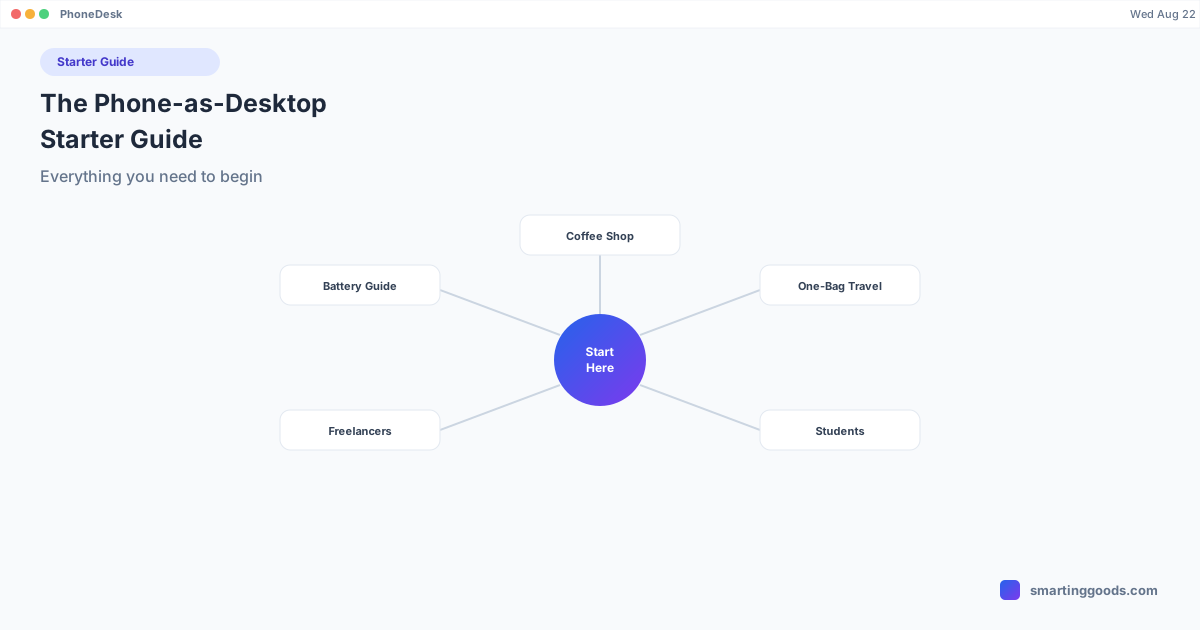
If you're working from cafes, co-working spaces, or anywhere away from a fixed desk — you probably want the second-monitor use case most: a phone window next to your Mac for messaging and light tasks while the Mac handles the real work. Start with Working From a Coffee Shop With Just Your Phone and a Mac.
If you're trying to travel lighter — packing a portable monitor, a tablet, and a separate transfer cable adds up fast. See The One-Bag Travel Setup: Phone, Mac, and Nothing Else for what this setup replaces and what it doesn't.
If you're a student trying to avoid buying a monitor — reading, note-taking, and PDF annotation all benefit from a second screen, and your phone can be that screen. See Students: Turn Your Android Phone Into a Study Desktop.
If you're freelancing and watching every dollar of overhead — a phone-as-second-screen setup for client comms costs a one-time $25 instead of a $150+ monitor purchase. See Freelancers: A Zero-Extra-Hardware Desk Setup Using Your Phone.
If you're worried about battery life before committing to any of this — it's a fair concern, and worth understanding before you build a workflow around it. See How Much Battery Does Desktop Mode Use? for the honest breakdown.
If you want the full day-to-day workflow view — moving files, using notifications, and getting the most out of pairing your Android phone with your Mac generally — see our complete Android + Mac workflow guide.
Setting Expectations Before You Start
Every post in this cluster makes the same honest point, and it's worth stating plainly here too: none of this is a laptop replacement. A phone's chipset and screen are built for phone-sized tasks. Desktop mode and second-monitor use are genuinely useful for communication, notes, reading, and light work — they are not a substitute for a real second monitor's screen area or a Mac's compute for heavy work like video editing, large codebases, or serious spreadsheet modeling.
The value here is that you're not buying new hardware to get a meaningfully better setup than "one cramped laptop screen." You already own the phone. The gap is software that makes the phone-Mac pairing actually usable — which is the whole reason PhoneDesk exists.
Getting Started: The Actual Setup
Regardless of which use case you start with, the initial setup is the same and only needs to happen once:
- Enable Developer options on the phone — Settings → About phone → tap Build number seven times.
- Turn on USB debugging — Settings → System → Developer options → enable USB debugging.
- Connect once over USB or pair wirelessly with a QR code — no drivers to install on the Mac side.
- Click Desktop Mode or Use as Second Display from the menu bar — one click, and you're running.
After that first connection, it's genuinely one click going forward, over USB or Wi-Fi, whichever you prefer for that session.
How PhoneDesk Ties This All Together
PhoneDesk is a macOS menu bar app that covers all four capabilities described above in one $25 one-time purchase: it drives Samsung DEX or Pixel desktop mode as a window on your Mac, turns your phone into a real second monitor by streaming a Mac-created display to it, sends files and text between phone and Mac wirelessly, and handles basic screen mirroring — all bundled with adb and scrcpy under the hood, so there's nothing extra to install.
No subscription, no Dock icon cluttering your app switcher, just a menu bar dropdown per connected device. If it's not right for you, there's a 14-day no-questions refund.
See the full feature list on the PhoneDesk homepage →
Frequently Asked Questions
Q: Do I need to read all five workflow guides, or just one? A: Just the one that matches your situation. They cover overlapping ground — coffee shop work, travel, studying, freelancing, and battery management — but each stands alone. This pillar page exists to point you at the right one rather than making you read all of them.
Q: What's the difference between desktop mode and using my phone as a second monitor? A: Desktop mode shows your phone's own apps (Slack, notes, browser) running in Android's dedicated desktop interface, windowed on your Mac. Phone-as-second-monitor is the opposite direction — your Mac creates an extra display and streams it to the phone, so you can drag any Mac window onto the phone screen like a normal monitor. Both are covered by PhoneDesk; which one you use depends on whether you want phone apps or Mac windows on that second screen.
Q: Is this only for Samsung and Pixel phones? A: Native desktop mode (DEX, Pixel's built-in version) is specific to those devices. The second-monitor and screen-mirroring features work more broadly with any Android phone that has USB debugging enabled, since they don't depend on a manufacturer's desktop-mode implementation.
Q: How long does setup actually take? A: A few minutes for the one-time developer-options and USB-debugging steps, then it's a single click from the menu bar for every session after that.
The Bottom Line
Phone-as-desktop isn't a single feature — it's a toolkit, and different people reach for different pieces of it. Whether you're trying to work from a cafe, pack lighter for a trip, study without buying a monitor, or run a freelance business without extra overhead, the starting point is the same: a phone and a Mac you already own, and software that connects them properly.
See the full feature list and get started → — $25 one-time, no subscription, 14-day refund if it's not for you.