Best Bluetooth Keyboard for Samsung DEX in 2026
Samsung DEX is built around keyboard shortcuts. Here are the Bluetooth keyboards that actually work with DEX's Windows-style layout and window-snapping shortcuts.
Best Bluetooth Keyboard for Samsung DEX in 2026
Samsung DEX turns a Galaxy phone into a desktop interface — windows, a taskbar, drag-and-drop — but it's built around keyboard shortcuts the same way any real desktop is. Run DEX with just the touchscreen or an on-screen keyboard and you're fighting the interface instead of using it. The right Bluetooth keyboard is what makes DEX feel like the desktop it's trying to be.
This is a focused list — not a general "best Bluetooth keyboards" roundup, but specifically what works well with DEX's key layout, shortcut conventions, and multi-window navigation.
What Makes a Keyboard Good for Samsung DEX Specifically
DEX supports a set of desktop-style keyboard shortcuts that regular Android doesn't really use — window snapping, app switching, and multitasking shortcuts modeled loosely on Windows conventions. A few things matter more here than in general Android typing:
- A Windows-style key layout. DEX's shortcuts (Windows key + arrow to snap windows, Alt+Tab to switch apps, Ctrl+Shift+Esc-style combos) map cleanly onto a keyboard with a Windows/Search key in the standard spot. iPad-first keyboards with a Command key in that position require mental remapping every time.
- Dedicated Home and Recent Apps keys, if the keyboard has them — genuinely useful shortcuts in DEX for jumping back to the desktop or switching between open windows without reaching for the touchscreen.
- Reliable reconnection. DEX sessions often start and stop as you plug in and out of a monitor or dock — a keyboard that reconnects instantly rather than requiring re-pairing saves real friction.
- Multi-device switching, if you also use the same keyboard with a laptop or a second phone for testing.
Best Bluetooth Keyboards for Samsung DEX
Samsung Smart Keyboard Trio 500 — The obvious first pick because Samsung designed it around One UI and DEX's own conventions — the key layout and shortcut mapping line up with what DEX expects out of the box, with zero remapping. If you want the least amount of setup friction, start here.
Logitech K380 Multi-Device — Not DEX-specific, but its standard Windows-layout keys (Search/Menu key in the expected spot) work cleanly with DEX's shortcuts, and the Easy-Switch dial is genuinely useful if you're bouncing between DEX and a laptop during the same session. This is the safer all-around pick if you don't want a Samsung-branded accessory specifically.
Logitech MX Keys Mini — The upgrade pick for anyone running longer DEX work sessions — better key feel, USB-C rechargeable, and the same reliable multi-device switching as the K380. Costs more but earns it if DEX is a daily driver rather than an occasional tool.
Samsung Galaxy Book Keyboard Cover (for compatible Tab models) — If you're running DEX on a Galaxy Tab rather than a phone, Samsung's own book-cover keyboards are purpose-built for the form factor and pair instantly with One UI's DEX mode.
Setting a Bluetooth Keyboard Up for DEX
- Pair the keyboard normally through Settings → Connected devices → Pair new device before entering DEX — it's simpler to confirm the pairing works in regular Android first.
- Enter DEX mode (swipe down from the notification shade and tap the DEX icon, or connect to a display/dock if using wired DEX).
- The keyboard should carry over automatically — DEX doesn't require re-pairing accessories that are already connected to the phone.
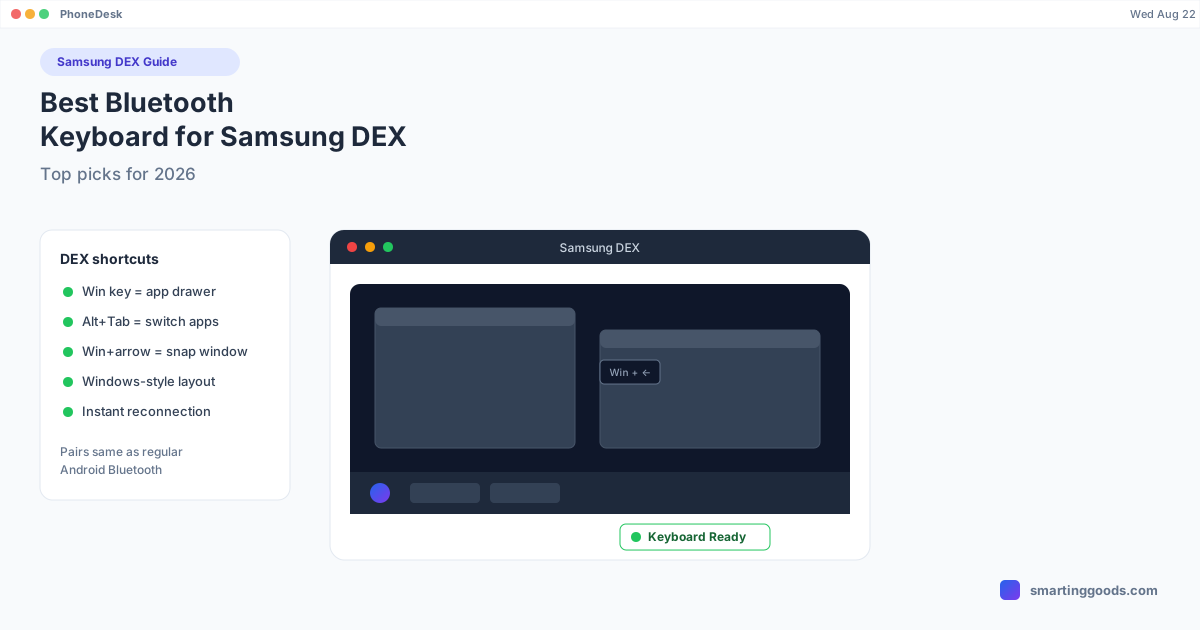
- Test the core shortcuts: Windows key opens the app drawer, Alt+Tab switches windows, and Windows+arrow keys snap windows to half the screen.
If shortcuts don't respond, check that the keyboard's OS switch (if it has one) is set to "Windows/Android," not "Mac/iOS" — a lot of multi-device keyboards have a physical or software toggle that remaps modifier keys, and getting it wrong is the most common cause of "my keyboard shortcuts don't work in DEX."
Common DEX Keyboard Shortcuts Worth Knowing
- Windows key — opens the DEX app drawer/start menu equivalent
- Alt + Tab — cycles through open app windows
- Windows + Left/Right arrow — snaps the active window to half the screen
- Ctrl + C / Ctrl + V — copy and paste, same as any desktop
- Windows + D — minimizes all windows to show the desktop (support varies by DEX version)
Using a DEX Keyboard with PhoneDesk
If you're running Samsung DEX as a window on your Mac through PhoneDesk, the keyboard setup doesn't change at all — pair the Bluetooth keyboard to the phone itself (not to the Mac), and it feeds straight into the DEX session running inside PhoneDesk's window, shortcuts included. PhoneDesk's job is putting DEX in a real resizable window on your Mac over USB or Wi-Fi; the keyboard is entirely a phone-side Bluetooth pairing, same as it would be with DEX on a monitor. For the full DEX-on-Mac walkthrough, see the Samsung DEX for Mac setup guide. And if you're also adding a mouse, our Bluetooth keyboard and mouse guide covers pairing both together.
Frequently Asked Questions
Q: Do I need a special "DEX keyboard," or will any Bluetooth keyboard work? A: Any Bluetooth keyboard will type in DEX, but keyboards with a standard Windows-style key layout (not iPad-optimized) make DEX's built-in shortcuts (window snapping, app switching) work without remapping. Samsung's own Trio 500 is tuned for this specifically.
Q: Can I use the same keyboard for DEX and my regular phone use? A: Yes — pairing is at the phone level, not the DEX-session level, so a keyboard paired once works identically whether you're in DEX or regular Android.
Q: Does DEX support keyboard shortcuts for switching between multiple windows? A: Yes, Alt+Tab cycles through open DEX windows, similar to Windows and macOS conventions.
Q: Does PhoneDesk change how DEX keyboard shortcuts work? A: No — PhoneDesk displays the DEX session as a window on your Mac, but the keyboard is paired directly to the phone and DEX handles the shortcuts exactly as it would connected to a monitor. There's nothing to configure on the Mac side for keyboard input.
The Bottom Line
For Samsung DEX specifically, Samsung's own Trio 500 is the path of least resistance, and the Logitech K380 is the best non-Samsung alternative if you want multi-device flexibility. Either way, a Windows-style key layout is the detail that actually matters — it's what makes DEX's shortcuts work the way they're supposed to.
Running DEX as a window on your Mac? See the Samsung DEX for Mac guide and PhoneDesk — $25 one-time, no subscription, 14-day refund.