AirPods with an Android Phone: What Works and What Doesn't
AirPods pair fine with Android over Bluetooth, but most of the Apple-exclusive magic disappears. Here's an honest breakdown of what still works and what quietly breaks.
AirPods with an Android Phone: What Works and What Doesn't
AirPods pair with an Android phone just fine over standard Bluetooth — that part isn't in question. What's less obvious is how much of the "Apple experience" disappears the moment you leave iOS. This guide covers exactly what works, what quietly breaks, and whether it's worth using AirPods with Android at all versus buying something built for the platform.
The Short Answer
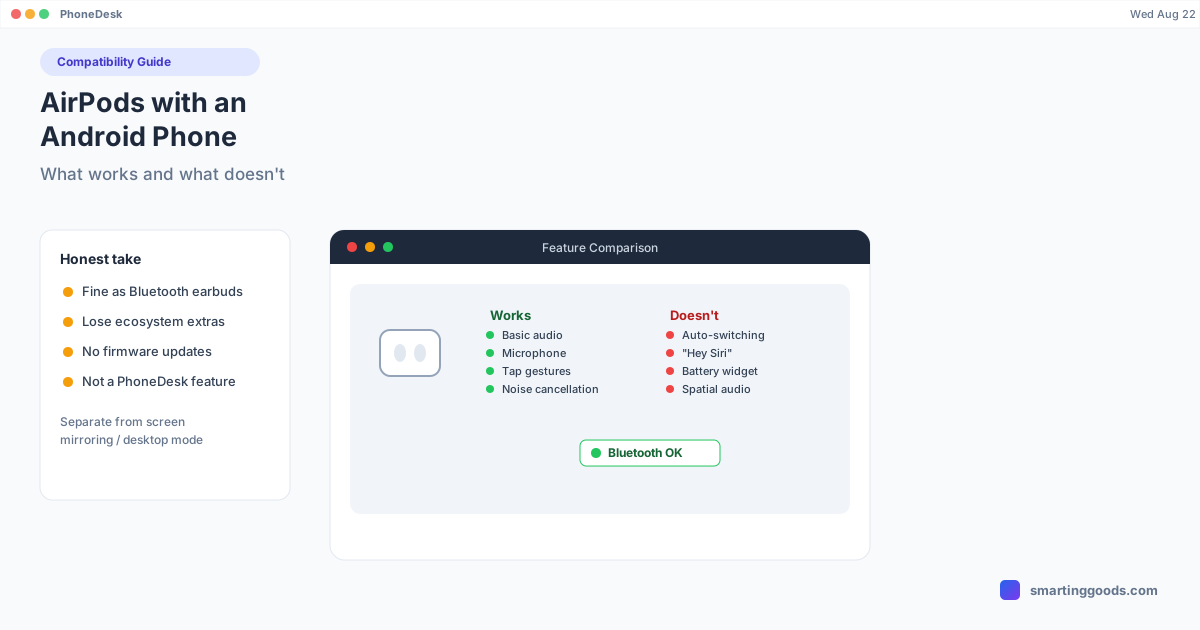
AirPods work as a normal Bluetooth headset on Android: audio in, microphone out, basic play/pause and skip controls via the physical tap or stem gestures (these are hardware-level, so they still work). Everything Apple-specific — automatic device switching, spatial audio, "Hey Siri," battery level per earbud, firmware updates, and Find My — either doesn't work or requires a workaround. If you already own AirPods, they're a perfectly fine pair of Bluetooth earbuds on Android. If you're buying earbuds specifically for an Android phone, there are better options built for the ecosystem.
What Works
Standard Bluetooth audio. Music, calls, podcasts, video sound — all fine. AirPods use standard Bluetooth audio codecs (AAC, primarily) which Android supports natively.
Microphone. Calls and voice input work through the AirPods' mic, same as any Bluetooth headset.
Basic gesture controls. Double-tap or single-press-and-hold gestures (depending on your AirPods generation) for play/pause, skip, and answering calls are handled in the AirPods' own hardware/firmware, so they work regardless of what phone you're connected to.
Noise cancellation (AirPods Pro/Max) — this is processed on the earbuds themselves, not the phone, so ANC and Transparency mode toggling via the physical controls still functions.
Pairing itself — standard Bluetooth pairing via Settings → Connected devices → Pair new device, holding the button on the back of the case to enter pairing mode.
What Doesn't Work
Automatic device switching. On Apple devices signed into the same iCloud account, AirPods jump between an iPhone, iPad, and Mac automatically based on what you're using. That's powered by Apple's proprietary W1/H1/H2 chip protocol and iCloud account linking — Android has no equivalent, so you'll manually disconnect and reconnect when switching devices.
"Hey Siri." Siri is an Apple-only assistant integration baked into the chip firmware; Android has no way to trigger it, and there's no equivalent hook to redirect the gesture to Google Assistant or Gemini.
Battery level per earbud. iOS shows individual battery percentages for each earbud and the case via a proprietary Bluetooth profile extension. Android will show a generic "connected" status at best — some third-party apps attempt to read AirPods battery data but results are inconsistent and unofficial.
Spatial audio / head tracking. This feature depends on tight OS-level integration between the AirPods' motion sensors and Apple's spatial audio rendering pipeline. It's not available on Android at all.
Firmware updates. AirPods firmware updates only happen automatically when paired with an Apple device. If you exclusively use AirPods with Android, they'll stay on whatever firmware version they had when last connected to an iPhone or Mac.
Find My. AirPods' location tracking is tied to Apple's Find My network, which has no Android counterpart for AirPods specifically.
Ear detection (auto-pause). Some AirPods models pause audio automatically when removed from your ear — this is inconsistent on Android and often doesn't work at all, since it relies on the same proprietary protocol extensions as battery reporting.
Pairing AirPods with an Android Phone
- Open the AirPods case with the earbuds inside.
- Press and hold the small button on the back of the case until the LED flashes white.
- On the Android phone: Settings → Connected devices → Pair new device.
- Select "AirPods" (or the model name) from the list.
- That's it — no app or extra software required for basic pairing.
If pairing fails, make sure the case is charged (a dead case can prevent the earbuds from entering pairing mode) and that you're holding the button long enough — usually 3-5 seconds until the LED changes behavior.
Should You Buy AirPods for an Android Phone?
If you already own a pair — from a previous iPhone, a gift, whatever — there's no reason not to use them on Android. Audio quality and call quality are unaffected; you're just not getting the extras.
If you're buying new and know you'll be on Android long-term, dedicated Android-first (or truly cross-platform) earbuds tend to be a better value, since you're not paying a premium for ecosystem features you can't use. Look at options with active companion apps for Android — Sony, Samsung Galaxy Buds, Google Pixel Buds, or Nothing Ear all ship with proper Android apps that expose battery levels, EQ settings, and firmware updates the way AirPods do on iOS.
A Note on What This Guide Is (and Isn't)
This is a general Bluetooth-audio compatibility guide — Android's handling of AirPods as an audio accessory is a completely separate subsystem from anything related to screen mirroring, desktop mode, or file transfer between an Android phone and a Mac. If you found this page while researching PhoneDesk, it's worth being clear: PhoneDesk doesn't manage Bluetooth audio devices, pair headphones, or touch anything related to AirPods. Its function is putting Samsung DEX or Pixel desktop mode into a window on your Mac, turning your phone into a second monitor, and sending files across — audio routing is handled entirely by Android's own Bluetooth stack, independent of any of that.
Frequently Asked Questions
Q: Will AirPods sound different on Android vs. iPhone? A: Audio quality itself is essentially identical — both use the same Bluetooth AAC codec — but you lose Apple's adaptive EQ and spatial audio processing, which are software features layered on top rather than changes to the raw audio stream.
Q: Can I check my AirPods' battery level on Android? A: Not officially. A few third-party apps attempt to read it using reverse-engineered Bluetooth data, but Apple doesn't expose this to Android, so results vary and aren't guaranteed to keep working after firmware or Android updates.
Q: Do AirPods work with Google Assistant instead of Siri? A: Not automatically via the AirPods gesture — the double-tap/press gesture is hardwired to trigger Siri specifically in the earbuds' firmware. You can still summon Google Assistant normally through the phone (button, voice trigger, or app), just not through the AirPods' own controls.
Q: Does PhoneDesk let me manage AirPods or other Bluetooth audio devices from my Mac? A: No — PhoneDesk is focused on screen mirroring, desktop mode, and file transfer between an Android phone and a Mac. Bluetooth audio devices like AirPods pair directly to the phone through Android's own Bluetooth settings and aren't something PhoneDesk interacts with.
The Bottom Line
AirPods work on Android as a solid pair of Bluetooth earbuds — audio and calls are fine, gestures for play/pause still function. What you lose is everything that depends on Apple's proprietary chip-to-OS integration: auto-switching, Siri, per-earbud battery, spatial audio, and Find My. If you already have them, use them without hesitation. If you're buying new for an Android-only setup, a pair built with Android in mind will get you more of what you're actually paying for.
Looking for how to actually turn your Android phone into a desktop on your Mac — screen mirroring, DEX, second-monitor mode, file transfer? That's what PhoneDesk does, separate from anything audio-related covered here.