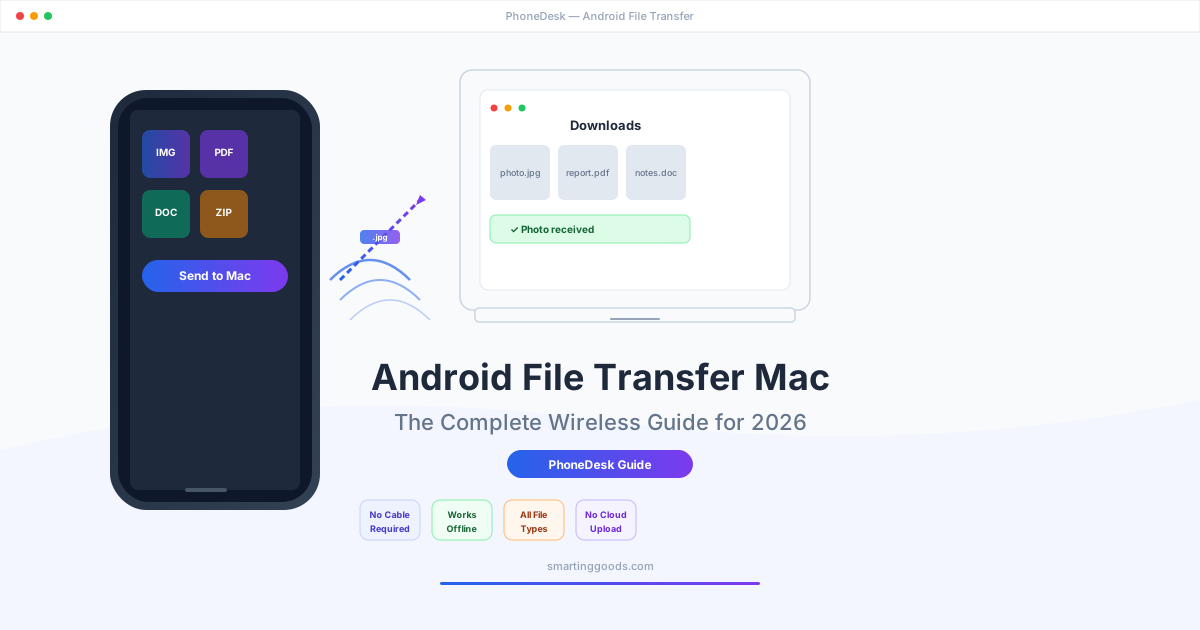
Android File Transfer Mac: The Complete Wireless Guide for 2026
Tired of Android File Transfer failing on your Mac? Here's every wireless method to transfer files from Android to Mac in 2026 — Nearby Share, LocalSend, Snapdrop, cloud services, and PhoneDesk for offline, no-subscription transfers.
If you own an Android phone and a Mac, you already know the pain: plugging in a USB cable, seeing "Android File Transfer" either not mount, disconnect mid-copy, or freeze entirely. That MTP (Media Transfer Protocol) connection has been flaky on macOS for years — and in 2026, it's still not fixed.
Even when it works, Android File Transfer is USB-only, slow to browse, drops connections when your Mac goes to sleep, and has no way to send a single photo from the share sheet. It feels like a relic from 2012 because it basically is.
Fortunately, we now live in 2026 and wireless file transfer from Android to Mac has gotten genuinely good. There are options that skip the cable entirely, work over your local network or direct peer-to-peer connection, and in some cases don't even require installing software on both devices.
This guide covers every viable wireless method for transferring files from Android to Mac in 2026 — including a head-to-head comparison to help you pick the one that fits your workflow.
Why Go Wireless for Android-to-Mac File Transfer?
Skipping the USB cable isn't just about convenience — it solves the most common frustrations Android users face on macOS.
MTP is fundamentally unstable on macOS. Apple never built native MTP support into Finder, and Google's Android File Transfer app hasn't been meaningfully updated in years. The connection drops when your Mac sleeps, when your USB hub breathes, or seemingly at random. Force-quitting and reconnecting mid-transfer is a ritual every Android-on-Mac user knows.
Wireless transfer sidesteps the entire MTP layer. Instead of mounting your phone as a drive over USB, wireless methods work over Wi-Fi (or a direct local network) — the same network your Mac and phone already use for everything else. Files stream directly between devices without a protocol bridge that can fail.
You're never stuck without a cable. The moment you sit down at your Mac and want a photo off your phone, you can send it without hunting for a cable that supports data (not all USB-C cables do, which is a whole other problem).
This matters for:
- Photo and video transfers after a shoot
- Quick document sharing between work devices
- Sending app downloads, APKs, or reference files
- Getting a screenshot or screen recording off your phone instantly
Method 1: PhoneDesk — File Transfer Built into a Menu Bar Utility
PhoneDesk started as a way to drive Samsung DEX and Pixel desktop mode on a Mac, but its file transfer feature has quietly become the fastest way to move single files from Android to Mac — especially for people who already use PhoneDesk for desktop mode or second-display.
It works through an Android companion app that pairs with PhoneDesk on your Mac over USB or Wi-Fi. Once paired, you get three ways to send files:
- Share sheet integration — share from any Android app and pick "Send to Mac" from the share menu
- Companion app file picker — browse and select files directly
- Drag and drop — during a desktop mode session, drop files onto the companion window
Files land in your Mac's Downloads folder with a notification. No mount, no eject, no MTP.
The real standout: PhoneDesk works entirely offline. It uses your local USB or Wi-Fi connection with no cloud relay, no account, and no subscription. Your files never touch the internet.
PhoneDesk is a $25 one-time purchase — lifetime license, updates included, with a 14-day no-questions refund. It also gives you Samsung DEX in a macOS window and the ability to use your phone as a real second monitor, so file transfer is bundled into a tool that does more than just ship files.
PhoneDesk file transfer guide →
Method 2: Quick Share (Formerly Nearby Share) via NearDrop
Google's Quick Share (previously called Nearby Share) is the Android equivalent of AirDrop — a peer-to-peer proximity-based transfer using Bluetooth for discovery and Wi-Fi for the actual transfer. It's built into every modern Android phone.
The problem? Google never released a Quick Share app for macOS. But the open-source community filled the gap with NearDrop — an unofficial Quick Share receiver for macOS that lives in your menu bar.
How to set it up on Mac:
- Download NearDrop from GitHub
- Extract the ZIP and move NearDrop to your Applications folder
- Open it (you may need to allow it in System Settings → Privacy & Security)
- It sits in your menu bar — Android devices will discover your Mac as a Quick Share target
The catch: NearDrop is one-directional only — Android-to-Mac. You can't send files from your Mac back to Android via Quick Share. It also requires the app to be running and visible on the local network, which can be a privacy concern since your Mac is visible to any Quick Share device nearby.
Best for: One-off Quick Share transfers when you're already in the Android share flow.
Method 3: LocalSend — Open-Source, Cross-Platform, No Internet Required
LocalSend is a free, open-source file transfer app that works over your local network. It's available for Android, macOS, Windows, Linux, and iOS — truly cross-platform with no cloud dependency.
How it works:
- Install LocalSend on both your Android phone and your Mac
- Both devices discover each other automatically on the same Wi-Fi network
- Select a file, pick the target device, and the transfer happens locally over Wi-Fi
Why people like it:
- Completely free and open source (MIT license)
- No account, no cloud, no data leaves your network
- Works offline as long as both devices are on the same LAN
- Supports folders and multiple files
- Native apps for both platforms (not a web wrapper)
The trade-off: you need to install an app on both devices, and discovery can occasionally fail on segmented networks (guest Wi-Fi, enterprise networks, or networks with client isolation).
Best for: Regular transfers between your own devices where you don't mind installing apps.
Method 4: Snapdrop / PairDrop — Browser-Based, No Installation
Snapdrop and its maintained fork PairDrop are browser-based file transfer tools. Open the same URL (pairdrop.net) on both your Android phone and your Mac, and the two browser tabs discover each other using WebRTC peer-to-peer technology.
How it works:
- Open pairdrop.net in Chrome on your Mac
- Open pairdrop.net in Chrome on your Android phone
- Devices appear in the browser UI — drag a file onto your Mac's browser tab from the phone
The appeal: zero installation. No apps to download, no setup beyond opening a URL. It works on any device with a modern browser.
The limitations:
- Both devices must be on the same local network
- Browser-based, so large transfers can be sluggish or fail if the tab refreshes or loses focus
- No mobile share sheet integration — you have to open the browser, navigate to the site, and share via the web UI
- Not reliable for important transfers
Best for: Quick, casual transfers when you don't have or want to install an app.
Method 5: Cloud Services (Google Drive, Dropbox, OneDrive)
Cloud storage is the universal fallback. Upload from your Android phone and download on your Mac. It works everywhere, with any device, across any distance.
Google Drive is the most natural for Android users — it's pre-installed on most phones with Google Photos built in for automatic photo backup. Dropbox and OneDrive work the same way.
The convenience trade-off:
- Requires internet access on both devices
- Upload speeds depend on your home/office connection
- Large files take time to upload before they can be downloaded
- Files sit on someone else's server — a privacy consideration for sensitive documents
- If you don't pay for storage, you'll hit free-tier limits quickly (Google Drive: 15 GB shared across Gmail, Photos, and Drive)
Best for: When devices aren't on the same network, or for auto-backup of photos.
Comparison: All Wireless Methods Side by Side
| Method | Installation | Offline | Speed | File Size | Two-Way | Cost |
|---|---|---|---|---|---|---|
| PhoneDesk | Companion app on phone only | Yes | Fast (Wi-Fi/USB) | No limit | No (phone→Mac only) | $25 one-time |
| NearDrop (Quick Share) | App on Mac only | Yes | Fast (Wi-Fi Direct) | No limit | No (phone→Mac only) | Free |
| LocalSend | App on both devices | Yes | Moderate-Fast | No limit | Yes | Free |
| Snapdrop / PairDrop | None (browser) | No (needs LAN) | Moderate | Limited by browser | Yes | Free |
| Google Drive / Cloud | None (browser or app) | No (needs internet) | Slow (upload+download) | Storage limit | Yes | Free (15 GB) or paid |
Key takeaways from the table:
- If you want offline, no subscription, and the fastest workflow with share-sheet integration — PhoneDesk wins
- If you want free and open source with bidirectional transfers — LocalSend is your best bet
- If you want zero installation and don't mind browser limitations — PairDrop works in a pinch
- If you want Quick Share compatibility — NearDrop adds that to macOS
- If you're already paying for cloud storage and want universal access — cloud services are a viable fallback
Which Method Should You Use?
For everyday file transfers — several times a week, photos, documents, downloads — PhoneDesk or LocalSend will save you the most time. PhoneDesk is faster to use (share sheet integration, no app-to-app switching) while LocalSend is free and bidirectional.
For occasional transfers — once or twice a month — PairDrop in a browser tab requires nothing to install.
For Quick Share users — if you already send files between Android devices using Quick Share, NearDrop extends that to your Mac at no cost.
For backup and multi-device access — Google Drive or Dropbox handles the "I need this file on every device" use case that peer-to-peer tools don't solve.
For the Samsung DEX / Pixel desktop mode user — if you already run PhoneDesk for desktop mode or second-display, the file transfer is an included feature that costs nothing extra. It's already running on your Mac.
Frequently Asked Questions
Q: Is Android File Transfer still the best option in 2026? A: No. Android File Transfer hasn't been substantially updated in years, and it's notoriously unreliable on modern macOS versions. Wireless methods (PhoneDesk, LocalSend, PairDrop) are faster, more reliable, and don't require a cable.
Q: Can I use AirDrop to send files from Android to Mac? A: No. AirDrop is Apple-only (iOS/macOS). There's no official way to receive AirDrop transfers on Android. NearDrop provides a Quick Share receiver for Mac (Android's equivalent), but it doesn't work with Apple's AirDrop protocol.
Q: Does PhoneDesk transfer files over Wi-Fi or does it need a cable? A: Both. You can pair over USB once and switch to Wi-Fi, or pair wirelessly from the start using Android's Wireless debugging feature. File transfer works identically over either connection.
Q: Are wireless transfers slower than USB? A: For small to medium files (photos, documents, APKs), Wi-Fi transfers are comparable to USB 2.0 speeds — often fast enough that you won't notice the difference. For 4K video files or large folder transfers, USB is still faster. But wireless wins on convenience: you don't need to find a cable, plug in, wait for mounting, or deal with disconnects.
Q: Is it safe to send files wirelessly? A: Local methods (PhoneDesk, LocalSend, NearDrop) transfer files directly between devices over your local network — files never leave your home or office. Cloud services store files on third-party servers, which may be a concern for sensitive documents. Browser-based tools like PairDrop use WebRTC peer-to-peer encryption, but you should only use them on trusted networks.
Q: What if I need to send files from my Mac to my Android phone? A: PhoneDesk's file transfer is one-directional (phone to Mac). LocalSend and PairDrop both support two-way transfers. Cloud services also work both ways. For Mac-to-Android, use LocalSend, PairDrop, or a cloud drive.
Q: Does PhoneDesk have a file size limit? A: No hard limit. Large files take longer over Wi-Fi but PhoneDesk streams them through the same connection used for desktop mode and second display.
Bottom Line
Wireless file transfer from Android to Mac is no longer a compromise. In 2026, you have genuinely good options that skip the broken MTP cable experience entirely.
If you want the tightest integration — share-sheet-to-Downloads in one tap, no cloud upload, works offline, no subscription — PhoneDesk at $25 one-time is the standout. It bundles file transfer with desktop mode and second-display, making it a no-brainer if you already use those features.
If free and open source matter most, LocalSend gives you bidirectional local transfers with no cost. If you need zero installation, PairDrop works in a browser tab. And if Quick Share compatibility is essential, NearDrop brings it to macOS.
Pick the method that fits your workflow and never deal with Android File Transfer again.
Get PhoneDesk — $25 one-time, lifetime license, 14-day refund →
Send files without a cable
Android to Mac in one tap — no MTP, no cable, no disconnects.
Send files without a cable