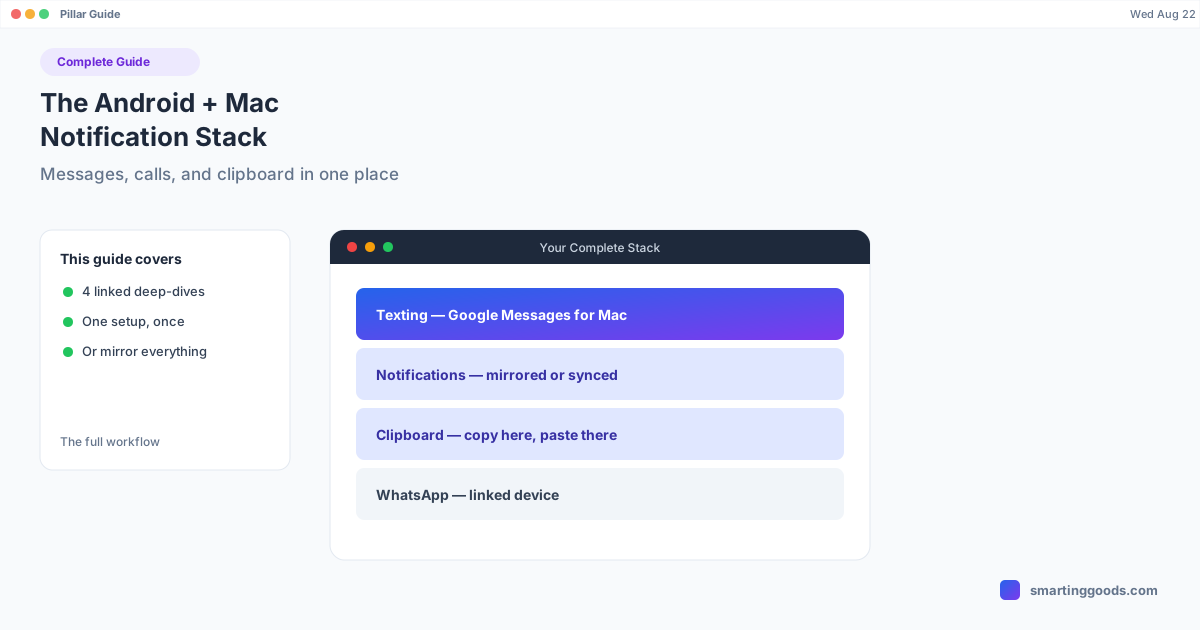
The Android + Mac Notification Stack: Full Guide
Texting, notifications, clipboard, and WhatsApp on a Mac from an Android phone each need a different tool. Here's the full stack, and when to just mirror the whole screen instead.
The Android + Mac Notification Stack: Messages, Calls, and Clipboard in One Place
If you've spent any time trying to make an Android phone and a Mac work together the way an iPhone and Mac do, you've probably discovered the truth: there's no single feature that does it. Apple's Continuity is one system built by one company. The Android + Mac equivalent is four or five separate tools, each covering a slice of the problem, that you have to stitch together yourself.
This is the map of that stack — what handles texting, what handles notifications broadly, what handles clipboard, what handles WhatsApp specifically — and how they fit together instead of overlapping.
Why This Takes Multiple Tools Instead of One
Apple controls iOS and macOS, so iMessage, notification mirroring, Handoff, and Universal Clipboard are all built into the operating systems themselves — no app to install, no account to link beyond your Apple ID. Google and Apple don't have that relationship. Every piece of the Android-to-Mac bridge is either a narrow first-party tool scoped to one job, or a third-party app filling a gap neither company has addressed. That's not a knock on Android — it's just a structural fact about two companies not building for each other. Once you know that, the "why do I need four apps" frustration makes more sense: you're not missing one setting, you're assembling something Apple ships pre-built.
Piece 1: Texting — Google Messages for Web
For plain SMS and RCS texting, Google's own Messages for web is the right starting point for almost everyone. Pair your phone via QR code at messages.google.com/web, and you get a browser-based texting client with RCS features (read receipts, typing indicators, high-res media) when both sides support it. It's free, official, and covers the single most common request — "let me text from my Mac" — without installing anything extra.
Its limitation is scope: it only handles Google Messages conversations. Everything else — other apps' notifications, WhatsApp, clipboard — is a separate tool.
Piece 2: Broader Notifications — KDE Connect and the Alternatives
Texting is one notification source among many. For everything else — Slack pings, banking app alerts, calendar reminders — you need a broader notification-mirroring tool, and several genuinely different options exist depending on what you're optimizing for: KDE Connect (free, open-source, most complete free coverage), Pushbullet (paid tiers, more polish), or — for a completely different approach — mirroring your phone's actual screen so every notification is visible because you're looking at the real device, not a forwarded copy of it.
That screen-mirroring approach is worth understanding on its own terms, because it's not really a "notification app" — see the last section below.
Piece 3: Clipboard — KDE Connect Again, or Chrome's Built-In Sharing
Copy something on your phone, paste it on your Mac: this is the piece that's most invisible on Apple hardware (Universal Clipboard) and most manual on Android/Mac. The real options are KDE Connect's clipboard-sync plugin (same app that handles broader notifications, so if you're already running it, clipboard sync is a checkbox away), Chrome's cross-device "send to your devices" feature if you live in Chrome on both ends, or third-party tools like Pushbullet and Join. None of these are automatic in the true Apple sense — they all require the app to be installed and, in most cases, both devices on the same network.
Piece 4: WhatsApp — Its Own Linked-Device System
WhatsApp doesn't route through any of the above — it has its own linked-device architecture entirely separate from SMS/RCS and from general notification-mirroring tools. Install the native WhatsApp Mac app, scan a QR code from Linked Devices in the phone app, and WhatsApp syncs independently. The single most common failure point isn't the Mac app — it's Android's battery optimization killing WhatsApp's background process on the phone, which severs the link. Fix that one setting (WhatsApp → Battery → Unrestricted) and WhatsApp on Mac is as reliable as anything on this list.
Putting the Stack Together
Here's what a complete setup looks like once you've assembled the pieces:
| Need | Tool | Setup effort |
|---|---|---|
| Texting (SMS/RCS) | Google Messages for web | ~2 min, QR pairing |
| Broad app notifications | KDE Connect | ~5 min, install both ends |
| Clipboard sync | KDE Connect (same app) or Chrome sharing | Toggle in KDE Connect settings |
| WhatsApp Desktop app | ~2 min, QR pairing, fix battery setting |
Four tools, four separate setups, no single sign-in tying them together. That's the honest state of Android + Mac integration in 2026 — better than it used to be, still not one switch.
The Alternative: Just Mirror the Whole Phone
Every tool above works by forwarding a specific type of data — a text, a notification event, a clipboard string — from your phone to your Mac. There's a fundamentally different approach that sidesteps the whole "which app covers which notification type" question: put your phone's actual screen in a window on your Mac. If you can see the real device, you're not missing anything, because nothing was filtered or forwarded in the first place — you're looking at the source.
This is a blunter tool than a purpose-built notification app, and it's worth being honest about the tradeoff: it's more screen real estate committed to a phone window, and it's not "invisible" the way a background sync service is. But it's also the only approach on this page with zero gaps — no per-app permission list to configure, no risk that one notification type doesn't get forwarded because the sync app doesn't support it.
PhoneDesk takes this approach, though notification visibility isn't its primary pitch — it's built for running Samsung DEX or Pixel desktop mode as a real window on your Mac, using your phone as a second monitor, and sending files wirelessly. But if you're already running PhoneDesk for any of those reasons, you get every notification on your phone visible as a side effect, with nothing extra to configure — because the phone screen itself is right there. For people who've tried piecing together three or four notification tools and are tired of gaps, that's a genuinely different value proposition: not "sync more things," but "just look at the phone."
Frequently Asked Questions
Q: Is there one app that does texting, notifications, clipboard, and WhatsApp all together? A: Not as separate synced features — no single tool replicates all four the way Apple's Continuity does natively. The closest single-tool answer is mirroring your phone's actual screen (with something like PhoneDesk), which shows you everything at once because nothing is being selectively forwarded.
Q: Which one tool should I set up first? A: Google Messages for web, since it covers the most common need (texting) in about two minutes with zero third-party software. Add KDE Connect next if you want broader notification and clipboard coverage.
Q: Do these tools require my phone and Mac to be on the same Wi-Fi network? A: Google Messages for web and WhatsApp Desktop just need both devices online (not necessarily the same network). KDE Connect's core features work best on the same local network, though it has optional remote-relay configuration for use away from home.
Q: Is screen mirroring overkill compared to a dedicated notification app? A: For notifications alone, usually yes — Google Messages for web or KDE Connect is lighter-weight if that's the only thing you need. Screen mirroring makes more sense if you already want it for another reason (desktop mode, second monitor, file transfer) and notifications come along for free.
Q: Does PhoneDesk replace Google Messages, KDE Connect, or WhatsApp Desktop? A: No, and it isn't trying to. Those tools do their specific jobs well. PhoneDesk's job is putting your phone's screen and desktop mode on your Mac; the fact that you can see notifications while doing that is a byproduct, not a competing notification-sync feature.
Bottom Line
Android + Mac notification coverage in 2026 is a stack, not a single feature: Google Messages for web for texting, KDE Connect for broader notifications and clipboard, and WhatsApp's own linked-device app for WhatsApp specifically. Each piece is free or nearly free and takes a few minutes to set up — start with Google Messages for Mac if you haven't already, then layer in broader notifications, clipboard sync, and WhatsApp as needed.
If you'd rather skip assembling the stack and just see your whole phone — screen, notifications, and all — PhoneDesk puts your Android phone in a real window on your Mac for desktop mode, second-monitor use, and wireless file transfer. $25 one-time, no subscription, 14-day no-questions refund.