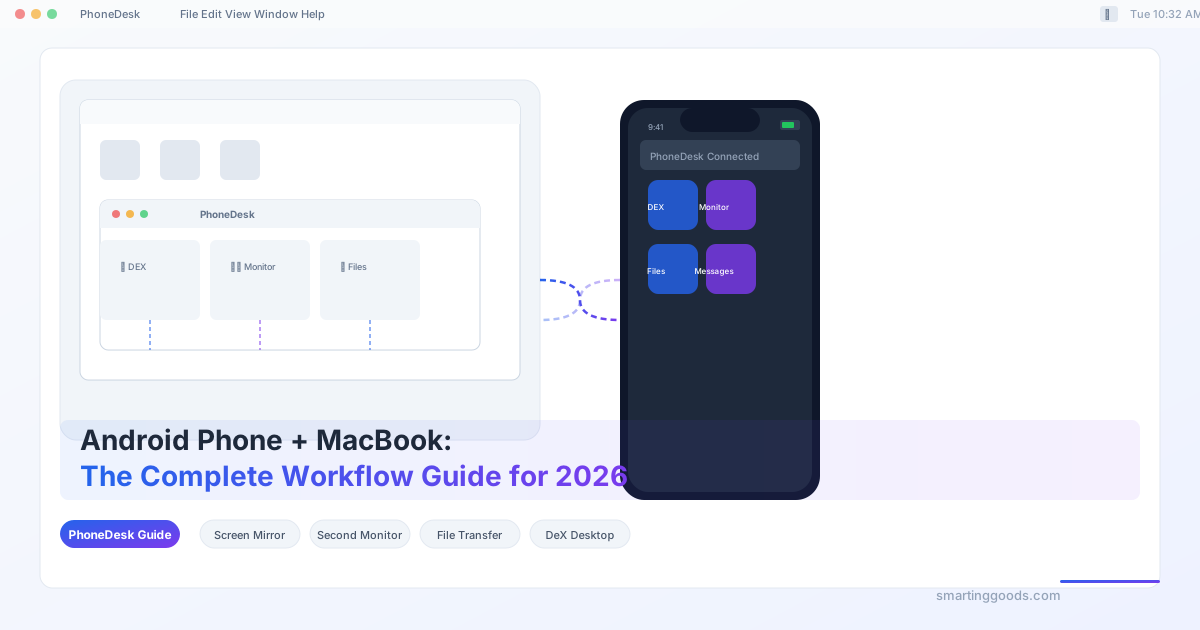
Android Phone + MacBook: The Complete Workflow Guide for 2026
The ultimate guide to using an Android phone with a MacBook in 2026. Covering screen mirroring, DeX desktop mode, second monitor, file transfer, messages, and contacts sync — with PhoneDesk as the essential hub.
You bought the best laptop on the market — a MacBook. And you bought the best phone platform — Android. But Apple and Google don't make it easy to use them together.
iPhone + Mac is seamless. Android + Mac? That's a puzzle with missing pieces. No iMessage, no AirDrop, no native file transfer, no screen mirroring. The two ecosystems speak different languages, and the user is left playing translator.
This guide is the complete playbook for using an Android phone with a Mac in 2026. We'll cover every major workflow — screen mirroring, second monitor, Samsung DeX and Pixel desktop mode, file transfer, messages, and contacts sync — and show you how to tie it all together without juggling six different apps.
Why Android + Mac Is Worth the Setup
Let's get one thing out of the way: Android + Mac is not iPhone + Mac. You won't get AirDrop, iMessage, or Universal Clipboard out of the box. What you do get is a better phone (more choice, more control, better hardware) paired with the best laptop on the market.
The trade-off is real, but it's shrinking. In 2026, the tools available for Android-Mac integration are better than ever. With the right setup, you can get 90% of the way to the Apple-ecosystem experience — and in some areas (like desktop mode and second monitor), you can actually do things an iPhone user can't.
This guide covers every major workflow for using an Android phone with a MacBook, from screen mirroring and DeX to file transfer and messaging. We'll show you the best tool for each job — and how PhoneDesk ties three of them together in one app.
Screen Mirroring: See Your Phone on Your Mac
Screen mirroring is the most requested Android-Mac workflow. Whether you're giving a presentation, showing photos to a client, or debugging an app, you need to see your phone's screen on your Mac.
scrcpy — The gold standard for free screen mirroring. Open-source, low-latency, works over USB or Wi-Fi. You'll need USB debugging enabled and ADB installed on your Mac. Powerful but command-line only — no GUI, no frills.
Vysor — Paid alternative with a clean interface. Free version is limited to low resolution. Paid is $2.50/mo — another subscription.
AirDroid — Wireless mirroring with a nice UI. Free version has ads and limits. Premium is $3.99/mo.
PhoneDesk — Mirrors your Android screen into a native macOS window with low latency and keyboard/mouse control. No ADB required, no command line, no subscription. Part of the same $25 license that also handles DeX and file transfer.
Second Monitor: Use Your Android Phone as a Display for Your Mac
This is the reverse direction — extend your Mac's desktop onto your Android phone. It's one of the most underrated productivity tricks for anyone who works on the go.
Why you'd want this: Extra screen space when traveling. Reference material on your phone while working on your Mac. Monitoring dashboards, chat windows, or music controls on a secondary display.
Spacedesk — Free, turns your phone into a second monitor over Wi-Fi or USB. Requires a driver on your Mac and can be unstable on Wi-Fi.
Duet Display — Polished and low-latency, but $9.99/mo or $49.99 one-time.
Luna Display — Hardware dongle, $129. Excellent performance but requires buying a physical device.
PhoneDesk — Turns your Android phone into a second monitor with no dongle, no subscription, no driver hassle. Your Mac creates a virtual display and streams it to your phone over Wi-Fi or USB. Included in the same $25 license as screen mirroring and file transfer.
How to use your Android phone as a second monitor →
Samsung DeX and Pixel Desktop Mode: Your Phone Becomes a Computer
Modern Android phones can output a desktop interface when connected to an external display. Samsung DeX is the most mature implementation; Google's Pixel Desktop Mode (introduced with Pixel 8, refined in Android 15/16) is catching up fast.
Samsung DeX on Mac
Samsung DeX turns your Galaxy phone into a desktop computer. On a monitor or TV, it's plug-and-play. On a Mac, you need a tool that can receive the DeX signal — macOS doesn't natively support it.
PhoneDesk receives the DeX signal from your Samsung phone and displays it in a native macOS window. Full DeX desktop experience — resizable windows, keyboard and mouse support, drag-and-drop between DeX and macOS — right on your MacBook screen. No external monitor required.
Full Samsung DeX for Mac guide →
Pixel Desktop Mode
Available on Pixel 8 and newer running Android 15+. Simpler than DeX — more of a Chromebook-like launcher — but free, improving, and works with PhoneDesk out of the box.
File Transfer: Moving Files Between Android and Mac
The most common pain point. Google's Android File Transfer (AFT) was the go-to for years, but it's been abandoned — removed from Google's site in 2024, crashes constantly, has a 4GB file size limit. In 2026, you need a real alternative.
OpenMTP — Free and open-source. Works for basic USB file transfers. Minimal interface, no wireless support.
MacDroid — Mounts your Android phone in Finder over USB or Wi-Fi. Free version limits to 1GB transfers. Pro is $4.99/mo or $29.99/year.
Cloud services — Google Drive, Dropbox, OneDrive. Work but require internet, introduce sync delays, and don't handle large files well.
PhoneDesk — Wireless file transfer via the share sheet. No MTP, no USB cable, no cloud upload. Select a file on your phone, share it to PhoneDesk, and it appears on your Mac instantly over your local network. Closest thing to AirDrop for Android + Mac.
Messages and Contacts: Staying Connected Across Devices
This is where Android + Mac feels most broken out of the box. No iMessage means no native messaging on your Mac. But the workarounds are better than most people realize.
Google Messages for Web — Open messages.google.com on your Mac, scan the QR code, and send SMS/RCS from your Mac. RCS gives you read receipts, typing indicators, and high-res media — features that used to be iMessage-exclusive.
WhatsApp, Telegram, Signal — All three have excellent macOS desktop apps. Cross-platform, encrypted, and most of your contacts are already on at least one.
The iMessage gap — iMessage is the one thing you can't replicate on Android. If your entire circle uses iMessage, you'll need to accept SMS fallback or move conversations to a cross-platform app.
Contacts and Calendar sync — This is surprisingly easy. Add your Google account in macOS System Settings → Internet Accounts. Google Contacts sync to the macOS Contacts app. Google Calendar syncs to Apple Calendar. Two-way, automatic, free.
How PhoneDesk Ties It All Together
Here's the frustration every Android + Mac user eventually hits: you need a different app for everything.
- Screen mirroring? scrcpy or Vysor.
- Second monitor? Spacedesk or Duet Display.
- File transfer? MacDroid or OpenMTP.
- DeX on Mac? Yet another tool.
Four separate apps, each with its own setup, quirks, and often its own subscription. The Android-Mac workflow becomes a collection of disjointed tools rather than a cohesive system.
PhoneDesk is designed to be the hub. It does three of the most important Android-Mac workflows in a single macOS menu bar app:
- Samsung DeX and Pixel Desktop Mode — Drive your phone's desktop mode as a real window on your Mac, with full keyboard and mouse support.
- Second Monitor — Turn your Android phone into an extended display for your Mac, no dongle required.
- Wireless File Transfer — Send files from phone to Mac via the share sheet, no cable or cloud needed.
$25 one-time license. No subscription, no per-feature upsells, no ads. 14-day no-questions refund.
Frequently Asked Questions
Q: Can I use iMessage on my Mac with an Android phone? A: No. iMessage is Apple-exclusive. Use Google Messages for Web for SMS/RCS, or WhatsApp/Telegram/Signal for cross-platform messaging.
Q: Do I need a USB cable to connect my Android phone to my Mac? A: Not with PhoneDesk — it works over Wi-Fi. Some tools like scrcpy and OpenMTP do require a USB cable.
Q: Can I use Samsung DeX on my Mac without an external monitor? A: Yes. PhoneDesk receives the DeX signal and displays it in a window on your Mac. Full DeX experience on your MacBook screen.
Q: Is there a free way to use my Android phone as a second monitor? A: Spacedesk is free but requires a driver and can be unstable. PhoneDesk is $25 one-time with a 14-day refund — it also handles screen mirroring and file transfer.
Q: Can I transfer files between Android and Mac without a USB cable? A: Yes. PhoneDesk transfers files over Wi-Fi via the share sheet. Cloud services like Google Drive or Dropbox also work.
Q: Does PhoneDesk work with Pixel phones? A: Yes. PhoneDesk supports both Samsung DeX and Google Pixel Desktop Mode.
Q: What's the difference between screen mirroring and second monitor? A: Screen mirroring shows your phone's screen on your Mac (phone → Mac). Second monitor extends your Mac's desktop onto your phone (Mac → phone). PhoneDesk does both.
Q: Is PhoneDesk a subscription? A: No. $25 one-time license. No monthly fees, no tiers, no ads. Includes all three features.
Conclusion
Using an Android phone with a MacBook in 2026 is easier than it's ever been — but it still requires the right tools. The ecosystem gap between Google and Apple means no single company will build the bridge for you.
You have two paths:
Piece it together — scrcpy for mirroring, Spacedesk for second monitor, MacDroid for file transfer, and a separate DeX solution. Each tool has its own setup, quirks, and often its own subscription.
Use PhoneDesk — One macOS menu bar app that handles screen mirroring, second monitor, DeX/Pixel desktop mode, and wireless file transfer. $25 one-time, no subscription, 14-day refund.
For most Android + Mac users, the second path is simpler, cheaper, and more cohesive. PhoneDesk doesn't replace every tool — you'll still want Google Messages for web and Google Drive for cloud backup — but it replaces the three most fragmented workflows with a single app that lives in your menu bar.