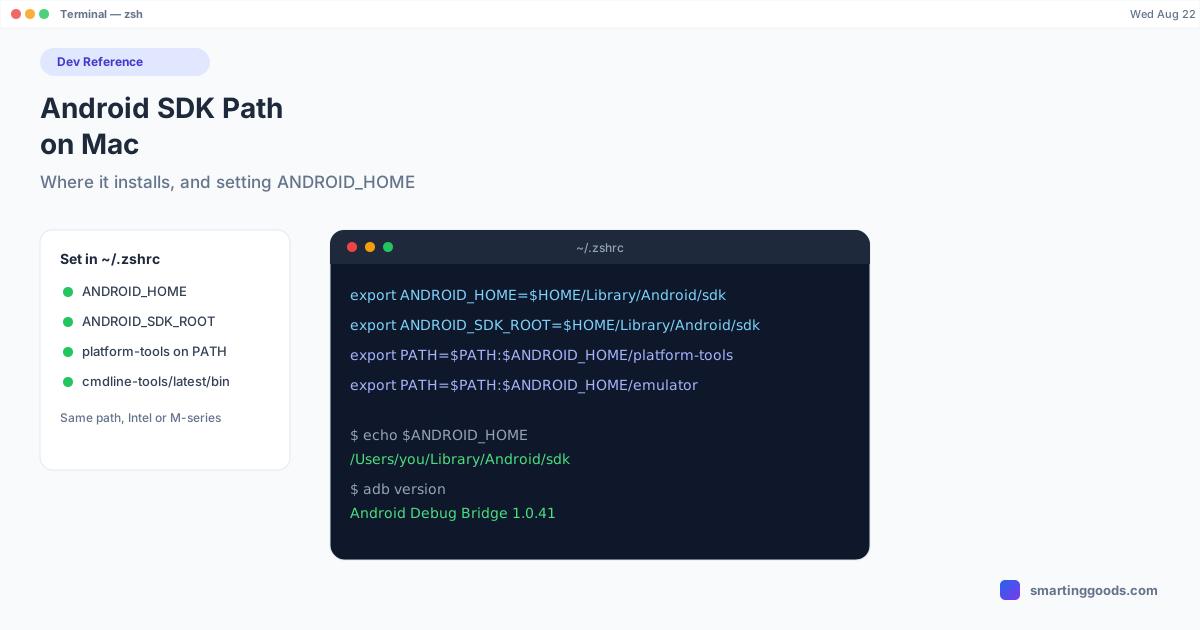
Android SDK on Mac: Where It Installs and How to Set the Path
Fix ANDROID_HOME and command-not-found errors for good: the exact default Android SDK location on Mac, and the ANDROID_HOME / ANDROID_SDK_ROOT setup that actually works.
Android SDK on Mac: Where It Installs and How to Set the Path
If you've hit a build error about ANDROID_HOME not being set, or a command-line tool like sdkmanager or adb saying "command not found," the fix almost always comes down to one thing: the Android SDK's install location isn't on your PATH, or the environment variable pointing to it is missing or wrong. Here's exactly where the SDK lives on a Mac and how to wire it up correctly — for both Apple Silicon and Intel machines.
Where the Android SDK Actually Installs
When Android Studio runs its first-time setup, it installs the SDK to a default location inside your user's Library folder — not somewhere obvious like /Applications or /usr/local. On every current Mac, Apple Silicon or Intel, the default path is:
~/Library/Android/sdk
Expanded for your user, that's something like /Users/yourname/Library/Android/sdk. This location doesn't change based on chip architecture — Apple Silicon and Intel Macs both default here. What differs by architecture is only the content inside — Apple Silicon installs favor arm64 system images and tools, Intel Macs pull x86_64 ones — not the folder path itself.
Because ~/Library is a hidden folder in Finder by default, a lot of confusion comes just from not being able to see the SDK exists. To reveal it in Finder, press Cmd+Shift+. (period) to toggle hidden files, or just navigate there directly:
open ~/Library/Android/sdk
You can confirm the exact path Android Studio is using at any time from Settings → Languages & Frameworks → Android SDK — the "Android SDK Location" field at the top of that screen is the source of truth if you ever installed to a custom location.
ANDROID_HOME vs ANDROID_SDK_ROOT
Google has used two different environment variable names for this over the years, which is where a lot of the confusion comes from:
ANDROID_HOME— the original variable, still widely used by build tools, CI scripts, React Native, Flutter, and most tutorials you'll find.ANDROID_SDK_ROOT— introduced later as the "correct" replacement; some newer command-line tools prefer it and print a deprecation warning aboutANDROID_HOME.
In practice, the safest move is to set both to the same path. Most tools still check ANDROID_HOME first or exclusively, but setting both means you won't get bitten by a tool that only recognizes the other one.
Setting the Path on Apple Silicon and Intel Macs
The commands are identical for M-series and Intel Macs — the SDK path itself doesn't change by architecture, only your shell config file location might differ if you're on an old setup. Since macOS Catalina, the default shell is zsh, so you'll typically be editing ~/.zshrc. If you're still on bash for some reason, use ~/.bash_profile instead.
Open your shell config:
nano ~/.zshrc
Add these lines at the end:
export ANDROID_HOME=$HOME/Library/Android/sdk
export ANDROID_SDK_ROOT=$HOME/Library/Android/sdk
export PATH=$PATH:$ANDROID_HOME/platform-tools
export PATH=$PATH:$ANDROID_HOME/cmdline-tools/latest/bin
export PATH=$PATH:$ANDROID_HOME/emulator
Save and exit (Ctrl+O, Enter, Ctrl+X in nano), then reload your shell config:
source ~/.zshrc
Verify it worked:
echo $ANDROID_HOME
adb version
If echo $ANDROID_HOME prints the path and adb version prints a version number instead of "command not found," you're set.
Common Path Mistakes
Pointing at the wrong cmdline-tools subfolder. The SDK Manager's command-line tools install into a versioned subfolder, e.g. cmdline-tools/11.0/bin, not directly into cmdline-tools/bin. Newer SDK installs create a latest symlink pointing at the current version — use cmdline-tools/latest/bin in your PATH so you don't have to update the version number every time you upgrade.
Editing the wrong shell config file. If you add the export lines to .bash_profile but your terminal is actually running zsh (the default since Catalina), the variables never get set. Run echo $SHELL to confirm which shell you're actually using before you decide which file to edit.
Forgetting to reload after editing. Editing ~/.zshrc doesn't affect your currently open terminal window — you need to source ~/.zshrc or open a new terminal tab for the changes to take effect.
A custom SDK install location that doesn't match the default. If you changed the SDK location during Android Studio setup, or migrated an old SDK folder manually, your ANDROID_HOME needs to point at wherever it actually lives, not the default ~/Library/Android/sdk. Check Settings → Languages & Frameworks → Android SDK in Android Studio to confirm the real path.
Verifying Everything Is Wired Up Correctly
Run these three checks after setting your path:
echo $ANDROID_HOME          # should print your SDK path
which adb                    # should print .../platform-tools/adb
which sdkmanager             # should print .../cmdline-tools/latest/bin/sdkmanager
If any of these come back empty, double-check the folder actually exists at that path (ls $ANDROID_HOME/platform-tools) — sometimes the issue isn't the PATH at all, it's that a specific SDK component was never downloaded via the SDK Manager in the first place.
Once Your Tooling Is Set Up
Getting adb correctly on your PATH is also what makes tools outside Android Studio work — including PhoneDesk, which uses adb under the hood to connect to a real Android device over USB or Wi-Fi and put its screen in a window on your Mac. If adb devices lists your phone correctly from Terminal, most connection tools built on top of it will find it too.
Frequently Asked Questions
Q: Where does the Android SDK install on a Mac by default?
A: ~/Library/Android/sdk — this is the same default location on both Apple Silicon and Intel Macs. It's inside your hidden ~/Library folder, so you may need Cmd+Shift+. in Finder to see it.
Q: What's the difference between ANDROID_HOME and ANDROID_SDK_ROOT?
A: They point to the same thing — your SDK folder. ANDROID_HOME is the older, more widely-supported variable name; ANDROID_SDK_ROOT is the newer name some tools prefer. Setting both to the same path avoids compatibility issues.
Q: I set ANDROID_HOME but adb still says command not found. Why?
A: You likely set the variable but didn't add $ANDROID_HOME/platform-tools to your PATH, or you edited the wrong shell config file (check echo $SHELL — Macs default to zsh since Catalina, so edits belong in ~/.zshrc).
Q: Does the SDK path differ between M1/M2/M3 Macs and Intel Macs? A: No, the folder path is identical. What differs is the architecture of the system images and tools installed inside it — Apple Silicon Macs should use arm64 system images for the emulator, while Intel Macs use x86_64 ones.
Q: Do I need the Android SDK installed to use PhoneDesk?
A: No — PhoneDesk bundles its own copy of adb and scrcpy, so it works without Android Studio or the SDK installed at all. This guide is for developers who need the SDK on their PATH for their own build tooling.
Wrap-Up
The Android SDK on Mac always lives at ~/Library/Android/sdk unless you deliberately moved it, and the fix for almost every "command not found" or "SDK location not found" error is the same three lines in ~/.zshrc: set ANDROID_HOME, set ANDROID_SDK_ROOT, and add platform-tools plus cmdline-tools/latest/bin to your PATH.
Once adb devices works from your terminal, you're ready for anything built on top of it — including PhoneDesk if you want to see your phone's screen in a window on your Mac. $25 one-time, no subscription, 14-day refund.