Control PC From Android vs. Control Android From PC: What's the Difference
These two searches sound similar but point to completely different tools. Here's how to tell which direction you actually need — and where to go once you know.
Control PC From Android vs. Control Android From PC: What's the Difference
These two phrases get typed into Google constantly, sometimes by the same person within the same search session, because they sound like they might mean the same thing — "phone and computer, remote control, Android involved." They're actually opposite directions, and they need different tools entirely. Getting this backwards is the single most common reason someone installs a remote-access app, follows the setup instructions correctly, and still can't do what they wanted.
Here's the distinction laid out clearly, plus the right tool for each direction.
The Two Directions, Defined
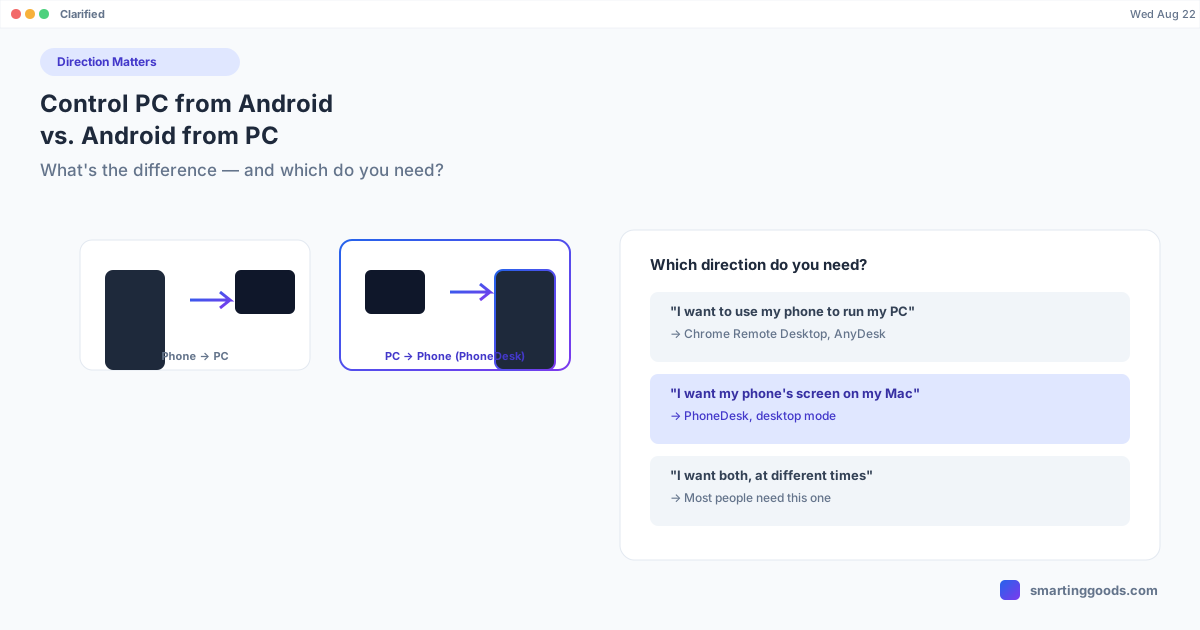
"Control PC from Android" means: your Android phone is the controller, and a Windows PC (or Mac) is the target. You're sitting away from your computer — maybe in another room, maybe traveling — and you want to reach in and use it from your phone. This is the classic remote-desktop use case.
"Control Android from PC" means the reverse: your computer is the controller, and your Android phone is the target. You want to see and interact with your phone's screen using your computer's mouse and keyboard — often because you're already at your desk and don't want to pick up the phone, or because you want a bigger screen for something on the phone.
They require entirely different software, because the app has to be built to host a connection on one specific platform and connect from the other. An app great at one direction is often useless for the reverse.
If You Want to Control a PC From Your Android Phone
You need a remote desktop client on your phone that connects to a host running on the PC:
- Microsoft Remote Desktop / Windows App (free) — connects to a Windows Pro/Enterprise PC with Remote Desktop enabled, or to Azure Virtual Desktop / Windows 365. Windows-only as a host.
- Chrome Remote Desktop (free) — works across Windows, Mac, and Linux hosts. Set up "Remote Access" on the computer, then connect from the Android app.
- AnyDesk / TeamViewer (free for personal use, paid for business) — full remote-desktop software supporting Windows, Mac, and Linux hosts, with unattended access options.
If your target computer is a Mac, Microsoft's RDP-based tools won't work (RDP doesn't support Mac hosts) — you'd use Chrome Remote Desktop, AnyDesk, or TeamViewer instead, or macOS's built-in Screen Sharing if you're connecting from another Mac.
If You Want to Control Your Android Phone From a Computer
You need the reverse setup — a tool that runs on your phone as the visible/controllable target, viewed from a client on your computer:
- scrcpy (free, command-line) — mirrors and controls your Android phone from Windows, Mac, or Linux over USB or Wi-Fi via ADB.
- Vysor (free/paid GUI) — a friendlier point-and-click version of the same idea.
- AnyDesk / TeamViewer, used in reverse — same apps as above, but this time the phone grants Accessibility Service permission to be controlled, and the computer connects in.
- PhoneDesk (Mac only, $25 one-time) — a native macOS app purpose-built for this direction, with extras none of the above cover: Samsung DEX or Pixel desktop mode as a real Mac window, your phone as a second monitor for your Mac, and wireless file transfer.
Why This Confusion Happens So Often
Part of the problem is that some tools genuinely support both directions from a single app — AnyDesk and TeamViewer, for instance, can control a PC from Android and be flipped to let a computer control the Android device, depending on which side initiates the connection. That dual capability is exactly what makes the terminology blur together in people's heads: "I used AnyDesk to control my PC once, so surely it also does the reverse" — technically true, but the setup steps, permissions, and quality of experience are completely different for each direction.
The other part is that "remote desktop," "screen mirroring," and "remote control" get used interchangeably in casual conversation and in a lot of app store listings, even though they describe meaningfully different technical relationships.
Quick Self-Check: Which Direction Do You Need?
Ask yourself: which device has the screen I want to see, and which device has the mouse/keyboard I want to use?
- Screen = PC, controller = phone → you want "control PC from Android" tools (Windows App, Chrome Remote Desktop, AnyDesk/TeamViewer as host-on-PC)
- Screen = phone, controller = computer → you want "control Android from PC" tools (scrcpy, Vysor, PhoneDesk if you're on a Mac, AnyDesk/TeamViewer as host-on-phone)
If You're on a Mac and Want the Phone-Controlled-From-Computer Direction
This is where most of the good free tools (scrcpy, Vysor) stop at basic mirroring, and the general remote-access tools (AnyDesk, TeamViewer) add relay latency and heavier permissions than a local tool needs. If what you actually want is your Android phone's screen — or specifically Samsung DEX or Pixel desktop mode — running as a proper window on your Mac, PhoneDesk is built for exactly this direction and nothing else:
- Drives Samsung DEX or Pixel desktop mode as a real Mac window, not a mirrored phone screen
- Turns your Android phone into a second monitor for your Mac — genuinely rare among tools on either side of this comparison
- Sends files and text wirelessly through the Android share sheet, no cable needed
It connects locally over USB or Wi-Fi — no remote-desktop relay, no Accessibility Service permission grant. $25 one-time, no subscription, 14-day no-questions refund.
Frequently Asked Questions
Q: Is "control PC from Android" the same as "control Android from PC"? A: No — they're opposite directions. The first uses your phone to control a computer; the second uses your computer to control your phone. Different apps are built for each, and terminology gets confused constantly because some apps (AnyDesk, TeamViewer) support both.
Q: Which tools work both ways? A: AnyDesk and TeamViewer can technically support both directions from the same app family, since either device can act as host or client. Free single-direction tools like scrcpy (phone-controlled-by-computer only) and Microsoft Remote Desktop (PC-controlled-by-phone only) are direction-specific.
Q: I have a Mac and an Android phone — which direction do most people actually want? A: Most Mac + Android searches for this topic are actually looking for the "control Android from PC" direction — seeing and using the phone's screen on the bigger Mac display, often specifically for Samsung DEX, desktop mode, or general convenience.
Q: Does PhoneDesk let me control my Mac from my Android phone too? A: No — PhoneDesk is specifically the phone-controlled-from-Mac direction, including the extra step of running Samsung DEX/Pixel desktop mode as a real window and turning the phone into a second monitor. If you need the reverse (controlling your Mac from your phone), Chrome Remote Desktop or macOS Screen Sharing covers that.
Q: What's the best tool if I'm not sure which direction I need? A: Start by identifying which device has the screen content you want to see. If it's your computer, look at PC-hosting tools (Chrome Remote Desktop, Windows App). If it's your phone, look at phone-hosting tools (scrcpy, or PhoneDesk if you're on a Mac and want more than basic mirroring).
The Bottom Line
"Control PC from Android" and "control Android from PC" are mirror-image searches pointing at opposite tools. Once you know which direction you actually need, picking the right software is straightforward. For Mac users who land on the "control Android from PC" side and want more than basic mirroring — Samsung DEX or Pixel desktop mode as a real window, a second monitor, or wireless file transfer — PhoneDesk is built specifically for that.
See everything PhoneDesk does → Read the full Android desktop mode explainer →