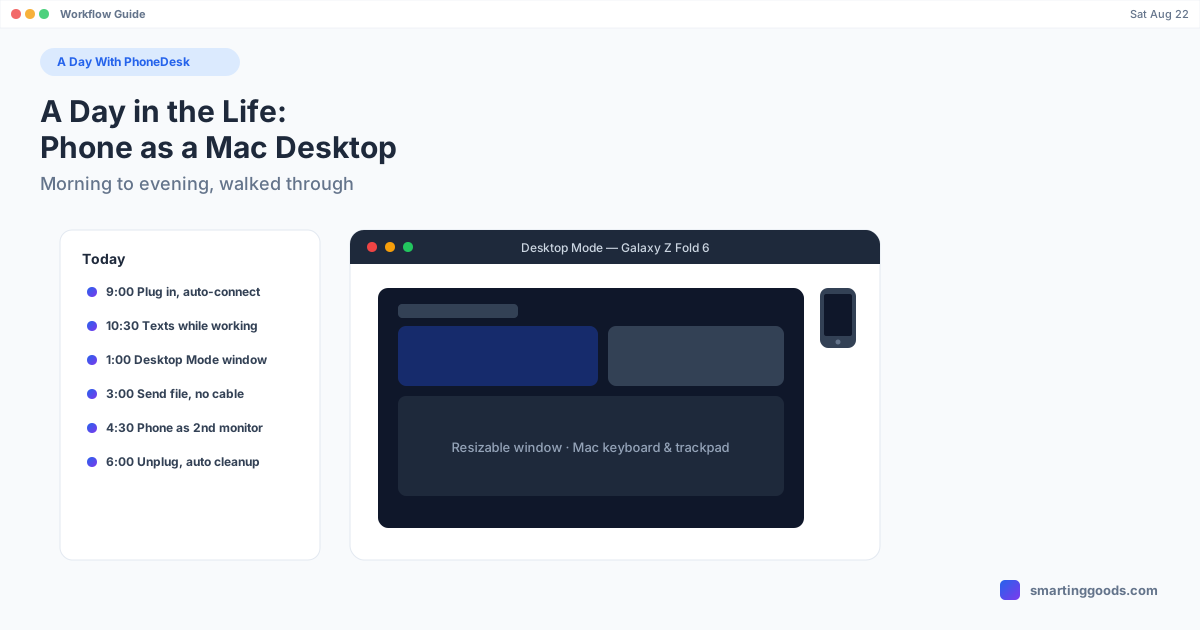
A Day in the Life: Running Your Android Phone as a Mac Desktop
A realistic morning-to-evening walkthrough of using PhoneDesk — desktop mode, second-monitor use, and file transfer — grounded only in its actual, shipped feature set.
A Day in the Life: Running Your Android Phone as a Mac Desktop
PhoneDesk is a menu bar app — most days you forget it's running until you need it. Here's what that actually looks like across a normal workday, based only on what PhoneDesk does today: desktop mode in a window, phone-as-second-monitor, and file/text transfer, all over USB or Wi-Fi.
Morning: phone connects, nothing else changes
You sit down, plug your phone into your Mac (or it's already paired over Wi-Fi from the day before), and that's it. PhoneDesk auto-discovers any phone with USB debugging on — name, resolution, and Wi-Fi port are detected automatically, no setup dialog to click through. It sits in the menu bar as a dropdown, one entry per connected device. No Dock icon, no window to close, no app to remember is open.
If your phone rebooted overnight, Wi-Fi mode won't have survived — Android drops the Wi-Fi adb connection on every reboot. You'd reconnect over USB once, or re-pair wirelessly with a QR code, and it holds from there until the next reboot. That's the one piece of morning friction worth knowing about up front, because it's easy to assume something's broken when it's just how Android's debugging bridge works.
Mid-morning: texting and notifications while you work
This part isn't a PhoneDesk feature — it's what not needing to pick your phone up looks like once the rest of the setup is in place. With desktop mode or second-monitor mode running, your phone's screen is already visible somewhere on your desk setup, so a text or a Slack ping is something you glance at instead of unlock for. PhoneDesk itself doesn't forward notifications independently; whatever's on the phone's screen is what you see, because that's literally what's being streamed.
Before a presentation: Desktop Mode as the actual display
If your phone is DEX-eligible (confirmed on the Galaxy Z Fold 6) or a Pixel 9 Pro with Android's built-in desktop mode, clicking "Desktop Mode" from the menu bar opens your phone's desktop session as a normal, resizable macOS window — not a phone screen crammed into a box. You can resize it, move it to a second display, share your screen with that window in a video call, and use your Mac's keyboard and trackpad on it the way you would any other window.
One honest caveat worth setting expectations on: regular Desktop Mode shows a small overlay on the phone's own screen while the session is running. That's a trade-off Android itself requires for a desk-eligible display, not something PhoneDesk chose. If you'd rather the phone screen stay off entirely, there's an invisible virtual-display variant — it needs one root device property flipped first, so it's not the default path for most people, but it exists if the overlay bothers you.
Afternoon: sending a file over without a cable
Mid-afternoon is usually when a screenshot, a PDF, or a photo needs to go from the phone to the Mac. Three ways to do that with PhoneDesk, none of which involve a cable drag or mounting the phone as an MTP drive:
- Share from any app on the phone — PhoneDesk shows up as a share target
- Open the companion app (it installs automatically the first time you connect) and pick files directly
- Drag and drop files onto the PhoneDesk window during a desktop-mode session
Files land straight in your Mac's Downloads folder. Shared text or links land on your clipboard, ready to paste. No MTP mount step, no "AirDrop isn't available between these devices" dead end that cross-platform users run into.
Late afternoon: phone as a second monitor
This is the direction most people don't expect at first: instead of your phone's screen showing up in a window on the Mac, your Mac creates a real, separate display and streams it to the phone. Pick "Use as Second Display" from the menu bar, and the phone shows up in System Settings → Displays like any other monitor — you can drag windows onto it, arrange it relative to your main screen, the works.
It runs over USB or Wi-Fi, with Wi-Fi automatically dropping to a lower resolution and bitrate to stay smooth, since it has less bandwidth headroom than a direct cable. For the sharpest picture on either connection, turning on "Show all resolutions" in Displays and picking the highest one listed for PhoneDesk Display helps. It supports Android 9 and later — a wider range of phones than desktop mode needs, since the Mac is doing the actual display rendering and the phone just has to decode and show video.
End of day: unplug and it cleans up after itself
Unplug the cable, reboot the phone, or quit PhoneDesk, and the phone's desktop display clears itself immediately rather than leaving a stuck session behind. Nothing to manually reset before the next day.
What this adds up to
None of this is dramatic — that's sort of the point. It's a menu bar dropdown that makes three specific things not require picking your phone up, plugging in a separate monitor, or opening a file-transfer app: seeing your phone's desktop mode as an actual window, using the phone as extra screen real estate, and moving files across without a cable.
How PhoneDesk Fits Into a Real Workday
Everything above is the current, shipped feature set — not a roadmap. If your phone supports Samsung DEX or Pixel desktop mode, PhoneDesk puts that session in a real macOS window. If it doesn't, the second-monitor and file-transfer features still work on Android 9+. Setup is four steps (enable Developer options, turn on USB debugging, connect over cable or QR, click Desktop Mode) and it's a one-time thing — after that it's one click from the menu bar.
Frequently Asked Questions
Q: Does PhoneDesk run in the background all day without getting in the way? A: Yes — it lives in the menu bar with no Dock icon or persistent window when you're not actively using desktop mode or second-monitor mode. It only takes over screen space when you click into a session.
Q: Do I need to keep my phone plugged in the whole day? A: No. USB gets you started, and you can switch to Wi-Fi with one click from there, or pair wirelessly from the start with a QR code or pairing code from Android's own Wireless debugging screen.
Q: What happens if I close my laptop lid mid-session? A: This isn't something PhoneDesk documents behavior for beyond noting sessions clean up when you quit the app, unplug, or the phone reboots — if you rely on all-day sessions, USB and keeping the Mac awake is the more predictable setup.
Q: Is this the same as just mirroring my phone screen all day? A: Desktop mode and second-monitor mode are both live video streams of a real session (not screenshots), but they're two different directions — desktop mode brings the phone's screen to the Mac as a window, second-monitor mode sends a Mac-generated display out to the phone.
Try a Real Day With It
PhoneDesk is a $25 one-time license — no subscription, unlimited devices on one Mac. See the full feature list and setup steps →