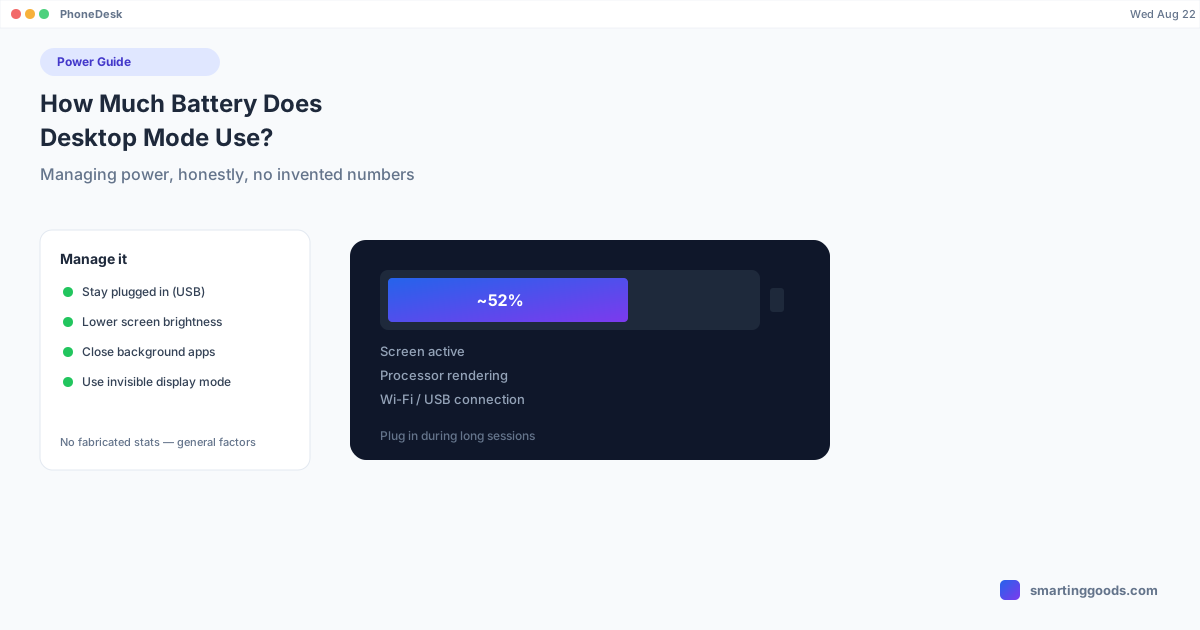
How Much Battery Does Desktop Mode Use? Managing Power
An honest look at what drains battery during extended Samsung DEX or Pixel desktop mode sessions, and practical ways to manage power without giving up the phone-as-desktop setup.
How Much Battery Does Desktop Mode Use? Managing Power on a Phone-as-Desktop Setup
Running your phone as a second screen or full desktop session for hours is not the same as normal phone use, and pretending otherwise is how you end up at 15% battery halfway through a work session with no charger in sight. Desktop mode — whether it's Samsung DEX, Pixel's built-in version, or PhoneDesk driving either as a window on your Mac — keeps the screen active, keeps the processor working, and often keeps a Wi-Fi or USB connection alive continuously. All of that draws more power than the phone sitting in your pocket.
This isn't a reason to avoid a phone-as-desktop setup. It's a reason to actually plan around power the way you would with any device you're using intensively for hours at a stretch — a laptop included.
Why Desktop Mode Uses More Battery Than Normal Use
A few things compound during an extended desktop-mode or screen-mirroring session, and it's worth understanding each one rather than treating battery drain as a mystery:
The screen stays on longer, and often brighter. Phones are built around short, bursty interactions — check a notification, glance at a message, lock again. A desktop-mode session flips that: the screen (or, if you're using the invisible virtual-display option, the rendering pipeline behind it) is active continuously for as long as you're working.
The processor is doing more, continuously. Rendering a desktop-style interface, handling mouse and keyboard input in real time, and — if you're mirroring or streaming to your Mac — encoding video of the screen output, all keep the chip working harder than typical phone use.
A persistent connection adds its own draw. Whether you're connected over USB (which is also charging the phone, so this one's a wash) or Wi-Fi, maintaining a continuous connection for screen streaming or desktop mode uses more radio power than the phone's normal, intermittent network check-ins.
Background apps don't stop just because you're in desktop mode. Anything still syncing, refreshing, or checking for updates in the background keeps consuming battery regardless of what's on screen, and a long session gives them more time to add up.
We're not going to hand you a specific percentage-per-hour number here — it varies too much by phone model, battery age, screen brightness, and what's actually running to make a made-up figure meaningful. What's true across phones is the direction: longer, more intensive sessions use meaningfully more battery than passive phone use, and the factors above are the reasons why.
How to Manage It Without Giving Up the Setup
Stay plugged in for long sessions. This is the simplest fix and the one that matters most: if you're at a desk with an outlet, keep the phone connected via USB during a multi-hour desktop-mode or second-monitor session. USB mode charges while it works, which sidesteps the whole problem for stationary use.
Lower the screen brightness. If you're using regular desktop mode (not the invisible virtual-display variant), the phone's own screen is on the whole time even though you're looking at the Mac window, not the phone. Dimming it — or using the invisible variant if your device supports it — cuts real power draw for no downside, since you're not looking at the phone screen anyway.
Close background apps you're not using. Before a long session, closing apps that sync or refresh in the background (especially anything with location services or continuous notifications) frees up processor cycles and reduces radio activity that has nothing to do with the work you're doing.
Prefer Wi-Fi over cellular data if you're mirroring wirelessly. Wi-Fi radios are generally more power-efficient than cellular for sustained data transfer, so if you have a choice, use it — this matters more for the streaming/mirroring workload than for occasional file transfers.
Plan mobile sessions around outlet access. If you know you'll be somewhere without power for hours — a train, a flight, a long meeting off-site — treat the phone the way you'd treat a laptop with a fading battery: use shorter, more deliberate sessions rather than leaving desktop mode running continuously, and bring a portable battery pack if the setup is central to your day.
What This Means for Session Length
There's no universal "you'll get X hours" answer, because it genuinely depends on your specific phone's battery health and age, screen brightness, whether you're on USB or Wi-Fi, and how much background activity is running. What you can control is the variables above — and the single biggest lever is simply staying plugged in when you're at a stationary desk, which removes the constraint almost entirely for the coffee-shop, home-office, or library use cases this kind of setup is usually built around.
For genuinely mobile, unplugged use — using your phone as a display or desktop session away from any outlet for an extended period — treat it the same way you'd treat any battery-intensive task on a phone: expect it to draw down faster than normal use, and plan accordingly rather than being surprised by it.
How PhoneDesk Handles This
PhoneDesk connects to your phone over USB or Wi-Fi, your choice, and switching between them is one click from the menu bar — so if you start a session over Wi-Fi and realize you'll be at your desk for a while, switching to USB (which charges as it connects) takes seconds. The invisible virtual-display variant is also worth knowing about if you're using your phone purely as a second monitor: it runs the desktop session without lighting up the phone's own screen, which is one less thing drawing power during a long stretch at your desk.
See the full feature list on the PhoneDesk homepage, or read the phone-as-second-monitor guide for more on the invisible display option. For the broader setup, see the phone-as-desktop starter guide.
Frequently Asked Questions
Q: Does using PhoneDesk drain my phone's battery faster than Samsung DEX or Pixel desktop mode used normally? A: PhoneDesk drives the same underlying desktop-mode session your phone already supports — it's not adding a separate, more power-hungry process on top. The power draw comes from desktop mode itself (screen, processor, connection), which behaves the same whether you're viewing it on a dock, a TV, or as a window on your Mac via PhoneDesk.
Q: Does USB mode charge the phone while it's connected? A: Yes — a USB connection to your Mac charges the phone while data is also flowing, which is why staying on USB is the simplest way to run long sessions without worrying about battery at all.
Q: Is the invisible virtual-display option actually better for battery? A: It removes the phone's own screen from the power equation since it stays off during the session, which does reduce draw compared to regular desktop mode where the phone screen is lit the whole time. The processor and connection overhead are still present either way.
Q: Should I worry about battery health from running desktop mode often? A: Battery health is mostly a function of charge cycles and heat over the long term, not specific to desktop mode as an activity. Keeping the phone plugged in during long sessions (rather than repeatedly draining and recharging) is generally fine for battery health, similar to how a laptop plugged in at a desk isn't considered harmful for normal daily use.
The Bottom Line
Desktop mode uses more battery than a phone sitting idle — that's just physics, not a flaw in the setup. The fix isn't complicated: plug in when you're stationary, dim the screen or use the invisible display option, and close background apps you don't need running. Manage it the way you'd manage a laptop's battery during a long work session, and it stops being a real limitation.
See the full feature list and get started → — $25 one-time, no subscription, 14-day refund if it's not for you.