External Monitor for Android Phone: Flip It the Other Way?
"External monitor for Android phone" can mean two opposite things. Here's how to tell which one you actually need, and how to set up each direction.
External Monitor for Your Android Phone: Can You Flip It the Other Way?
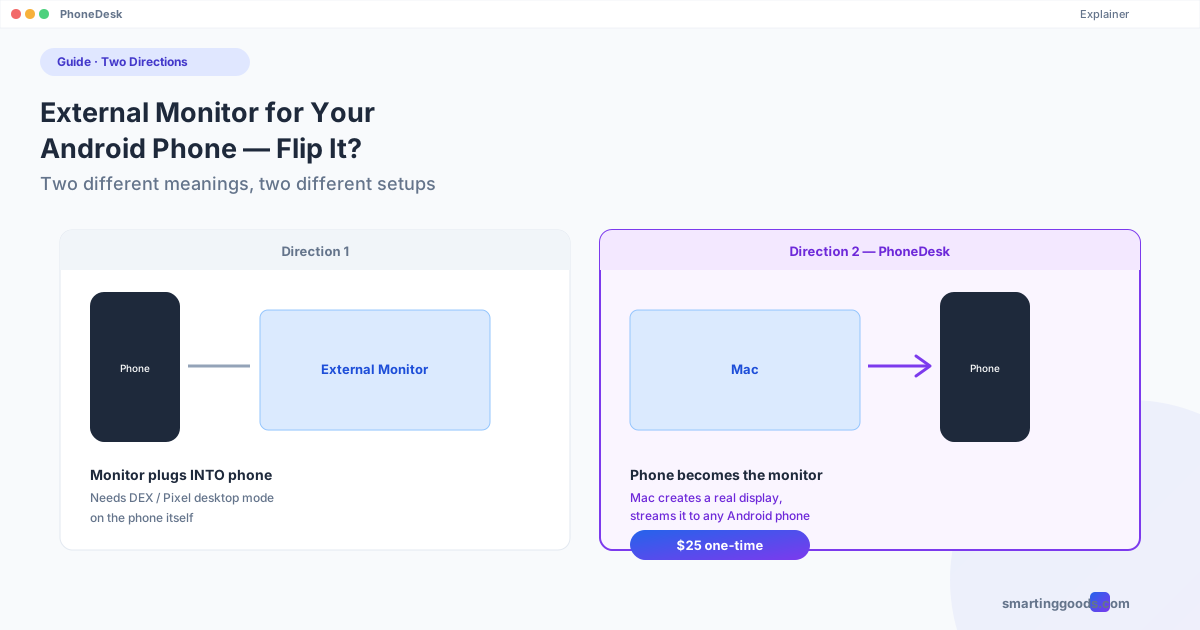
If you searched "external monitor for Android phone," there's a decent chance you're actually looking for one of two very different things, and it's worth sorting out which one before you buy anything.
Meaning 1: You want to plug an actual external monitor (an HDMI display, a portable USB-C screen) into your phone and use the phone like a mini desktop computer, with the phone's own desktop mode driving a real monitor.
Meaning 2: You want to use your phone itself as an external monitor for something else — usually a laptop.
Both are real use cases. This post covers both directions clearly, because most of the search results out there only cover one and leave you guessing which one you landed on.
Direction 1: Plugging a Monitor INTO Your Phone
This is the more literal reading of "external monitor for Android phone" — connecting an actual monitor to your phone via USB-C (DisplayPort Alt Mode) or an HDMI adapter, then using desktop mode to drive it.
What you need:
- A phone that supports desktop mode with external display output — Samsung DEX (Galaxy S8 and later, most Note and Z Fold/Flip models) or Pixel desktop mode (Pixel 8 and later on recent Android versions) are the two mainstream implementations
- A USB-C to HDMI cable, or a USB-C hub with HDMI/DisplayPort out
- The monitor itself
How it works: Plug the phone in, and if it supports DEX or desktop mode, the monitor shows a desktop-style interface — taskbar, resizable app windows, mouse and keyboard support if you pair a Bluetooth keyboard/mouse or plug in a USB hub with both. It's a genuinely useful way to turn a phone into a compact desktop for email, docs, and light browsing.
The limitation: not every Android phone supports this. Budget and mid-range phones frequently lack DEX-style desktop mode entirely — you'll get simple screen mirroring (a bigger copy of your phone screen) instead of a real desktop interface. Check your specific model before buying cables.
Direction 2: Using Your Phone AS an External Monitor
This is the other direction — and it's the one most people searching this phrase actually end up wanting once they realize direction 1 requires monitor hardware they don't have.
Here, your phone becomes the second screen for your laptop or Mac, not the other way around. Instead of your phone driving an external monitor, your computer creates a display and streams it to your phone.
This is a meaningfully different technical setup:
- Your computer needs an app that can generate a virtual display and stream it (on Mac, this is what PhoneDesk does)
- Your phone just needs a companion app to receive and render that stream — no DEX or desktop mode required on the phone's side at all, since the phone isn't doing any computing, just displaying
- Connection is over USB or Wi-Fi, and to macOS the phone shows up as a genuine extended display in System Settings
This direction works with essentially any modern Android phone, because it doesn't depend on your specific phone model supporting desktop mode — the heavy lifting happens on the computer, not the phone.
Full setup guide for using your phone as a Mac display →
Which One Do You Actually Want?
| You want to... | You need... |
|---|---|
| Turn your phone into a mini desktop computer using a real monitor | Desktop mode support on your phone (DEX/Pixel) + HDMI cable + external monitor |
| Use your phone's screen as extra space for your laptop/Mac | An app that streams a virtual display to your phone (PhoneDesk on Mac) |
| Mirror your phone screen onto a TV or monitor for presenting | Screen mirroring (Chromecast, Smart View, or a wired adapter) — not a real second workspace |
If your goal was "give my phone more screen real estate by hooking it to a monitor," direction 1 is your answer — check whether your phone supports DEX or Pixel desktop mode first, since that's the real gatekeeper.
If your goal was "give my laptop or Mac more screen real estate using my phone," direction 2 is what you want, and it's the more common intent behind this search — most people already have a laptop and are looking to extend it, not turn their phone into a standalone desktop.
How PhoneDesk Handles Direction 2 on Mac
PhoneDesk is a macOS menu bar app built around exactly this flip: instead of your phone needing desktop mode to drive an external monitor, your Mac does the work and treats your Android phone as the display target.
Pick "Use as Second Display" in the menu bar dropdown, and PhoneDesk creates a real virtual display on your Mac, then streams it to your phone over USB or Wi-Fi. It shows up as a genuine extended display — not a mirror, not a remote-desktop window — so you can drag any Mac window onto your phone screen and it stays there.
The same license also handles the reverse case (direction 1) if your phone does support Samsung DEX or Pixel desktop mode — PhoneDesk drives that as a real window on your Mac, no external monitor purchase required, since your Mac's own screen becomes the "external monitor" for your phone's desktop mode session.
Frequently Asked Questions
Can I connect any external monitor directly to my Android phone? Only if your phone supports desktop mode with video output — Samsung DEX and Pixel desktop mode are the two most common. Check your exact model; many budget and mid-range phones only support screen mirroring, not a real desktop interface, when connected to a monitor.
Can I use my phone as a monitor for my Mac without desktop mode on the phone? Yes — using your phone as a second display for your Mac doesn't require your phone to have DEX or desktop mode at all. The Mac generates the display; the phone just renders what it receives.
What cable do I need to plug a monitor into my phone? Typically a USB-C to HDMI cable, or a USB-C hub with HDMI/DisplayPort output, assuming your phone's USB-C port supports DisplayPort Alt Mode (most flagship and many mid-range phones from the last few years do).
Does PhoneDesk require a cable? No — PhoneDesk works over Wi-Fi with a QR-code pairing option, or over USB if you prefer a wired connection for lower latency.
Is PhoneDesk a subscription? No. $25 one-time, lifetime license, with a 14-day no-questions refund.
Bottom Line
"External monitor for Android phone" usually means one of two opposite things — plugging a monitor into your phone (needs DEX/desktop mode support) or using your phone as the monitor for something else (needs the right software, not a specific phone model). If it's the second one you're after, PhoneDesk handles it natively on Mac.
$25 one-time, no subscription. Full feature list → · Second-monitor setup guide →