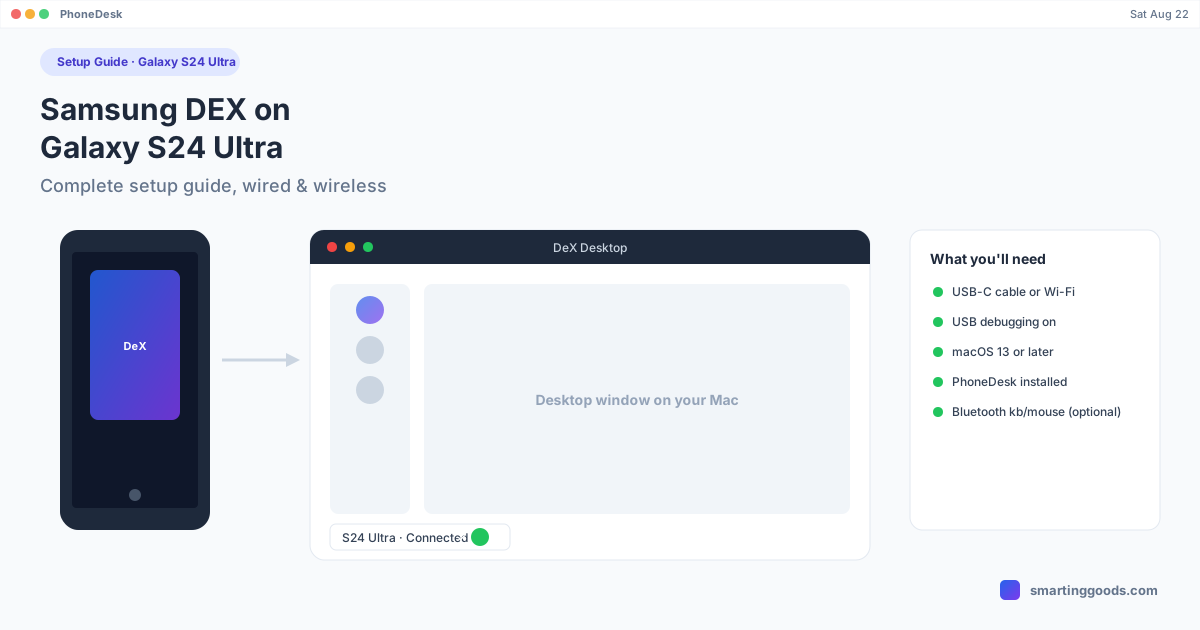
Samsung DEX on Galaxy S24 Ultra: Complete Setup Guide
Everything you need to run Samsung DEX on a Galaxy S24 Ultra — wired, wireless, and as a real window on your Mac — without hunting through five different support pages.
Samsung DEX on Galaxy S24 Ultra: Complete Setup Guide
The Galaxy S24 Ultra runs Samsung DEX exactly like every recent Ultra before it — but the setup steps are scattered across Samsung support pages, YouTube walkthroughs, and forum threads that assume you already know half of it. This is the whole thing in one place, wired and wireless, plus how to run it as an actual window on a Mac instead of needing a dedicated monitor.
The S24 Ultra shipped on One UI 6.1 (Android 14) and has since been updated to One UI 7 (Android 15). DEX works the same core way on both — the setup steps below apply either way, with One UI 7's naming changes flagged where they matter.
What Samsung DEX Actually Does on the S24 Ultra
DEX turns the S24 Ultra into a windowed desktop environment — a taskbar, resizable app windows, drag-and-drop between apps, and mouse/keyboard support — while the phone keeps running normally underneath. It's not a remote desktop or a screen mirror; it's a second UI mode built into the phone that renders differently once it detects an external display.
The S24 Ultra has no hardware limitations that affect DEX compared to other Galaxy Ultra models — the Snapdragon 8 Gen 3 handles it without issue, and the phone supports both wired and wireless DEX connections out of the box.
Wired Setup: Cable to a Monitor
- Get a USB-C to HDMI cable, or a USB-C hub with HDMI output (a plain USB-C to USB-C cable will not output video to a monitor — you need HDMI or DisplayPort alt mode).
- Plug the cable into the S24 Ultra and into your monitor or TV.
- DEX should launch automatically. If it doesn't, pull down the notification shade and tap the DEX notification, or go to Settings → Advanced features → Samsung DEX and toggle it on manually.
- Pair a Bluetooth keyboard and mouse, or use USB ones through the hub, for the full desktop feel.
This path needs zero apps and zero setup on the display side — any HDMI monitor or TV works.
Wireless Setup: No Cable Required
- Make sure the S24 Ultra and the target display (or PC) are on the same Wi-Fi network.
- Go to Settings → Advanced features → Samsung DEX.
- Tap "DEX on TV/monitor" or "Wireless projection" depending on your One UI version.
- Select your target screen from the list of detected Miracast-compatible displays.
Wireless DEX depends on Wi-Fi quality — a busy or slow network shows up immediately as lag and dropped frames on the desktop UI, so a 5GHz connection is worth the effort if you can get one.
Running DEX on a Mac Instead
Samsung never built an official way to get DEX onto a Mac — the discontinued DeX for PC app only ever supported Windows, and Samsung has since dropped even that in favor of Link to Windows. If your monitor is actually a MacBook or iMac screen, none of Samsung's own tools get you there.
That's the specific gap PhoneDesk fills. It connects to the S24 Ultra over USB or Wi-Fi using adb, launches DEX, and renders it as a normal resizable window on the Mac — not a screen recording, not a remote desktop session, the actual DEX session running locally. Confirmed working the same way on a Galaxy Z Fold 6; the S24 Ultra uses the identical DEX implementation, so the same connection method applies.
Setup on the Mac side: enable Developer options on the S24 Ultra (Settings → About phone → tap Build number seven times), turn on USB debugging (Settings → Developer options), then connect over USB or pair wirelessly with a QR code from PhoneDesk's menu bar dropdown. One click on "Desktop Mode" and DEX opens as a window.
Frequently Asked Questions
Q: Does the Galaxy S24 Ultra support DEX without a dock? A: Yes — DEX on the S24 Ultra works with a plain USB-C to HDMI cable or wirelessly over Wi-Fi. Samsung's official DEX dock accessories are optional conveniences, not requirements.
Q: Can I use DEX on the S24 Ultra without a monitor at all? A: Not directly through Samsung's own tools — DEX needs an external display to activate. PhoneDesk is the exception: it renders the DEX session as a window on a Mac, which functions as the external display DEX is looking for.
Q: Does One UI 7 change how DEX works on the S24 Ultra? A: Not fundamentally — the core windowed desktop experience is the same. One UI 7 did drop the separate DeX for PC Windows app, and Samsung has been steering Windows users toward Link to Windows instead. The bigger DEX rebuild, based on Android's native desktop windowing, arrived later in One UI 8.
Q: Is there an app to get DEX running on a Mac? A: Yes — PhoneDesk. It's a $25 one-time menu bar app (no subscription) that drives DEX as a real window on macOS over USB or Wi-Fi, confirmed working on Galaxy devices with DEX support.
Get DEX Running on Your Mac
If you've got a Galaxy S24 Ultra and a Mac and no way to bridge them, that's exactly what PhoneDesk was built for. See the full setup walkthrough and feature list →
PhoneDesk is a $25 one-time license — no subscription, no trial gate, 14-day no-questions refund if it's not for you.