Samsung DEX on a Galaxy Tab: Which Tablets Support It
DEX runs on Galaxy Tabs from the S4 onward, with on-device desktop mode as a tablet-specific perk. Here's the full model-by-model support list, plus what's different on tablets.
Samsung DEX on a Galaxy Tab: Which Tablets Support It
Samsung DEX isn't limited to phones — a good chunk of the Galaxy Tab lineup supports it too, and on a tablet it works a little differently than it does on a phone. If you're trying to figure out whether your specific Tab model has DEX, or whether it's worth buying a Tab for DEX use, here's the actual model-by-model breakdown and how tablet DEX diverges from phone DEX.
Which Galaxy Tab Models Support DEX
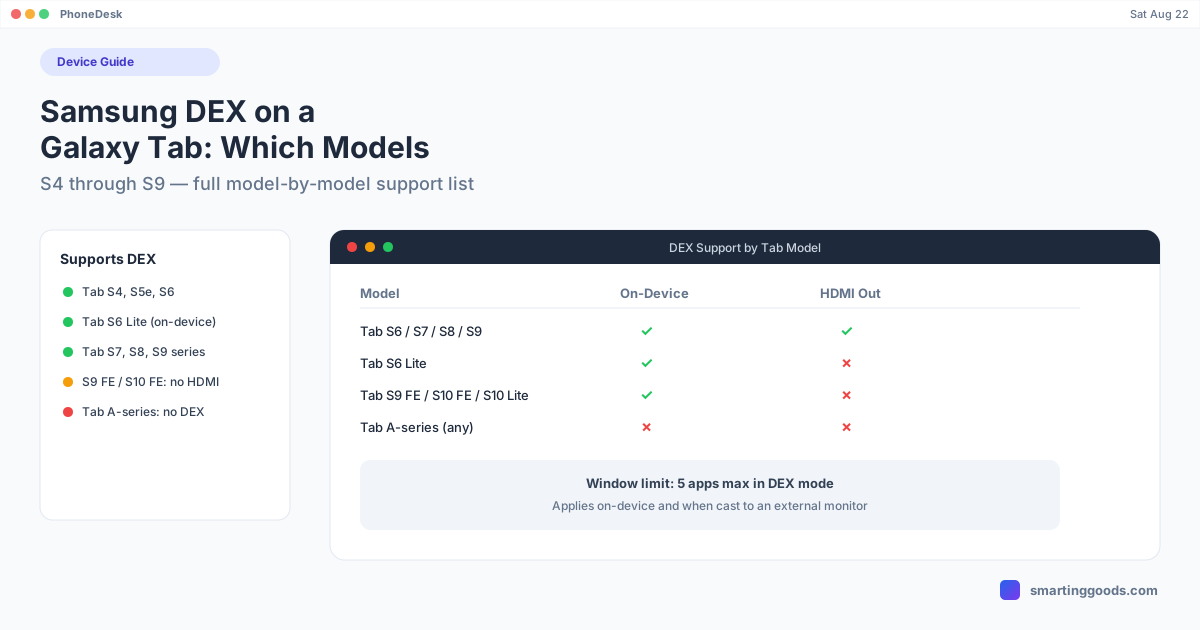
Samsung DEX support on tablets starts with the Galaxy Tab S4 and continues through every S-series tablet released since:
- Galaxy Tab S4 — the first Tab with DEX support
- Galaxy Tab S5e — supported
- Galaxy Tab S6 — supported, including standalone on-device DEX
- Galaxy Tab S6 Lite — supported, but only after a One UI 3.1 update, and on-device only (no external monitor output on this model)
- Galaxy Tab S7 / S7+ / S7 FE — supported
- Galaxy Tab S8 / S8+ / S8 Ultra — supported
- Galaxy Tab S9 / S9+ / S9 Ultra — supported
- Galaxy Tab Active Pro / Active 3 / Active5 Pro — supported (Samsung's ruggedized line)
One important carve-out: the Galaxy Tab S9 FE, S9 FE+, S10 FE, S10 FE+, and Tab S10 Lite are not compatible with HDMI output — meaning DEX-to-external-monitor doesn't work on those specific "FE"/"Lite" budget variants, even though the standard S9/S10 line supports it. If you're shopping specifically for DEX with an external display in mind, avoid the FE and Lite tablets and stick to the standard S-series numbering.
Budget Galaxy Tab A-series tablets do not support DEX at all, mirroring the same pattern as Samsung's phone lineup (A-series phones don't get DEX either) — DEX has consistently been reserved for the S-series flagship tablets.
How Tablet DEX Differs From Phone DEX
The core DEX experience — a taskbar, resizable windows, drag-and-drop — is the same whether you're running it from a phone or a tablet, but a few things work differently on tablets specifically:
On-device DEX is the default tablet experience. Unlike phones, where DEX traditionally means "plug into a monitor and the phone screen goes dark," Galaxy Tab devices from the S6 generation onward support running DEX mode directly on the tablet's own screen — no external monitor needed. You get the full desktop UI, windowed apps, and taskbar right on the tablet display itself, which is arguably the more common way people actually use tablet DEX day to day.
Window count limits. Tablet DEX sessions cap out at a maximum of 5 open windows at once — try to open more and Android shows a notification telling you the limit's been hit. This is a hardware/memory consideration specific to running a full multi-window desktop UI on tablet-class silicon, and it applies whether you're on-device or casting to an external display.
Classic mode vs. standard casting (One UI 7+ change). On newer One UI versions, some Tab models need Settings → Connected Devices → Samsung DEX → Classic mode enabled before DEX will cast to an external display correctly — otherwise the connection defaults to standard screen mirroring instead of triggering the full desktop layout. This has tripped up a fair number of Tab owners upgrading their software and finding external-display DEX suddenly behaving differently.
No HDMI on FE/Lite models. As noted above, this is a tablet-specific limitation — Samsung's flagship phones don't have an "FE" variant that drops DEX-to-monitor support, but several recent tablet FE/Lite models do.
Is a Galaxy Tab Worth Buying Specifically for DEX?
If your main use case is a portable, desktop-shaped workspace, a Tab S-series device (particularly S7 and later, for better performance headroom) is a genuinely solid choice — larger screen than a phone, on-device DEX means you don't even need a monitor, and the tablet form factor pairs naturally with a keyboard case for a laptop-like setup. Just confirm the specific model isn't an FE or Lite variant if external-monitor casting matters to you, and budget for a Bluetooth keyboard/mouse or keyboard case if you want the full desktop feel rather than touchscreen-only interaction.
Getting a Galaxy Tab's DEX Session Onto a Mac
Everything above covers DEX running on the tablet itself or cast to a monitor — but if your actual computer is a Mac and you want the Tab's DEX session displayed there as a window (rather than buying a separate monitor, or being limited to the tablet's own screen), Samsung hasn't built that bridge. Samsung ships DEX for external monitors and DEX for PC on Windows; there's no equivalent DEX-to-macOS app from Samsung, for tablets or phones.
PhoneDesk closes that gap. It's a macOS menu bar app that drives a Galaxy Tab's DEX session as a real, resizable window on a Mac, using Android's own adb and scrcpy tools under the hood — no terminal, no manual pairing commands. Connect the Tab over USB to start, switch to Wi-Fi with one click, or skip cables entirely and pair wirelessly with a QR code from Android's own Wireless debugging screen. The same auto-discovery and one-click "Desktop Mode" launch that works for Galaxy phones works for DEX-capable tablets too.
See the full setup in the Samsung DEX on Mac guide.
Frequently Asked Questions
Q: Does my Galaxy Tab support Samsung DEX? A: If it's a Tab S4 or later (S5e, S6, S6 Lite, S7, S8, S9 series, or the Active Pro/Active 3/Active5 Pro rugged line), yes. Budget A-series tablets don't support DEX, and the FE/Lite variants of recent models (S9 FE, S10 FE, S10 Lite) don't support DEX-to-external-monitor via HDMI specifically.
Q: Can I run DEX on a Galaxy Tab without an external monitor? A: Yes — from the Tab S6 generation onward, on-device DEX runs the full desktop UI directly on the tablet's own screen, no monitor required. This is actually the more common way people use tablet DEX.
Q: How many app windows can I have open at once in tablet DEX? A: Five. Try to open a sixth and Android notifies you that you've hit the limit — this applies to both on-device DEX and DEX cast to an external monitor.
Q: Why won't my Galaxy Tab S9 FE cast DEX to my monitor? A: The S9 FE and S9 FE+ (along with the S10 FE, S10 FE+, and Tab S10 Lite) are not HDMI-output compatible, so DEX-to-external-monitor doesn't work on these specific models even though standard DEX mode is otherwise supported.
Q: Can I get my Galaxy Tab's DEX session onto my Mac as a window? A: Yes, using PhoneDesk. Samsung never built a DEX-for-Mac app for tablets any more than it did for phones — PhoneDesk bridges that using adb/scrcpy, giving you a real desktop-mode window on macOS with one click from the menu bar.
The Bottom Line
DEX support runs through the entire Galaxy Tab S-series from the S4 onward, with on-device DEX (no monitor needed) as a tablet-specific strength — just watch for the FE/Lite models that drop HDMI output, and the 5-window cap that applies across the board. If your goal is getting that DEX session onto a Mac screen rather than the tablet's own display or a dedicated monitor, that's a gap Samsung left open entirely, and PhoneDesk is built specifically to close it.
PhoneDesk is a $25 one-time license — no subscription, 14-day no-questions refund. See the full feature list →