Galaxy Tab S6 DEX Mode: Complete Setup Guide
The Tab S6 runs on-device DEX with no monitor required. Here's the full setup — on-device and external display — plus the 5-window limit and common fixes.
Galaxy Tab S6 DEX Mode: Complete Setup Guide
The Galaxy Tab S6 was one of the first Samsung tablets to bring genuinely usable on-device DEX — meaning you don't need an external monitor to get the full desktop experience, just the tablet's own screen. If you've got an S6 and haven't set up DEX yet, or you're hitting the window limit and wondering if that's normal, this covers the full setup and what to actually expect.
Does the Galaxy Tab S6 Support DEX?
Yes — the Galaxy Tab S6 fully supports Samsung DEX, both as an on-device desktop mode running directly on the tablet's screen and cast to an external monitor over a compatible USB-C cable. This puts it a generation ahead of the earlier Tab S4/S5e in terms of DEX maturity, and it remains a solid choice years later specifically because on-device DEX doesn't depend on hardware you have to buy separately.
Setting Up DEX On-Device (No Monitor Needed)
This is the most common way people actually use Tab S6 DEX, and it takes about 10 seconds:
- Swipe down from the top of the screen to open Quick Settings.
- Find the DEX tile in the quick settings panel (you may need to swipe to a second page, or edit your quick settings to add it if it's not showing).
- Tap the DEX tile. The tablet transitions immediately into the desktop UI — taskbar at the bottom, resizable app windows, the works — running right on the S6's own screen.
- Pair a Bluetooth keyboard and mouse (Settings → Connected devices) if you want the full desktop-input experience rather than touch-only interaction. DEX works fine with touch alone too, but a keyboard/mouse combo is where it starts feeling like an actual computer.
That's it — no cable, no dock, no external display required.
Setting Up DEX to an External Monitor
If you'd rather use the S6 as a small desktop PC connected to a real monitor:
- Use a genuine DEX-compatible USB-C cable or dock — a cheap passive USB-C-to-HDMI adapter that draws power from the tablet often can't supply enough wattage to drive both the DEX render and the display, resulting in a black screen or a dropped connection shortly after plugging in. A powered hub or Samsung's own dock avoids this.
- Connect to the monitor. If DEX doesn't auto-launch and you just see your normal tablet screen mirrored, swipe down and tap the DEX tile manually to force the switch from mirroring to full desktop mode.
- If you're on a recent One UI version, check Settings → Connected Devices → Samsung DEX and make sure Classic mode is enabled — some One UI 7+ builds default tablets to a mode that doesn't correctly trigger external-display DEX without this toggle.
- Pair Bluetooth peripherals the same way as the on-device setup above.
What to Expect: The Tab S6's DEX Limitations
A few things worth knowing before you build a workflow around Tab S6 DEX:
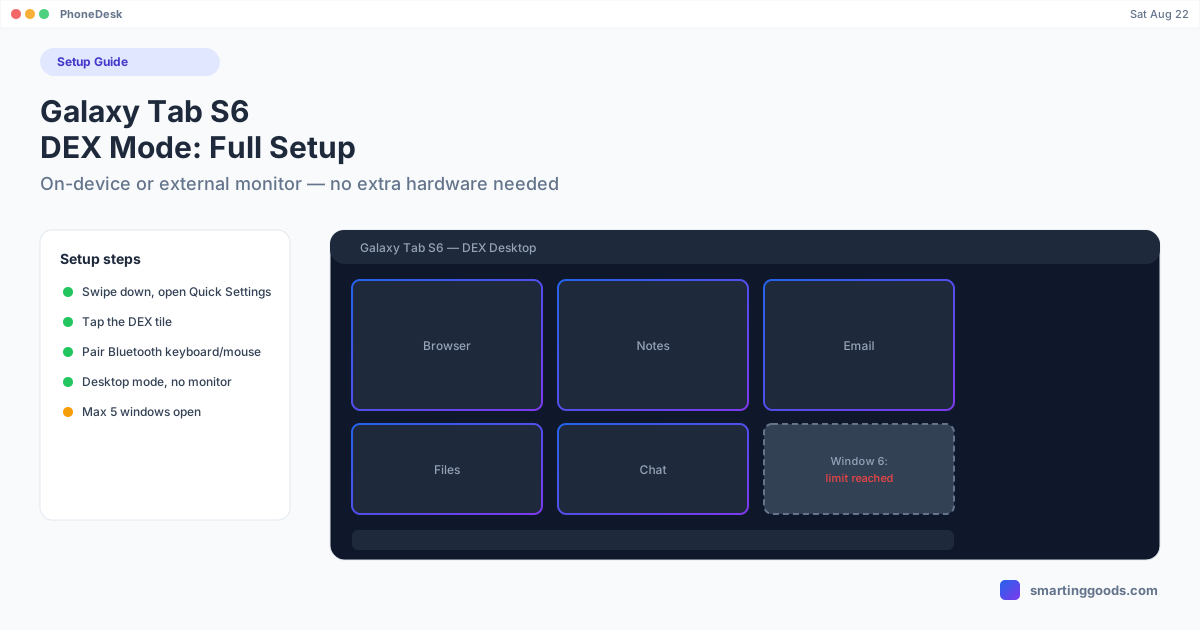
- 5-window limit. You can have a maximum of 5 app windows open simultaneously in a DEX session — try to open a sixth and Android shows a notification that you've hit the cap. This applies whether you're running on-device or casting externally. For most productivity use (browser, notes app, email, a chat app, a file manager) this is rarely a real constraint, but it's worth knowing going in if you were picturing an unlimited-window desktop.
- Performance ceiling. The S6's chipset (Snapdragon 855) handles DEX's desktop rendering reasonably well for browsing, office work, and light multitasking, but it's not going to feel like a modern laptop under heavy multi-app load — expect some slowdown if you're pushing all 5 windows with demanding apps simultaneously.
- App compatibility varies. Not every Android app is optimized for a resizable desktop window — some apps still render in a fixed mobile-phone aspect ratio inside their DEX window, which looks a little odd but is an app-level limitation, not a DEX bug.
Troubleshooting Tab S6 DEX
DEX won't launch from the quick settings tile. Confirm your One UI version is reasonably current (Settings → Software Update) — Samsung has shipped multiple DEX-specific fixes through routine updates, and an outdated build is a common quiet cause of the tile simply not responding.
External display shows a black screen. This is almost always an underpowered adapter. Swap to a powered USB-C hub or a genuine DEX-compatible cable rather than a cheap passive HDMI adapter.
Casts as a mirrored screen, not full desktop mode. Tap the DEX tile in Quick Settings manually rather than waiting for auto-detection — some cable/dock combinations never trigger DEX's auto-launch on their own.
Getting Tab S6 DEX Onto a Mac
Everything above assumes you're using the S6's own screen or a monitor. If your actual computer is a Mac and you'd rather have the DEX session appear as a window there — alongside your other Mac apps, without a separate display — Samsung doesn't offer that path. There's no Samsung DEX-for-macOS app, for tablets any more than for phones.
PhoneDesk is built for exactly this. It's a macOS menu bar app that drives the Tab S6's DEX session as a real, resizable window on your Mac, using Android's own adb and scrcpy under the hood — no terminal commands to run. Connect the tablet over USB the first time to pair, then switch to Wi-Fi with one click, or skip cables entirely and pair wirelessly straight from Android's Wireless debugging screen using a QR code. It auto-detects the Tab S6 the moment USB debugging is enabled, and "Desktop Mode" launches DEX as a window in one click from the menu bar — no separate monitor, no dock, no adapter to troubleshoot.
See the full setup in the Samsung DEX on Mac guide.
Frequently Asked Questions
Q: Does the Galaxy Tab S6 support DEX without an external monitor? A: Yes — the Tab S6 runs on-device DEX directly on its own screen via the Quick Settings DEX tile, no monitor, dock, or cable required.
Q: How many apps can I have open in Tab S6 DEX mode? A: Five windows maximum, whether on-device or cast to an external display. Opening a sixth triggers a notification that you've hit the limit.
Q: Why does my Tab S6 mirror the screen instead of launching DEX when I connect to a monitor? A: The connection defaulted to standard screen mirroring instead of desktop mode. Swipe down and tap the DEX tile in Quick Settings manually to force the switch — some cable/dock combinations require this every time.
Q: Can I use a keyboard and mouse with Tab S6 DEX? A: Yes — pair any Bluetooth keyboard and mouse through Settings → Connected devices, and they work immediately inside a DEX session for a full desktop-style input experience.
Q: Can I get my Tab S6's DEX session onto my Mac screen? A: Yes, with PhoneDesk. It's a macOS menu bar app that displays the DEX session as a real window on your Mac using adb/scrcpy, since Samsung never built an official DEX-for-Mac app for tablets or phones.
The Bottom Line
The Galaxy Tab S6 handles DEX well, especially on-device where no extra hardware is needed at all — just the quick settings tile and, optionally, a Bluetooth keyboard and mouse. The 5-window cap and reliance on a properly-powered adapter for external display use are the two things most likely to trip people up. If your workflow centers on a Mac rather than the tablet's own screen or a dedicated monitor, PhoneDesk gets that same DEX session running as a window there instead.
PhoneDesk is a $25 one-time license — no subscription, 14-day no-questions refund. See the full feature list →