Google Messages for Mac: Text From Android on a Mac
Google's free browser tool lets you text from your Android phone right on your Mac — no app to install. Here's the full setup and the RCS details most guides skip.
Google Messages for Mac: How to Text From Your Android on a Mac
If you own an Android phone and a Mac, you've probably noticed there's no iMessage-style app waiting for you in the Dock. Apple users get texting on their laptop for free; Android users have to go find it. The good news is Google already built the fix, it's free, and it works in any browser — you just have to know it exists.
This is a walkthrough of Google Messages for web (messages.google.com/web), the official way to send and receive Android texts from a Mac, plus the setup details and limitations that trip people up.
What Is Google Messages for Mac?
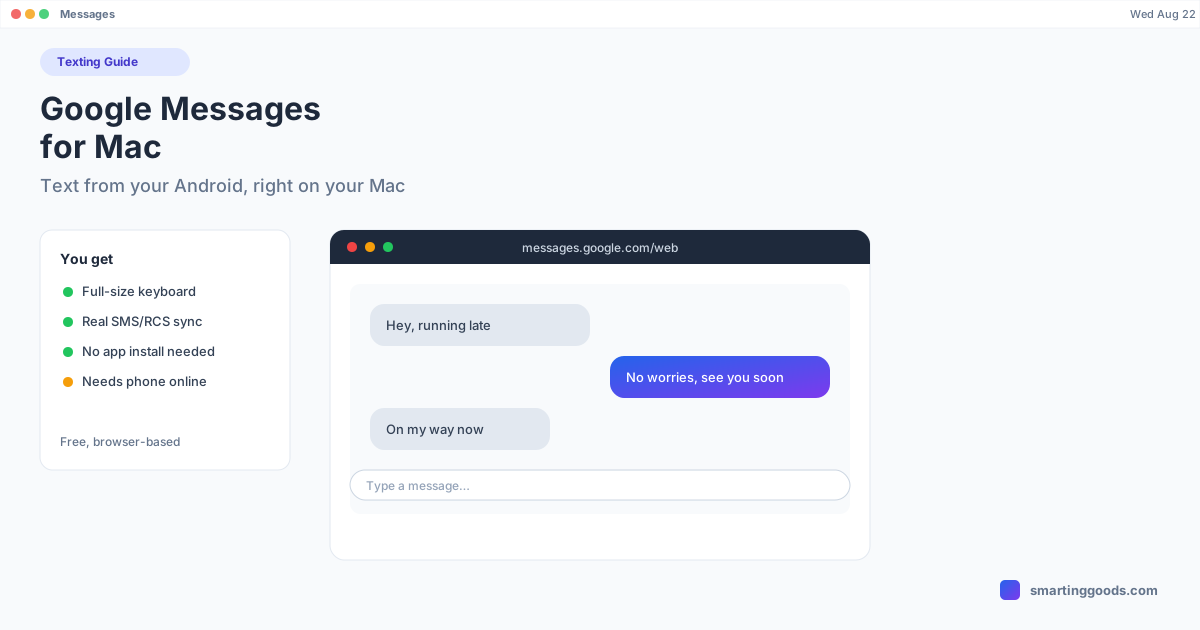
Google Messages for web is a browser-based companion to the Google Messages app on your Android phone. It's not a native macOS app — there's no download, no menu bar icon, no App Store listing. It's a page you open in Safari or Chrome that mirrors your phone's SMS and RCS conversations in real time, using a QR-code pairing similar to WhatsApp Web.
Once paired, you can read, reply to, start, and search text conversations directly from your Mac's keyboard. If your carrier and the person you're texting both support RCS (Rich Communication Services), you also get read receipts, typing indicators, and full-resolution photo and video sharing — the same features iMessage users have had for years, just running over Android's messaging stack instead of Apple's.
Setting Up Google Messages for Mac Step by Step
Setup takes about two minutes and only needs to be done once per Mac (or once per browser, if you use more than one).
- On your phone, open the Google Messages app. Tap your profile photo or the three-dot menu, then Device pairing (sometimes labeled Messages for web).
- Tap QR code scanner to open the phone's camera in pairing mode.
- On your Mac, go to messages.google.com/web in Safari, Chrome, or Firefox.
- Point your phone's camera at the QR code shown on the Mac screen.
- Your conversation list loads on the Mac within a few seconds. You're paired.
If you want the session to stay open longer, check Remember this computer during pairing — otherwise your phone may sign the session out after a period of inactivity for security.
RCS vs SMS: What You Actually Get on a Mac
Not every text on Google Messages for web looks the same, and the difference matters for what you can do from your Mac.
RCS conversations (identified by a blue send button and "Chat features" label) support typing indicators, read receipts, reactions, high-res media, and larger group chats — sent over data or Wi-Fi rather than your carrier's SMS network. Both sides need RCS chat features enabled for this to kick in; if the other person is on an iPhone, Apple did not support RCS until iOS 18, and even now the experience is more limited than Android-to-Android RCS.
SMS/MMS conversations (green send button) fall back to the traditional carrier text protocol — no read receipts, no typing indicators, compressed media, and a stricter group-message experience. This is what you'll see with contacts who have RCS disabled or a carrier that doesn't support it.
Either way, Google Messages for web handles both transparently in the same conversation thread — you don't have to think about which protocol is being used, you just type and send.
Common Problems and Fixes
Messages for web keeps signing me out. This usually happens because your phone lost its internet connection — Messages for web is a live relay through your phone, not a direct connection between your Mac and Google's servers. If your phone is off, in airplane mode, or has no signal/Wi-Fi, the web session drops. Keep the phone connected to Wi-Fi or mobile data for the desktop session to stay alive.
QR code won't scan. Make sure you're using the in-app scanner (Device pairing → QR code scanner) and not just your phone's regular camera app — the regular camera doesn't have the pairing handshake built in. Also check that your phone and Mac are both online; pairing needs both connected to the internet even though it isn't strictly a same-network requirement like AirPlay.
Notifications aren't showing up on the Mac. Google Messages for web can push browser notifications, but Safari and Chrome both require you to grant notification permission the first time — check System Settings → Notifications (for the browser) and the browser's own site-permission settings if pop-ups aren't appearing.
I need it on a second computer. You can pair the same phone with multiple browsers/computers simultaneously — go through the QR pairing flow again on the new machine. Each paired session shows up under Device pairing on the phone, where you can also remotely sign out old sessions you no longer use.
Google Messages for Web vs a Dedicated App
Because Google Messages for web is just a browser tab, it has a few real limitations compared to a proper native app: it can be easy to accidentally close, it doesn't run when your browser is fully quit, and there's no persistent Dock icon reminding you it's there (though most browsers let you "Add to Dock" or pin the tab, which helps). For most people who just need to answer a few texts without picking up their phone, it's more than good enough — and it costs nothing.
If you want your phone's messaging app itself — not just SMS/RCS but everything on the screen — visible on your Mac without touching your phone, that's a different problem than Google Messages for web solves, and it's worth knowing the difference. Messages for web mirrors one app's data over the internet; it doesn't show you the phone's screen. For that, you'd be looking at screen mirroring instead, which is a separate category of tool.
Frequently Asked Questions
Q: Is Google Messages for Mac a real app, or just a website? A: It's a website — messages.google.com/web — that works in Safari, Chrome, or any modern browser. There's no separate app to download for using Android texts on a Mac this way.
Q: Does Google Messages for web work if my phone is off? A: No. Your phone has to stay on and connected to the internet (Wi-Fi or mobile data) for the whole session, since the Mac is really just a mirror of what your phone is doing, not a direct line to Google's servers.
Q: Can I use Google Messages for web with an iPhone? A: No — Google Messages for web pairs specifically with the Google Messages Android app. iPhone users have iMessage and FaceTime built into macOS instead.
Q: Will I get iMessage-style blue bubbles texting an iPhone user from Android? A: No. Texts to iPhone users show up as SMS or RCS (if the iPhone has RCS enabled, which Apple added starting with iOS 18), never as iMessage. The bubble color and feature differences you're used to seeing on an iPhone don't apply here.
Q: Is there a way to see my whole phone screen on my Mac instead of just messages? A: Yes, that's a separate category of tool called screen mirroring — PhoneDesk is one option that mirrors your Android screen into a real window on macOS, which incidentally means any app's notifications, not just Messages, are visible while you're using it. See the PhoneDesk overview for details.
Bottom Line
Google Messages for web is the simplest, free way to text from an Android phone on a Mac — no third-party app, no subscription, just a QR code and a browser tab. It's genuinely the right first stop for anyone asking how to text from Android on macOS. Keep your phone connected to the internet, bookmark or pin the tab, and you're set.
If you eventually want more than messaging — seeing your whole phone screen, running Samsung DEX or Pixel desktop mode as a window, or sending files wirelessly — that's a different job, and PhoneDesk is built for exactly that, for a $25 one-time license with a 14-day no-questions refund.