Huawei Desktop Mode (EMUI): How It Works and What Replaced It
Huawei's EMUI Desktop Mode still runs on the phones that shipped with it — but it stopped evolving years ago. Here's what it does, why it froze, and what replaced it.
Search "Huawei desktop mode" today and you'll find a mix of five-year-old tutorials, dead support links, and confused forum threads asking whether the feature even still exists. It does — sort of. Here's what EMUI Desktop Mode actually was, why it's effectively frozen in time, and what to use instead if you're trying to get a real desktop experience out of a Huawei phone in 2026.
What Is Huawei Desktop Mode (EMUI)?
Huawei built EMUI Desktop Mode — also called Easy Projection — as its answer to Samsung DeX. Plug a supported Huawei phone into a monitor over USB-C (or cast wirelessly to a compatible display), and the phone switches to a resizable-window desktop interface: a taskbar, draggable app windows, mouse and keyboard support, and the ability to keep using the phone normally while the desktop session runs on the external screen.
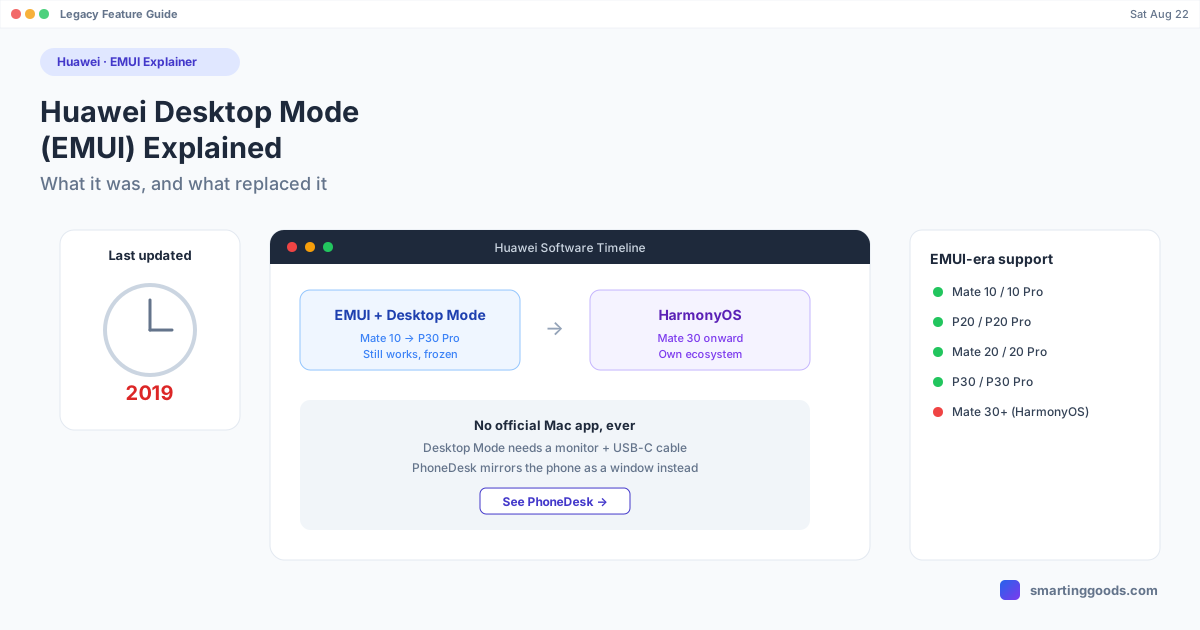
It shipped on Huawei's EMUI-era flagships — the Mate 10 and Mate 10 Pro, P20 and P20 Pro, Mate 20 and Mate 20 Pro, and P30 and P30 Pro among them. For the phones that supported it, Desktop Mode was genuinely capable: full-screen apps that adapted to a proper window instead of a stretched phone UI, drag-and-drop between windows, and enough of a "PC-like" experience to answer email, edit documents, or browse with a real cursor.
The catch is that Desktop Mode was tied to EMUI running on top of standard Android with Google Mobile Services. That combination stopped shipping on new Huawei flagships starting with the Mate 30 in 2019.
Why Huawei Desktop Mode Feels Frozen in Time
In May 2019, US trade sanctions cut Huawei off from Google Mobile Services on new devices. Huawei's response was to keep shipping EMUI on top of open-source Android (AOSP) for a while, then gradually move its lineup to HarmonyOS — Huawei's own operating system, which is not Android and doesn't run Google's Play ecosystem or standard Android developer tooling.
That transition is why EMUI Desktop Mode reads like a relic: the phones that had it are the last generation of Huawei devices that were "normal" Android phones in the way tools built around ADB, Google Play, and the standard Android SDK expect. Anything Huawei shipped after the HarmonyOS transition isn't the same platform under the hood, even if the UI looks similar.
If you own a P20, P30, Mate 20, or similar EMUI-era Huawei phone, Desktop Mode still works exactly as it did when you bought the device — nothing broke, nothing was patched out. It just isn't getting new capabilities, and Huawei's newer phones don't carry the feature forward in a form that plays nicely with standard Android tooling.
What Replaced It
Two things happened in parallel:
On Huawei's side, HarmonyOS added its own multi-window and "Super Device" cross-device features, but those are built for Huawei's own ecosystem — pairing with Huawei laptops and tablets, not third-party tools, and not Mac or Windows PCs in the way EMUI's Desktop Mode connected to any external monitor.
On the rest of Android, Samsung DeX and Google's own Android desktop mode (rolling out on Pixel devices) picked up the "phone as a desktop" idea and kept iterating on it, while Huawei's version stayed put. If you're comparing what a modern Android desktop-mode phone can do against a 2019 Huawei flagship, the gap has widened — better window management, wireless casting that actually holds a connection, and app support that assumes desktop mode is a mainstream feature rather than a hardware demo.
Using an EMUI-Era Huawei Phone with a Mac
If you still own one of the supported Huawei phones and want a desktop-style session, there's a real limitation worth being upfront about: EMUI Desktop Mode needs a monitor and a USB-C or wireless casting connection — it was never designed to run inside a window on a computer the way Samsung's DeX-for-Mac app briefly was. Huawei never shipped a Mac companion app for it, and the feature's dependence on GMS-era Android means it doesn't hand off cleanly to third-party desktop tooling built on the standard Android debugging bridge (ADB).
Where a Mac does help is everything around Desktop Mode — file transfer and screen mirroring, which don't depend on EMUI's Desktop Mode feature at all and work over standard Android USB debugging on EMUI-era Huawei phones. PhoneDesk connects to any Android phone with USB debugging enabled — Huawei's older EMUI devices included — and mirrors the phone's screen as a native window on your Mac, plus lets you send files and text from the phone straight to the Mac without cables or MTP. It won't launch Huawei's own Desktop Mode UI (that requires Huawei's proprietary casting handshake), but for the everyday reason most people search "Huawei desktop mode Mac" — getting the phone's screen and files onto the Mac without a dock — it covers the gap Huawei left. See how it compares to Samsung's now-discontinued Mac app in our Samsung DeX alternative guide, which covers the same "the official Mac path is gone" situation from Samsung's side.
Frequently Asked Questions
Q: Does Huawei Desktop Mode still work in 2026? A: Yes, on the phones that originally supported it (P20 series, P30 series, Mate 10/20 series and similar EMUI-era devices) — the feature hasn't been removed. It simply hasn't received meaningful updates since Huawei's platform shifted toward HarmonyOS.
Q: Can I run Huawei Desktop Mode on a Mac? A: Not directly — Huawei never released a Mac app for it, unlike Samsung's short-lived DeX-for-Mac software. Desktop Mode requires a physical monitor connection or Huawei's own wireless casting to a supported display.
Q: Is HarmonyOS the replacement for EMUI Desktop Mode? A: In spirit, yes — HarmonyOS carries forward multi-window and cross-device features, but they're built around Huawei's own device ecosystem (laptops, tablets) rather than third-party monitors, Macs, or PCs.
Q: What can I use instead if I want my Huawei phone's screen on my Mac? A: PhoneDesk mirrors any Android phone with USB debugging enabled — including EMUI-era Huawei devices — as a window on your Mac, and handles file transfer wirelessly. It's a different mechanism than Huawei's Desktop Mode, but solves the same practical need for Mac users.
Bottom Line
Huawei Desktop Mode was a legitimately good early entry in the phone-as-a-desktop category, and it still functions on the phones it originally shipped on. But it stopped evolving when Huawei's platform did, and it was never built to work with a Mac in the first place. If what you actually want is your Huawei phone's screen and files accessible from your Mac without a monitor dock, that's a solved problem today.
PhoneDesk is a $25 one-time license — no subscription, 14-day no-questions refund. See the full feature list →