Huawei P20 Desktop Mode: Does It Still Work in 2026?
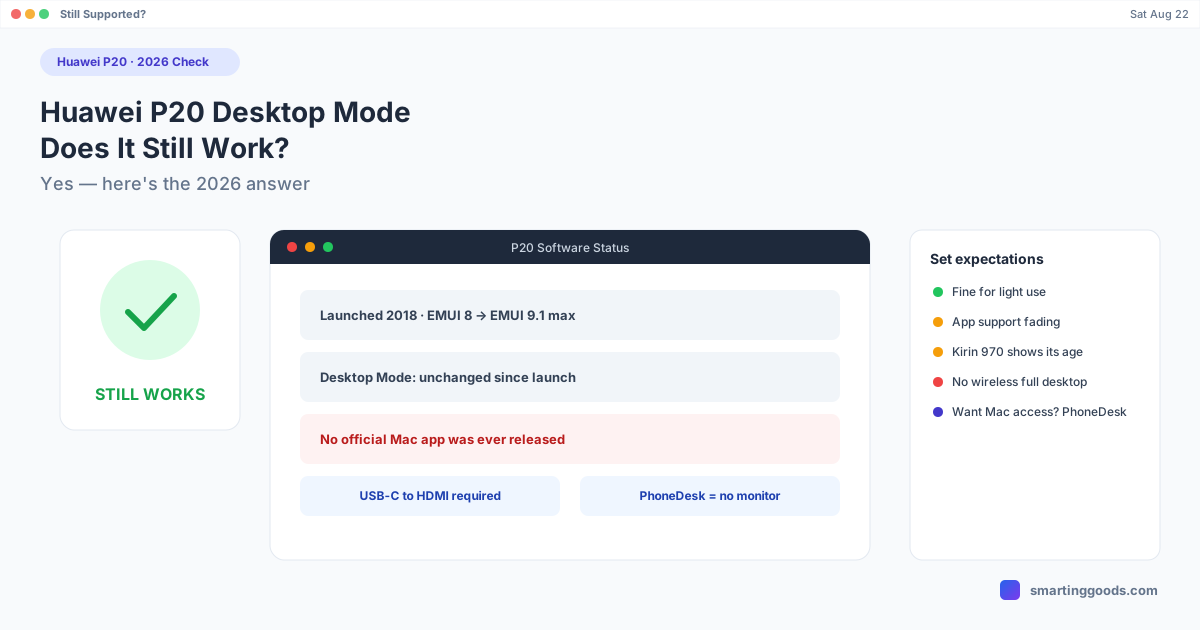
Yes, Desktop Mode still works on the Huawei P20 in 2026 — nothing was removed. Here's how to set it up and what to realistically expect from an aging flagship.
The Huawei P20 launched back in 2018, and "does [old phone feature] still work" is one of the most common searches an aging flagship generates. If you've still got a P20 or P20 Pro and you're wondering whether its Desktop Mode (Easy Projection) is worth trying in 2026, here's the honest answer — plus how to set it up if it is.
Yes — Desktop Mode Still Works on the Huawei P20
The short answer: nothing about EMUI Desktop Mode has been disabled or removed on the P20 or P20 Pro. If your phone still boots and the software hasn't been tampered with, connecting it to a monitor over USB-C will still switch it into the same windowed desktop interface it shipped with in 2018.
What's changed isn't the feature — it's everything around it. The P20 launched on EMUI 8, and depending on your update history, may be running EMUI 9 or 9.1 at most. Huawei stopped shipping meaningful software updates to the P20 series years ago, which means Desktop Mode on this phone is effectively frozen at its 2018-2019 feature set — no new window management improvements, no compatibility fixes for apps that have moved on since.
How to Turn On Desktop Mode on the Huawei P20
1. Confirm your EMUI version
Go to Settings → System → About phone and check your EMUI build. Desktop Mode needs EMUI 9.0 or later on the P20 — if you're still on EMUI 8, check Settings → System → Software update for any final update still available, though most P20 units have long since received their last OTA.
2. Use a USB-C to HDMI cable or dock
The P20 doesn't support wireless desktop casting to a standard monitor — you need a physical USB-C to HDMI cable, or ideally a powered USB-C hub if you also want the phone to charge while docked. A cheap passive adapter can cause the same underpowered-connection issues that plague DeX and other phone-desktop features: flickering, dropped connections, or a screen that won't switch over at all.
3. Plug in and switch to Desktop Mode
Connect the cable to the phone and the monitor's HDMI port. The P20 should prompt you to enter Desktop Mode within a few seconds — if it doesn't, pull down the notification shade and look for a Desktop Mode or Easy Projection toggle.
4. Add a mouse and keyboard
Pair a Bluetooth mouse and keyboard through Settings → Bluetooth for anything beyond basic touch navigation — Desktop Mode is built around cursor-and-keyboard input, and it's a much better experience with peripherals than touch alone.
What to Actually Expect in 2026
Be realistic about what a 2018 flagship can still do. The Kirin 970 chip inside the P20 was solid for its era but will feel slow running a full desktop UI alongside modern app versions. App compatibility is the bigger issue — developers stopped testing against a phone this old a long time ago, and some apps you'd want in a desktop session may crash, render oddly, or simply not be available anymore if Google Play has flagged the device as unsupported for certain listings.
If you're mainly using it for light browsing, note-taking, or as a secondary display terminal, it'll get the job done. If you're hoping for a modern desktop-mode experience comparable to Samsung DeX on a recent Galaxy or Pixel's built-in desktop mode, the P20 will feel dated by comparison — that gap is real and won't close with any setting change.
The Mac Connection Huawei Never Built
Desktop Mode on the P20 has always required an external monitor and a cable — Huawei never shipped a Mac app that would let you run this desktop session inside a window on your computer, the way Samsung briefly offered for DeX. If your actual goal is getting the P20's screen or files onto a Mac without buying monitor hardware, Desktop Mode isn't the tool for that job regardless of how well it still runs.
PhoneDesk takes a different path: it connects to the P20 over USB or Wi-Fi once USB debugging is turned on (Settings → System → Developer options), and mirrors the phone's screen as a native, resizable window right on your Mac desktop — no HDMI cable, no external monitor. It also handles two-way file transfer, so you can drag files onto the window or share straight from the phone's own share sheet, landing in your Mac's Downloads folder without MTP. For an aging device like the P20 where the practical need is usually "get my files and screen onto my Mac easily," this solves it more directly than Desktop Mode ever could.
Frequently Asked Questions
Q: Is the Huawei P20's Desktop Mode still supported in 2026? A: The feature itself still functions — it was never removed. But Huawei stopped updating the P20's software years ago, so it's running the same capabilities it had at launch, with no newer improvements.
Q: Does the P20 need Wi-Fi for Desktop Mode? A: No. Desktop Mode on the P20 requires a wired USB-C to HDMI connection to an external monitor — there's no wireless path to the full desktop UI on this model.
Q: Can I connect my Huawei P20 to a Mac without a monitor? A: Not through Desktop Mode — that feature needs an external display. To get the P20's screen onto a Mac directly, use a separate tool like PhoneDesk, which mirrors the phone as a window over USB or Wi-Fi.
Q: Is it worth setting up Desktop Mode on a phone this old? A: For light, occasional use — yes, it still works as designed. For anything performance-heavy or app-dependent, the P20's age will show, and a newer device with a modern desktop mode (Samsung DeX, Pixel's built-in desktop mode) will be a noticeably better experience.
Bottom Line
The Huawei P20's Desktop Mode hasn't been discontinued — it's simply frozen at its 2018-era feature set, and it still works the same way it always has if you connect it to a monitor over USB-C. What it can't do, and never could, is run on your Mac without external display hardware. That's a separate problem with a separate, much simpler solution.
PhoneDesk is a $25 one-time license — no subscription, 14-day no-questions refund. See the full feature list →