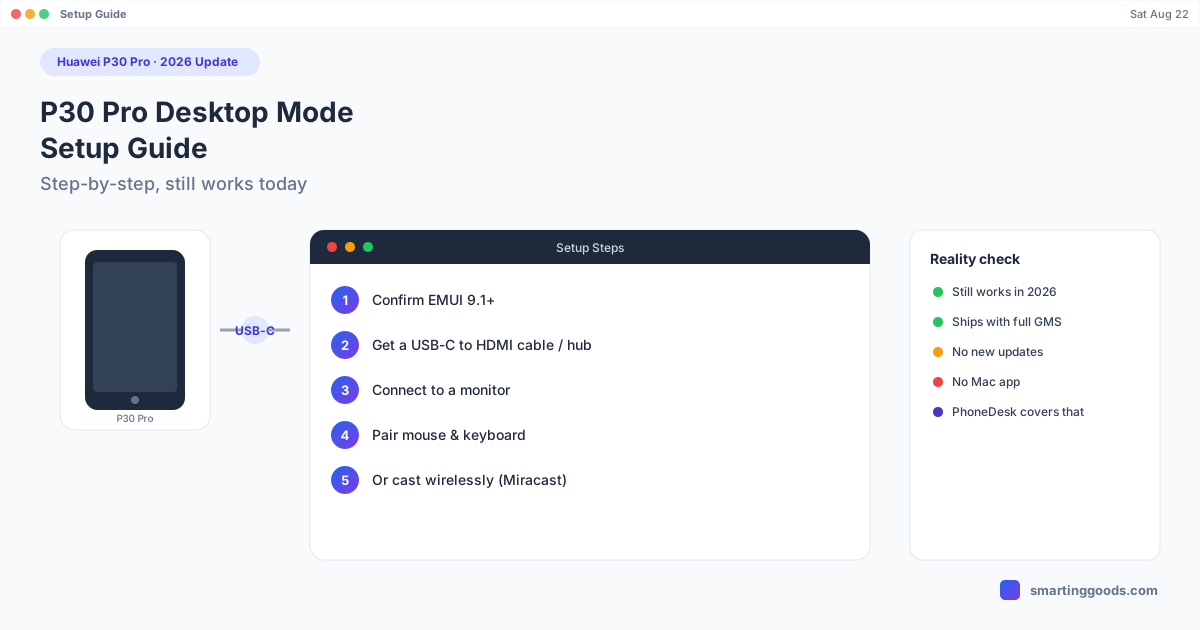
Huawei P30 Pro Desktop Mode: Setup Guide (2026 Update)
The Huawei P30 Pro's Desktop Mode still works in 2026. Here's the full setup — cables, display connection, and what to expect from a five-year-old flagship today.
The Huawei P30 Pro was one of the last Huawei flagships to ship with full Google services and a proper EMUI desktop experience — which is exactly why people are still searching for how to set up its desktop mode years after release. If you've got a P30 Pro sitting in a drawer (or still using it as a daily driver) and want a real desktop-style setup, here's how to actually turn it on, step by step, plus what to expect in 2026.
What Desktop Mode Does on the P30 Pro
The P30 Pro's Desktop Mode (Huawei calls it Easy Projection in some regions) turns the phone into a windowed desktop interface once connected to an external display: a taskbar at the bottom, resizable app windows, mouse and keyboard input, and the ability to keep the phone usable on its own screen at the same time. It's the same feature family Huawei built starting with the Mate 10, refined by the time the P30 Pro shipped in 2019.
For a phone this age, it holds up reasonably well for basic tasks — email, document editing, web browsing — but it was never going to compete with a real laptop, and it hasn't been updated with new capabilities since Huawei's software roadmap shifted toward HarmonyOS.
How to Set Up Desktop Mode on the Huawei P30 Pro
1. Check you're on a compatible EMUI version
Desktop Mode requires EMUI 9.1 or later, which the P30 Pro shipped with out of the box. Go to Settings → System → About phone to confirm your software version. If you're on an older build, update through Settings → System → Software update first — though be aware Huawei has not shipped meaningful EMUI updates to the P30 Pro in some time, so you may already be on the last available version.
2. Get a USB-C to HDMI cable or a powered USB-C hub
The P30 Pro doesn't support fully wireless casting to a plain monitor — you need either a USB-C to HDMI cable or a USB-C docking hub that supports DisplayPort Alternate Mode. A passive cable works for basic Desktop Mode, but if you want to charge the phone while docked, use a hub with its own power delivery — the same underpowered-adapter problem that plagues Samsung DeX affects Huawei's Desktop Mode too.
3. Connect to a monitor or TV
Plug the cable into the P30 Pro's USB-C port and connect the other end to your monitor's HDMI input. Within a few seconds, the phone should prompt you to switch to Desktop Mode — tap Enter when it appears.
4. Pair a mouse and keyboard (optional but recommended)
Desktop Mode works with touch alone, but it's far more usable with Bluetooth or USB peripherals. Pair a Bluetooth mouse and keyboard through Settings → Bluetooth before or after connecting to the display.
5. Try wireless casting as an alternative
If your TV or monitor supports Miracast, you can cast the P30 Pro's screen wirelessly through Settings → More connections → Easy Projection, though this typically mirrors rather than launching the full multi-window desktop layout — the cabled route gives you the complete Desktop Mode experience.
What Still Works — and What Doesn't — in 2026
The core Desktop Mode UI still functions on a P30 Pro running its final EMUI build. What's changed is everything around it: app compatibility has drifted as developers stop optimizing for a five-plus-year-old device, and Huawei's own AppGallery ecosystem has continued moving away from parity with Google Play, so some apps you'd want in a desktop session may simply not be available or up to date anymore.
If your P30 Pro predates the Google services cutoff (it does — the P30 Pro still shipped with full GMS), Play Store access still works, which puts it in a better position than later Huawei phones for general app availability. But don't expect ongoing improvements to Desktop Mode itself — Huawei's engineering attention has been on HarmonyOS for years now.
Getting the P30 Pro's Screen and Files onto a Mac
Huawei never built a Mac companion app for Desktop Mode — it's a monitor-and-cable feature, not something that runs inside a window on your computer. If what you actually want is the P30 Pro's screen (and its files) available on a Mac without carrying around an HDMI dock, that's a different tool than Desktop Mode entirely.
PhoneDesk connects to the P30 Pro over USB or Wi-Fi (once USB debugging is enabled in Developer options) and mirrors the phone as a resizable window directly on your Mac — no monitor, no HDMI cable, no dock. It also handles file transfer both directions: drag files onto the window, or share straight from the phone's share sheet, and they land in your Mac's Downloads folder without MTP or a cloud upload step. It's a genuinely different mechanism from Huawei's own Desktop Mode (which needs Huawei's proprietary display handshake to trigger), but for most people searching for a P30 Pro desktop setup on a Mac, screen access plus file transfer is the actual goal.
Frequently Asked Questions
Q: Does the Huawei P30 Pro still support Desktop Mode in 2026? A: Yes. The feature hasn't been removed and still works the same way it did at launch — connect via USB-C to HDMI or a compatible dock, and the phone switches into a windowed desktop interface.
Q: Do I need Wi-Fi for P30 Pro Desktop Mode? A: No, the standard setup uses a wired USB-C to HDMI connection. Wireless casting via Miracast is available for screen mirroring but doesn't reliably trigger the full multi-window Desktop Mode layout.
Q: Can I use the P30 Pro's Desktop Mode directly on a Mac without a monitor? A: No — Huawei never released Mac software for Desktop Mode. To get the phone's screen onto a Mac without external display hardware, you'd use a separate tool like PhoneDesk, which mirrors the phone as a native Mac window over USB or Wi-Fi.
Q: Is the P30 Pro too old for Desktop Mode to be useful? A: For light tasks — browsing, email, documents — it's still workable. For anything demanding, the phone's five-plus-year-old hardware and stalled software updates are the real limiting factor, not Desktop Mode itself.
Bottom Line
The Huawei P30 Pro's Desktop Mode still works in 2026 exactly as it did at launch, and the setup above will get it running on any HDMI monitor. What it can't do is run inside a window on your Mac — that gap is real, and Huawei never closed it.
PhoneDesk is a $25 one-time license — no subscription, 14-day no-questions refund. See the full feature list →