Motorola Ready For: What It Was and the Best Alternative Today
Motorola Ready For is still active and expanding — but it has real gaps for Mac users. Here's what it does today and the best way to fill those gaps.
Motorola's Ready For is easy to overlook — it doesn't get the marketing push Samsung DeX gets, and most Motorola owners discover it by accident in a settings menu rather than a big product launch. It's also still an actively maintained feature, not a discontinued one, which puts it in a different category from some of the abandoned "phone as desktop" software out there. Here's what Ready For actually does today, where it genuinely holds up, and where it falls short if your goal is using it with a Mac.
What Motorola Ready For Actually Does
Ready For is Motorola's version of a phone-to-desktop experience, built into select Motorola Edge and Moto G-series phones. Depending on the model and connection method, it can:
- Cast your phone's screen wirelessly to a Miracast-compatible smart TV, turning the phone into a large-screen display with a simplified remote-style interface
- Connect wired (USB-C to HDMI or a supported dock) to drive a more traditional desktop-style layout on a monitor, on the phones that support wired Ready For
- Turn video calls into a big-screen experience, using the phone's camera while the call display moves to the TV
- On newer entries, connect to a Windows PC to extend some phone functionality onto the computer
It's a genuinely broader feature set than a lot of people expect from a Motorola-branded extra — Motorola has kept investing in it, including recent updates extending Ready For's reach to more device types and connection methods.
Where Ready For Works Well
For casting to a TV — video calls, media, simple app mirroring — Ready For is straightforward and doesn't require much setup beyond a Miracast-capable television on the same network. If your use case is "put my phone's screen on the living room TV without extra hardware," it does that job reasonably well, and Motorola has continued refining the wireless casting experience rather than letting it stagnate.
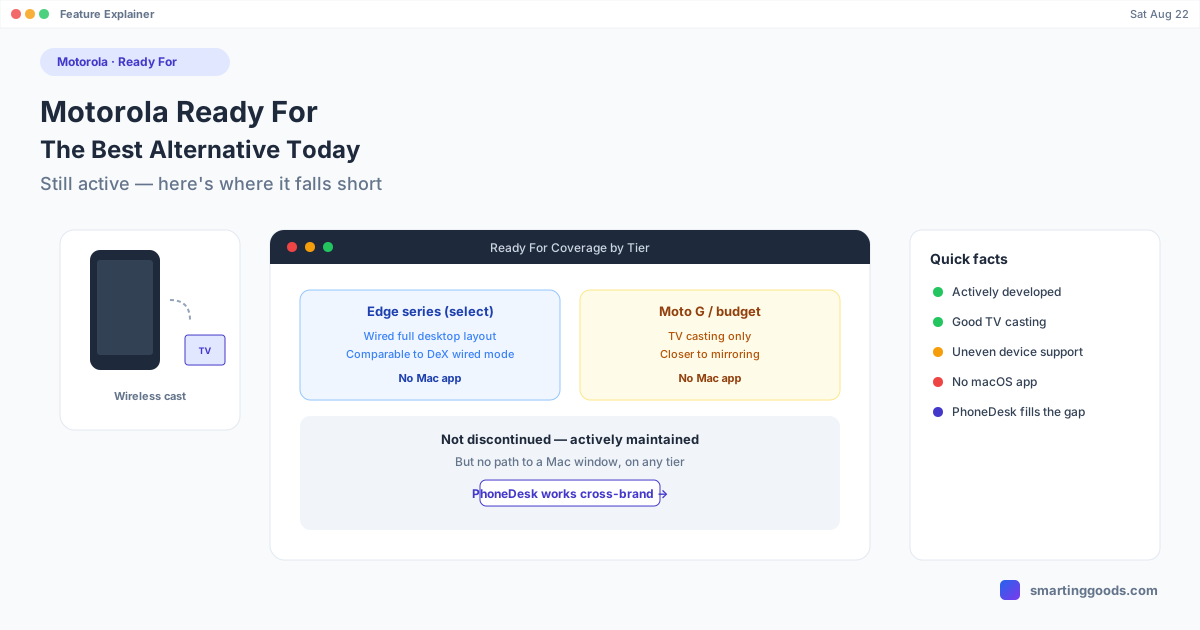
The wired, full-desktop-layout version (available on a narrower set of phones, generally Motorola's higher-end Edge line) gets closer to what Samsung DeX or Huawei's old Easy Projection offered — resizable windows, keyboard and mouse support, a taskbar. On the phones where it's available, it's a legitimate desktop-style experience, not a stripped-down demo.
Where It Falls Short for Mac Users
Two limitations matter if you're a Mac user specifically:
Phone compatibility is narrower than it looks. Wired, full Desktop-Mode-style Ready For is only available on a subset of Motorola phones — mostly the higher-end Edge series — while budget and mid-range Moto G phones typically only get the TV-casting version, which is closer to screen mirroring than a real desktop.
There's no Mac app. Ready For's wired desktop layout is built around connecting to an external monitor or, on some newer configurations, a Windows PC — not macOS. If you're on a Mac and hoping to run Ready For's desktop interface inside a window on your computer the way you might expect from a "phone as desktop" feature, that path doesn't exist. Wireless casting to a TV works regardless of what computer you own, since it doesn't involve a computer at all — but that's mirroring, not a desktop session running on your Mac.
Using a Motorola Phone with a Mac Instead
If your actual goal is getting your Motorola phone's screen and files working with a Mac — rather than casting to a TV — Ready For isn't built for that scenario, and won't be regardless of which Motorola model you own.
PhoneDesk fills that specific gap: it connects to any Android phone with USB debugging enabled, Motorola devices included, over USB or Wi-Fi, and mirrors the phone's screen as a native, resizable window directly on your Mac. It also handles file transfer in both directions — drag files onto the window from your Mac, or share straight from the phone's own share sheet, landing in Downloads without MTP or a cloud round-trip. It doesn't replicate Motorola's TV-casting UI or attempt to launch Ready For itself; it's a separate, Mac-native way to get the same underlying result (your phone, usable from your computer) that works consistently across brands rather than depending on which Ready For tier your specific Motorola model supports.
Frequently Asked Questions
Q: Is Motorola Ready For discontinued? A: No — it's an actively maintained feature, and Motorola has continued expanding what it supports, including newer wireless and PC-connection options. It's not comparable to genuinely abandoned software like Samsung's discontinued DeX-for-Mac app.
Q: Does Ready For work on all Motorola phones? A: No. The full wired desktop layout is limited to a subset of phones, mainly higher-end Edge models. Budget and mid-range Moto G phones generally only get the wireless TV-casting version.
Q: Can I run Motorola Ready For on a Mac? A: Not directly — Ready For's desktop-style layout is built for an external monitor or, in some configurations, a Windows PC. There's no macOS app for it.
Q: What's the best way to get my Motorola phone working with a Mac? A: PhoneDesk connects to any Android phone with USB debugging enabled, Motorola included, and mirrors the screen as a window on your Mac while handling file transfer wirelessly — a more direct fit than Ready For for Mac-specific use.
Bottom Line
Motorola Ready For is a real, currently supported feature — not something to write off as dead. But its wired desktop capability is limited to certain phones, and it was never designed with Mac users in mind. If you're on a Mac and want your Motorola phone's screen and files available without a TV or Windows dependency, that's a job for a different tool.
PhoneDesk is a $25 one-time license — no subscription, 14-day no-questions refund. See the full feature list →