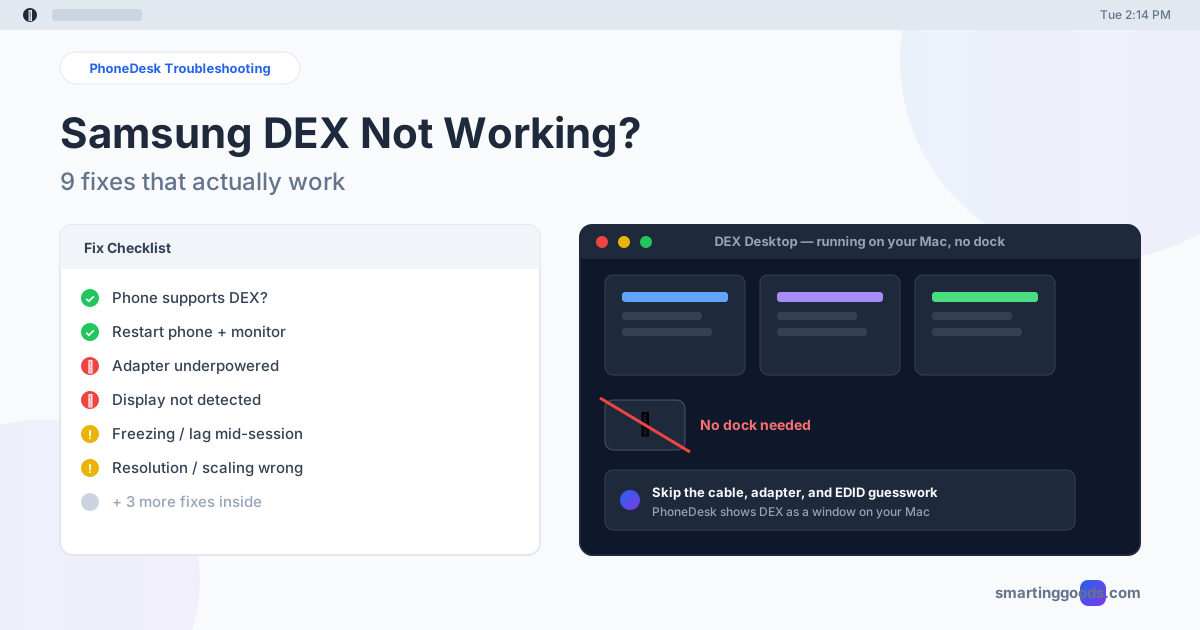
Samsung DEX Not Working? 9 Fixes That Actually Work
Samsung DEX won't connect, freezes, or shows a black screen? Here are 9 real fixes for the most common DEX failures — plus a way to skip the dock entirely.
Samsung DEX Not Working? 9 Fixes That Actually Work
Samsung DEX not working? Try these three things first, in this order: (1) check that your phone supports DEX at all (Settings, search "DEX"; most Galaxy A-series phones don't have it), (2) use a powered USB-C hub or the original Samsung cable instead of a passive adapter, which is the most common cause of a black screen or instant disconnect, and (3) swipe down and tap the DEX tile manually if the phone only mirrors. Those three cover most reports. The other six fixes below handle freezing, resolution, wireless and software problems.
DEX is a genuinely good idea (a real desktop interface running off your phone) held together by finicky cables, adapter power draw, and a UI that changes behavior every couple of One UI versions. The fixes are in the order you should try them, from two-second checks to deeper display issues. If you're still fighting a dock at the end, there's a way to skip the hardware step entirely, covered last.
Why Samsung DEX Stops Working
DEX isn't one feature — it's three different modes (wired to a monitor, wireless casting, and DEX for PC) stacked on top of Android's display and USB-C power delivery stack, and each mode fails differently. Most "DEX not working" reports break down into five buckets: the phone doesn't support DEX at all, the cable/adapter can't carry both video and power, the external display isn't switching input correctly, One UI's own settings got flipped (screen mirroring instead of desktop mode), or DEX launches but performance is unusable. Knowing which bucket you're in saves you from trying fixes for a problem you don't actually have.
1. Confirm Your Phone Actually Supports DEX
This sounds obvious, but it's the single most common reason searches for "DEX not working" turn up nothing wrong with the phone at all — DEX simply isn't available on the device. Samsung DEX ships on Galaxy S8 and later flagships, Note 8 and later, and most Galaxy Tab S-series tablets — but it is not on Galaxy A-series budget phones, and Samsung dropped DEX support from the Galaxy Z Flip line entirely. Check Settings → search "DEX" — if nothing comes up, your hardware doesn't support it and no cable or software fix will change that.
2. Restart Everything Before You Troubleshoot Further
Before touching cables or settings, restart the phone, the monitor/TV, and any dock or adapter in the chain. A huge share of "DEX won't launch" reports on Samsung's community forums resolve after a simple reboot of all three devices — DEX's display handoff is stateful, and a stuck session on either end (phone or monitor) can block the next connection attempt from initializing correctly.
3. Check the Cable and Adapter — Power Is the Usual Culprit
If DEX connects for a second and then drops, or the screen goes black right after plugging in, the adapter is very likely under-powered. USB-C to HDMI adapters that draw power from the phone often can't supply enough wattage to drive both DEX rendering and a monitor at the same time. Fix: use a powered USB-C hub (one with its own power brick) instead of a passive adapter, and use the original Samsung cable if you have it — third-party cables that don't support USB-C Alternate Mode will mirror the screen instead of launching desktop mode, or won't connect at all. Also try a different port on the monitor or dock to rule out a dead port.
4. DEX Not Detecting the External Display
If the phone shows the DEX icon is available but nothing appears on the monitor, first confirm the monitor is actually set to the right HDMI input — this catches more "DEX not working" reports than any driver issue. Next, swipe down with two fingers to open Quick Settings and look for the DEX tile; sometimes the connection registers as a standard screen mirror instead of triggering desktop mode, and tapping the DEX tile manually forces the switch. If you're on a Galaxy Tab in "Classic mode," you need Settings → Connected Devices → Samsung DEX → Classic before casting to an external display will work at all — this is a One UI 7 change that catches a lot of tablet owners off guard.
5. DEX Freezes, Lags, or Crashes Mid-Session
DEX rendering a full desktop UI is genuinely demanding on the phone's GPU and thermal budget — if you've had a dozen apps open in the background, or the phone is already warm from charging, DEX sessions get noticeably worse. Close background apps before starting a session, and if you're powering the phone through the same cable that's driving the monitor, expect more heat and more instability the longer the session runs. If crashes happen consistently with one specific app open, that app — not DEX — is usually the trigger; test with a clean session first.
6. Fix Display Resolution and Scaling Issues
DEX sometimes locks to a low resolution or renders with the wrong aspect ratio on ultrawide or 4K monitors. This is almost always an EDID handshake issue between the adapter and the display — the adapter is telling DEX the wrong supported resolution list. Try a different adapter or cable first; if that doesn't fix it, manually set your monitor's native resolution in its own on-screen menu (not through DEX) and reconnect, which sometimes forces a fresh EDID read.
7. Wireless DEX Won't Connect or Keeps Dropping
Wireless DEX casting to a Smart TV requires the phone and the TV to be on the same Wi-Fi network — and ideally the same 5GHz band, since 2.4GHz has enough latency to make wireless DEX noticeably laggy or prone to dropped frames. If the TV isn't showing up as a cast target at all, check that Smart View / DEX casting is enabled on the TV's settings and that both devices have been rebooted after connecting to Wi-Fi (a stale DHCP lease is a common silent cause of "device not found").
8. Screen Mirrors Instead of Launching Desktop Mode
If plugging in just mirrors your phone screen onto the monitor instead of switching to the DEX desktop layout, the fix is almost always in the notification shade: swipe down, find the DEX quick-settings tile, and tap it directly rather than waiting for auto-detection. Some cable/adapter combinations never trigger DEX's auto-launch and require this manual tap every time — that's a hardware limitation, not something you can permanently fix in software.
9. Update One UI and Reset Network Settings as a Last Resort
If none of the above fixes it, check Settings → Software Update — Samsung has shipped multiple DEX-specific bug fixes inside routine One UI patches, and running an outdated build is a quiet cause of connection failures that otherwise look like hardware problems. If wireless DEX specifically is broken, Settings → General Management → Reset → Reset Network Settings clears out corrupted Wi-Fi Direct pairings that can silently block casting, at the cost of having to re-enter Wi-Fi passwords afterward.
When the Real Problem Is the Dock, Not DEX
Here's the thing most troubleshooting guides won't say directly: a lot of "Samsung DEX not working" searches aren't really a DEX bug — they're a hardware problem. You're fighting a flaky adapter, hunting for a powered hub, or you simply don't have a second monitor and dock sitting around to test with. If that's where you've landed after trying the fixes above, the honest answer isn't fix #10 — it's that the dock-and-cable path is the fragile part of DEX, and you can skip it.
PhoneDesk drives Samsung DEX as a real, resizable window directly on your Mac — no HDMI dock, no USB-C hub, no adapter power issues, no EDID handshake to debug. Your Mac already has a screen; PhoneDesk connects to DEX over USB or Wi-Fi and displays the desktop session in a native macOS window you can move, resize, and use alongside your other apps. If you were troubleshooting DEX because the physical connection to a monitor is unreliable, this removes that entire failure category — there's no cable to be underpowered and no display to fail an EDID handshake, because the "monitor" is your Mac.
See the full setup in the Samsung DEX on Mac guide.
Frequently Asked Questions
Q: Why does my Samsung phone not have the DEX option at all? A: DEX is only available on Galaxy S8 and later, Note 8 and later, and most Galaxy Tab S-series devices. It was never available on A-series budget phones, and Samsung removed it from the Galaxy Z Flip line. If Settings doesn't show a DEX option, your device doesn't support it.
Q: Why does DEX show a black screen right after I connect the cable? A: This is almost always an underpowered adapter — a passive USB-C to HDMI cable trying to draw power from the phone can't reliably drive both video output and DEX rendering. Switch to a powered USB-C hub and the black screen usually clears immediately.
Q: Can I use Samsung DEX without a monitor or dock? A: Yes. PhoneDesk runs your Samsung DEX session as a native window on a Mac, so you don't need an external monitor, HDMI dock, or adapter at all — it's the same desktop mode, displayed on hardware you already own.
Q: Is PhoneDesk a subscription like other DEX accessories or software? A: No. PhoneDesk is a $25 one-time license — no monthly fee, no subscription. It also comes with a 14-day no-questions refund, so if it doesn't solve your specific DEX setup, you're not out anything.
The Bottom Line
Most Samsung DEX problems trace back to one of three things: a phone model that never supported DEX, an underpowered cable or adapter, or a display that isn't switching input correctly — and the nine fixes above cover all three. But if you've worked through this list and you're still wrestling with dock compatibility, or you don't want to buy monitor hardware just to use DEX occasionally, that's a sign the fix isn't another troubleshooting step — it's removing the dock from the equation.
PhoneDesk is a $25 one-time license — no subscription. See the full Samsung DEX on Mac setup → or check out everything PhoneDesk does →