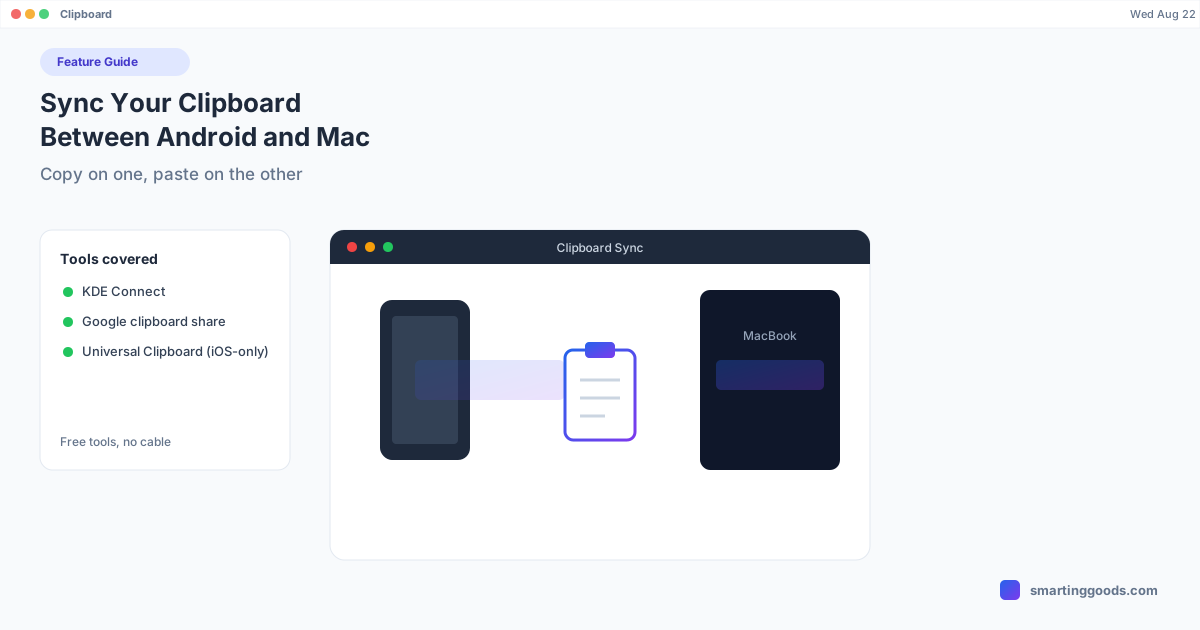
Sync Your Clipboard Between Android and Mac
Copy on your phone, paste on your Mac — Android and macOS don't do this by default, but KDE Connect and a couple of Google tools get you close. Here's what actually works.
Sync Your Clipboard Between Android and Mac (Copy on One, Paste on the Other)
Copy a link on your phone, paste it into a Mac browser tab — no message to yourself, no email draft, no AirDrop. That workflow is called Universal Clipboard on Apple devices, and it's automatic between an iPhone and a Mac. Android and macOS don't share a clipboard by default, but there are real ways to get close to the same thing.
Here's what actually works, what each option requires, and where the rough edges are.
Why Android and Mac Don't Share a Clipboard by Default
Universal Clipboard works on Apple devices because iOS and macOS are built by the same company and communicate over a private, always-on protocol (Continuity, riding on Bluetooth and Wi-Fi) that's baked into both operating systems. Android and macOS have no equivalent relationship — there's no Google-Apple partnership building this feature, so any clipboard sync between the two has to come from a third party or from a Google feature that only covers specific device pairings.
That means clipboard sync between Android and Mac is always going to be an app you install, not a setting you flip on.
Option 1: KDE Connect (Free, Most Reliable General-Purpose Option)
KDE Connect is the most complete free tool for this. Install the KDE Connect app on Android and the KDE Connect (or GSConnect-derived) client on macOS, pair the two devices over the same Wi-Fi network, and enable clipboard sharing in its settings. From that point, copying text on either device makes it available to paste on the other — it's bidirectional, not one-way.
Setup:
- Install KDE Connect from the Play Store on your Android phone.
- Install the macOS build (available via Homebrew:
brew install --cask kdeconnect, or from the project's own release page). - Open both apps while phone and Mac are on the same Wi-Fi network — they should auto-discover each other.
- Pair the devices (confirm the pairing request on both ends).
- In the app's plugin settings, make sure Clipboard sync (sometimes called "Share clipboard") is toggled on for that device pairing.
Limitations: Both devices need to stay on the same local network for sync to happen in real time — it's not a cloud-relay service, so it won't work across cellular data unless you've separately configured KDE Connect's remote/relay features. Large clipboard content (like copied images, depending on version) may not sync as reliably as plain text.
Option 2: Google's Own Clipboard Sharing (Limited, Device-Dependent)
Google has clipboard-sharing features in specific corners of its ecosystem — for example, Chrome's cross-device clipboard ("Send to your devices") lets you send a copied link from Chrome on Android to Chrome on Mac (or vice versa) if you're signed into the same Google account on both, via a right-click or share menu, not a fully automatic sync. It's genuinely useful for links and short text, but it's opt-in per item, not a background sync — you have to actively choose "send to device" each time rather than just copying normally.
If you live in Chrome on both ends, this is worth knowing about even though it's not a true universal clipboard.
Option 3: Third-Party Clipboard Apps (Pushbullet, Join, others)
Apps like Pushbullet and Join by Joaoapps both offer clipboard-forwarding as one of their features, alongside notification mirroring and file sharing. They work over the internet rather than requiring the same Wi-Fi network, which is an advantage over KDE Connect if you regularly need clipboard sync while away from home. The tradeoff is most of the genuinely useful tiers sit behind a subscription, and you're trusting a third-party cloud relay with your clipboard contents, which matters if you're pasting anything sensitive.
What About Just Mirroring the Phone Screen?
Worth being direct about this: if you're already looking at your Android phone's screen in a window on your Mac — through desktop mode or screen mirroring — you can technically select and copy text right there using your Mac's mouse, but that doesn't create a synced clipboard between the two devices' native clipboards. It's closer to reading a live video feed than an actual clipboard bridge. PhoneDesk, for example, is built for desktop mode, second-monitor use, and file transfer — not clipboard syncing specifically — so if clipboard sync between the two systems is what you need, a dedicated tool like KDE Connect is the more direct answer, not a screen-mirroring app.
Where PhoneDesk does genuinely help with a copy-paste-adjacent workflow is text you share rather than copy: sharing text or a link from an Android app to PhoneDesk's share-sheet target lands that text directly on your Mac's clipboard, ready to paste — no typing, no email to yourself. It's a one-way, deliberate share action rather than an always-on synced clipboard, but for the common case of "I want to get this one piece of text from my phone to my Mac right now," it does the job.
Frequently Asked Questions
Q: Is there a built-in Universal Clipboard for Android and Mac, like Apple has? A: No. Universal Clipboard is an Apple-only feature between iPhone/iPad and Mac. Android and macOS have no first-party equivalent — you need a third-party app like KDE Connect to get similar behavior.
Q: Does KDE Connect clipboard sync work over cellular data, or only Wi-Fi? A: By default it works over the same local Wi-Fi network. Syncing over cellular/remote networks requires additional relay configuration that most users don't set up, so treat it as a same-network tool.
Q: Can I sync clipboard images, not just text? A: Text sync is the most reliable case across these tools. Image clipboard sync support varies by app and version and is generally less consistent — test it with your specific setup before relying on it.
Q: Does PhoneDesk sync my clipboard automatically between Android and Mac? A: Not as an always-on background sync — that's not one of PhoneDesk's core features. What it does support is sharing text or a link from your phone directly to your Mac's clipboard through the share sheet, which covers the most common one-off "get this text onto my Mac" need, even if it's not a continuous two-way sync like KDE Connect.
Q: What's the simplest free option if I just need this occasionally? A: KDE Connect is the most complete free option if you want ongoing bidirectional sync. If you only need it occasionally for a link or short text, Chrome's built-in "Send to your devices" feature requires no extra app install at all.
Bottom Line
Android and Mac don't share a clipboard out of the box, and nothing perfectly replicates Apple's Universal Clipboard — but KDE Connect gets close for free, Chrome's cross-device sharing covers the occasional link, and paid tools like Pushbullet add convenience if you're willing to pay for it. Screen-mirroring tools like PhoneDesk solve an adjacent but different problem — getting your phone's screen and shared text onto your Mac — worth knowing about if you're already using one for desktop mode or file transfer, but not a substitute for a dedicated clipboard sync app if that's specifically what you need.
If you're setting up your Android phone with a Mac more broadly — desktop mode, second monitor, file transfer — see what PhoneDesk covers: $25 one-time, no subscription, 14-day no-questions refund.