Transfer Contacts From Android to Mac: 3 Reliable Methods
Three reliable ways to move your Android contacts to a Mac — a one-time vCard export, ongoing Google sync, and how to catch contacts the other two miss.
Getting your contacts off an Android phone and onto a Mac sounds like it should be instant — it's just names and numbers, no huge files, no special hardware. But there's no built-in "AirDrop your contacts" button between the two platforms, and the wrong method can leave you with duplicate entries, missing phone numbers, or a contact list scattered across two different apps that never fully sync.
Here are three reliable methods to transfer contacts from Android to Mac, in order of how most people should actually use them.
Why This Isn't as Simple as It Sounds
Apple's Contacts app and Android's Contacts app don't talk to each other directly — there's no shared protocol the way there is for, say, Bluetooth. Every method for getting contacts across is really a translation step: export from Android into a standard file format, then import that file into macOS Contacts.
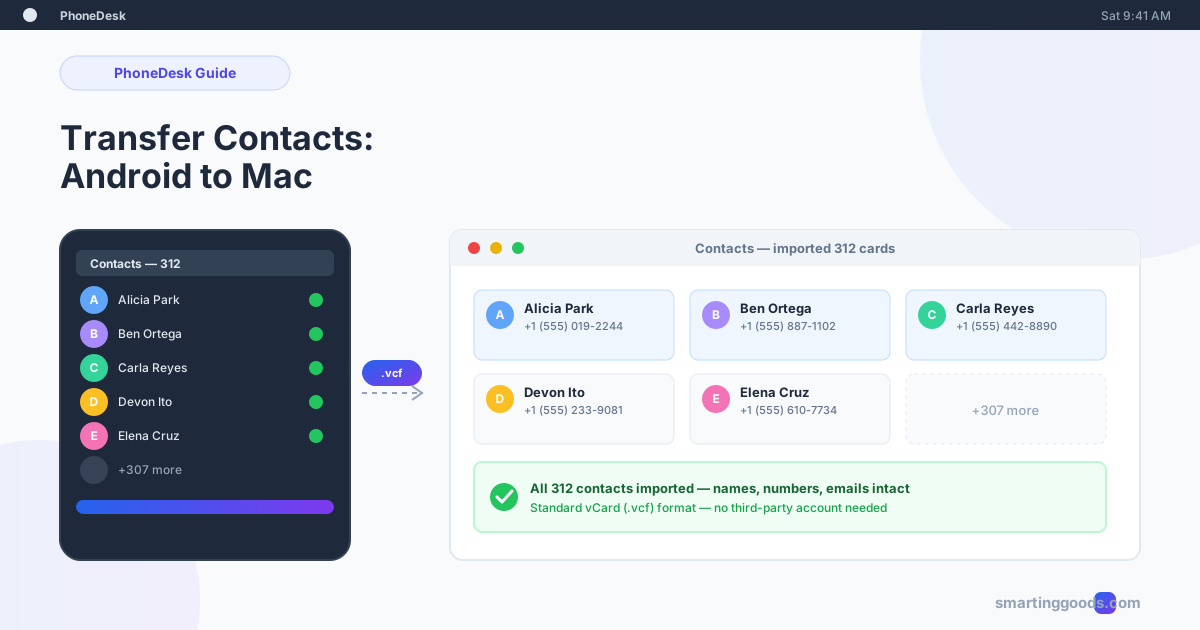
The standard format both platforms understand is vCard (.vcf) — a plain text file format that's been the universal contact-exchange standard since the 1990s. Every method below ultimately produces or uses a .vcf file; the difference is how that file gets from your phone to your Mac.
Method 1: Export to vCard (.vcf) and Transfer Directly — Most Reliable
This is the cleanest method because it doesn't depend on any account being signed in on both ends — it's just a file.
Step 1 — Export from Android:
- Open the Contacts app
- Tap the menu (☰ or three dots, depending on your phone) → Settings → Export
- Choose Export to .vcf file
- Select which contacts to include — usually "All contacts" — and save the file (Downloads is the simplest location)
Step 2 — Get the file onto your Mac:
- Over USB or Wi-Fi with PhoneDesk — open the file in your phone's Files app, tap Share, and select "Send to Mac." It lands in your Mac's Downloads folder in seconds, no cable-mounting required.
- Email it to yourself — works fine for a single .vcf file since it's plain text, typically just a few hundred KB even for hundreds of contacts
- Android File Transfer over USB — mount the phone, navigate to Downloads, drag the .vcf file across (works, but inherits AFT's usual reliability issues on newer macOS)
Step 3 — Import on the Mac: Double-click the .vcf file. Contacts.app opens automatically and asks to confirm the import — click Add All, or review individually if you're worried about duplicates.
This method preserves names, phone numbers, emails, and (usually) photos attached to contacts. It's a clean one-time transfer, not an ongoing sync — if you add a new contact on your phone next week, it won't appear on your Mac unless you export and import again.
Method 2: Sync Through Your Google Account — Best for Ongoing Sync
If you want your contacts to stay in sync going forward, not just transfer once, this is the better long-term setup.
- On your Mac, open System Settings → Internet Accounts (or Contacts → Settings → Accounts in older macOS)
- Add your Google account and enable Contacts as a syncing service
- Confirm your Android phone has the same Google account signed in with contacts sync turned on (Settings → Google → Manage your Google Account, or check Contacts app settings for "Sync now")
Once both sides are pointed at the same Google account, contacts stay in sync automatically — add one on your phone, it appears on your Mac within minutes, and vice versa.
The trade-off: this method requires trusting Google as the source of truth for your contacts, and it can create duplicates if you already had contacts stored locally on the Mac before connecting the account (macOS will often merge these automatically, but it's worth a manual review the first time). It also doesn't help if your Android contacts were never synced to Google in the first place — check Method 1 in that case.
Method 3: Third-Party Backup App (SIM/Local-Only Contacts)
If some of your Android contacts live only on the SIM card or were saved as "Phone only" rather than to your Google account, neither of the above methods will catch them by default — you need to explicitly export those too.
- In the Contacts app, check Settings → Import/Export for an option like "Export SIM contacts" or filter contacts by "Phone" vs "Google" storage
- Export the phone-only contacts to their own .vcf file, separate from your Google-synced ones
- Transfer and import that file the same way as Method 1
This matters most for older Android setups or phones inherited/bought secondhand where contacts were never migrated to a Google account. It's a five-minute check that prevents silently losing 10-20% of a contact list that "should have" synced but didn't.
Avoiding Duplicate Contacts After Import
If you use more than one of these methods (common — export a .vcf as a backup and enable Google sync), you can end up with duplicate entries. macOS Contacts has a built-in fix:
Contacts app → Card menu → Look for Duplicates. It scans for entries with matching names or numbers and offers to merge them. Run this after any import if you've transferred contacts more than once.
How PhoneDesk Helps With the File Transfer Step
The export-and-import mechanics above (Methods 1 and 3) work with any file transfer method — but the actual "get the .vcf file from phone to Mac" step is where most of the friction lives if you're relying on USB and Android File Transfer's flaky MTP connection.
PhoneDesk handles that step directly: share the .vcf file from your phone's Files app the same way you'd share a photo, pick "Send to Mac," and it's in your Downloads folder immediately — over USB or Wi-Fi, no cloud upload, no account required. It's the same connection used for Samsung DEX / Pixel desktop mode and phone-as-second-monitor, so if you're already using PhoneDesk for those, contacts transfer needs no extra setup. For everything beyond contacts — photos, documents, any file with a share button — see the full Android file transfer guide.
Frequently Asked Questions
Q: What's the easiest way to transfer contacts from Android to Mac? A: Exporting a .vcf file from the Android Contacts app and importing it into macOS Contacts (Method 1) is the most reliable one-time method — it works regardless of what account either device is signed into.
Q: Will syncing through Google keep my Mac and Android contacts updated automatically? A: Yes — once both devices are connected to the same Google account with Contacts sync enabled, changes on either side sync within minutes. This is the better option if you want ongoing sync rather than a one-time transfer.
Q: Why are some of my Android contacts missing after I transferred them? A: Contacts saved as "Phone only" or stored on a SIM card aren't included in a standard Google-synced export. Check your Contacts app's storage filter and export those separately (Method 3).
Q: Do vCard (.vcf) files preserve contact photos? A: Usually yes — most Android export tools embed the contact photo in the .vcf file, and macOS Contacts imports it along with the name and number. Very old or low-res photos occasionally don't carry over cleanly.
Q: Can I transfer contacts without using a cable? A: Yes. Google account sync is entirely wireless, and a .vcf export can be sent wirelessly too — via email, or via PhoneDesk's share-sheet transfer over Wi-Fi, which avoids both the cable and any cloud upload.
Q: Is PhoneDesk only useful for transferring contacts? A: No — contacts are one small use of its file transfer feature. PhoneDesk's main features are driving Samsung DEX / Pixel desktop mode as a window on your Mac and turning your phone into a real second monitor; file transfer (including contacts) is bundled in.
Get Your Contacts Where They Need to Be
Three methods, three different use cases: export-and-import for a clean one-time transfer, Google sync for ongoing updates, and a manual SIM/local export to catch contacts the other two miss. Most people only need the first one.
If the file transfer step is the part slowing you down, PhoneDesk moves a .vcf file — or anything else — from your phone to your Mac in seconds over USB or Wi-Fi, no cloud, no subscription. $25 one-time, 14-day no-questions refund. Check out PhoneDesk →