How to Transfer Photos from Android to Mac (2026 Guide)
Google Photos, Android File Transfer, and messaging apps all move photos from Android to Mac eventually — but each costs you time, quality, or storage. Here is what actually works, and a faster alternative.
How to Transfer Photos from Android to Mac (2026 Guide)
If you've just taken a batch of photos on your Android phone and want them on your Mac at full resolution, right now, without a cloud detour — you've probably already hit the wall. Google Photos backup works, but it's a round trip: upload, wait, then download again from a browser. Android File Transfer mounts your phone over USB, but browsing the DCIM folder is clunky and the connection drops mid-copy more often than it should. Emailing yourself a photo works for one image, badly compressed, not fifty.
This guide covers every real method people use to move pictures from Android to Mac in 2026 — what each one actually costs you in time, quality, or reliability — and where a dedicated tool closes the gap the others leave open.
Why This Is Still Harder Than It Should Be
Apple's ecosystem has AirDrop. Drop a photo from an iPhone onto a Mac and it's there in seconds, no cable, no app, no compression. Android and macOS have no equivalent built in — Google and Apple don't share a wireless photo protocol, so anyone doing an Android picture transfer to Mac is stuck choosing between a cloud service, a USB protocol built for the 2000s, or manual workarounds. None of that is a Mac problem or an Android problem specifically. It's a gap between two companies that don't build for each other's platforms, and it's the reason this exact question — how to transfer Android photos to Mac — gets searched close to 500 times a month.
Method 1: Google Photos Backup + Download
This is the default answer, and it does work. On your phone, open Google Photos, confirm backup is turned on, and wait for your camera roll to sync over Wi-Fi. Then, on your Mac, go to photos.google.com, sign in with the same account, select the photos you want, and download them.
The catch is the round trip. Nothing shows up on your Mac until it's fully uploaded from the phone first — for a large batch, that's two waits back to back, not one. You also have to actively choose "Original quality" in the backup settings; leave it on the default and Google recompresses your images before they ever reach your Mac. Original quality backups count fully against your 15GB Google One storage quota (shared with Gmail and Drive), so if you shoot a lot of photos, this method quietly costs you storage space just to move files across a desk.
It's fine for photos you already backed up for safekeeping. It's a bad fit for "I just took these 40 photos, get them onto my Mac now."
Method 2: Android File Transfer (MTP over USB)
Google's own Android File Transfer app is the closest thing to a native photo transfer android to mac tool — plug in a USB cable, open the app, and it mounts your phone's storage so you can browse into DCIM and drag photos out.
In practice, this is the method most people already have and least trust. MTP (Media Transfer Protocol) was built for browsing a file listing, not sustained transfers, and on macOS specifically it's fragile: the connection drops if the Mac sleeps, if a USB hub renegotiates, or for no visible reason mid-copy, and Samsung and Galaxy owners in particular report the transfer failing outright with "can't access storage device" errors when the DCIM folder is large. It's also USB-only — no wireless option — and there's no way to select-and-send from your phone's gallery. You navigate a mounted volume and hunt for the files instead.
When it works, it's fast and full-resolution. When it doesn't, you're force-quitting, unplugging, replugging, and trying again.
Method 3: Email, Messaging Apps, or "Send to Self"
Texting or emailing yourself photos is the fallback everyone's used at least once, and it's the worst of the three for anything beyond a single image. Messaging apps and most email providers recompress images to keep attachment sizes down — the file that lands in your Mac's inbox is not the file your camera captured. It's also strictly one-at-a-time or small-batch; there's no realistic way to send 40 photos through Messages without the process becoming the whole afternoon.
It works in a pinch. It is not a real answer to "move pictures from Android to Mac" if quality or volume matters at all.
What People Expect vs. What Actually Exists
A lot of the frustration behind this search comes from an assumption carried over from Apple's ecosystem: that selecting photos on a phone and "sending them to the laptop" should just work, instantly, wirelessly, like AirDrop. That expectation doesn't map onto Android and Mac out of the box — there's no equivalent built into either OS. Every method above is a workaround for that missing piece, which is exactly the gap PhoneDesk was built to close.
How PhoneDesk Solves Android-to-Mac Photo Transfer
PhoneDesk is a macOS menu bar app built for exactly this gap. Instead of a cloud round-trip or a flaky MTP mount, it gives your phone a direct, standing connection to your Mac — over USB or Wi-Fi — that your gallery can send straight into.
Here's what that looks like for photos specifically:
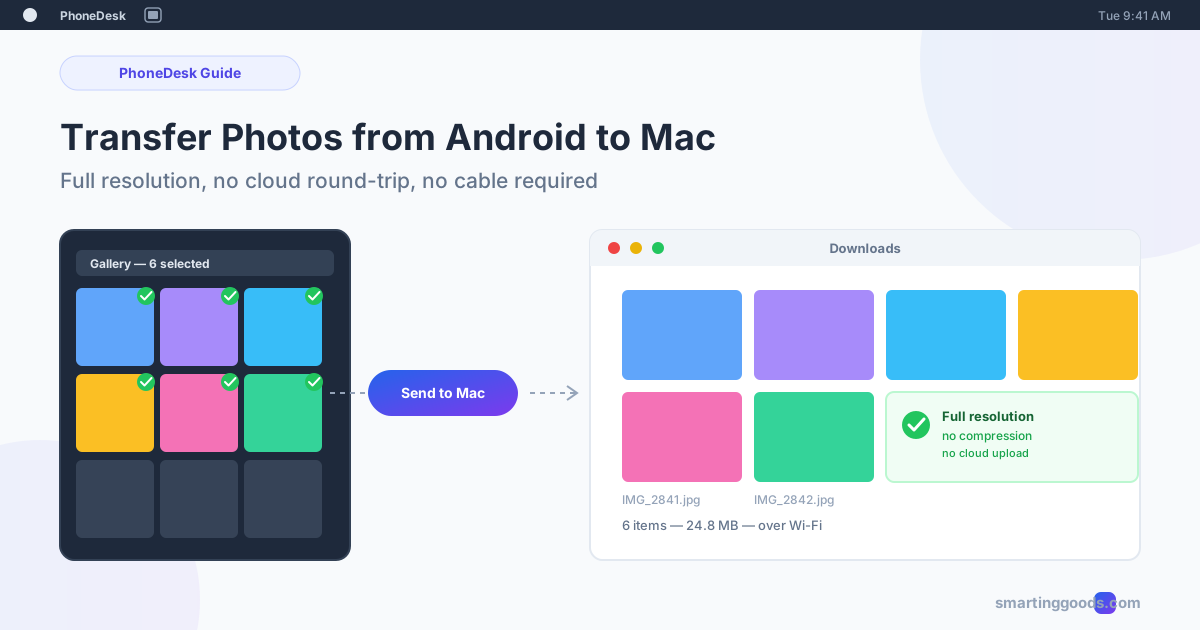
- Open your phone's gallery and select photos. Pick one photo or fifty — it's a normal multi-select in the Android gallery you already use.
- Tap Share, then "Send to Mac." PhoneDesk registers as a share target the same way AirDrop does on iPhone — no separate app to open first, no file browser to navigate.
- Photos land in your Mac's Downloads folder, at full resolution. No compression pass, no cloud upload-then-download, no waiting on a sync. If you're on the same Wi-Fi network, USB isn't required at all.
That's the real photo-specific win over the other three methods: batch selection from the gallery you're already in, full original quality with no recompression, and no cloud round-trip — the photos never leave your local network unless you want them to. It's the same underlying connection PhoneDesk uses for desktop mode and phone-as-second-monitor, so there's nothing extra to set up if you're already using either of those features.
For file transfer beyond photos — PDFs, downloads, anything with a share button — see the full Android file transfer to Mac guide, which covers PhoneDesk's file-sending flow in more depth, including text and link sharing straight to your Mac's clipboard.
Frequently Asked Questions
Q: What's the fastest way to transfer photos from Android to Mac without losing quality? A: A direct USB connection with Android File Transfer preserves full quality, but the connection is unreliable on macOS. PhoneDesk preserves full quality too, over USB or Wi-Fi, without the MTP mounting step or the drops.
Q: Does Google Photos compress my images? A: Only if you leave backup set to the default. Switching to "Original quality" in Google Photos settings preserves full resolution, but it also uses your Google One storage quota faster and still requires a full upload before you can download anything to your Mac.
Q: Can I transfer photos wirelessly without a cloud service? A: Yes — PhoneDesk sends photos directly from your phone to your Mac over Wi-Fi, with no upload to Google's or any other cloud in between. Files go straight from your phone's share sheet into your Mac's Downloads folder.
Q: Is there a limit to how many photos I can send at once? A: PhoneDesk doesn't cap batch size — select as many photos as your gallery app allows in one share action. Larger batches simply take proportionally longer, especially over Wi-Fi instead of USB.
Q: Do I need to install anything on my Mac to use PhoneDesk for photo transfer? A: Yes, a small menu bar companion app — the same one that handles Samsung DEX / Pixel desktop mode and phone-as-second-monitor. It's a one-time setup, not a per-transfer step.
Q: Does this work with any Android phone, or just Samsung/Pixel? A: Photo transfer works across Android phones generally, since it relies on the standard Android share sheet rather than a manufacturer-specific feature like DEX.
Get Your Photos Off Your Phone the Direct Way
Google Photos, Android File Transfer, and messaging apps all get your pictures onto your Mac eventually — but each one asks you to trade something: time, quality, or your phone's storage habits. If you just want to select photos on your phone and have them show up on your Mac at full resolution without a detour through the cloud, that's the specific problem PhoneDesk solves.
PhoneDesk is a $25 one-time license — no subscription, and it includes desktop mode and phone-as-second-monitor too. For the broader file-transfer picture beyond photos, read the Android file transfer to Mac guide, or see the full feature list.
Send photos without a cable
Full-quality photos from Android to Mac in one tap.
Send photos without a cable