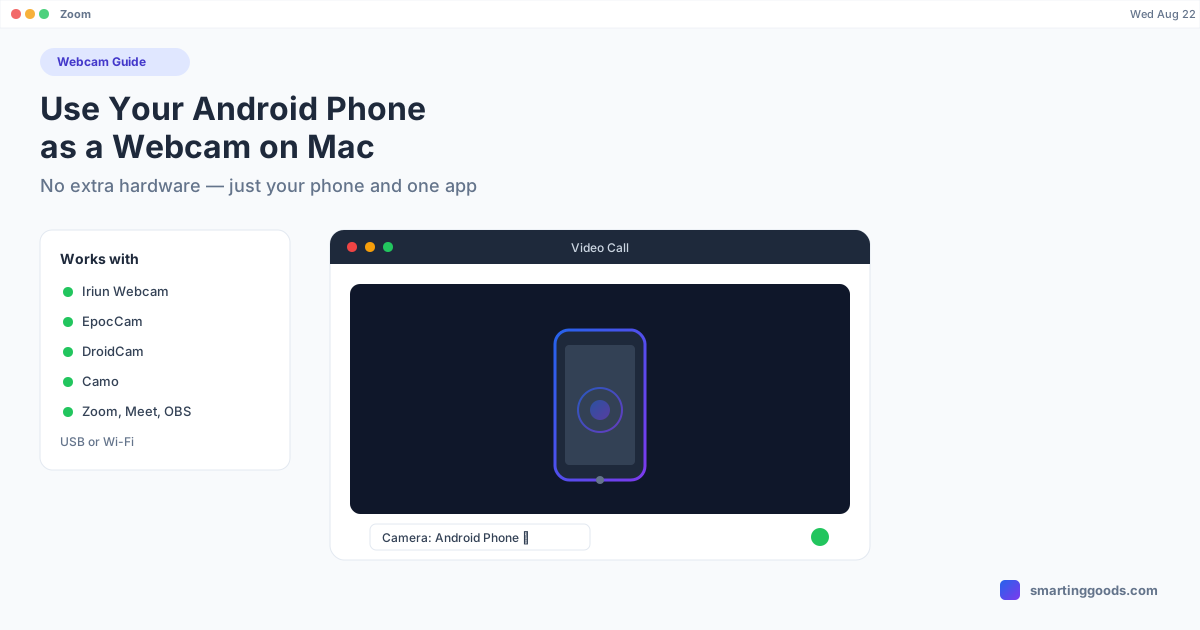
Use Your Android Phone as a Webcam on Mac (No Extra Hardware)
Your Android phone's camera is probably better than your Mac's built-in webcam. Here's how to actually use it — with real apps, not hacks.
Use Your Android Phone as a Webcam on Mac (No Extra Hardware)
If your MacBook's built-in camera looks washed out on every video call, or you're on an external iMac/Mac mini with no camera at all, your Android phone is almost certainly a better sensor than whatever's bolted above your screen. Modern phone cameras have larger sensors, better low-light handling, and autofocus that puts most laptop webcams to shame — the only missing piece is getting that camera feed into Zoom, Meet, or OBS as if it were a normal webcam.
That's a solved problem. You don't need a capture card or a USB cable running to a $150 dongle. A handful of Mac apps turn an Android phone into a virtual webcam in a few minutes, over USB or Wi-Fi. Here's how it actually works, which apps are worth installing, and where the rough edges are.
How Phone-as-Webcam Actually Works on a Mac
An Android phone can't just plug into a Mac and show up as a webcam — macOS has no built-in driver for that. What makes it work is a small app installed on both ends: a companion app on the phone captures the camera feed and streams it (over USB or your Wi-Fi network) to a Mac client, which installs a virtual camera driver. That virtual driver is what shows up in your video call app's camera dropdown — Zoom, Google Meet, FaceTime, OBS, or Photo Booth all see it exactly like a real, plugged-in webcam.
Two things determine whether this feels seamless or janky: connection method and driver quality. USB connections are more stable and lower-latency than Wi-Fi, since Wi-Fi introduces variable lag and is at the mercy of your router. And a properly signed macOS camera extension (the modern Continuity Camera-style approach, using Apple's CameraExtension API) tends to be more reliable across macOS versions than the older, hackier "fake webcam driver" approach some tools still use.
Best Apps to Turn Your Android Phone Into a Mac Webcam
Iriun Webcam
Iriun is the most straightforward option if you just want this working in five minutes. Install the Iriun app on your Android phone (Play Store) and the Iriun Webcam desktop app on your Mac, connect both to the same Wi-Fi network, and the desktop app auto-detects the phone. A USB mode is available for lower latency if Wi-Fi feels laggy. The free tier is genuinely usable — it adds a small watermark and caps resolution, and a one-time paid unlock (around $8–15 depending on platform) removes both. It supports basic filters and works across Zoom, Meet, Teams, and OBS without extra configuration.
EpocCam (Elgato)
EpocCam is made by Elgato, the same company behind Cam Link and Stream Deck, and it shows in the polish — cleaner UI, better exposure handling, and tighter Mac integration than most competitors. The free version caps you at 480p with a watermark; EpocCam HD (a one-time purchase, roughly $8) unlocks 720p, and EpocCam Cloud unlocks features like external mic passthrough and higher bitrates. It supports both USB and Wi-Fi. If you want the most "it just works" experience and don't mind paying once for HD, this is usually the first one worth trying.
DroidCam
DroidCam has been around the longest and has the widest device compatibility, including older or budget Android phones that newer apps sometimes ignore. The free version is capped at 480p; DroidCam OBS (a small one-time fee) unlocks HD resolution and adds direct OBS Studio integration, which matters if you're streaming rather than just video-calling. Setup is slightly more manual than Iriun or EpocCam — you may need to enter your Mac's local IP address into the phone app rather than relying on auto-discovery — but it's a solid fallback if the others don't detect your phone.
Camo (Reincubate)
Camo leans toward creators rather than casual callers — better low-light processing, manual exposure/focus/white-balance controls, and a cleaner picture at the cost of a subscription for the higher tiers (there's a limited free tier at 720p with a watermark). If you're doing regular streaming or recording work and want the most control over the image, Camo is worth the look; if you just want your face to look decent on a Tuesday standup, it's more app than you need.
USB vs Wi-Fi: Which Should You Use?
USB is the better default whenever it's an option. It's lower latency, doesn't compete with your Wi-Fi bandwidth during a call, and doesn't drop when your router hiccups. The tradeoff is a cable running from your phone to your Mac, which some of these apps handle better than others (DroidCam and EpocCam both support USB cleanly; Iriun's USB mode requires Android File Transfer or ADB to be working correctly, which can be its own small hurdle).
Wi-Fi is more convenient — no cable, phone stays wherever you mount it — but expect it to behave like anything else on your network: fine on a fast, stable home connection, noticeably worse on a congested one or a phone that's asleep-throttling background apps to save battery.
What You Actually Need Before Starting
- A phone stand or mount. This matters more than any app choice — a phone camera propped against a coffee mug looks worse than a $20 laptop webcam. A cheap desk clip or tripod mount fixes 90% of "why does this still look bad" complaints.
- Do Not Disturb turned on. Notifications popping up on the phone screen during a call are the single most common self-inflicted webcam mistake.
- Charging while connected. Camera + streaming app + screen-on will drain a phone fast; keep it plugged in for anything longer than a quick call.
- The phone's rear camera, if the app supports switching to it. Most phones' rear sensors are noticeably better than the selfie camera — Iriun, EpocCam, and DroidCam all let you flip to the rear lens from the app.
A Related Use Case: Desktop Mode and Second-Monitor Tools
None of the apps above are the same category of tool as PhoneDesk — PhoneDesk doesn't turn your phone into a webcam, and we're not going to pretend otherwise. What PhoneDesk does is put your phone's actual screen in a window on your Mac: driving Samsung DEX or Pixel desktop mode as a resizable macOS window, turning your phone into a real second monitor, and sending files and text from phone to Mac without a cable or MTP mount.
If you're already reaching for your phone as extra hardware for your Mac — a webcam here, a second screen there — it's worth knowing both tools exist for different jobs. Webcam apps stream your camera; PhoneDesk streams (and receives) your phone's actual display. See what PhoneDesk does with your phone's screen → if a second monitor or cable-free file transfer is also something you've been missing.
Frequently Asked Questions
Q: Does this work with FaceTime, not just Zoom and Meet? A: Yes — once a virtual camera driver like Iriun's or EpocCam's is installed, it shows up as a normal camera option in FaceTime, Photo Booth, and any other Mac app that lists available cameras, not just video-conferencing tools.
Q: Will using my phone as a webcam drain the battery fast? A: Yes, noticeably — camera sensor, screen-on, and network streaming together pull meaningfully more power than normal use. Keep the phone plugged in for calls longer than 10–15 minutes.
Q: Is there a completely free option with no watermark? A: Not really, among the apps here — all of them gate HD resolution or remove a watermark behind a one-time purchase (typically $8–15). The free tiers are usable for casual calls but visibly lower quality.
Q: Does PhoneDesk turn my phone into a webcam? A: No — PhoneDesk is a screen tool, not a camera tool. It puts your phone's actual display in a window on your Mac (desktop mode, second monitor, file transfer), which is a different job than streaming a camera feed. If you want webcam functionality, use one of the apps above; if you want your phone's screen or file system connected to your Mac, that's what PhoneDesk is for.
Bottom Line
If your Mac's built-in camera is the weak link on video calls, your Android phone is a genuinely better sensor sitting right in your pocket — Iriun and EpocCam are the two easiest starting points, DroidCam is the best fallback for older devices, and Camo is worth the subscription if you're doing serious streaming work. Pick USB over Wi-Fi when you can, get a real stand, and mute notifications before you go live.
If you're also looking to get your phone's actual screen — not just its camera — onto your Mac, see how PhoneDesk handles desktop mode, second-monitor use, and file transfer →. It's a $25 one-time license, no subscription.