WhatsApp on Mac From an Android Phone: Setup Guide
WhatsApp's Mac app is great once it's set up right — but Android's battery optimization breaks the sync more than anything else. Full setup plus the fixes for every common problem.
WhatsApp on Mac From an Android Phone: Setup + Common Problems
WhatsApp's Mac app is genuinely one of the smoothest cross-platform messaging experiences available — but it still depends entirely on your Android phone staying connected, which trips people up constantly. This is the full setup process plus the specific failure modes Android users hit that iPhone users mostly don't.
How WhatsApp on Mac Actually Works
WhatsApp Desktop for Mac is a "linked device" client, not an independent account. Your Android phone remains the primary device holding your WhatsApp account; the Mac app mirrors your chats through an end-to-end encrypted connection. As of the multi-device architecture WhatsApp rolled out a few years ago, the Mac app can keep working even if your phone is briefly offline (unlike the old WhatsApp Web, which required your phone to stay connected at all times) — but your phone still needs to come back online periodically, and if it stays disconnected too long, the Mac app will eventually flag the link as stale.
Setting Up WhatsApp on Mac
- Download the WhatsApp desktop app for macOS from whatsapp.com/download or the Mac App Store — don't rely on a random search result; get it from one of those two official sources.
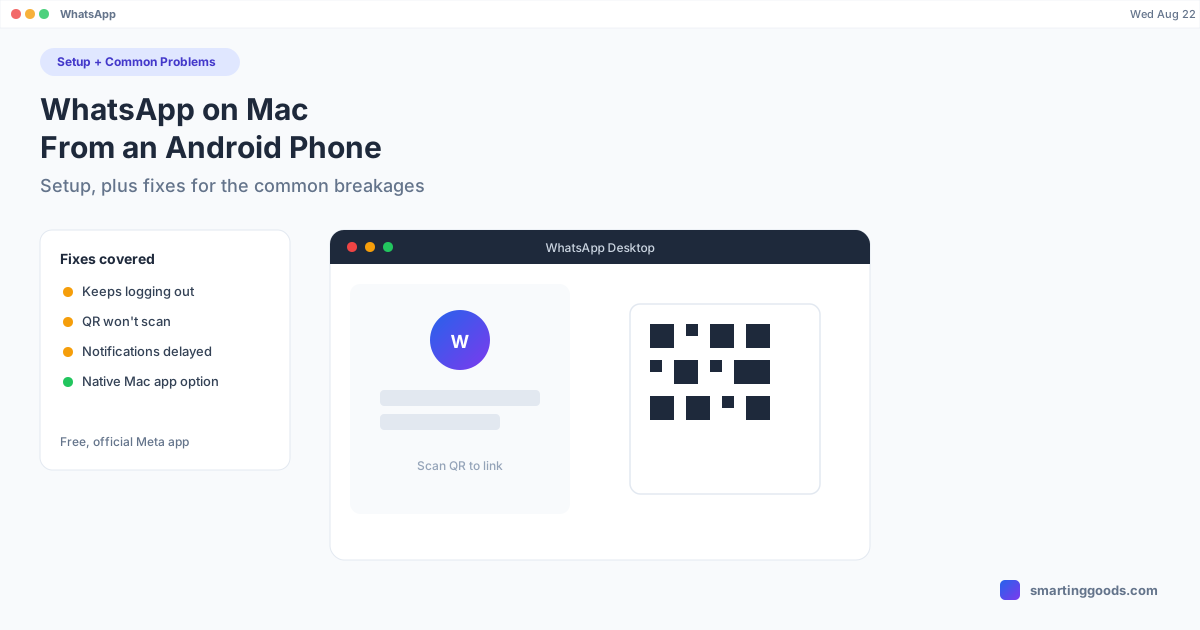
- Open the app. It shows a QR code on the Mac screen.
- On your Android phone, open WhatsApp, tap the three-dot menu (top right) → Linked devices → Link a device.
- You may be prompted for phone unlock (fingerprint or PIN) as a security check before the camera opens.
- Scan the QR code shown on your Mac with your phone's camera.
- Your chats load on the Mac within a few seconds, and stay in sync going forward.
You can link up to four devices to one WhatsApp account (including the phone), so the Mac app can coexist with WhatsApp Web on a different browser, a tablet, and so on.
Common WhatsApp on Mac Problems (and Fixes)
"Phone not connected" or messages stop syncing. This is the most common complaint, and almost always comes down to your Android phone's battery optimization settings killing WhatsApp's background connection. Go to Settings → Apps → WhatsApp → Battery on your phone and set it to Unrestricted (the exact wording varies by Android version/manufacturer — Samsung, Xiaomi, and OnePlus are especially aggressive about background-killing apps by default). Without this, Android proactively closes WhatsApp's background process to save power, which severs the sync link to your Mac app.
Notifications on Mac are delayed or missing. Check System Settings → Notifications → WhatsApp on the Mac to confirm notifications are allowed and not set to "None." If that's already correct, the delay is often the same battery-optimization issue above — the phone isn't maintaining the background connection needed to push new-message events promptly.
QR code won't scan / camera doesn't open. Make sure you're going through Linked devices → Link a device inside the WhatsApp app itself, not your phone's regular camera — WhatsApp's in-app scanner has a pairing handshake the regular camera doesn't. If the phone camera permission was denied for WhatsApp at some point, re-grant it in Settings → Apps → WhatsApp → Permissions.
Device keeps getting unlinked automatically. WhatsApp automatically unlinks a companion device if the primary phone hasn't connected to the internet in about two weeks (previously stricter under the old WhatsApp Web architecture, less aggressive now, but still a real limit). If you travel and leave your phone off or in airplane mode for extended stretches, expect to have to re-link when you're back.
Media (photos, videos) won't download on Mac. This usually means the file is still stored only on the phone and hasn't synced yet, or your phone was offline when you opened the chat on the Mac. Confirm the phone has an active internet connection and give it a few seconds — large video files in particular take longer to sync than text.
Two different WhatsApp accounts, one Mac. The desktop app only supports one linked account at a time per install. If you need two WhatsApp numbers on the same Mac, you'd need a second instance (a separate browser tab pointed at web.whatsapp.com logged into the second number, since the native app doesn't support multiple simultaneous accounts).
WhatsApp Desktop App vs WhatsApp Web
Both connect to the same account and both need your phone to check in periodically, but the native Mac app is generally the better choice: it supports Mac notifications properly, keeps running without a browser tab open, and has slightly better call/video quality for WhatsApp calls. WhatsApp Web (web.whatsapp.com) is useful in a pinch — a shared or borrowed computer, for instance — but for a Mac you use regularly, install the actual desktop app instead.
Where PhoneDesk Fits (and Where It Doesn't)
WhatsApp's own Mac app already handles the core job well once your phone's battery settings are fixed — there's no need for a third-party tool just to get WhatsApp working on a Mac. Where a tool like PhoneDesk becomes genuinely relevant is a step beyond messaging: if you need to do something WhatsApp's Mac app doesn't support directly, like sending a file from your phone's gallery that isn't inside a WhatsApp chat, or checking a WhatsApp Business feature that's phone-only, having your Android phone's actual screen open in a window on your Mac (which is what PhoneDesk's desktop mode and mirroring features do) means you can just use the phone app directly, without switching devices. It's not a WhatsApp integration — it's a "your whole phone is right here if you need it" fallback for anything the Mac app doesn't cover.
Frequently Asked Questions
Q: Does WhatsApp on Mac require my Android phone to stay connected the whole time? A: Not continuously, thanks to WhatsApp's multi-device architecture — brief disconnections are fine. But your phone does need to come back online periodically; if it's offline for around two weeks straight, WhatsApp automatically unlinks the Mac as a companion device.
Q: Why does WhatsApp keep disconnecting from my Mac? A: The most common cause on Android is aggressive battery optimization killing WhatsApp's background process. Set WhatsApp's battery usage to Unrestricted in your phone's app settings to fix persistent disconnects.
Q: Can I use WhatsApp on my Mac without installing the phone app first? A: No. WhatsApp requires an active account tied to a phone number, set up through the mobile app first. The Mac app is a linked companion device, not a standalone account.
Q: Is WhatsApp Desktop better than WhatsApp Web for Mac? A: Yes, for regular use — the native app handles notifications and background running better than keeping a browser tab open. Use WhatsApp Web only for occasional access on a computer you don't own.
Q: Does PhoneDesk help with WhatsApp specifically? A: Not directly — WhatsApp's own Mac app is the right tool for messaging. PhoneDesk is useful as a fallback if you need to interact with something on your phone that the WhatsApp Mac app doesn't expose, since it puts your actual Android screen in a window on your Mac.
Bottom Line
WhatsApp on Mac works well once you know the one setting that causes 90% of the sync complaints — Android's battery optimization silently killing the background connection. Fix that, install the real desktop app instead of relying on the browser version, and WhatsApp on Mac is as reliable as any cross-platform messaging setup gets.
If you also want your Android phone's full screen available on your Mac — for desktop mode, a second monitor, or wireless file transfer beyond what WhatsApp handles — see what PhoneDesk does: $25 one-time, no subscription, 14-day no-questions refund.