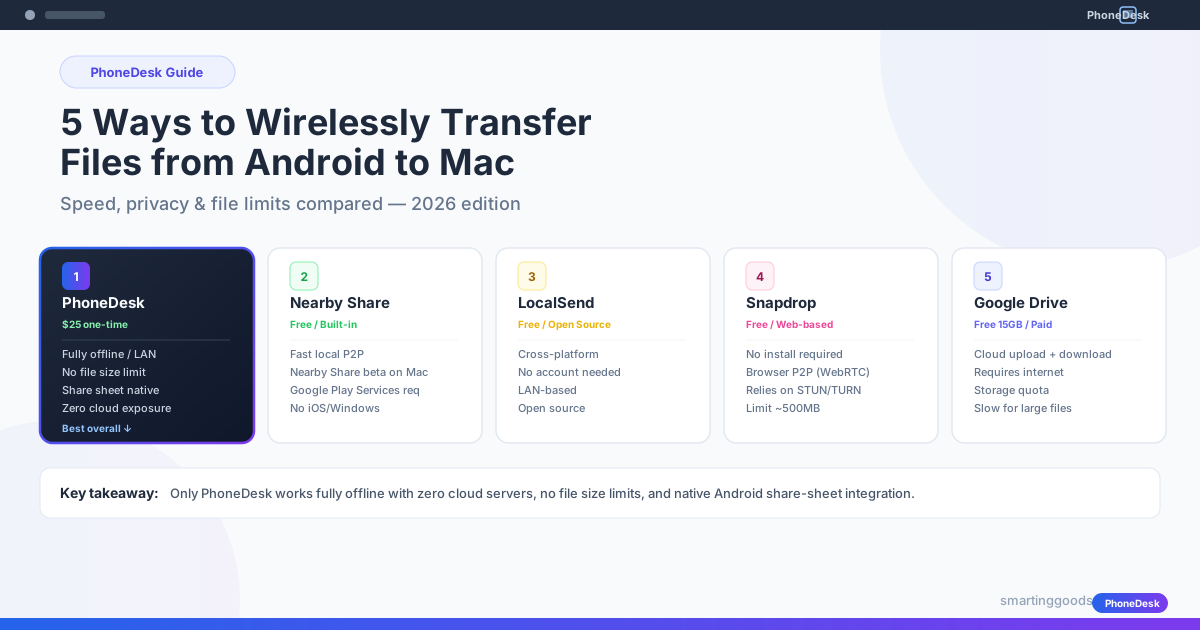
5 Ways to Wirelessly Transfer Files from Android to Mac in 2026
Need to transfer files from Android to Mac wirelessly? We compare 5 methods — PhoneDesk, Nearby Share, LocalSend, Snapdrop, and Google Drive — on speed, privacy, and ease of use. No USB cables, no MTP hassle.
If you've ever tried to transfer a file from your Android phone to your Mac, you already know the frustration. USB cables that randomly disconnect. MTP mode that your Mac refuses to recognize. Android File Transfer that freezes halfway through a batch of photos.
There's a better way — and you don't need a cable. Here are the 5 best ways to wirelessly transfer files from Android to Mac in 2026, compared on speed, privacy, file size limits, and how easy they actually are to set up.
What Matters When Choosing a Wireless File Transfer Method
Before we dive into the tools, here's what you should look for:
Speed — How fast does the file actually arrive? LAN-local transfers can hit 50-100 MB/s. Cloud transfers are bottlenecked by your internet upload speed (typically 5-20 MB/s).
Privacy — Does the file pass through a third-party server? End-to-end encryption? Zero-knowledge? For sensitive documents, this matters more than speed.
File size limits — Some tools cap files at 100MB. Others handle 4K video files without thinking twice.
Ease of use — Does it work with Android's native share sheet? Do both devices need an app? Can someone non-technical set it up in 30 seconds?
Cost — Free is great. But reliable, private, unlimited transfers might be worth a one-time $25.
Let's look at each method and how they stack up.
1. PhoneDesk — Local-Only, Unlimited Size, Native Share Sheet
PhoneDesk is a macOS menu bar utility built for the exact scenario where you just need to get a file from your Android phone to your Mac, quickly, privately, and without cloud servers.
How it works: Install the PhoneDesk Mac app and the Android companion app. Both devices connect over your local network (Wi-Fi LAN). Open any file on your Android phone, tap Share, select PhoneDesk from the share sheet — the file arrives on your Mac in seconds. No USB, no cloud upload, no account.
Speed: Excellent — limited only by your Wi-Fi network. Expect 30-70 MB/s on a standard AC Wi-Fi, faster on Wi-Fi 6.
Privacy: Perfect. Files never leave your local network. No cloud relay, no third-party server. Even if you're on a plane or in a remote cabin with no internet, PhoneDesk still works.
File size limit: None. We've transferred 8GB+ video files without a hitch.
Ease of use: Android share sheet integration means you send files the same way you'd send them to any other app — it's already muscle memory.
Price: $25 one-time, lifetime license. No subscription.
Best for: Anyone who transfers files regularly and values privacy, speed, and not paying monthly.
2. Nearby Share — Google's Built-in, Now on Mac Beta
Nearby Share is Google's answer to AirDrop. It's built into every Android phone (Google Play Services), uses Bluetooth for peer discovery and Wi-Fi Direct for the actual transfer.
How it works: On Android, Nearby Share is in the share sheet. On Mac, you'll need the Nearby Share beta app (available from Google's website, still in development). Both devices need Bluetooth and Wi-Fi enabled.
Speed: Very good — Wi-Fi Direct gives you 20-50 MB/s depending on the hardware.
Privacy: Good. The connection is peer-to-peer, but Google's servers handle device discovery (short-range Bluetooth handshake + internet relay for the initial contact). Once the transfer starts, it's direct.
File size limit: No hard limit, but very large files can be flaky. 1-2GB works, 5GB+ might time out before the connection stabilizes.
Ease of use: Seamless on Android. On Mac, the beta is rough — it's a web-based wrapper, not a native app. Setup takes a few minutes and can be confusing for non-technical users.
Price: Free.
Best for: Android-only households where someone doesn't mind running beta software on their Mac. Not ideal for large, frequent transfers or privacy-sensitive files.
3. LocalSend — Open Source, Cross-Platform, No Account
LocalSend is a free, open-source app that works on Android, macOS, Windows, Linux, and iOS. It uses REST + HTTPS over your local network — no internet required after the first download.
How it works: Install the LocalSend app on both devices. Open it, pick the file, select the receiver from the device list that appears. Both devices must be on the same Wi-Fi network (or connected via a local hotspot).
Speed: Good. Local HTTP transfer at 20-50 MB/s over standard Wi-Fi.
Privacy: Very good. Everything stays on your LAN. No cloud relay, no accounts. The protocol is open-source and auditable.
File size limit: No hard limit, but the app can be slow to negotiate large transfers. 2-3GB is comfortable.
Ease of use: Simple but requires both apps to be open. No share sheet integration on Android (you open LocalSend first, then pick the file from within the app). That extra step adds friction.
Price: Free, open source (MIT license).
Best for: Users who prefer open-source tools and want cross-platform support. The extra step of opening the app first makes it less seamless than share-sheet-based solutions.
4. Snapdrop — No Install Required, Browser-Based P2P
Snapdrop is a web app that creates a direct peer-to-peer connection between two browsers using WebRTC. No installation needed on either device — just open the same URL in both browsers.
How it works: Both devices navigate to snapdrop.net. When they're on the same network, they see each other. Drag and drop a file onto the browser window, or tap to select.
Speed: Moderate. WebRTC introduces some overhead — expect 5-15 MB/s. For smaller files (photos, PDFs, short videos) this is fine.
Privacy: Moderate. In theory, WebRTC is P2P, but in practice, many networks require TURN servers to relay the traffic (especially corporate or public Wi-Fi). When a TURN relay kicks in, your file passes through a third-party server. Snapdrop's default TURN server is provided by a third party.
File size limit: Most browsers cap WebRTC data channels around 500MB-1GB. Large files frequently fail.
Ease of use: Dead simple — no install, just a URL. But both browser tabs must stay open and active during the entire transfer. If either device goes to sleep or the browser tab is backgrounded, the transfer fails silently.
Price: Free with donations.
Best for: One-off transfers of small files when you don't control either device enough to install software. Not a daily-driver solution.
5. Google Drive / Dropbox — Cloud Upload Then Download
The "old reliable" method: upload a file from your Android phone to cloud storage, then download it on your Mac.
How it works: Open the file on Android, share it to Google Drive or Dropbox. On your Mac, open the cloud folder or website, download the file.
Speed: Slow — limited by your internet upload speed. A 1GB file on a typical 20 Mbps upload connection takes 7-8 minutes just to upload. Then you wait for the download.
Privacy: Poor. The file sits on Google's or Dropbox's servers. Even with encryption at rest, the provider holds the keys. If you're transferring financial documents, private photos, or work files with NDAs, this should give you pause.
File size limit: Quota-bound. Google Drive gives you 15GB free (shared across Gmail, Photos, and Drive). Dropbox gives 2GB free. Files larger than your remaining quota won't upload. Even on paid plans (100GB-$100TB), large files take forever over internet upload.
Ease of use: Very straightforward — almost everyone already has one of these apps installed. But the multi-step "upload, switch devices, download" flow is far slower than direct transfer.
Price: Free tier exists (15GB Google Drive, 2GB Dropbox). Paid plans start at $1.99/mo for 100GB.
Best for: When you already use cloud storage as part of your workflow and the file is small enough to upload quickly. Not great for privacy, large files, or when you're offline.
Comparison Table
| Feature | PhoneDesk | Nearby Share | LocalSend | Snapdrop | Google Drive |
|---|---|---|---|---|---|
| Speed | 30-70 MB/s | 20-50 MB/s | 20-50 MB/s | 5-15 MB/s | 1-5 MB/s (internet) |
| Privacy | ✅ Fully offline LAN | ✅ P2P (discovery via Google) | ✅ Fully offline LAN | ⚠️ May use TURN relay | ❌ Cloud servers |
| File size limit | None | ~2-5 GB (flaky) | ~2-3 GB | ~500 MB (browser limit) | Quota-bound |
| Share sheet? | ✅ Yes | ✅ Yes | ❌ Open app first | ❌ Browser | ✅ Yes |
| Need internet? | ❌ No | ⚠️ Discovery only | ❌ No | ⚠️ TURN fallback | ✅ Yes |
| Install? | App + Mac app | Built-in + Beta web | App both devices | Nothing | App both devices |
| Cost | $25 one-time | Free | Free | Free | Free / $2+/mo |
Why PhoneDesk Is Different
Every other wireless transfer method makes a trade-off. Cloud storage trades privacy for convenience — your files sit on someone else's server. Nearby Share trades reliability for being built-in — the Mac beta is unfinished and large transfers fail. LocalSend trades speed for being free and open — no share sheet means an extra step every time. Snapdrop trades robustness for being install-free — browser limits and TURN relays make it unreliable.
PhoneDesk is a macOS-native menu bar app built by a team that was frustrated with all the same problems. It's the only tool that gives you everything on the list at once:
- Fully offline — works without internet
- No file size limits — transfer 100GB if you want
- Native Android share sheet — one tap, done
- No cloud servers — ever
- One-time $25, no subscription
See PhoneDesk's full file transfer feature →
Frequently Asked Questions
Q: Can I transfer files from Android to Mac without internet? A: Yes. PhoneDesk, LocalSend, and Nearby Share (after initial discovery) all work over local Wi-Fi without internet access. Cloud services like Google Drive or Dropbox require an internet connection.
Q: Is there an AirDrop equivalent for Android to Mac? A: Not natively. AirDrop is Apple's proprietary protocol and Apple doesn't license it to Android. Nearby Share is Google's equivalent but the Mac client is still in beta. PhoneDesk provides the closest experience — share sheet integration, no cloud, just works.
Q: What's the fastest way to send a large video file from Android to Mac? A: PhoneDesk or LocalSend over a local Wi-Fi network. Both bypass internet upload bottlenecks. PhoneDesk handles larger files more reliably (no size limit vs LocalSend's ~2-3 GB practical limit).
Q: Is it safe to transfer sensitive documents over these methods? A: PhoneDesk and LocalSend keep files entirely on your local network — no servers involved. Nearby Share uses Google servers for discovery but P2P for data. Cloud services (Google Drive, Dropbox) store your files on third-party servers, which is riskier for sensitive data.
Q: Do both devices need to be on the same Wi-Fi network? A: For PhoneDesk, LocalSend, and Nearby Share — generally yes. Some advanced setups work over a local hotspot or Ethernet bridge. Snapdrop and Google Drive work over any internet connection.
Q: Does PhoneDesk support sending files from Mac to Android too? A: Yes. File transfer works in both directions — phone to Mac or Mac to phone.
Which One Should You Use?
If you transfer files once a month and they're all small photos, Snapdrop or Google Drive will work fine. If you transfer files daily, work with large video or project files, or care about keeping your data off third-party servers, PhoneDesk is the clear winner.
No subscription. No cloud. No limits. One-time $25, 14-day no-questions refund if it doesn't solve your problem. That's it.
Send files without a cable
Android to Mac in one tap — no MTP, no cable, no disconnects.
Send files without a cable