Android Desktop Mode Explained: DEX vs Pixel vs Native
Android desktop mode isn't one feature — it's Samsung DeX, Google's Pixel desktop mode, and native Android 16 windowing, each with different hardware requirements. Here's how to tell which one you have and what each can do.
Android Desktop Mode Explained: DEX vs Pixel vs Native Android 16
Android desktop mode is a windowed, taskbar-style desktop that your phone shows on an external display instead of a stretched phone screen. Which one you have depends on the phone: Samsung Galaxy phones and tablets use DeX, Pixel 8 and newer use Pixel desktop mode (Android 16), and other brands may have a rougher native version in developer options. Here is the short version:
| Your phone | What it's called | What you need |
|---|---|---|
| Samsung Galaxy (DeX-capable phones and tablets) | Samsung DeX | Standard USB-C-to-HDMI cable, a dock, or wireless via Miracast |
| Google Pixel 8 or newer | Pixel desktop mode (Android 16) | A cable or dock that supports DisplayPort Alt Mode |
| OnePlus, Motorola, Nothing and other brands | Native Android desktop windowing | Varies by phone and software build; check developer options |
That's the first source of confusion: "desktop mode" isn't a single feature with a single name, and generic advice is usually wrong for your specific phone. All three do roughly the same thing: plug your phone into a monitor and get a resizable-window desktop. None of them ship an official way to run it on a Mac, which is the gap PhoneDesk fills (more on that below).
Below: what each version can and can't do, and why none of them ship an official way to run that desktop on a Mac.
What Is Android Desktop Mode?
Android desktop mode is a windowed, taskbar-driven interface that replaces your phone's normal home screen when you connect it to an external display. Instead of a single app filling the screen (or a mirrored phone UI stretched into a rectangle), apps open in resizable, movable windows — closer to how macOS or Windows behaves than how a phone behaves.
The concept isn't new. Samsung shipped the first mainstream version, DeX, back in 2017. Google spent years watching it work before building its own version into Android, which finally shipped natively with Android 16 in 2026 starting on Pixel 8 and newer. Other Android OEMs have shipped their own scaled-down attempts, and stock Android (AOSP) now includes a native desktop windowing mode that's technically available across newer devices, though it's rougher and less polished than either Samsung's or Google's take.
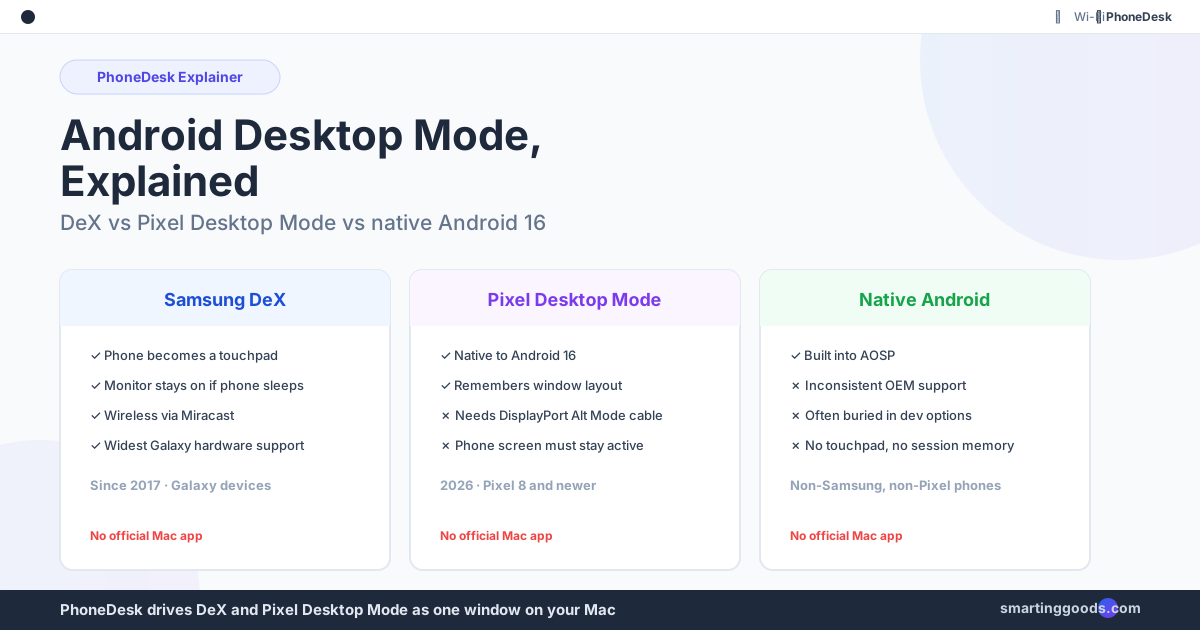
The three you'll actually run into: Samsung DeX (mature, broad hardware support), Pixel desktop mode (newer, tightly integrated with Android 16), and native Android desktop windowing (bare-bones, inconsistent OEM support).
Samsung DeX: The Original, Still the Most Capable
DeX has had eight years to mature, and it shows. A few things DeX does that the newer alternatives still don't:
- Phone as touchpad. Once DeX is running on an external display, your phone screen becomes a trackpad automatically — no separate mouse required to get started.
- Independent display state. The external monitor stays awake and usable even if your phone's screen times out or locks. Pixel desktop mode doesn't do this — more on that below.
- Wireless casting. DeX can go wireless via Miracast to a compatible TV or monitor, in addition to wired USB-C-to-HDMI or a dock.
- Widest hardware support. Any DeX-capable Galaxy phone or tablet from the last several generations works — you're not limited to the newest flagship.
The tradeoff is that DeX is a Samsung-built layer on top of Android (One UI), not the underlying OS's native windowing system. It looks and feels like a desktop, but it's Samsung's interpretation of one, and it only exists on Galaxy devices.
If you're specifically trying to get DeX running as a window on a Mac rather than plugged into a monitor, we cover that setup start-to-finish in our Samsung DeX for Mac guide.
Pixel Desktop Mode: Newer, More "Real Android," Fewer Compromises Elsewhere
Pixel desktop mode is Google's native answer, introduced with Android 16 and available on Pixel 8 series and newer. Because it's built into the OS itself rather than layered on top like DeX, a few things work differently:
- Same system, second surface. Desktop mode is literally the same Android instance running your phone, rendering a second windowing environment on the external display — not a separate desktop-flavored interpretation of it.
- Session memory. Pixel desktop mode remembers your window layout and desktop arrangement between sessions. Disconnect, reconnect later, and your windows come back roughly where you left them.
- DisplayPort Alt Mode requirement. This is the catch — Pixel desktop mode needs a cable or dock that supports DisplayPort Alternate Mode specifically. Not every USB-C-to-HDMI cable qualifies, which trips up a lot of people who assume any cable works.
- Phone screen stays tied to the session. Unlike DeX, you can't let the phone's screen sleep while desktop mode is active on the external display — if the phone locks, the desktop session is affected. No phone-as-touchpad convenience here either; you'll want a real mouse.
Pixel desktop mode is newer and rougher around some edges (window snapping and multi-monitor support are still catching up to what desktop OSes do natively), but because it's built directly into Android rather than a Samsung skin, it tends to feel more consistent with the rest of the phone.
Full setup details, including which Pixel models and cables actually support it, are in our Pixel desktop mode guide.
Native Android Desktop Windowing (Non-Samsung, Non-Pixel Phones)
If you're on a OnePlus, Motorola, Nothing, or other Android phone that isn't a Galaxy or a Pixel, you may still have some form of desktop windowing available — AOSP (the open-source base of Android) has been building native desktop support directly into the platform. The catch is that OEM support is inconsistent. Some manufacturers expose it clearly in settings; others bury it in developer options behind a toggle most users will never find, and some skip shipping it at all in a given software build.
Where it exists, expect the most basic version of the experience: windowed apps and a taskbar, without DeX's phone-as-touchpad trick or Pixel's session memory. Treat it as a preview of where stock Android is headed rather than a finished feature — and check your specific phone model and Android version before assuming it's there.
Why None of Them Have an Official Mac App
This is the part that surprises most people: whichever version of desktop mode you have, none of the big three — Samsung, Google, or AOSP — ship an official way to run it on a Mac.
DeX officially supports Windows PCs (via the DeX for PC app) and DeX-compatible monitors, but there's no Samsung-built macOS client. Pixel desktop mode is designed around plugging directly into an external display via DisplayPort Alt Mode — again, no Mac-specific software layer. Native Android desktop windowing is even further from having any first-party desktop-OS integration; it's designed for a monitor, not a computer.
The practical result is the same across all three: macOS is treated as an afterthought, if it's considered at all. The workarounds that exist — scrcpy, ADB over Wi-Fi, various screen-mirroring apps — are built by third parties patching together a connection Samsung and Google never officially supported to begin with. That's a solvable gap, not a permanent one, but you won't find the fix in Samsung's or Google's own documentation.
How PhoneDesk Solves This on a Mac
PhoneDesk is a macOS menu bar utility that drives both Samsung DeX and Pixel desktop mode as an actual resizable window on your Mac — not mirrored, not cropped, a real window you can move, resize, and treat like any other app. It works over USB or Wi-Fi, launches from one click in the menu bar, and doesn't require you to manually run ADB commands or fight with scrcpy flags every time you want to use it.
It's brand-agnostic by design: if your phone runs DeX, PhoneDesk drives DeX. If it runs Pixel desktop mode, PhoneDesk drives that instead. Same menu bar app, same one-click flow, regardless of which version of "desktop mode" your phone happens to call itself.
Beyond desktop mode, PhoneDesk also turns your phone into a real second monitor for your Mac (the reverse direction — your Mac creates a virtual display and streams it to the phone) and sends files or text from phone to Mac wirelessly through the share sheet, no MTP cable dance required.
- Have a Galaxy phone? Start with Samsung DeX for Mac.
- Have a Pixel 8 or newer? Start with Pixel desktop mode on Mac.
- Want to use your phone as an actual second display? See Android phone as a second monitor.
Frequently Asked Questions
Q: Is Samsung DeX the same thing as Android desktop mode? A: DeX is Samsung's specific implementation of the broader concept. "Android desktop mode" is the umbrella term; DeX, Pixel desktop mode, and native AOSP desktop windowing are three different implementations of it, each with different hardware requirements and features.
Q: Does my phone have desktop mode if it's not a Samsung or Pixel? A: Maybe. Native Android desktop windowing is rolling out across AOSP, but OEM adoption is inconsistent — some phones expose it in settings, others hide it in developer options, and some don't include it yet. Check your specific model and Android version rather than assuming.
Q: Can I run Samsung DeX or Pixel desktop mode on a Mac? A: Not officially — neither Samsung nor Google ships a Mac app. You can get there with manual tools like ADB and scrcpy, or with PhoneDesk, which automates the connection into a one-click menu bar app for both DeX and Pixel desktop mode.
Q: Which is better, Samsung DeX or Pixel desktop mode? A: DeX is more mature and works across more devices, with phone-as-touchpad and independent display state as its biggest practical advantages. Pixel desktop mode is newer, native to Android 16 rather than a manufacturer skin, and remembers your window layout between sessions — but it requires a DisplayPort Alt Mode cable and keeps the phone screen tied to the session. Neither is strictly "better" — it depends on what phone you already have.
Q: Do I need special cables for desktop mode? A: For Pixel desktop mode, yes — you need a cable or dock that specifically supports DisplayPort Alternate Mode, not just any USB-C-to-HDMI cable. Samsung DeX is more forgiving and works with standard USB-C-to-HDMI cables, docks, or wirelessly via Miracast.
The Short Version
"Desktop mode" isn't one feature — it's at least three different implementations wearing different names depending on who made your phone. Samsung's DeX is the most capable and battle-tested. Google's Pixel desktop mode is newer, more tightly integrated with Android itself, but pickier about cables. Native Android desktop windowing is the least consistent, depending entirely on your OEM. What they all share is the same gap: none of them officially work on a Mac.
PhoneDesk closes that gap for both DeX and Pixel desktop mode from one menu bar app — no ADB commands, no scrcpy configuration, no guessing which cable supports DisplayPort Alt Mode. It's a $25 one-time license, no subscription. See the full feature list →