Android Emulator Alternatives for Apple Silicon Macs
The Android emulator still lags on some M-series setups. Here's what actually helps — fixing your system image, real alternatives, and when testing on a real device beats the AVD entirely.
Android Emulator Alternatives for Apple Silicon Macs
The Android emulator on Apple Silicon Macs is faster than it used to be, but "faster than it used to be" and "actually fast" are different claims. If you're on an M1, M2, M3, or M4 Mac and the AVD is still eating minutes on cold boot, stuttering on animations, or randomly freezing mid-session, you're not imagining it — and you're not alone in looking for something else.
This is a straight look at the real alternatives, including where none of them are a true drop-in replacement for the emulator, and where testing on a real device instead is often the faster path anyway.
Why the Emulator Struggles Even on Apple Silicon
Apple Silicon fixed the worst of it — Google now ships arm64-v8a system images that run natively under macOS's Hypervisor.framework, instead of the brutal binary translation Apple Silicon users suffered through in the early M1 days on x86 images. But "native" doesn't mean "instant," and a few things still commonly go wrong:
- Wrong system image selected. By far the most common cause of a slow emulator on M-series Macs is simply picking an x86_64 system image instead of an arm64-v8a one out of habit or because an old tutorial said so. x86_64 images run under translation on Apple Silicon and are dramatically slower.
- Cold boot overhead. Even a correctly configured arm64 AVD takes real time to cold boot — snapshots help after the first launch, but a fresh AVD or one that lost its snapshot state boots slowly every time.
- RAM and disk contention. Running Android Studio, a Gradle daemon, and an AVD simultaneously on a Mac with 8-16GB of RAM leaves little headroom, and the emulator is often the thing that suffers first.
- Play Services and Google APIs images are heavier than plain AOSP images and noticeably slower to boot and run, even natively.
Fix the Emulator First
Before looking at alternatives, it's worth ruling out the easy fix: open Device Manager in Android Studio, check your AVD's system image, and confirm it's arm64-v8a, not x86_64. This single setting explains the majority of "the emulator is unusably slow on my M1" complaints. If you're not sure how to set this up correctly from scratch, we cover the full process in our Android Studio Apple Silicon setup guide.
If you've already confirmed you're on a native arm64 image and it's still slow, the bottleneck is more likely RAM, disk space, or a stale AVD that needs to be wiped and recreated — try Cold Boot Now or deleting and recreating the AVD before assuming the tooling itself is the problem.
Genuine Emulator Alternatives
Genymotion — A commercial Android virtualization platform, popular for QA teams. Runs faster than stock AVDs in some configurations and offers cloud-hosted device farms as an add-on. It's still an emulator under the hood, so it inherits some of the same "not quite real hardware" gaps, and the desktop version requires a paid license for most serious use beyond personal/trial tiers.
Firebase Test Lab / cloud device farms — Google's cloud testing service (and similar offerings from BrowserStack, AWS Device Farm) run your app on real physical devices hosted in a data center, not an emulator at all. This is the right answer for automated regression testing across many device/OS combinations before a release, but it's built for CI pipelines, not for the fast local edit-run-check loop during active development — you're uploading a build and waiting on results, not clicking around in real time.
Waydroid / Anbox-style containers — Linux-container approaches to running Android don't have a meaningful Apple Silicon Mac story; these are Linux-kernel-dependent and not a practical option on macOS.
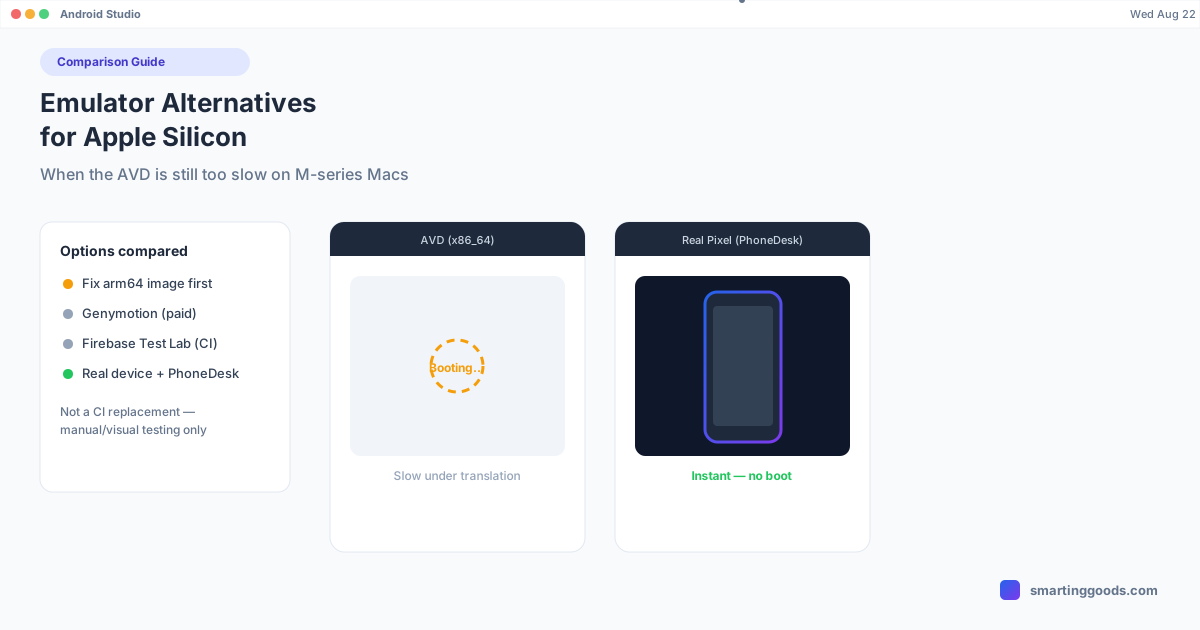
Your own real device, viewed on your Mac — This is the option most guides skip, and it's often the fastest fix for the actual pain point: waiting on a slow emulator during day-to-day development. If you own an Android phone, connecting it directly and viewing its screen in a window on your Mac sidesteps AVD boot time, system-image selection, and RAM contention entirely, because there's no virtual machine involved at all.
Skip the Emulator, Use Your Real Phone: Where PhoneDesk Fits
PhoneDesk is a macOS menu bar app that connects to a real Android phone over USB or Wi-Fi (using adb and scrcpy under the hood) and shows its live screen in a resizable window on your Mac. For the specific frustration of "the emulator is slow and I just want to see my change on a device," this removes the emulator from the loop entirely — plug in, deploy your build from Android Studio to the physical device instead of the AVD, and watch it happen in the PhoneDesk window next to your code.
There's no cold boot, no system image to manage, no RAM budget shared with a virtual machine — it's the actual phone's hardware doing the work, which is also strictly more accurate for anything performance- or rendering-related than an emulator would ever be. We cover this workflow in more depth in testing Android apps on a physical device from your Mac.
Where PhoneDesk Is Not the Answer
Said plainly, so there's no confusion: PhoneDesk is not an emulator replacement for automated testing. It doesn't run headless, doesn't integrate with CI, doesn't spin up on-demand instances, and can't simulate device configurations you don't physically own — no faking a tablet form factor, no testing against Android versions your actual phone isn't running, no scripted UI test execution. If your workflow depends on the emulator's ability to be scripted, snapshotted, and torn down programmatically, PhoneDesk doesn't touch that use case at all.
What it's good for is the manual, visual, "let me just look at this on a real screen" loop — which for a lot of day-to-day development is most of what people are actually using the emulator for anyway, just slower than it needs to be.
Decision Guide
- Need automated, scriptable, CI-integrated testing across many configurations? Stick with the emulator for local dev, and use Firebase Test Lab or a cloud device farm for release-gate coverage.
- Emulator just feels slow on your M-series Mac and you haven't checked your system image yet? Fix that first — it's very likely an x86_64 image running under translation.
- You own a real Android phone and mostly want fast, accurate visual verification during development? Connect it directly and view it on your Mac — this is where PhoneDesk fits, and it's often faster than waiting on an AVD.
- You need to test device configurations you don't physically own? None of the above fully solves this — you'll want the emulator (for form factor/API level flexibility) or a device farm (for real hardware you don't own).
Frequently Asked Questions
Q: Is the Android emulator actually slow on Apple Silicon Macs, or is it a configuration issue? A: Usually configuration. Native arm64-v8a system images run well under Hypervisor.framework on M-series Macs. The most common cause of a genuinely slow emulator is an accidentally selected x86_64 image, which runs under translation instead of natively.
Q: Is PhoneDesk an Android emulator? A: No. PhoneDesk doesn't virtualize Android at all — it connects to a real physical Android phone over USB or Wi-Fi and displays its live screen in a window on your Mac. It's a way to use real hardware instead of an emulator, not a replacement emulator itself.
Q: Can I use PhoneDesk for automated UI testing? A: No. PhoneDesk is built for manual, visual interaction — clicking, typing, watching a real device's screen. It has no scripting, CI integration, or headless mode, so it doesn't fit automated test suites.
Q: What's the fastest way to test my app on a real device from my Mac? A: Enable USB debugging, connect via USB or PhoneDesk's wireless pairing, and deploy your build from Android Studio directly to the device as you normally would. Viewing the device through PhoneDesk instead of picking up the phone removes the context switch, though the deploy step itself works exactly the same as any physical-device testing.
Q: Does Genymotion run faster than the stock Android Studio emulator on Apple Silicon? A: It can, in some configurations, but it's still virtualization and still requires a license for serious use. If your actual goal is fast visual verification rather than a faster VM, testing directly on owned hardware avoids the virtualization layer entirely.
Bottom Line
Most "the emulator is too slow on my M1/M2/M3" complaints trace back to an x86_64 system image running under translation — check that first. Beyond that fix, cloud device farms solve automated cross-device testing, and for the everyday "let me see this on a real screen" loop, connecting your own Android phone and viewing it on your Mac is often simply faster than any emulator, virtualized or not.
PhoneDesk does exactly that — $25 one-time, no subscription, 14-day no-questions refund if it's not what your workflow needs.