Android Webcam Not Working on Mac? 8 Fixes That Actually Work
Android phone won't show up as a webcam on Mac, or connects and then freezes? Here are 8 real fixes for the most common causes.
Android Webcam Not Working on Mac? 8 Fixes That Actually Work
If you installed Iriun, EpocCam, DroidCam, or a similar app and your Android phone still isn't showing up as a camera in Zoom, Meet, or OBS — or it connects and then freezes, lags badly, or shows a black frame — you're hitting one of a small, predictable set of failure points. These apps all rely on the same basic chain: phone camera → app on phone → network or USB link → virtual camera driver on Mac → your call software picking that driver from a list. A break anywhere in that chain produces a different symptom, and most "not working" reports trace back to one of the fixes below.
Work through these roughly in order — the first few take ten seconds each and resolve the majority of cases.
Why Android Webcam Apps Fail on Mac
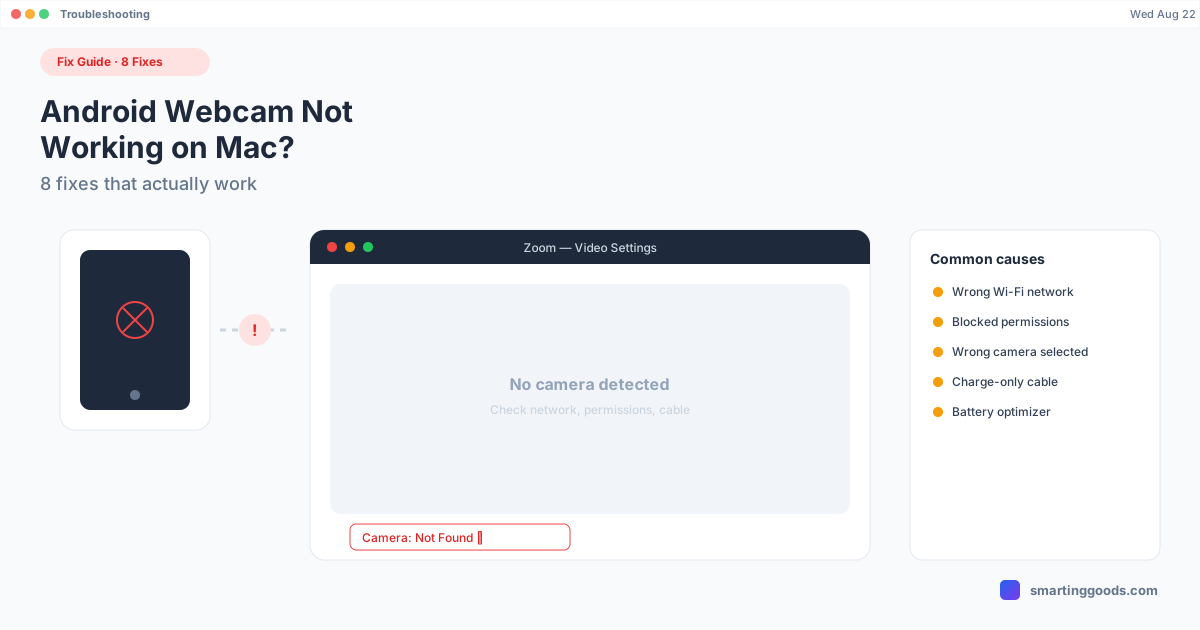
There are five common failure buckets: the two devices aren't actually on the same network (Wi-Fi mode), macOS is blocking camera or local network permissions, the call app is defaulting to the built-in camera instead of the virtual one, the USB connection isn't in the right mode, or the phone's battery optimizer is killing the app in the background. Almost every symptom — no detection, black screen, freezing, lag — maps back to one of these five.
1. Confirm Both Devices Are on the Same Wi-Fi Network
This is the single most common cause of "the app doesn't see my phone." If you're using Wi-Fi mode, both the phone and the Mac need to be on the exact same network — not just "the same building." Guest networks, a phone on 5GHz while the Mac is on a 2.4GHz band with client isolation enabled, or a phone still connected to mobile data instead of Wi-Fi will all silently prevent detection. Check both devices' Wi-Fi settings directly rather than assuming; it's an easy thing to overlook mid-setup.
2. Grant macOS Local Network and Camera Permissions
macOS gates a lot of behavior behind explicit permission prompts, and if you clicked "Don't Allow" once during setup, the app will fail silently with no obvious error. Go to System Settings → Privacy & Security → Local Network and confirm the webcam app (Iriun, EpocCam, DroidCam, etc.) is toggled on. Also check Privacy & Security → Camera — the virtual driver itself sometimes needs to be explicitly allowed the first time it's used by a new app like Zoom.
3. Restart Both the App and the Devices
Before troubleshooting further, fully quit the app on both phone and Mac (not just close the window — quit it from the Mac's menu bar, and force-close it on Android) and restart both devices. These apps hold onto network sockets and driver registrations in ways that a stuck background process can silently block on the next connection attempt — a clean restart resolves a surprising share of "worked yesterday, not today" reports.
4. Your Call App Is Still Defaulting to the Built-In Camera
If the phone connects successfully in the webcam app itself but Zoom or Meet still shows your Mac's built-in camera, the fix isn't on the phone side at all — it's a setting inside the call app. In Zoom: Settings → Video → Camera dropdown, select the virtual camera by name (it'll show up as "Iriun Webcam," "EpocCam," "DroidCam," etc.). In Google Meet: click the three dots in the meeting → Settings → Video → same dropdown. This step gets missed constantly because people assume the virtual camera becomes the default automatically — it doesn't.
5. USB Mode Not Detecting — Check the Cable and File Transfer Mode
If you're trying USB and the app isn't detecting the phone, the most common culprit is the USB connection mode on the phone itself. Pull down the notification shade after plugging in and check what mode USB is set to — some apps need "File Transfer (MTP)" or "PTP" mode active, not just "Charging only." Also try a different cable: charge-only cables (common with cheap replacement cables) carry power but no data, which will connect the phone physically but never register in the app.
6. Black Screen or Frozen Frame After Connecting
A black screen after a successful connection is usually a camera permission issue on the Android side, not the Mac side — check that the webcam app has Camera permission granted in Android's own Settings → Apps → [App Name] → Permissions. If permission is already granted and you still get a black or frozen frame, another app using the camera in the background (a recently-closed camera app that didn't fully release the sensor) can block access; force-close all other camera-adjacent apps and reopen the webcam app fresh.
7. Laggy, Choppy, or Delayed Video
Lag over Wi-Fi is almost always a network congestion issue, not an app bug — a router handling a lot of other traffic (video calls on other devices, large downloads, a mesh network with a weak backhaul link) will visibly degrade a phone-webcam stream before it affects most other traffic, since it's more latency-sensitive than most home network use. Switch to USB if lag persists; it removes Wi-Fi variability entirely and is close to always smoother.
8. The App Gets Killed in the Background on Android
Some Android phones (Samsung and Xiaomi devices are the most aggressive about this) have battery optimization settings that kill background apps after a period of inactivity — including a webcam app sitting idle waiting for a connection. If the phone-side app randomly stops streaming a few minutes into a call, go to Settings → Apps → [App Name] → Battery and set it to "Unrestricted" or disable battery optimization for that specific app. This is a very Android-specific gotcha that doesn't have an iPhone equivalent, since iOS handles background camera access differently.
When the Problem Isn't the Webcam App at All
If you've worked through every fix above and it's still unreliable, it's worth asking honestly whether Wi-Fi-based streaming is ever going to be stable enough for your setup — some router and network configurations (heavy mesh systems, aggressive client isolation on guest networks, older 2.4GHz-only routers) just aren't good candidates for real-time video streaming no matter which app you use. USB is the more reliable fallback in that situation, full stop.
Frequently Asked Questions
Q: Why does my Android phone show as detected in the webcam app but not appear in Zoom's camera list? A: The virtual camera driver may not have finished registering with macOS — quit and reopen Zoom completely (not just the meeting) after connecting the phone, since some call apps only refresh their camera list on launch.
Q: Does this happen more on Wi-Fi or USB? A: Wi-Fi issues (network mismatch, congestion, permission prompts) are more common than USB issues, but USB has its own failure mode — charge-only cables and the wrong USB connection mode on the phone. If you have persistent Wi-Fi trouble, USB is usually the more reliable fix.
Q: My video works but there's no audio — is that normal? A: Yes, for most of these apps — Iriun, EpocCam, and DroidCam primarily stream video, not audio, so your Mac's built-in microphone (or a separate mic) still needs to be selected separately in your call app's audio settings.
Q: Is this the same troubleshooting as PhoneDesk connection issues? A: No — PhoneDesk handles your phone's screen (desktop mode, second monitor, file transfer), not its camera, so it's a different connection path entirely with its own setup (USB debugging, ADB pairing) rather than a virtual camera driver. If you're troubleshooting a PhoneDesk connection specifically, that's covered in the Samsung DEX not working guide for DEX-specific issues.
Bottom Line
Most "Android webcam not working on Mac" problems come down to five things: mismatched networks, a blocked macOS permission, the call app still pointed at the built-in camera, the wrong USB mode, or Android's battery optimizer killing the app in the background. Work through the list above in order and the vast majority of setups get sorted in a few minutes — if Wi-Fi keeps being flaky regardless, switch to USB and stop fighting the network.
If it turns out the thing giving you trouble is actually your phone's screen, not its camera — a desktop mode session, second-monitor setup, or file transfer that won't connect — that's a different tool with different troubleshooting. See how PhoneDesk's screen and file tools work →. $25 one-time license, no subscription, 14-day refund if it's not the right fit.