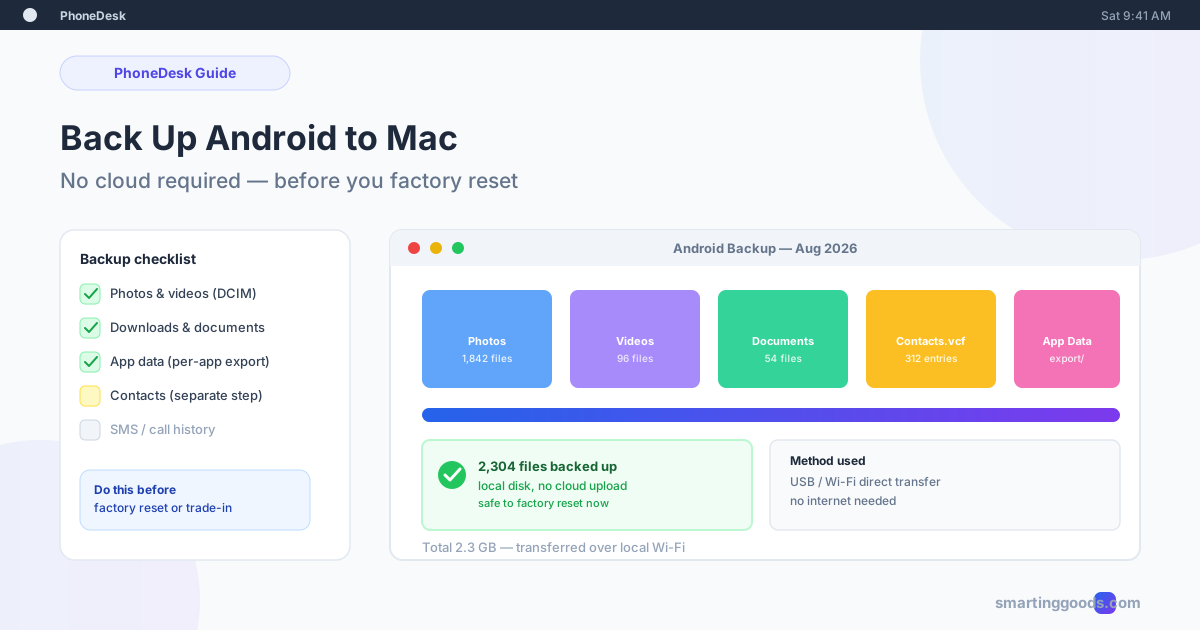
How to Back Up an Android Phone to a Mac (No Cloud Required)
About to factory reset or trade in your Android phone? Here is how to back up photos, files, and contacts straight to your Mac — no cloud upload, no waiting on sync.
If you're about to trade in your Android phone, hand it down, or factory reset it to fix a problem, you need a real backup first — not "I think Google Photos got most of it." A partial backup is how people lose years of photos, a decade of text threads, and app data they didn't think to check until it's gone.
Google's own backup tools cover some of this automatically. But they're spread across three or four different settings screens, some of it only backs up if you're on Wi-Fi and plugged in, and none of it gives you a single local copy you can verify before you wipe the device. This guide walks through backing up an Android phone to a Mac directly — no cloud upload, no waiting on sync, no trusting a progress bar you can't see the contents of.
What "Backing Up to a Mac" Actually Means
There's no single "Backup" button that grabs everything off an Android phone the way Time Machine does for a Mac. Android splits your data into a few distinct categories, each with its own backup path:
- Photos and videos — live in the DCIM and Pictures folders, copyable as plain files
- Documents and downloads — anything in Downloads, plus files from apps that save locally
- Contacts — stored in your Google account or on-device, exportable as a
.vcffile - App data — WhatsApp chats, game saves, notes app content — usually needs each app's own export or Google's automatic app-data backup
- SMS and call history — not included in a standard file copy; needs a dedicated backup app or Google's system backup
A Mac-based backup handles the first two categories cleanly (they're just files) and can handle contacts with one extra step. App data and SMS are the categories most people forget about — we'll cover what's realistic to expect there too.
Method 1: Direct File Copy Over USB or Wi-Fi (Photos, Videos, Documents)
This is the fastest way to get the bulk of your data — everything that's just a file sitting in phone storage — onto your Mac.
The traditional route is Android File Transfer over USB, Google's official app for mounting an Android phone as a drive on macOS. Plug in, open the app, and drag the DCIM, Pictures, and Download folders onto your Mac. It works, when it works — the connection is known to drop mid-copy on newer macOS versions, especially with large folders, and it requires a cable that actually supports data (not every USB-C cable does).
PhoneDesk skips the MTP mount entirely. It's a macOS menu bar app that pairs with your phone over USB or Wi-Fi and lets you send files straight from the Android share sheet, or drag-and-drop them onto its window during a session — no volume to mount, no eject step, no MTP driver to fight with. For a full backup, you can also use its Downloads-folder drop during a Desktop Mode or mirroring session to move whole folders across at once. It runs over your local network with no cloud relay involved, so nothing you're backing up touches the internet.
Either way, once you've got the files: create a dated folder on your Mac (Android Backup — Aug 2026), copy Photos, Videos, and Downloads into it, and don't delete anything on the phone until you've spot-checked that the copy opens correctly on the Mac side.
Method 2: Google's Built-In Cloud Backups (For Everything a File Copy Misses)
Cloud backup isn't obsolete here — it's the only realistic way to capture app data, call history, and system settings, categories a plain file copy can't touch.
On the phone: Settings → Google → Backup. Turn on "Back up to Google Drive" and confirm the last backup date isn't stale. This captures app data (for apps that support it), call history, device settings, and SMS messages (on most Android versions) — but it uploads to Google's servers, requires being signed in with the same account to restore, and app data backup coverage is inconsistent between apps.
Photos specifically are better handled through Google Photos backup with "Original quality" selected in settings — the default setting recompresses images before they're backed up, which you don't want for a permanent archive.
The honest trade-off: cloud backup is comprehensive for account-level data but slow (everything has to upload before it's actually safe), and it counts against your 15GB free Google One storage shared across Gmail, Photos, and Drive. If your camera roll is large, you may already be over quota before backup even starts.
Method 3: Contacts Export (the Step Everyone Forgets)
Contacts deserve their own step because a factory reset can wipe on-device contacts that were never synced to your Google account — this is worth checking specifically, not assuming.
- Open the Contacts app → Settings (or the three-dot menu) → Export
- Choose "Export to .vcf file" and save it to Downloads or Drive
- Copy that
.vcffile to your Mac (via PhoneDesk's file transfer, USB, or email to yourself) - Double-click it on the Mac — it opens directly in Contacts.app and imports every entry
This takes under two minutes and gives you a portable, app-independent copy of every contact — not dependent on staying signed into any particular account. See our full contacts transfer guide for all three methods side by side, including what to do if you use multiple accounts.
What a Mac-Based Backup Won't Fully Capture
Being straight about the limits: a manual file-copy-plus-export approach does not give you a bit-for-bit clone of the phone the way a full system image would. Specifically:
- App-internal data without an export feature (some game saves, some local-only note apps) generally can't be pulled off without root access
- SMS/MMS history needs either Google's system backup or a dedicated SMS backup app (SMS Backup & Restore is the common free option) — plain file copy doesn't reach it
- App settings and logins mostly re-download themselves when you reinstall apps and sign back in, which is usually fine but isn't a "backup" in the strict sense
If you need a genuinely complete device clone (not just your files), Google's own Switch/Backup flow during setup on a new phone, migrating directly, is more thorough than any manual method. This guide is for the specific, common case: get your files safely onto your Mac before you do something risky to the phone.
How PhoneDesk Fits Into a Backup Workflow
PhoneDesk isn't a backup app in the "scheduled nightly snapshot" sense — it's a direct pipe between your phone and your Mac that removes the friction from doing a manual backup properly. The parts that matter for a pre-reset backup specifically:
- No cloud, no waiting on upload — files move over your local Wi-Fi or a USB cable directly, so a few gigabytes of photos moves in minutes, not the "upload then download" round trip cloud backup requires
- Native Android share sheet — select everything in your gallery, tap Share → Send to Mac, and it lands in Downloads at full resolution
- No file size ceiling — large video files or a whole Downloads folder transfer without hitting the size caps some free tools impose
- Works if you're about to lose connectivity — since it's local-network based, it still works with no internet, which matters if you're backing up somewhere with a bad connection before a trip or a device swap
It's the same tool used for Samsung DEX / Pixel desktop mode and phone-as-second-monitor, so if you already have it installed for those, a full manual backup is just a drag-and-drop away.
Frequently Asked Questions
Q: Do I need to back up before a factory reset? A: Yes, always. A factory reset erases on-device storage completely, including anything not synced to a cloud account — photos taken since your last backup, contacts saved only on-device, and any local-only app data.
Q: Will Google automatically back up everything before I reset my phone? A: No. Google's automatic backup covers what you've explicitly enabled (Photos, app data for supporting apps, contacts if synced) — it does not guarantee full coverage. Check Settings → Google → Backup and confirm the last backup date before resetting.
Q: Can I back up my Android phone to a Mac without installing anything? A: Partially — Android File Transfer is free but limited to USB and prone to disconnects. For a reliable local backup without cloud upload, a dedicated tool like PhoneDesk handles the transfer more cleanly, though it does require the small companion app.
Q: Is a local backup safer than a cloud backup? A: They cover different risks. A local backup to your Mac protects your files from account issues, quota limits, and gives you an offline copy — but it won't survive your Mac's hard drive failing unless you also back that up (Time Machine, external drive). Cloud backup protects against local disaster but depends on your account and internet access.
Q: What's the fastest way to move a large photo library to a Mac before a reset? A: A direct local transfer — USB or Wi-Fi — beats cloud upload-then-download every time, since it skips the internet round trip entirely. PhoneDesk's share-sheet integration and drag-and-drop both move full folders at local network speed with no size limit.
Back Up Once, Reset With Confidence
A real Android-to-Mac backup is three things done properly: a file copy of your photos, videos, and documents; a contacts export; and a check that Google's cloud backup has actually run recently for the app data and SMS history a file copy can't reach. Skip any one of those and you're gambling with something you can't get back.
If you want the file-copy step to be fast and local instead of a cloud round trip, PhoneDesk is a $25 one-time license — no subscription — that also gives you Samsung DEX / Pixel desktop mode and phone-as-second-monitor if you want them. 14-day no-questions refund if it's not for you. See the full file transfer guide → or check out PhoneDesk →