Bluetooth Keyboard and Mouse for Android: Complete Setup Guide
Pair a keyboard and mouse with your Android phone and it starts acting like a real computer. Full setup steps, combo picks, and how it plugs into a desktop-mode workflow.
Bluetooth Keyboard and Mouse for Android: Complete Setup Guide
A keyboard alone gets you fast typing. Add a mouse and an Android phone starts behaving like an actual computer — you can click, drag, right-click for context menus, and select text the way you would on a laptop. If you're setting up a phone as a real work device, especially in any kind of desktop mode, the keyboard-and-mouse combo is the thing that makes it click.
This guide covers pairing both at once, what Android actually supports for mouse input (more than most people expect), and the setup that works best if you're running desktop mode on a bigger screen.
Does Android Support a Mouse?
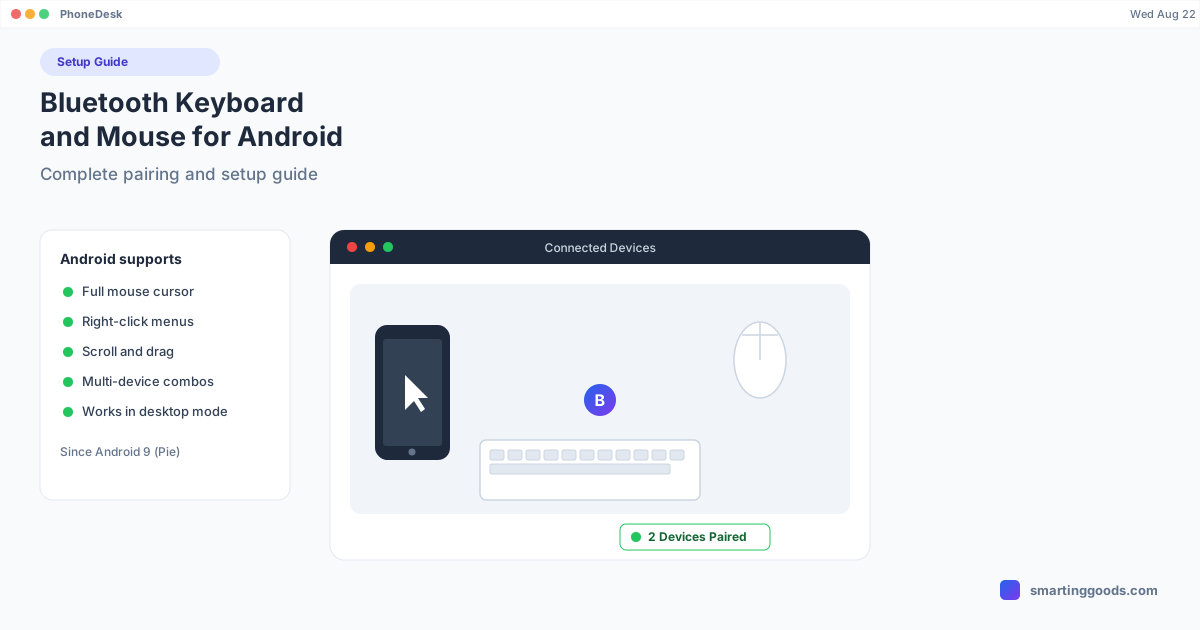
Yes, and it's been solid since Android 9 (Pie) added proper mouse-cursor support system-wide. Once a mouse is paired, you get a visible cursor, left-click and right-click (right-click opens context menus in apps that support them), scroll-wheel support, and drag-and-drop. It's not a bolted-on accessibility feature — Android's UI genuinely supports pointer-based interaction natively, which is part of what makes desktop mode work at all.
The gap between "works" and "works well" comes down to the app you're in. Home screen, file managers, browsers, and most productivity apps handle mouse input cleanly. Some apps built purely for touch (games especially) will ignore the mouse or behave oddly with it.
Setting Up a Keyboard and Mouse Together
Option 1 — Separate keyboard and mouse. Pair each individually through Settings → Connected devices → Pair new device. Most Bluetooth mice pair in under 10 seconds; put it in pairing mode (usually a small button on the underside) and select it from the list.
Option 2 — A combo set (one receiver or one Bluetooth pairing covers both). Combo keyboard-and-mouse sets are often simpler because they either share a single Bluetooth pairing or come with a tiny USB-C dongle. Check the box for "Android compatible" — some combo sets are Windows/Mac-only and use a proprietary receiver that Android won't recognize over Bluetooth.
Option 3 — Wired via USB-C hub. If you'd rather skip Bluetooth pairing entirely, a USB-C hub with USB-A ports lets you plug in a wired keyboard and mouse directly. This also sidesteps Bluetooth interference in crowded environments (offices, coworking spaces) and never needs re-pairing.
Best Keyboard + Mouse Combos for Android
Logitech MK850 / Pebble 2 Combo — Logitech's multi-device pairing (Easy-Switch) extends across their combo sets too, so the same keyboard and mouse can jump between your phone, a Mac, and a tablet. Reliable Android compatibility, no dongle required if paired over Bluetooth.
Samsung Smart Keyboard Trio 500 + Galaxy Mouse Slim — Built specifically with Samsung's DEX shortcuts in mind — worth pairing together if you're running Samsung DEX regularly, since the key layout and mouse gestures are tuned for that interface.
Anker Compact Wireless Keyboard and Mouse Combo — Budget pick, works over a 2.4GHz USB-C dongle rather than Bluetooth, which means near-zero pairing hassle and no Bluetooth interference — but it does use up a USB-C port (or a hub port) permanently.
Logitech MX Keys Mini + MX Anywhere 3S — The higher-end pairing if you're doing serious work sessions — excellent key feel, a mouse precise enough for actual editing/design work, and both support Android's gesture and scroll conventions cleanly.
Mouse Gestures and Shortcuts That Work on Android
- Right-click — opens a context menu (copy/paste, rename, open in new tab) in most apps and the file manager.
- Scroll wheel — scrolls content vertically; many mice also support horizontal scroll via a tilt-wheel or side buttons.
- Click and drag — selects text, moves files in a file manager, and rearranges home screen icons.
- Back/forward side buttons (on mice that have them) — usually map to Android's Back gesture, though support varies by app.
- Middle-click — inconsistent support; some browsers open links in a new tab, others do nothing.
Fixing Common Pairing and Input Issues
Mouse cursor doesn't appear — Confirm the mouse actually paired (check Settings → Connected devices) rather than just powered on. Some mice need a firm click to wake from sleep after pairing.
Cursor is too fast or too slow — Go to Settings → System → Languages & input → Mouse/trackpad, if your Android version exposes it (not all do) — otherwise this varies by manufacturer skin (One UI has this under Settings → General management).
Keyboard and mouse keep disconnecting — Same root cause as single-device Bluetooth drops: battery optimization killing the Bluetooth background service. Exempt the Bluetooth system app from battery restrictions.
Right-click doesn't do anything in an app — Not a bug — some apps, especially games and older apps not updated for desktop/tablet layouts, simply don't listen for right-click events.
Keyboard, Mouse, and Desktop Mode Together
This combination matters most once you're running a real desktop-mode session — Samsung DEX, Pixel desktop mode, or a phone screen mirrored to a bigger display. Desktop mode gives you a window manager, multiple resizable app windows, and a taskbar; without a mouse, navigating that layout means reaching up to tap the screen constantly, which defeats the point of having a desktop UI in the first place.
If you're running desktop mode through PhoneDesk — which puts Samsung DEX or Pixel's desktop mode into a real window on your Mac — a keyboard and mouse paired to the Android phone work directly inside that windowed session, same as any desktop app. There's nothing PhoneDesk-specific to configure; the input just flows through to whatever's running in the window. For keyboard-only setup and picks, see our Bluetooth keyboard for Android guide, and if you're specifically on Samsung DEX, check the DEX-focused keyboard picks.
Frequently Asked Questions
Q: Do I need Android 9 or newer for mouse support? A: Full system-wide cursor support started with Android 9 (Pie), released in 2018. Any phone running a reasonably current Android version already supports it — this hasn't been a real limitation for years.
Q: Can I use an Apple Magic Mouse or Magic Keyboard with Android? A: They'll technically pair over Bluetooth, but Apple's Magic accessories are optimized for macOS gestures and gesture support won't translate — you'll get basic click and scroll, not the multi-touch gestures. A keyboard/mouse built for cross-platform or Android use is a better fit.
Q: Does a wired USB-C keyboard and mouse work better than Bluetooth? A: Wired is more reliable in crowded Bluetooth environments and never needs re-pairing, but it ties up a USB-C port unless you're using a hub. Bluetooth is more convenient day-to-day for most people.
Q: Does PhoneDesk manage my keyboard and mouse pairing? A: No — PhoneDesk's job is putting your phone's desktop mode into a window on your Mac. Bluetooth pairing for a keyboard and mouse happens entirely on the Android side through its own Bluetooth settings, and works normally inside a PhoneDesk desktop-mode session once paired.
The Bottom Line
A keyboard and mouse together are what actually make an Android phone feel like a computer rather than a phone with extra steps — especially once you're in desktop mode. Start with a combo set from a brand you trust (Logitech's multi-device line is the safest bet) and confirm Android compatibility before buying anything marketed for iPad or Windows specifically.
For the full setup — accessories plus a real windowed desktop mode on your Mac — see the complete accessory kit guide and PhoneDesk, $25 one-time, no subscription.