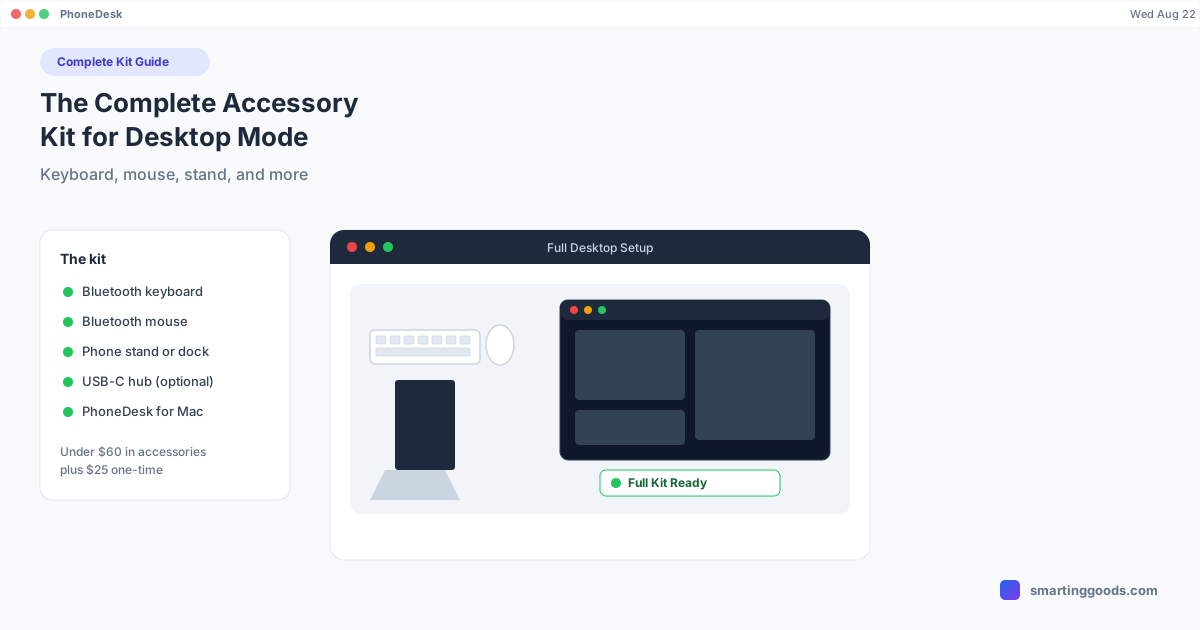
The Complete Accessory Kit for Android Desktop Mode: Keyboard, Mouse, Stand, and More
Desktop mode needs more than just your phone. Here's the full accessory kit — keyboard, mouse, stand, and PhoneDesk on the Mac side — that makes it a real desktop replacement.
The Complete Accessory Kit for Android Desktop Mode: Keyboard, Mouse, Stand, and More
Desktop mode — Samsung DEX, Pixel's desktop mode, or a phone mirrored to a bigger screen — turns an Android phone into a windowed, desktop-style interface. But the phone alone only gets you halfway there. The interface is built for keyboard shortcuts, mouse clicks, and a stable viewing angle, none of which a touchscreen in your hand provides well. This is the accessory list that closes that gap — what you actually need, what's optional, and where to start.
The Core Kit
1. A Bluetooth keyboard. Non-negotiable if you're doing any real typing — the on-screen keyboard eats half the screen and turns every text field into a chore. Look for an Android-compatible key layout (not iPad-first) and, if you're specifically on Samsung DEX, a Windows-style layout that matches DEX's shortcut conventions. See the full Bluetooth keyboard guide for picks across price points, or the Samsung DEX-specific keyboard guide if DEX is your main use case.
2. A Bluetooth mouse. Desktop mode has a real cursor, right-click context menus, and drag-and-drop — all things Android has supported natively since Android 9. Pairing a mouse alongside the keyboard is what makes navigation fast instead of reach-and-tap. The keyboard and mouse setup guide covers pairing both together and picks for combo sets.
3. A phone stand or dock. Desktop mode assumes a stable, hands-free viewing angle — propping the phone against a water bottle works in a pinch but isn't a setup you want to repeat daily. A simple adjustable stand (most cost under $15) solves this permanently. If you're going portable, look for a stand that folds flat or one built into a foldable keyboard's case.
4. A USB-C hub, if you're wired. Useful if you want a single cable to charge the phone and connect a keyboard/mouse dongle simultaneously, or if you're connecting to an external display over USB-C directly. Not required for a fully wireless (Bluetooth) setup.
5. The desktop-mode driver itself. This is where PhoneDesk fits in — it's the piece that actually puts Samsung DEX or Pixel desktop mode into a real, resizable window on a Mac, over USB or Wi-Fi, with no extra drivers to install. Everything else on this list (keyboard, mouse, stand) is generic Android hardware that works the same with or without PhoneDesk; PhoneDesk is specifically what turns the desktop-mode session into something that lives on your Mac's screen instead of requiring a separate monitor.
Optional But Worth Considering
Foldable keyboard, for portability. If the setup needs to travel — coffee shop, coworking space, a trip — a foldable keyboard trades a bit of key feel for something that fits in a jacket pocket. See the foldable keyboard guide for picks and what to check before buying.
A dedicated Bluetooth headset or earbuds, for calls and audio during a work session — any Bluetooth audio device works here, since this is a completely separate subsystem from desktop mode. If you already own AirPods, our AirPods on Android guide covers exactly what still works and what doesn't when you leave iOS — worth a read since it's a common point of confusion, but it has nothing to do with desktop mode itself.
A second physical monitor, if you want more than one screen. PhoneDesk actually supports the reverse of what you'd expect here — instead of just mirroring, it can create a real macOS virtual display and stream it to your phone, so the phone itself becomes an arrangeable second monitor for the Mac. See the phone-as-second-monitor guide for that setup specifically.
Putting the Kit Together: A Realistic Setup
For a desk-bound setup: Logitech K380 keyboard, a basic Bluetooth mouse, a $12 adjustable phone stand, and PhoneDesk running desktop mode as a window on your Mac. Total accessory cost is usually under $60, on top of PhoneDesk's one-time $25.
For a portable setup: swap the K380 for a foldable keyboard (iClever BK08 or similar), skip the stand in favor of the keyboard's built-in prop if it has one, and rely on Wi-Fi pairing so there's no cable to manage. This fits in a small pouch and travels with the phone.
Either way, the order of operations is: pair the keyboard and mouse to the phone first (standard Android Bluetooth pairing, nothing PhoneDesk-specific), confirm they work in regular Android, then launch desktop mode. Input flows through automatically — there's no separate configuration step for accessories once desktop mode is running.
What PhoneDesk Actually Adds to This Kit
To be specific about scope: PhoneDesk doesn't manage your keyboard, mouse, or Bluetooth audio devices — those pair directly to the Android phone through Android's own Bluetooth settings and work identically whether or not PhoneDesk is running. What PhoneDesk adds is the Mac side of the equation — driving Samsung DEX or Pixel desktop mode as a real window on your Mac (confirmed on Galaxy Z Fold 6 and Pixel 9 Pro), turning the phone into a genuine second monitor by creating a macOS virtual display and streaming it over, and sending files and text from the phone to the Mac without MTP or cables. It's the software layer that makes the hardware kit above actually land on your Mac's screen instead of staying phone-bound.
Frequently Asked Questions
Q: Do I need all of these accessories, or just the keyboard? A: The keyboard makes the biggest single difference — it's what turns desktop mode from "awkward touchscreen interface" into something you can actually work in. A mouse and stand are close seconds; everything else on this list is genuinely optional depending on how you use the setup.
Q: Does PhoneDesk require any specific keyboard or mouse brand? A: No — PhoneDesk works with whatever Bluetooth (or wired) keyboard and mouse are already paired to your Android phone. There's no PhoneDesk-specific accessory requirement or certification.
Q: Can I build this kit for under $50?
A: Yes — a budget Bluetooth keyboard (Anker 621, $25), a basic Bluetooth mouse ($15), and a cheap phone stand (~$10) covers the core kit for well under $50, before PhoneDesk's one-time $25.
Q: What phones does this accessory kit work with? A: The keyboard, mouse, and stand work with any Android phone. Desktop mode itself — and PhoneDesk's ability to display it as a window on a Mac — is confirmed on Samsung DEX (Galaxy Z Fold 6) and the Pixel 9 Pro's built-in desktop mode; other phones will still connect to PhoneDesk for screen mirroring even without native desktop mode.
The Bottom Line
A phone-as-desktop setup is really three layers: input hardware (keyboard, mouse), a stable viewing setup (stand, or a Mac window via PhoneDesk), and the desktop-mode software itself, which Samsung and Google already built into the phone. Get the keyboard right first — it's the accessory that matters most — then add a mouse and stand as the setup solidifies.
If you're running desktop mode on a Mac, PhoneDesk is the piece that puts Samsung DEX or Pixel desktop mode into a real window, turns your phone into a second monitor, and handles file transfer — $25 one-time, no subscription, 14-day refund.