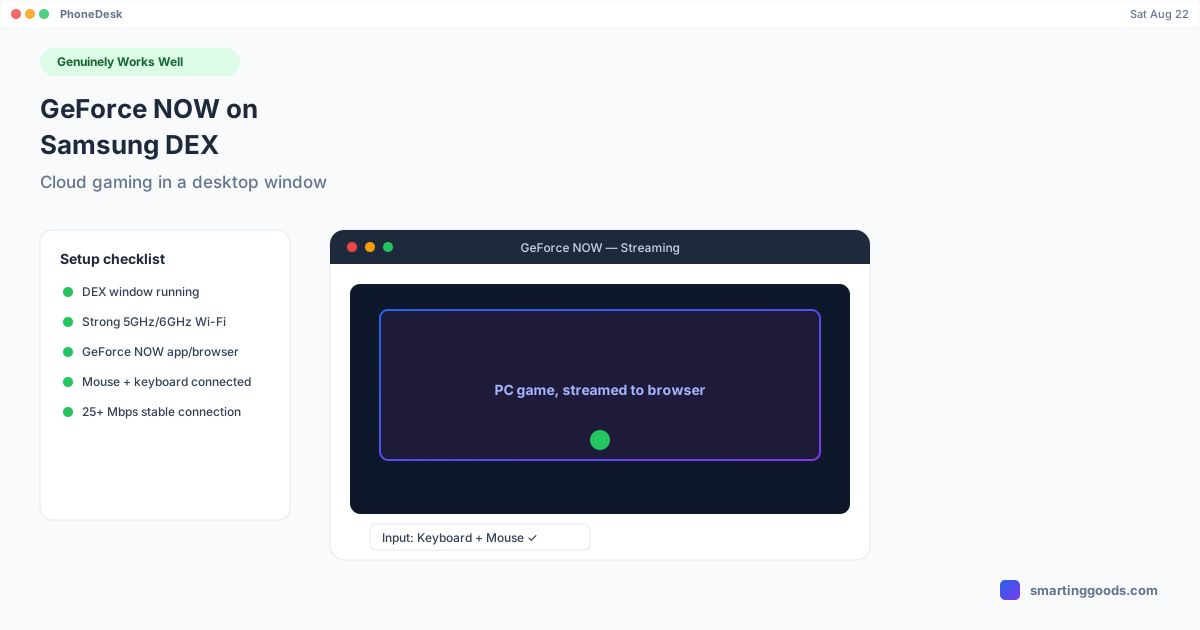
GeForce NOW on Samsung DEX: Cloud Gaming in a Desktop Window
GeForce NOW is the one gaming scenario where Samsung DEX genuinely delivers full keyboard and mouse support — here's the real setup and its actual limitations.
GeForce NOW on Samsung DEX: Cloud Gaming in a Desktop Window
Every other "gaming on Samsung DEX" scenario comes with an asterisk — touch-only games, controller-but-not-keyboard restrictions, anti-cheat risk from mapping apps. GeForce NOW is the exception. NVIDIA actually publishes an official support article specifically for setting up Android Desktop Mode with keyboard and mouse, because cloud gaming sidesteps the entire problem: the "game" running on your phone isn't a mobile app with its own input restrictions, it's a video stream of a real PC game, and PC games have always supported keyboard and mouse.
Here's what that setup actually looks like and where the real limitations are — because there are some, just not the ones you'd expect from native mobile gaming.
Why Cloud Gaming Works Differently on DEX
When you play a native mobile game in a DEX window, the game engine itself decides whether it understands mouse movement, keyboard keys, or a controller — and most touch-first mobile titles simply don't have that code written. GeForce NOW skips that problem entirely. Your phone is just running a video decoder and sending input events (mouse clicks, key presses, controller signals) upstream to NVIDIA's servers, which are running the actual PC version of the game. The PC game already has full keyboard/mouse and controller support, because it's built for PC. DEX doesn't need to unlock anything — the game was never touch-limited in the first place.
Setting It Up
1. Get DEX running on an external display or as a window. Whether you're using a dock, a TV, or PhoneDesk to open DEX in a window on your Mac, get the desktop-mode session up first.
2. Connect to strong Wi-Fi. NVIDIA's own guidance recommends 5GHz or 6GHz Wi-Fi and staying close to your router — cloud gaming is bandwidth- and latency-sensitive in a way native games aren't, since every frame is being streamed in real time.
3. Open GeForce NOW — app or browser. You can download the GeForce NOW Android app, or open it directly in a supported browser inside the DEX session. Either works; the browser route can be simpler if you're already living in a DEX browser window for other things.
4. Connect your mouse and keyboard. A wired connection is recommended over Bluetooth if you're chasing the lowest input latency, though wireless works fine for most people. If you're using an external hub or dock, NVIDIA specifically calls out powered USB-C hubs with display-out and ethernet as the most reliable setup.
5. Adjust mouse polling rate if needed. NVIDIA's support docs suggest tuning your mouse polling rate between 125Hz and 500Hz for Android Desktop Mode specifically — worth checking if input feels laggy or inconsistent.
Real Limitations to Know Before You Start
This is the part most "it just works!" posts skip. Cloud gaming through DEX has real, documented constraints:
- No 120fps streaming in Android Desktop Mode. If you're chasing the highest possible frame rate, DEX caps you below what a native PC or the GeForce NOW app on a dedicated device might offer.
- 1440p requires a GeForce NOW Premium membership and has to be manually selected in settings — it's not automatic even if your display supports it.
- Bandwidth requirements are real. NVIDIA's baseline is roughly 25 Mbps down with stable latency for 720p, and 50+ Mbps with low jitter for 1080p. A shaky connection will show up as visible artifacts and input lag, not just lower resolution.
- This is still a phone acting as a streaming client, not a gaming PC — the actual rendering happens on NVIDIA's servers, so your phone's own chipset barely matters here, unlike native mobile gaming where it's the whole bottleneck.
Xbox Cloud Gaming Works the Same Way
Everything above applies just as well to Xbox Cloud Gaming or other browser-based cloud gaming services — the mechanism is identical: your phone streams video and sends input, the game itself runs elsewhere with full keyboard/mouse/controller support already built in. If GeForce NOW's library doesn't have what you're after, it's worth checking whether your target game is available through a different cloud service instead of assuming DEX itself is the limitation.
How PhoneDesk Fits In
This is genuinely one of the better gaming use cases for PhoneDesk. PhoneDesk drives your phone's desktop mode — Samsung DEX or Pixel's native desktop mode — as a real, resizable window directly on your Mac, over USB or Wi-Fi. For a cloud gaming session like GeForce NOW, that means you get the DEX browser window right on your Mac's screen, controlled with your Mac's own keyboard and mouse (or whatever peripherals you have connected to the Mac), without needing a separate monitor, dock, or TV dedicated to the phone. It's not adding gaming power — the game is still rendering on NVIDIA's servers either way — but it removes the extra hardware requirement for having a proper desktop-style window to play it in. See the full setup on the PhoneDesk homepage.
If you're specifically chaining a phone, a cloud session, and a Mac together, we go deeper on realistic latency expectations for that exact setup in Mac + Android Phone as a Cloud Gaming Setup.
Frequently Asked Questions
Q: Does GeForce NOW actually support keyboard and mouse on Samsung DEX? A: Yes — this is officially documented by NVIDIA, unlike native mobile game keyboard/mouse support which varies title by title. Because GeForce NOW streams a real PC game, keyboard, mouse, and controller support all carry over normally.
Q: What internet speed do I need for GeForce NOW on DEX? A: NVIDIA recommends at least 25 Mbps with stable latency for 720p, and 50+ Mbps with low jitter for 1080p. A stronger, more stable connection matters more than raw speed for avoiding input lag.
Q: Can I get 1440p or 120fps through DEX? A: 1440p is possible with a GeForce NOW Premium membership, selected manually in settings. 120fps streaming isn't supported in Android Desktop Mode regardless of membership tier.
Q: Does PhoneDesk make GeForce NOW run better? A: No — the game renders on NVIDIA's servers regardless of how you're viewing the DEX session. PhoneDesk just puts that DEX window on your Mac instead of requiring a separate monitor or dock.
Bottom Line
If you've read our other DEX gaming posts and come away disappointed that most mobile games are touch-only or controller-restricted, GeForce NOW is the answer to "so what actually works well." It's genuinely well-supported, officially documented by NVIDIA, and free of the input restrictions native mobile titles carry — the tradeoffs are bandwidth and latency, not compatibility.
Want that DEX session running as a window on your Mac instead of tied to a separate display? See how PhoneDesk works. $25 one-time, no subscription, 14-day refund if it's not for you.