Mac + Android Phone as a Cloud Gaming Setup
Use PhoneDesk to put a phone's cloud gaming session (GeForce NOW, Xbox Cloud) in a window on your Mac. Here's the real setup and the latency tradeoffs to expect.
Mac + Android Phone as a Cloud Gaming Setup
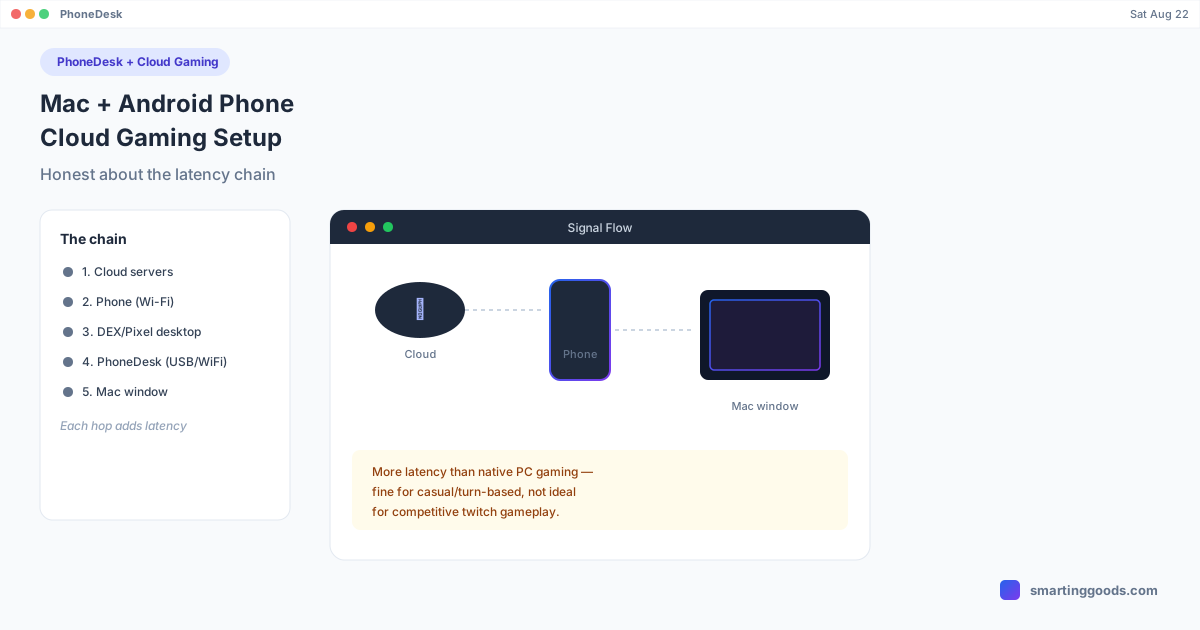
If you own a Mac and an Android phone and nothing else, cloud gaming is the most realistic way to get a "gaming PC" experience out of hardware you already have — no console, no GPU, no separate monitor. The chain looks like this: your phone runs a cloud gaming session (GeForce NOW, Xbox Cloud Gaming) in a browser through desktop mode, and PhoneDesk puts that phone screen in a real window on your Mac, so you're playing on your Mac's screen with your Mac's keyboard and mouse. It's a genuinely useful setup for the hardware you already own — but it's also a longer chain than a native gaming PC, and that chain adds latency you should understand before you build your expectations around it.
How the Chain Actually Works
Four things happen in sequence, and it's worth knowing each link because troubleshooting means finding which one is weak:
- Cloud → Phone. NVIDIA or Microsoft's servers render the actual game and stream video + audio to your phone over Wi-Fi, while your phone sends input back upstream.
- Phone runs desktop mode. Samsung DEX or Pixel's native desktop mode puts that streaming session (running in a browser) into a desktop-style layout on the phone.
- Phone → Mac. PhoneDesk captures that desktop-mode output and streams it to your Mac as a window, over USB or Wi-Fi.
- Mac input → Phone → Cloud. Your keyboard and mouse clicks on the Mac travel back through PhoneDesk to the phone, then upstream to the cloud gaming service, which is what actually processes them.
That's genuinely four hops for a single mouse click to register in-game — cloud round-trip, plus the phone-to-Mac leg PhoneDesk adds. Compare that to a native PC where a mouse click goes straight to the game running on the same machine, with effectively zero extra hops.
The Honest Latency Picture
This setup will never feel as instant as a native gaming PC, and anyone telling you otherwise is overselling it. Two latency sources stack on top of each other:
Cloud gaming latency is inherent to any cloud service, DEX or not — your input has to travel to a data center and the video has to travel back, which is typically in the 20–60ms range on a good connection, more on a weaker one. This exists whether you're using PhoneDesk or not; it's baked into cloud gaming itself.
Phone-to-Mac latency is what PhoneDesk's screen-streaming adds on top. Over USB this is minimal; over Wi-Fi it's slightly higher and more variable depending on your network. Either way, it's an additional, separate hop stacked on the cloud round-trip.
Combined, expect noticeably more input lag than gaming natively on a PC, and somewhat more than running the cloud gaming session directly on the phone's own screen without the extra Mac-streaming leg. For fast-twitch competitive gaming, that combined delay will be noticeable and probably frustrating. For turn-based games, strategy titles, or casual single-player sessions, it's a non-issue most people won't consciously register.
When This Setup Is Worth It
- You want a bigger screen than your phone for casual or turn-based gaming, and don't want to buy a monitor dedicated to it.
- You're testing whether cloud gaming interests you at all before committing to a dedicated device or subscription tier.
- You already have both a Mac and an Android phone and want to use them together rather than buying new hardware.
- Your games are cloud-gaming titles, not competitive shooters — the latency stacking matters far less for anything that isn't reflex-dependent.
When to Skip It
- Competitive or fast-paced multiplayer — the added latency from the phone-to-Mac leg is working against you exactly when milliseconds matter most.
- You want the lowest possible latency cloud gaming has to offer — playing the cloud session directly on the phone's own screen, without routing it through a Mac window, removes one entire hop.
- You don't already own both devices — if you'd need to buy a Mac or a compatible Android phone specifically for this, a dedicated gaming device is probably the more direct purchase.
Setting It Up
- Get your phone's desktop mode (DEX or Pixel) running with a cloud gaming service like GeForce NOW open in the browser — see our GeForce NOW on Samsung DEX guide for the full walkthrough, including bandwidth requirements.
- Connect PhoneDesk and open Desktop Mode from the menu bar — USB gives you the most consistent connection for gaming; Wi-Fi works but adds variability.
- Resize the PhoneDesk window on your Mac and use your Mac's own keyboard and mouse, or plug in a preferred gaming mouse/keyboard directly to the Mac.
- Keep your phone on strong Wi-Fi throughout, since it's still the device actually running the cloud session — the Mac is just displaying and forwarding input.
How PhoneDesk Fits In
This whole setup only exists because PhoneDesk can take a phone's desktop-mode output and turn it into a real, resizable window on a Mac — that's the specific piece connecting "cloud gaming on your phone" to "playing it on your Mac's screen." It's not marketed as a gaming tool first — PhoneDesk's core use is desktop mode, phone-as-second-monitor, and file transfer for everyday work — but for anyone who already owns a Mac and an Android phone and wants a no-new-hardware cloud gaming window, it's a legitimate way to use what you've got. See the full feature list on the PhoneDesk homepage.
Frequently Asked Questions
Q: Will this setup feel as responsive as gaming on a real PC? A: No — expect noticeably more input lag, since you're stacking cloud gaming latency with the phone-to-Mac streaming leg PhoneDesk adds. It's fine for casual and turn-based games, not ideal for competitive fast-paced titles.
Q: Is USB or Wi-Fi better for gaming through PhoneDesk? A: USB gives a more consistent, lower-latency connection between the phone and Mac. Wi-Fi works and is more convenient, but adds variability — worth testing both if latency feels off.
Q: Would it be faster to just play the cloud gaming session on my phone's own screen? A: Yes, slightly — that removes the phone-to-Mac leg entirely, leaving just the cloud round-trip. The tradeoff is a smaller screen and no Mac-based keyboard/mouse.
Q: Does PhoneDesk add any gaming-specific features, like controller passthrough? A: No — PhoneDesk's confirmed features are desktop mode windowing, phone-as-second-monitor, and file transfer. It doesn't add gaming-specific optimizations; this setup works because those existing features happen to compose well for cloud gaming.
Bottom Line
Mac + Android phone as a cloud gaming setup is a real, working option if you already own both devices and your games are casual or turn-based rather than competitive. The honest tradeoff is added latency from chaining cloud gaming with phone-to-Mac streaming — go in expecting that, and it's a genuinely useful way to use hardware you already have rather than buying something new.
If you want to see how PhoneDesk turns your phone's desktop mode into a window on your Mac, check out the full details. $25 one-time, no subscription, 14-day refund if it's not for you.