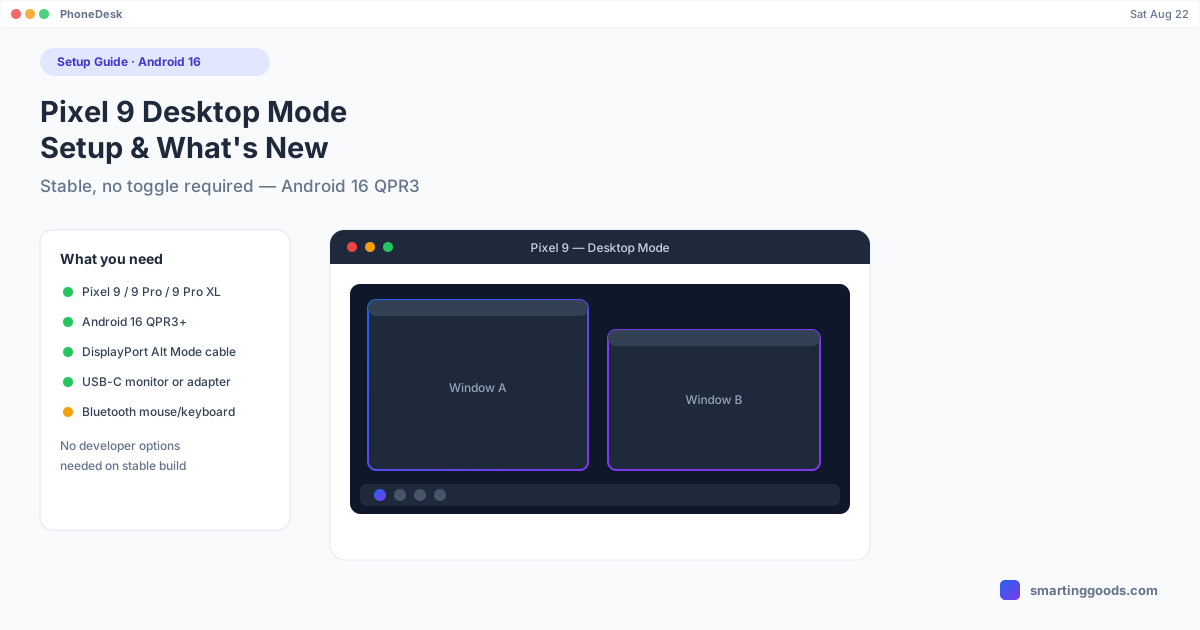
Pixel 9 Desktop Mode: Setup and What's New in Android 16
Pixel 9 desktop mode is now stable and enabled by default under Android 16 QPR3 — no developer options needed. Here's the full setup, cable requirements, and what changed since the beta.
Pixel 9 Desktop Mode: Setup and What's New in Android 16
Pixel 9 desktop mode went from a developer-options experiment to a fully stable, no-toggle-required feature with the March 2026 Pixel Drop (Android 16 QPR3). If you've been putting off trying it because earlier coverage described beta bugs and hidden settings, that's no longer accurate — connect a Pixel 9 to a compatible display today and desktop mode activates automatically, no digging through developer options needed.
Here's exactly what you need, how to set it up, and what changed between the earlier betas and the current stable release.
What Is Pixel 9 Desktop Mode?
Desktop mode turns your Pixel 9 into a windowed, PC-style environment when you connect it to an external monitor over USB-C. Instead of a phone UI scaled up to fill the screen, you get resizable, movable app windows, a taskbar for switching between them, support for multiple virtual desktops, and full keyboard-and-mouse input once you pair peripherals.
It's Google's answer to Samsung DeX, built natively into Android 16 rather than layered on top as a manufacturer skin. The feature rolled out broadly to Pixel 8 and newer devices — Pixel 9, Pixel 9 Pro, Pixel 9 Pro XL, and Pixel 9 Pro Fold all qualify (with the Fold's caveat that desktop mode only reaches the external display, not the inner foldable screen).
What Changed with Android 16 QPR3 (March 2026)
The earlier Android 16 betas had desktop mode hidden behind a developer-options toggle, and reviewers at the time described it as functional but rough — window snapping, multi-monitor handling, and general polish were inconsistent. The March 2026 Pixel Drop changed that in a few concrete ways:
- No developer-options toggle required. Plug a supported Pixel into a compatible display and you're prompted to choose Desktop or Mirror — desktop mode just works out of the box on the stable build.
- Broader device support confirmed. The stable release locked in Pixel 8 and newer as the supported hardware baseline, including the Pixel 9 line specifically.
- More consistent window behavior. Snapping, resizing, and multi-desktop switching are noticeably steadier than the beta builds.
If you tried desktop mode during the Android 16 beta period and came away unimpressed, it's worth revisiting on the current stable QPR3 build — it's a meaningfully different experience than the early preview.
What You Need to Set It Up
- A Pixel 9 (or 9 Pro / 9 Pro XL) running Android 16 QPR3 or later. Check Settings → About phone → Android version. If you're on an older Android 16 build and don't see the desktop prompt, you can still enable it manually via Settings → About phone → tap Build number seven times → Developer options → look for the desktop mode toggle.
- A USB-C cable or dock that supports DisplayPort Alt Mode. This is the detail that trips up the most people — a charge-only or data-only USB-C cable will not carry video. Check that your cable or hub is explicitly rated for DisplayPort Alt Mode / USB-C video output, not just USB-C charging.
- A display with USB-C input, or a USB-C-to-HDMI/DisplayPort adapter. Any monitor works as long as the cable path supports video.
- Optional: a Bluetooth or wired keyboard and mouse. Not required to enter desktop mode, but you'll want them for anything beyond quick glancing.
Step-by-Step Setup
- Connect your Pixel 9 to your display via a DisplayPort Alt Mode-capable USB-C cable, or through a hub/dock that supports video passthrough.
- Choose "Desktop" when the connection prompt appears (check "Don't ask again" if you want this to be the default every time you connect that display).
- Pair a keyboard and mouse via Bluetooth, or plug in wired peripherals through a hub.
- Adjust display settings if needed — Settings → Connected devices → External displays lets you set resolution, text size, and enable Universal Cursor (which lets your mouse move seamlessly from the external display back onto the phone's own screen).
- Increase your screen timeout (Settings → Display → Screen timeout) so the phone doesn't lock mid-session — a locked phone screen can interrupt an active desktop session.
What's New in Android 16 for Desktop Mode Specifically
Beyond the stability improvements, a few desktop-mode-specific behaviors are worth knowing about on the current QPR3 build:
- Session memory. Desktop mode remembers your window layout between sessions — disconnect and reconnect later, and your windows return roughly where you left them, rather than resetting to a blank desktop.
- Per-display settings. Resolution, text size, and orientation are saved independently for each external display you've connected to, so a home monitor and an office monitor can each keep their own configuration.
- Universal Cursor. Your mouse cursor can move off the edge of the external display and land back on the phone's own screen, turning the phone into a secondary input surface rather than something separate to reach for.
Using Pixel 9 Desktop Mode on a Mac
Everything above assumes you're connecting the Pixel 9 to an external monitor — and that's where Mac owners hit a wall. MacBooks don't accept video input over USB-C; their USB-C ports are output-only, built to drive an external display, not receive a signal from one. Plug a Pixel 9 straight into a MacBook and nothing happens on the Mac's screen — the phone may start charging, but desktop mode won't appear anywhere.
PhoneDesk is a macOS menu bar utility built to close that gap. It receives your Pixel 9's desktop mode session and displays it as a real, resizable window on your Mac — no external monitor, no capture card, no cable swapping between devices. Connect over USB or Wi-Fi, click Desktop Mode from the menu bar, and your Pixel 9's windows, taskbar, and multitasking show up right alongside your macOS apps. For the full walkthrough, including cable requirements and troubleshooting steps, see our Pixel desktop mode on Mac guide.
Frequently Asked Questions
Q: Does the Pixel 9 support desktop mode? A: Yes. The Pixel 9, Pixel 9 Pro, and Pixel 9 Pro XL all support desktop mode, which shipped stable and enabled by default with the March 2026 Pixel Drop (Android 16 QPR3).
Q: Do I need to enable developer options for Pixel 9 desktop mode? A: Not on the current stable Android 16 QPR3 build — connecting to a supported display triggers the Desktop/Mirror prompt automatically. Developer options are only needed if you're on an older Android 16 build where the prompt doesn't appear.
Q: What cable do I need for Pixel 9 desktop mode? A: A USB-C cable or dock that specifically supports DisplayPort Alt Mode / USB-C video output. A charge-only or standard data cable will not work — check your cable's or hub's specs before assuming it's compatible.
Q: Can I use Pixel 9 desktop mode without an external monitor? A: No, not on a phone. Desktop mode requires connecting to an external display. On-device windowing without a monitor is currently exclusive to the Pixel Tablet's separate Desktop Windowing feature.
Q: How do I get Pixel 9 desktop mode onto my Mac? A: Since Macs don't accept video input over USB-C, a direct cable connection won't work. PhoneDesk, a $25 one-time macOS menu bar app, solves this by displaying your Pixel 9's desktop mode as a window on your Mac over USB or Wi-Fi.
The Bottom Line
Pixel 9 desktop mode is no longer a beta feature you have to dig through developer options to find — as of Android 16 QPR3, it's stable, enabled by default, and noticeably more polished than the earlier previews. All you need is a DisplayPort Alt Mode-capable cable and a display to plug into. If you'd rather use your Mac's screen than buy a separate monitor, PhoneDesk gets you there in one click.
PhoneDesk is a $25 one-time license — no subscription, 14-day no-questions refund. See the full feature list →