Pixel Tablet Desktop Mode: Does It Support a Real Desktop UI?
The Pixel Tablet's Desktop Windowing runs a real freeform windowed UI directly on-device, no external monitor needed — here's how it differs from Pixel phone desktop mode and what its limits are.
Pixel Tablet Desktop Mode: Does It Support a Real Desktop UI?
Yes — and it's actually the most capable version of Android desktop windowing Google ships right now, more so than any Pixel phone. The Pixel Tablet runs "Desktop Windowing," a genuine resizable-window, taskbar-driven interface that works directly on the tablet's own screen. No external monitor, no DisplayPort Alt Mode cable, no plugging into anything. That puts it in a different category from Pixel phone desktop mode, which only activates on an external display.
If you've read about Pixel desktop mode requiring a monitor and assumed the same limitation applies to your Pixel Tablet, it doesn't. Here's what Desktop Windowing actually does, how it differs from phone desktop mode, and where it still falls short of a real desktop OS.
What Is Pixel Tablet Desktop Windowing?
Desktop Windowing is Google's on-device implementation of resizable, freeform app windows for the Pixel Tablet. It shipped by default with the stable Android 16 QPR3 release in March 2026 — the same update that brought desktop mode to Pixel phones — but unlike the phone version, it doesn't require connecting to anything external. You get it on the tablet's built-in screen, out of the box.
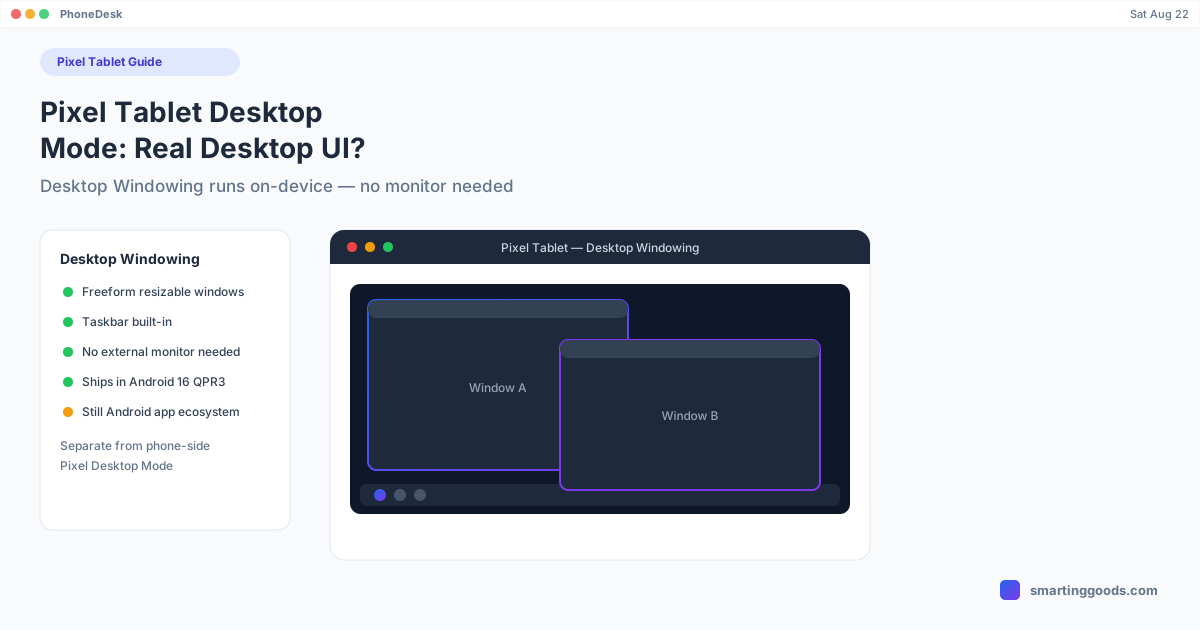
Turn it on and instead of one app filling the whole tablet display, or a fixed split-screen layout, apps open in floating windows you can resize, drag, and overlap — closer to how a laptop handles multiple apps than how a tablet traditionally does. There's a taskbar for switching between open windows and pinning favorites, and the whole thing is built to work well with a Bluetooth keyboard and mouse if you're using the tablet at a desk, or with touch if you're not.
How It Differs from Pixel Phone Desktop Mode
This is the part that causes the most confusion, since both features share the "desktop mode" branding umbrella:
- Phone desktop mode requires an external display. Connect a Pixel 8 or newer to a monitor over USB-C (with DisplayPort Alt Mode support) and desktop mode activates on that external screen. The phone's own screen is not where it happens.
- Tablet Desktop Windowing runs on the device itself. No monitor, no cable, no DisplayPort requirement. It's on-device windowing from the moment you enable it.
- Different hardware target. Phone desktop mode is scoped to Pixel 8 and later phones. Desktop Windowing is a Pixel Tablet feature — it's not something you enable on a phone, and phone desktop mode isn't something you get on the tablet's own screen.
If you also own a Pixel phone and were hoping the tablet would behave like an extension of that same external-display desktop mode, it doesn't — they're separate implementations aimed at separate hardware, even though Google groups them under the same Android 16 desktop windowing initiative.
What Desktop Windowing Can and Can't Do
Within its own lane, Desktop Windowing genuinely delivers a multi-window experience:
What works:
- Freeform resizable windows, dragged and positioned anywhere on screen
- A persistent taskbar for switching between and pinning apps
- Multiple apps visible and usable simultaneously, not just split 50/50
- Full support for Bluetooth keyboard and mouse, including standard desktop-style shortcuts
Where it's still a tablet, not a laptop replacement:
- App support varies. Not every Android app is optimized for freeform resizing — some still render as an oversized phone layout inside their window rather than adapting properly.
- No external display output beyond what the Pixel Tablet already supports separately (and no desktop-mode-style casting to a second screen).
- It's Android under the hood — you're still bound by Android's app ecosystem and background-process behavior, not a desktop-class OS with the file system access, multi-app windowing polish, and driver support a laptop has.
Treat it as genuinely useful multitasking on a tablet, not a MacBook replacement.
Does the Pixel Tablet Connect to a Mac for Desktop Mode?
If your interest in "Pixel Tablet desktop mode" is really about running Android on your Mac's screen, Desktop Windowing isn't the relevant feature — it already runs natively on the tablet's own display, so there's no Mac connection to make. What you're more likely looking for is either screen mirroring the tablet to your Mac, or the phone-side desktop mode (Pixel 8 and newer phones) that does need an external display and can be routed to a Mac.
PhoneDesk, a macOS menu bar utility, handles that phone-side case directly — it displays a connected Pixel's desktop mode as a real window on your Mac over USB or Wi-Fi, without a separate monitor or capture card. It's built around the same ADB-based connection Android already uses, just packaged into a one-click menu bar app instead of manual terminal commands. Full setup steps for Pixel phones are in our Pixel desktop mode on Mac guide.
Frequently Asked Questions
Q: Does the Pixel Tablet have a real desktop mode? A: Yes — it's called Desktop Windowing, and it runs directly on the tablet's own screen with resizable, freeform app windows and a taskbar. It shipped by default with Android 16 QPR3 in March 2026.
Q: Do I need an external monitor for Pixel Tablet desktop mode? A: No. Unlike Pixel phone desktop mode, which requires connecting to an external display over USB-C, Desktop Windowing runs natively on the tablet's built-in screen.
Q: Is Pixel Tablet Desktop Windowing the same feature as Pixel phone desktop mode? A: They're both part of Android 16's desktop windowing push and share underlying technology, but they're scoped to different hardware and trigger differently — phone desktop mode needs an external display, tablet Desktop Windowing doesn't.
Q: Can I use my Pixel Tablet as a desktop replacement for work? A: For lightweight multitasking — email, browsing, notes, messaging apps side by side — yes. For anything requiring desktop-class software, file system access, or apps not optimized for freeform windows, it's still limited by being Android underneath.
Q: How do I get Pixel desktop mode onto my Mac's screen? A: That applies to Pixel phones, not the tablet — phone desktop mode needs an external display, and Macs don't accept video input over USB-C by default. PhoneDesk, a $25 one-time macOS app, solves this by showing your Pixel phone's desktop mode as a window on your Mac.
The Bottom Line
The Pixel Tablet's Desktop Windowing is real, on-device, and doesn't need an external monitor — arguably the most self-contained desktop-style experience Google currently offers on any Pixel hardware. It's just a different feature from Pixel phone desktop mode, built for different hardware, and it's still an Android tablet underneath the freeform windows rather than a laptop-class OS.
If what you actually want is your Pixel phone's desktop mode showing up on your Mac, that's a separate setup — and PhoneDesk is built specifically for it.
PhoneDesk is a $25 one-time license — no subscription, 14-day no-questions refund. See the full feature list →