Poco Phones and Desktop Mode: What Actually Works
Poco runs Xiaomi's HyperOS but doesn't get PC Mode. Here's what desktop-style multitasking Poco phones actually support — and what to use instead.
Poco Phones and Desktop Mode: What Actually Works
Poco is a Xiaomi sub-brand, which leads a lot of people to assume Poco phones get the same desktop-mode features as Xiaomi's numbered flagships. They mostly don't — at least not yet. Here's what Poco phones actually offer when you connect them to an external display, and why the gap exists.
Poco Runs HyperOS, But Not the Same Feature Set
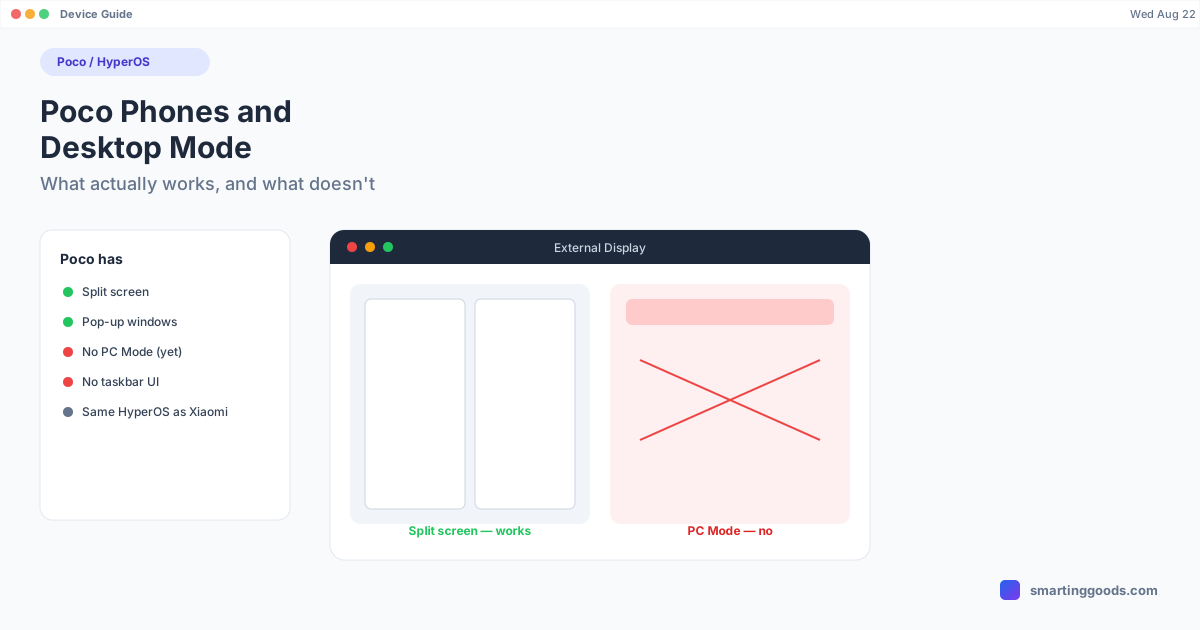
Poco phones ship with HyperOS, the same underlying software as Xiaomi and Redmi devices — Poco F7, F7 Pro, X7, and X7 Pro all run on HyperOS builds (HyperOS 1 or 2 depending on model and release timing). Sharing the OS means Poco phones inherit HyperOS's general multitasking tools: split screen and pop-up (floating) windows are standard across the lineup.
What they don't consistently inherit is "PC Mode" — Xiaomi's desktop-style, taskbar-and-resizable-windows interface that appears on select numbered flagships when connected to an external display. PC Mode has been rolling out unevenly even within Xiaomi's own flagship line, and it has not been a standard feature on Poco devices in reviews and hands-on coverage to date.
What You Get Instead: Split Screen and Pop-Up Windows
Connect a Poco phone to an external monitor and you'll typically get one of two things, not a desktop-style reflow:
- Screen mirroring/extension — the phone's normal UI, scaled to the external display, still phone-shaped.
- Android's own multi-window tools — split screen (two apps side by side) and pop-up window (a floating, resizable app window over your current app) work on Poco phones the same way they do on any modern Android device, external display or not.
Neither of these is the same as a true desktop mode with a taskbar, multiple independent resizable windows, and a UI that reflows specifically for external-display use.
Does Any Poco Phone Have Real Desktop Mode?
Not as a marketed, documented feature at the time of writing. Because Android 15 and 16 introduced desktop windowing as a platform-level capability — available to any sufficiently recent Android build, independent of manufacturer skin — it's possible a Poco phone running Android 15+ could trigger some form of basic desktop windowing when connected to an external display, since that capability now lives in AOSP itself rather than being exclusively a Samsung or Xiaomi feature. But this isn't something Poco actively supports, documents, or optimizes for the way Xiaomi does with PC Mode on its flagships or Samsung does with DEX. If it works at all, treat it as an unsupported side effect of the Android version, not a Poco feature.
Why the Gap Exists
Poco positions itself as a value/performance sub-brand — strong specs (chipsets, refresh rates, charging speed) at a lower price than Xiaomi's numbered flagships. Desktop-mode features tend to roll out first to the phones a manufacturer wants to position as productivity devices, which historically has been Xiaomi's own flagship line and Xiaomi Pad, not Poco. That could change as HyperOS matures and PC Mode expands, but there's no indication Poco is next in line ahead of Xiaomi's core flagships.
If You Want Real Desktop Mode on an Android Phone Today
If desktop-style multitasking on an external display is the actual goal — not just mirroring — the phones with the most reliable, documented support right now are Samsung's DEX-capable Galaxy S, Note, and Fold devices, and Google's Pixel 9 Pro with its built-in desktop mode. Xiaomi's own numbered flagships are getting there unevenly. Poco isn't there yet.
How PhoneDesk Fits In (If You're on a Mac)
If what you actually want is your Poco phone's screen on your Mac — for checking messages, demoing an app, or just not reaching for the phone — that part doesn't require desktop mode at all. PhoneDesk mirrors and controls Android phones as a window on your Mac over USB or Wi-Fi, which works with Poco phones for basic screen mirroring and control regardless of whether the phone has a true desktop mode.
What PhoneDesk can't do is make a phone's desktop mode appear if the phone itself doesn't have one — that's a manufacturer feature, not something PhoneDesk can add. Full desktop-mode window driving is confirmed on Samsung DEX (Galaxy Z Fold 6) and Pixel 9 Pro; Poco phones would fall back to standard mirroring and remote control rather than a true desktop-window reflow.
Frequently Asked Questions
Q: Is Poco a different company from Xiaomi? A: No — Poco is a sub-brand of Xiaomi, spun out as its own line but running the same HyperOS software. It's positioned as a value/performance brand rather than Xiaomi's flagship tier.
Q: Does the Poco F7 Pro have desktop mode? A: Not a dedicated desktop mode like Xiaomi's PC Mode. It has standard Android split screen and pop-up window multitasking, which work regardless of external display connection.
Q: Will Poco get PC Mode eventually? A: Possibly, as HyperOS's desktop features expand — but there's no confirmed timeline, and Poco has historically been a step behind Xiaomi's own flagships on feature rollouts.
Q: Can I still mirror my Poco phone to a Mac? A: Yes. PhoneDesk mirrors and controls most Android phones, including Poco devices, as a window on your Mac — that doesn't require the phone to have its own desktop mode, since it's screen mirroring plus remote control rather than a native desktop-window reflow.
The Bottom Line
If you own a Poco phone hoping for a DEX-like desktop experience, the honest answer is: not yet, and not as a supported feature. You get solid split-screen and pop-up-window multitasking, which covers a lot of everyday use, but not a true desktop reflow. If your real goal is getting your phone's screen onto your Mac, PhoneDesk handles that over USB or Wi-Fi regardless of whether desktop mode itself is present on the phone — $25 one-time, no subscription, 14-day refund.