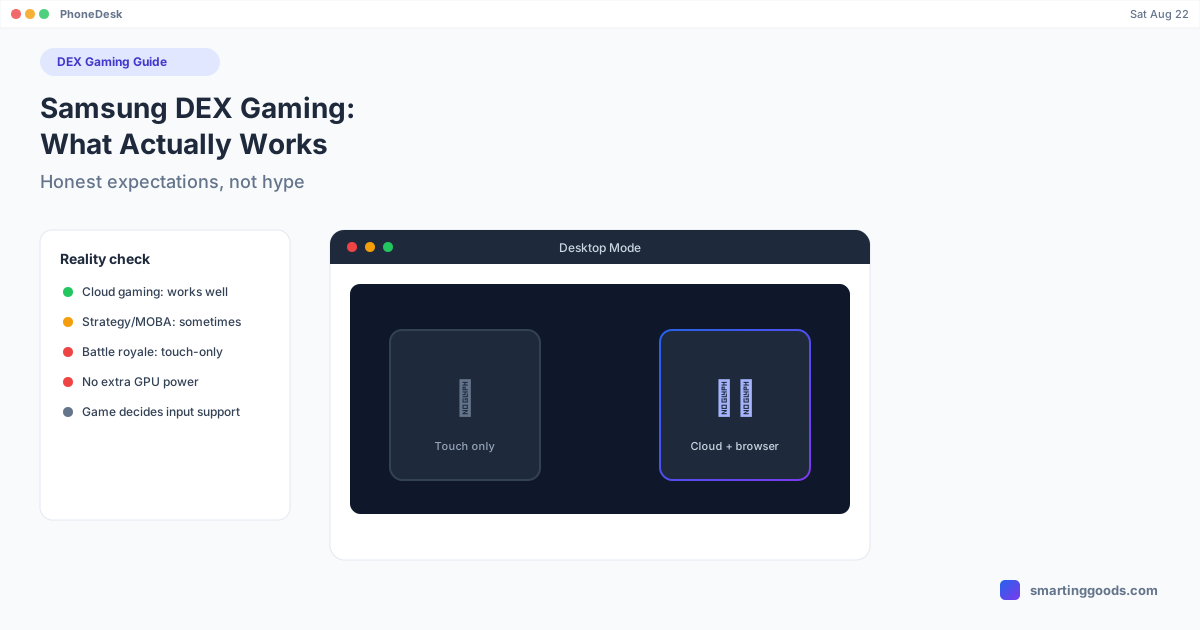
Samsung DEX Gaming: What Actually Works and What Doesn't
DEX doesn't add gaming power or unlock keyboard/mouse support games don't already have. Here's the honest breakdown of what works, what doesn't, and why.
Samsung DEX Gaming: What Actually Works and What Doesn't
Search "Samsung DEX gaming" and you'll find a lot of hopeful screenshots and not much straight talk. Here's the honest version: DEX is a desktop display mode, not a gaming feature. It takes whatever your phone's screen is already outputting and puts it in a resizable window. It doesn't add GPU power, it doesn't unlock frame rates your phone couldn't already hit, and — this is the part that trips people up — it doesn't make touch-only games suddenly support a mouse and keyboard.
If you're trying to figure out whether DEX gaming is worth setting up, here's what's actually true as of 2026, not what a thumbnail promised you.
What DEX Actually Does (and Doesn't Do)
DEX mirrors your phone's app output into a desktop-style window with a taskbar, resizable windows, and support for a mouse, keyboard, and external display. For apps built with desktop layouts in mind — browsers, office apps, some productivity tools — this is genuinely useful.
For games, DEX is just the window. The game itself is still running on your phone's chipset at whatever performance your phone already delivers. A Galaxy S24 doesn't suddenly perform like an RTX 4070 because you plugged it into a monitor. And critically, DEX doesn't inject mouse and keyboard support into a game that wasn't built to receive it — that has to come from the game's own code.
This matters because most "Samsung DEX gaming" content conflates two very different things: games that were built to accept external input, and games that weren't but technically still launch inside a DEX window (touch-only, unplayable with a mouse).
The Games That Actually Work With Mouse/Keyboard or Controller
A minority of mobile titles ship real support for external input — usually strategy games, MOBA-style titles, and games with PC counterparts that share a control scheme. If a game explicitly lists "keyboard and mouse support" or "controller support" in its Play Store listing or in-game settings, it'll generally work the same way inside a DEX window as it does on the phone screen directly, since DEX doesn't change how the game receives input — it just changes where the window lives.
Samsung's own DeX interface also ships an "Add key mapping" overlay for some game categories, which lets you assign keyboard keys to on-screen touch zones. This is Samsung mapping keys to touch coordinates, not the game natively understanding keyboard input — it works reasonably well for simple titles, but it's a translation layer, not real support, and can feel imprecise for anything fast-paced.
One UI 8.5 specifically improved keyboard and mouse handling in DEX for games that do support it, so if you're on an older One UI version and getting inconsistent input, updating is worth doing before troubleshooting further.
The Games That Don't Work (Even Though They "Run")
Most popular mobile games — including the big battle royale and shooter titles — are touch-only by design. They'll launch fine in a DEX window, the graphics will render, but there's no mouse cursor doing anything meaningful and no keyboard binding menu. Tapping with a mouse can sort of substitute for touch in a pinch, but it's clumsy, and precision aiming or fast menu navigation suffers.
Third-party "gamepad mapping" apps exist that translate keyboard/mouse or controller input into simulated touch events for these games. They can technically work, but two things to know: they're not official support from the game developer, and several of these mobile titles have anti-cheat systems that may flag input-mapping tools, putting your account at risk for something as low-stakes as casual play. If you go this route, treat it as experimental and don't use it on an account you care about.
Where DEX Gaming Genuinely Shines
The strongest, least-compromised use case for gaming on DEX isn't native mobile games at all — it's cloud gaming through a browser. Services like GeForce NOW and Xbox Cloud Gaming stream a real PC or console game to whatever app or browser tab is open, and that app or tab only needs normal keyboard/mouse or controller input like any other desktop program. Because the "game" from DEX's perspective is just a video stream with input events, there's no touch-only limitation to work around. We cover this setup in detail in our GeForce NOW on Samsung DEX guide.
How PhoneDesk Fits In
PhoneDesk doesn't add gaming performance or inject controller support into games that don't have it — nothing running on your Mac can do that, since the game itself runs entirely on the phone's chipset. What PhoneDesk does is take your phone's desktop mode — Samsung DEX, or Pixel's native desktop mode — and put it in a real, resizable window directly on your Mac, instead of requiring a separate monitor, dock, or cable setup tethered to a TV.
That's genuinely useful for the things DEX is actually good at: running a cloud gaming browser tab, checking a strategy game that does support mouse input, or just having your phone's desktop environment available without switching devices. If you're expecting DEX (or PhoneDesk) to turn your phone into a gaming PC, it won't — but if you want your phone's real desktop mode, wherever it's useful, as a window on your Mac, that's exactly what it's built for. See the full setup on the PhoneDesk homepage.
Frequently Asked Questions
Q: Does Samsung DEX make games run faster or look better? A: No. DEX only changes how the display is presented — a resizable window instead of the phone screen. The game still runs on your phone's own chipset at the same performance it would have without DEX.
Q: Can I use a mouse and keyboard with any game in DEX? A: Only if the specific game supports external input — most touch-only mobile games don't, regardless of DEX. Check the game's own settings or Play Store listing for "controller support" or "keyboard and mouse support" before assuming it'll work.
Q: Is it safe to use key-mapping apps for games that don't support keyboard/mouse? A: It depends on the game. Some titles' anti-cheat systems can flag input-mapping tools, and Samsung's own community forums note this risk. Treat mapping apps as experimental for casual play, not something to rely on for an account you care about.
Q: What's the best real gaming use case for DEX? A: Cloud gaming through a browser — services like GeForce NOW stream input directly to a PC session, so there's no touch-only limitation. It's the one gaming scenario where DEX performs like a genuine desktop.
Q: Does PhoneDesk add gaming features to DEX? A: No — PhoneDesk puts your phone's existing desktop mode (DEX or Pixel desktop mode) in a window on your Mac. It doesn't change what the phone or the game itself can do; it just changes where you view and control that desktop session.
Bottom Line
DEX gaming is real, but narrow: a small set of games with genuine external-input support, plus cloud gaming through a browser, are where it actually works well. Everything else is either unplayable with a mouse or dependent on unofficial mapping tools with real tradeoffs. Know which category your game falls into before you build a whole setup around it.
If you want your phone's desktop mode — for gaming or anything else — available as a real window on your Mac, see how PhoneDesk works. $25 one-time, no subscription, 14-day refund if it's not for you.