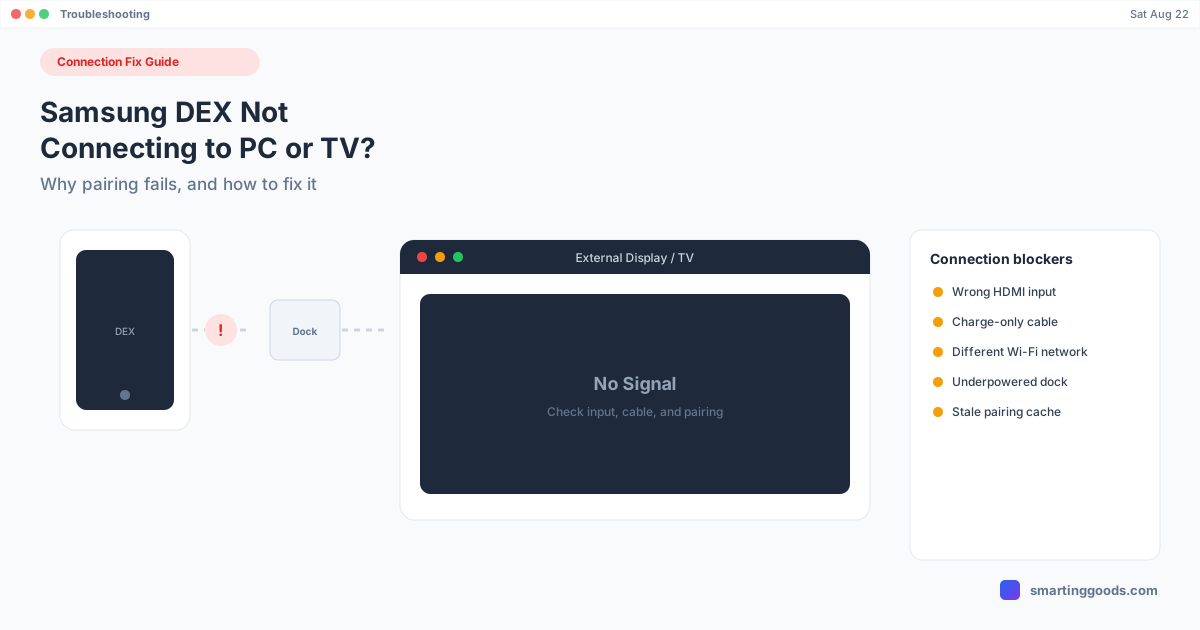
Samsung DEX Not Connecting to PC or TV? Here's Why
DEX not detecting your PC, dock, or TV at all? This is the pairing and connection-detection failure specifically — not a DEX session that's already running and broken.
Samsung DEX Not Connecting to PC or TV? Here's Why
There's a specific moment where DEX fails that's different from a DEX session that's already running badly: the connection itself never happens. You plug in the cable, or you try to pair wirelessly, and nothing responds — no DEX prompt, no display output, no device found. The dock just sits there. The TV shows "No Signal." The PC's Samsung DEX for PC app never sees the phone.
That's a pairing and handshake problem, not a performance problem, and it has a narrower set of causes than general DEX flakiness. This guide is scoped to that moment specifically — the connection that won't even start — whether you're plugging into a monitor, a dock, a TV, or trying to link to a Windows PC over DEX for PC.
Why the Connection Handshake Fails
DEX has to negotiate three separate things before anything appears on a screen: a data connection (USB Alternate Mode or a network socket), enough power to drive the session, and a display or app on the other end that's actually listening for it. If any one of those three fails silently, you get the same symptom — nothing happens — regardless of which piece actually broke. That's why "DEX not connecting" reports usually turn out to be a cable, a port, a network mismatch, or an app that isn't running, not a bug in DEX itself.
1. USB Alt Mode Isn't Negotiating (Wired Dock or Monitor)
Samsung DEX over a cable depends on USB-C Alternate Mode (DisplayPort Alt Mode specifically) — the cable has to carry a video signal, not just USB data or power. A huge share of "won't connect" cases are simply a cable that doesn't support Alt Mode. Charging cables, cheap USB-C to USB-C cables bundled with power banks, and generic multi-port cables frequently carry power and slow data but drop video entirely.
Fix: use the cable that came with your Galaxy phone, or a cable explicitly labeled "USB-C to HDMI" or "DP Alt Mode" if you're going through an adapter. If you're using a passive USB-C to HDMI dongle, confirm it says Alt Mode support on the packaging — plenty of cheap ones don't.
2. The Dock or Hub Isn't Getting Enough Power
Passive adapters and hubs that try to power themselves from the phone's own USB-C port often can't supply enough wattage to also drive display output — the connection either never initializes or drops the instant it starts. This shows up as: dock lights up, but no DEX prompt ever appears on the phone.
Fix: use a powered USB-C hub (one with its own wall adapter) instead of a passive dongle. If you're using an official Samsung DEX Pad or DEX Station, plug its power cable into the wall — running it phone-powered-only is a common silent cause of connection failure.
3. Wrong HDMI Input on the Monitor or TV
This sounds too obvious to be a real cause, but it's one of the most common reasons a wired DEX connection appears completely dead. The dock is outputting, the cable is fine, and the display is simply set to a different HDMI input than the one the dock is plugged into.
Fix: cycle through inputs manually on the monitor or TV remote rather than trusting auto-input-detection, which fails more often than it should on cheap displays and older TVs.
4. DEX for PC: The Windows App Isn't Running or Isn't Updated
If you're trying to connect to a Windows PC specifically (not a monitor), the failure point is different — Samsung DEX for PC is a Windows app that has to be open and running before your phone will detect it. A closed app, an outdated version, or a Windows firewall blocking its local network discovery will all produce the same "can't find PC" result on the phone side.
Fix: open Samsung DEX for PC manually on the Windows machine before attempting to connect from the phone, confirm it's updated through the Microsoft Store or Samsung's site, and check Windows Defender Firewall isn't blocking it (allow it through Private networks at minimum).
5. Wireless Pairing: Different Network, or No Network at All
For wireless DEX (casting to a Smart TV or connecting wirelessly to DEX for PC), both devices have to be on the same Wi-Fi network — not just the same router brand or the same building. A phone still on mobile data, a TV on a guest network, or a PC on Ethernet while the phone is on Wi-Fi will all fail to find each other, with no error message explaining why.
Fix: manually check the network name on both devices before troubleshooting anything else. If your router runs separate 2.4GHz and 5GHz networks with different names, make sure both devices picked the same one.
6. Stale Pairing Cache From a Previous Connection
If DEX connected successfully before and now refuses to reconnect to the same dock, TV, or PC, a corrupted pairing record is a common and under-reported cause. This happens after a Wi-Fi password change, a factory reset on one side, or a One UI update that touched the DEX connection stack.
Fix: on Android, go to Settings → General Management → Reset → Reset Network Settings to clear stale Wi-Fi Direct and pairing data (you'll need to re-enter Wi-Fi passwords afterward). For a wired dock, unplug it, restart the phone, then reconnect fresh.
Quick Reference: Match the Symptom to the Cause
| Symptom | Likely cause |
|---|---|
| Dock lights up, nothing on phone | Cable doesn't support Alt Mode |
| Phone shows DEX prompt, monitor stays black | Wrong HDMI input, or underpowered dock |
| "No Signal" on TV specifically | Wrong input, or TV not on same Wi-Fi (wireless casting) |
| Windows PC never shows up | DEX for PC app not open, outdated, or firewall-blocked |
| Worked before, fails now | Stale pairing cache — reset network settings |
| Everything above checked, still nothing | Try a different cable and a different port before assuming DEX is broken |
When the Connection Itself Is the Problem You Want to Remove
Every fix above is about getting a physical or wireless connection to a piece of hardware — a dock, a monitor, a TV, a separate PC — to actually negotiate correctly. That negotiation is exactly where DEX is most fragile, because it depends on cable quality, adapter power delivery, network configuration, and a second device all cooperating at once.
PhoneDesk sidesteps that whole category of failure by connecting your phone to the Mac you're already using, over USB or Wi-Fi, using a much simpler handshake (ADB) instead of DisplayPort Alt Mode negotiation. There's no HDMI input to get wrong, no dock power budget to hit, and no separate display to pair with — the destination is the Mac in front of you. Desktop Mode opens as a real window with one click from the menu bar.
See the full walkthrough in the Samsung DEX on Mac guide, and if it's specifically wireless pairing giving you trouble, the Samsung DEX not working guide covers session-level issues once you're actually connected.
Frequently Asked Questions
Q: Why does my dock light up but DEX never launches on the phone? A: This almost always means the cable is carrying power but not a video signal — it doesn't support USB-C Alternate Mode. Swap in the cable that came with your phone or one explicitly labeled for DP Alt Mode / USB-C to HDMI.
Q: Why won't DEX connect wirelessly even though both devices are on Wi-Fi? A: Check that they're on the exact same network name, not just the same router. Dual-band routers that broadcast separate 2.4GHz and 5GHz networks are the most common silent cause — one device can be on a different band than you think.
Q: I connected DEX to this dock before — why won't it reconnect now? A: A stale pairing cache is the usual culprit, often triggered by a Wi-Fi password change or a One UI update. Resetting network settings on the phone (Settings → General Management → Reset → Reset Network Settings) clears it.
Q: Is there a way to use DEX without dealing with dock or TV connection issues at all? A: Yes — PhoneDesk runs Samsung DEX as a window directly on a Mac over USB or Wi-Fi, so there's no HDMI dock, no separate display, and no Alt Mode negotiation to troubleshoot. It's a $25 one-time license with a 14-day refund if it doesn't fit your setup.
Bottom Line
"DEX not connecting" is almost always a handshake failure at one of three points: the cable/power path, the display input, or the network — and matching your exact symptom to the table above will get you there faster than trying every fix in order. If you've ruled out cable, input, and network and you're still stuck, or you're tired of the dock being the fragile part of your setup, that's worth solving by removing the dock entirely rather than buying a second one.
PhoneDesk is a $25 one-time license — no subscription. See the full Samsung DEX on Mac setup → or check out everything PhoneDesk does →