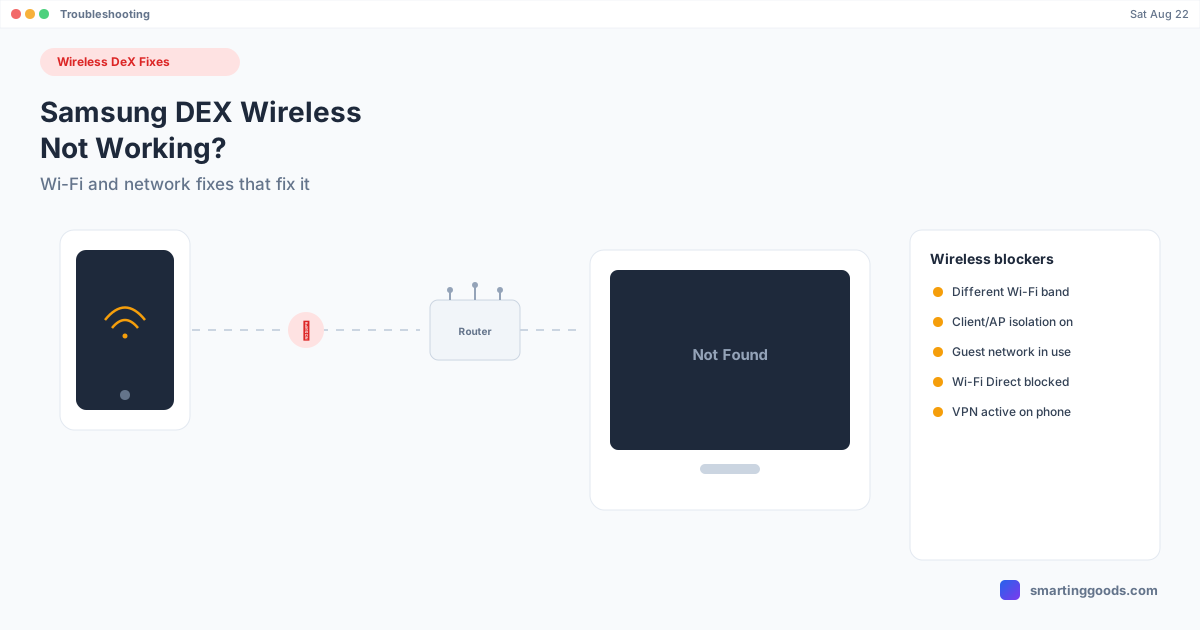
Samsung DEX Wireless Not Working: Fixes for Wireless DeX
Wireless DeX not finding your TV, or connecting and then dropping? This is almost always a network configuration issue, not a phone or TV bug — here's how to fix it.
Samsung DEX Wireless Not Working: Fixes for Wireless DeX
Wired DEX has one failure category: cables and power. Wireless DeX has a completely different one — network configuration. If your phone can't find a Smart TV as a cast target, connects and then drops every few minutes, or the picture is so laggy it's unusable, the cause is almost always sitting in your Wi-Fi router's settings, not a bug in DEX itself.
This is scoped specifically to the wireless connection layer — same-network requirements, Wi-Fi Direct behavior, and router settings that silently block DeX casting. If your issue is a wired dock or HDMI connection instead, that's a different failure mode covered in the general DEX not working guide.
Why Wireless DeX Depends on Your Router More Than Your Phone
Wireless DeX to a TV uses a mix of local network discovery and Wi-Fi Direct to find and stream to the display — both of which depend heavily on how your router is configured, not just whether devices are "connected to Wi-Fi." A router that isolates devices from each other, splits 2.4GHz and 5GHz into separate networks, or blocks the multicast traffic DeX uses for discovery will make your phone and TV invisible to each other even though both show a full Wi-Fi signal. That's the core reason this fails more often on mesh systems, guest networks, and business/hotel Wi-Fi than on a simple home router.
1. Confirm Both Devices Are on the Exact Same Network
Not "the same house" — the exact same SSID. This is the single most common cause of wireless DeX not finding a TV at all. Two things trip people up specifically:
- Dual-band routers with separate network names — if your router broadcasts
HomeWiFiandHomeWiFi_5Gas two different SSIDs, your phone and TV can each connect successfully to Wi-Fi while sitting on different networks that can't see each other. - Guest networks — TVs are frequently connected to a guest network during initial setup (sometimes by a previous owner or installer) and never moved to the main network. Guest networks are intentionally isolated from the main LAN by design.
Fix: open Wi-Fi settings on both the phone and the TV and read the exact network name on each. If they don't match exactly, connect both to the same one.
2. Router Client Isolation (AP Isolation) Is Blocking Discovery
Many routers — especially ones set up with a "guest network" toggle, and most public/business Wi-Fi — enable a setting called client isolation, AP isolation, or "wireless isolation." It's designed to stop devices on the same Wi-Fi from seeing or connecting to each other, which is exactly the behavior wireless DeX needs to work. If you're on public Wi-Fi (a hotel, office, or coffee shop), wireless DeX will very likely never work there, full stop — this isn't fixable from the phone side.
Fix on your own router: log into the router admin panel (usually a URL like 192.168.1.1) and look for "AP Isolation," "Client Isolation," or "Guest Network Isolation" — disable it for the network your phone and TV are on. This setting is often on by default for guest networks specifically, even when you don't think you're using one.
3. Wi-Fi Direct Is Disabled or Blocked
Wireless DeX to a TV can fall back to Wi-Fi Direct (a direct phone-to-TV connection that doesn't route through the router at all) in some configurations. If Wi-Fi Direct is disabled in the phone's settings, or the TV's Wi-Fi Direct is turned off, casting can fail even when the network-based discovery above is fine.
Fix: on the phone, Settings → Connections → Wi-Fi Direct — confirm it's toggled on. On the TV, check its network settings menu for a Wi-Fi Direct or Screen Mirroring toggle (naming varies by TV brand).
4. Weak or Congested 2.4GHz Signal Causing Drops
If DeX connects but drops every few minutes or the video is choppy and laggy rather than failing outright, this is usually a bandwidth and interference problem rather than a discovery problem. 2.4GHz Wi-Fi is more prone to interference from other devices (microwaves, baby monitors, neighboring routers) and has less bandwidth than 5GHz, which matters a lot for a real-time video stream like DeX casting.
Fix: if your router supports it, connect both the phone and TV to the 5GHz band specifically rather than 2.4GHz. Move the TV or phone closer to the router if the signal is weak, and check whether other devices on the network are streaming or downloading heavily at the same time — network congestion degrades DeX before it visibly affects most other traffic.
5. A VPN on the Phone Is Blocking Local Network Discovery
If you have a VPN app active on your phone (personal VPN, corporate VPN, or an ad-blocking DNS app that routes traffic through a VPN profile), it can silently prevent the phone from discovering devices on your local network — VPNs frequently route all traffic through a remote server, which breaks the local, same-subnet discovery that DeX casting depends on.
Fix: temporarily disable the VPN and try casting again. If it works with the VPN off, that confirms the cause — some VPN apps have a "allow local network access" or "local network bypass" setting that fixes this without fully disabling the VPN.
6. Stale Network State — Reboot the Chain
If none of the above is the obvious cause, a stale DHCP lease or cached network state on the router, phone, or TV can silently block discovery with no visible symptom. Reboot the router first (unplug for 30 seconds), then the TV, then the phone, reconnecting each to Wi-Fi fresh. This resolves a surprising share of "device not found" reports that don't have any other clear cause.
Quick Reference
| Symptom | Likely cause |
|---|---|
| TV never shows up as a cast target | Different Wi-Fi network, or client isolation enabled |
| Works at home, never works elsewhere (hotel, office) | Public/guest Wi-Fi almost always has isolation on — not fixable |
| Connects, drops every few minutes | Weak or congested 2.4GHz signal — switch to 5GHz |
| Works occasionally, unreliable | VPN active on phone, or router needs a reboot |
| Nothing above applies | Wi-Fi Direct disabled on phone or TV |
When Wireless Networking Itself Is the Weak Link
Here's the honest part: some networks are never going to reliably support wireless DeX, no matter what you change — client isolation you can't disable (public Wi-Fi, some managed office networks), a router that's simply too old to handle the discovery protocol cleanly, or a mesh system with a weak backhaul link between nodes. If you've worked through the list above and you're still fighting it, that's not a sign you're missing a setting — it's a sign the network you're on isn't a good match for wireless casting.
PhoneDesk connects your phone to the Mac sitting in front of you instead of relying on router-mediated discovery to a separate TV. It runs Samsung DEX as a window on your Mac over USB or Wi-Fi using a direct ADB connection — the same local-network fragility (client isolation, band mismatches, VPN interference) that breaks TV casting doesn't apply the same way, since you're not depending on multicast discovery across a router to find a completely separate device.
See the setup in the Samsung DEX on Mac guide.
Frequently Asked Questions
Q: Why does my TV never show up when I try to cast DeX, even though Wi-Fi shows connected on both? A: "Connected to Wi-Fi" doesn't mean the two devices are on the same network or able to see each other. Check the exact SSID on both devices, and check whether your router has client/AP isolation enabled — that's the most common invisible cause.
Q: Will wireless DeX ever work on hotel or public Wi-Fi? A: Rarely. Public networks almost universally enable client isolation specifically to stop guest devices from seeing each other, which is the exact behavior DeX casting needs. This generally isn't something you can fix from your phone.
Q: Why does DeX work for a few minutes and then disconnect? A: Usually a weak or congested 2.4GHz signal. Switch both devices to the 5GHz band if your router supports it, and check that nothing else on the network is heavily using bandwidth at the same time.
Q: Is there a way to use DeX wirelessly without depending on the TV's network discovery? A: Yes — PhoneDesk connects your phone directly to a Mac over Wi-Fi or USB and runs DeX as a window there, which sidesteps a lot of the router-level discovery issues that specifically affect casting to a separate TV. It's a $25 one-time license with a 14-day refund.
Bottom Line
Wireless DeX failures trace back to your network configuration far more often than to DeX itself — same-network mismatches, client isolation, weak 2.4GHz signal, and VPN interference cover almost every case. Work through the list in order, and if you're stuck on a network you don't control (public Wi-Fi, a locked-down office router), know that's a real limitation, not something you're doing wrong.
PhoneDesk is a $25 one-time license — no subscription. See the full Samsung DEX on Mac setup → or check out everything PhoneDesk does →