Students: Turn Your Android Phone Into a Study Desktop
How students can use an Android phone as a second screen next to a laptop for reading, note-taking, and PDF annotation — no monitor purchase required.
Students: Turn Your Android Phone Into a Study Desktop
Most students already own the two things this setup needs: an Android phone and a laptop. What they don't have, usually for budget reasons, is a second monitor — the thing that would actually make studying easier by letting them read a PDF and take notes at the same time instead of alt-tabbing between two overlapping windows on one screen.
You don't need to buy a monitor to get that split-screen setup. If your phone can run in desktop mode as a real window next to your laptop, it becomes the second screen you'd otherwise be saving up for.
The Actual Problem: One Screen, Too Many Things Open
Studying usually means juggling more windows than a single laptop screen comfortably fits — a PDF or textbook, a notes document, maybe a lecture recording, maybe a browser tab for looking something up. On one 13" or 14" screen, that's constant window-switching, and window-switching is where focus actually breaks down. You lose your place in the reading, you lose your train of thought in the notes, and every switch costs you a few seconds of re-orientation.
A second screen fixes this by letting you see two things at once instead of alt-tabbing. A dedicated monitor is the obvious answer, but it's also $150–300 you may not have, plus a stand, plus a cable, plus it doesn't fit in a backpack for a library session. A phone you already own and already carry to every class solves the same problem with none of that.
What This Actually Looks Like for Studying
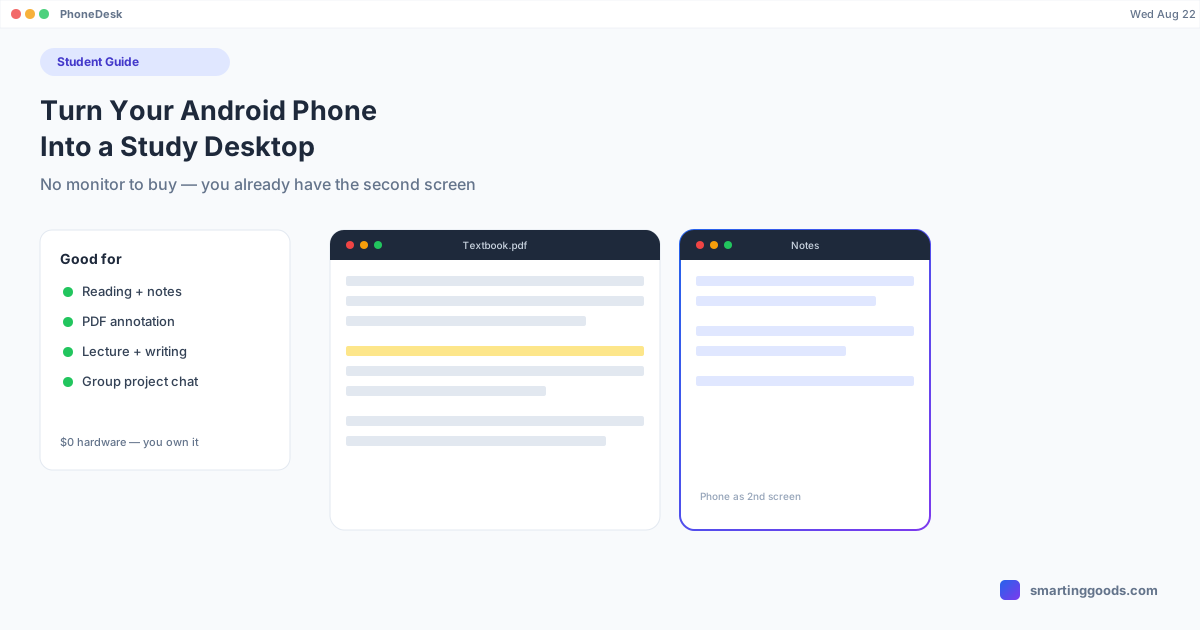
Reading + note-taking side by side. Open a PDF or e-book on your laptop, and run your notes app in phone desktop mode next to it. You read a paragraph, glance over, type the note, and go back — no switching windows, no losing your place.
PDF annotation on the bigger, mouse-driven screen. Desktop mode turns your phone's touch-only interface into something you drive with a mouse and keyboard, which makes highlighting, annotating, and marking up a PDF meaningfully less fiddly than doing it with your thumb on the phone itself.
Lecture recordings or slides in one window, writing in the other. If you're reviewing a recorded lecture or a slide deck while writing a summary, having them in separate windows on separate "screens" (your laptop and your phone-as-a-window) keeps both visible at once.
Group project coordination. Keep a group chat or shared doc comments open in the phone window while you work on your part of the project in the main laptop window — you see messages without derailing your focus to check your phone directly.
Be Realistic About What This Isn't
A phone screen, even resized as a window on your Mac, is smaller than a real external monitor — you're trading some screen real estate for zero cost and zero extra hardware. It's a genuine upgrade over one cramped laptop screen, but it's not the same as owning an actual 24" monitor. If you're doing detailed spreadsheet work, coding with multiple large files, or anything that benefits from real screen area, this setup helps less than it would for reading-and-writing tasks.
Battery is also worth planning around during a long library session — desktop mode running for hours will use more of your phone's battery than it sitting in your bag. If you're settling in for a multi-hour study block, plug the phone in alongside your laptop rather than relying on it running all day unplugged.
How PhoneDesk Fits Into a Study Setup
PhoneDesk is a macOS menu bar app that turns your Android phone into either a real second display for your Mac or a window running the phone's own desktop mode (Samsung DEX or Pixel), depending on what you need. For studying, using it as a second display — dragging your notes app or a browser window onto the phone screen — is usually the simplest way to get the split-screen effect without learning a new interface.
Setup takes a few minutes: enable USB debugging on the phone once, connect over USB the first time, and after that it's one click from the menu bar, USB or wireless. It also handles sending files between phone and Mac — useful if you're photographing a whiteboard or a handwritten page and want it on your laptop for a note without emailing it to yourself.
See the full feature list on the PhoneDesk homepage, or go straight to the phone-as-second-monitor guide to set up the split-screen study layout. For the wider workflow, see the phone-as-desktop starter guide.
Frequently Asked Questions
Q: Do I need a specific phone for this to work? A: Newer Samsung phones with DEX and newer Pixels have built-in desktop mode, but using your phone purely as a second display doesn't require that — it works more broadly as long as USB debugging can be enabled, which is a standard Android developer setting.
Q: Is a phone screen actually big enough to be useful for studying? A: For reading a PDF, checking notes, or keeping a chat window visible, yes — once resized as a window on your Mac it's a real usable screen, just smaller than a dedicated monitor. For dense spreadsheet or multi-pane coding work it's more limited.
Q: Will this drain my phone's battery during a long study session? A: Running desktop mode continuously does use more battery than the phone idling in your bag. For multi-hour sessions, plug the phone in — see our battery management guide for the full breakdown of what affects battery drain and how to manage it.
Q: Is this cheaper than buying a monitor? A: PhoneDesk is a one-time $25 purchase and you're using a phone you already own, versus $150+ for even a budget external monitor plus a stand and cable. It's not a full replacement for a large monitor's screen area, but for the cost difference it covers a lot of the same "two things visible at once" need.
The Bottom Line
You don't need to save up for a monitor to stop losing your place every time you alt-tab between a PDF and your notes. The phone in your pocket, paired with your laptop, can do a version of that job today — smaller than a dedicated screen, but real, and free of any hardware you don't already own.
See the full feature list and get started → — $25 one-time, no subscription, 14-day refund if it's not for you.