Xiaomi Desktop Mode (MIUI PC Mode): Which Phones Support It
Xiaomi's desktop-mode features go by three different names across phones and tablets. Here's what PC Mode, Workstation mode, and HyperConnect actually do — and which devices support each.
Xiaomi Desktop Mode: Which Phones Actually Support It
If you've gone looking for "Xiaomi desktop mode" or "MIUI PC Mode," you've probably run into three different names, two different feature sets, and no single page that tells you which one applies to your phone. That's not you missing something — Xiaomi's desktop-style features are genuinely fragmented across HyperOS versions and device tiers, and the branding has shifted more than once.
Here's what actually exists in 2026, on which devices, and what it can and can't do.
What Is Xiaomi "Desktop Mode," Really?
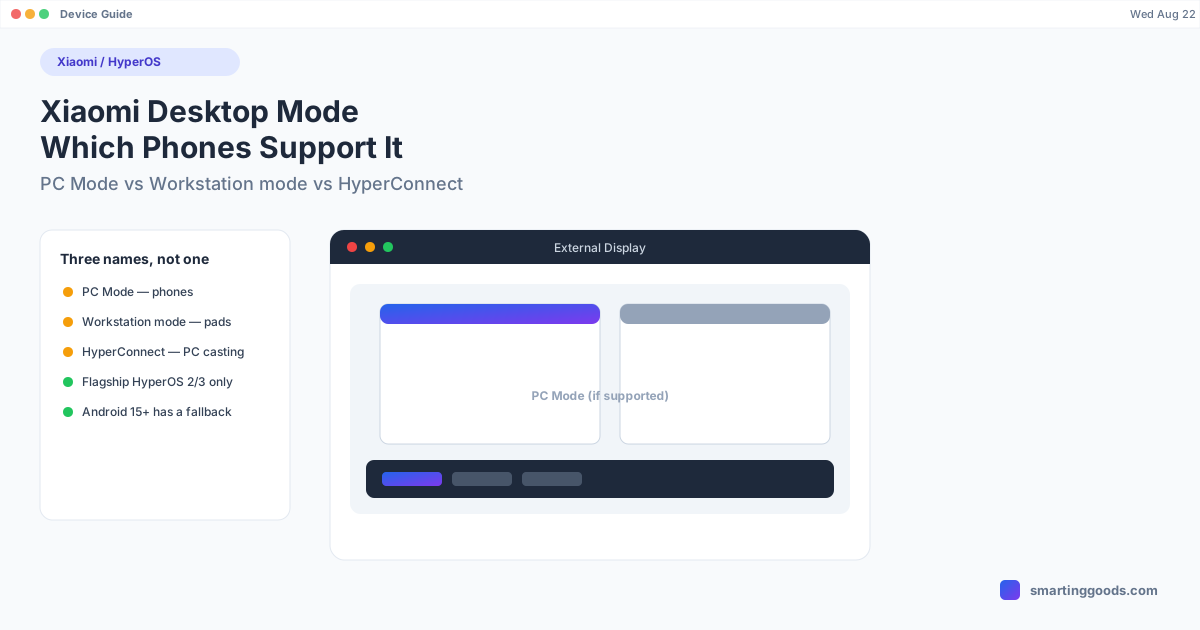
Unlike Samsung DEX — one feature, one name, consistent across the whole DEX-capable lineup — Xiaomi ships at least three related-but-different things under the desktop-mode umbrella:
- PC Mode — a desktop-style multi-window interface, mostly on flagship phones, that rearranges the UI into resizable windows when connected to an external display.
- Workstation mode — the tablet-side version, introduced with HyperOS 2, aimed at Xiaomi Pad models with keyboard accessories.
- HyperConnect — a completely different feature that mirrors your phone into a floating window inside a companion app on a Windows PC (and in some builds, Mac). It is not desktop mode — it's phone mirroring with drag-and-drop file support, closer to Intel Unison or Apple's Continuity than to DEX.
The confusion is understandable: Xiaomi's own marketing pages use "PC Mode," "desktop mode," and "HyperConnect" somewhat interchangeably depending on region and device.
Which Phones Support PC Mode
PC Mode has been rolling out unevenly. It's confirmed on select recent flagships — the Xiaomi 15 series and comparable Redmi/Xiaomi devices running HyperOS 2 or the HyperOS 3 beta — but it is not a blanket feature across the whole HyperOS lineup the way DEX is across Galaxy S and Note devices.
A useful rule of thumb: if your phone is a current-generation Xiaomi numbered flagship (not a budget Redmi or Poco device — more on that below) and it's running HyperOS 2 or newer, check Settings for a "PC Mode" or "Desktop mode" entry when you connect an external display over USB-C or wirelessly. If it's not there, the device isn't in the current rollout.
Because Xiaomi hasn't published a definitive, permanently up-to-date support matrix, the most reliable check is on-device: connect a USB-C to HDMI/DisplayPort cable (or a compatible dock) to a monitor and see whether the phone offers a desktop-style layout or just mirrors/extends the same phone UI. If you only get mirroring, that device doesn't have PC Mode — but it likely still supports Android's own baseline desktop mode if it's running Android 15 or 16, since that's now a platform-level feature independent of any manufacturer skin.
PC Mode vs. Android's Built-In Desktop Mode
This is the part that trips people up. Android 15 and 16 added a genuine, OS-level desktop windowing mode that any compatible phone can trigger when connected to an external display — regardless of manufacturer skin. So a Xiaomi phone might show a "desktop-like" experience even without Xiaomi's own PC Mode, simply because the underlying Android version supports it.
The practical difference: Xiaomi's PC Mode is polished, has taskbar and app-window handling tuned for their hardware, and is documented (however inconsistently) as a feature. Stock Android desktop mode on a HyperOS phone is more of a fallback — it works, but it's not something Xiaomi actively markets or supports with the same taskbar refinements.
HyperConnect Is Not Desktop Mode
If you searched "Xiaomi desktop mode" hoping to find something like DEX and landed on HyperConnect instead, it's worth knowing what you actually got: HyperConnect casts your phone's screen into a resizable window on a connected PC, with file drag-and-drop and clipboard sync between the two. It's genuinely useful for moving files or answering messages without picking up your phone — but the phone's apps stay phone-shaped inside that window. It doesn't reflow apps into a desktop-style multi-window layout the way PC Mode or DEX does.
How PhoneDesk Fits In (If You're on a Mac)
None of the above helps if you're on a Mac, because HyperConnect's PC client is Windows-first, and Xiaomi's PC Mode is designed around Xiaomi's own dock/monitor setup — not macOS.
PhoneDesk takes a different approach: it drives your Android phone's real desktop-eligible session as an actual resizable window on your Mac, over USB or Wi-Fi, from a menu bar app — no Xiaomi PC dock, no Windows-only client. Right now that's confirmed working with Samsung DEX (tested on the Galaxy Z Fold 6) and the Pixel 9 Pro's built-in desktop mode. We haven't yet verified HyperOS PC Mode support specifically — if you're on a PC Mode–capable Xiaomi device, PhoneDesk will still mirror and control the phone screen over adb, but we can't promise the same desktop-window reflow you'd get from Xiaomi's own dock experience until we've tested it directly.
If you just want your phone's screen on your Mac — mirrored, controllable, and able to receive files without cables or MTP — that part works today regardless of brand.
Frequently Asked Questions
Q: Does every Xiaomi phone have desktop mode? A: No. PC Mode is currently limited to select recent flagship-tier HyperOS 2/3 devices. Budget and mid-range Xiaomi and Redmi phones typically don't have it, though they may still support Android's baseline desktop windowing on Android 15+.
Q: What's the difference between PC Mode and HyperConnect? A: PC Mode reflows your phone's own apps into a desktop-style multi-window layout on an external display. HyperConnect mirrors your phone into a window on a separate PC — the apps stay phone-shaped, just displayed remotely with file/clipboard sync.
Q: Is Xiaomi's desktop mode as capable as Samsung DEX? A: Not yet, in terms of consistency. DEX has years of refinement and a stable, single-name feature across the whole Galaxy S/Note/Fold lineup. Xiaomi's desktop-style features are newer, split across three names, and rolled out unevenly by device tier.
Q: Can I get my Xiaomi phone onto my Mac like DEX-to-Mac works? A: PhoneDesk can mirror and control most Android phones with USB debugging enabled, including Xiaomi devices, as a window on your Mac. Full desktop-mode reflow is confirmed on Samsung DEX and Pixel devices specifically — treat HyperOS PC Mode support as untested until we verify it.
The Bottom Line
Xiaomi's desktop-mode story in 2026 is still catching up to Samsung's — not because the underlying tech is worse, but because it's split across PC Mode, Workstation mode, and HyperConnect with inconsistent device support. If your phone has it, check Settings when you plug into an external display. If you're trying to get any Android phone's screen onto a Mac specifically, see how PhoneDesk handles Samsung DEX and Pixel desktop mode — a $25 one-time menu bar app, no subscription, 14-day refund if it's not for you.