Xiaomi Pad Desktop Mode: Setup Guide
Xiaomi Pad's Workstation mode turns your tablet into a desktop-style layout with a keyboard and mouse. Here's how to check if your Pad supports it and set it up step by step.
Xiaomi Pad Desktop Mode: Setup Guide
Xiaomi Pad's desktop-style feature — officially "Workstation mode" on HyperOS 2 and newer — turns your tablet into something closer to a laptop when you add a keyboard and an external display. It's genuinely one of the more useful tablet-side desktop modes on Android, but the setup isn't always obvious the first time. Here's how it actually works.
What Is Workstation Mode?
Workstation mode is Xiaomi's desktop-style UI for Pad devices: a taskbar, resizable floating windows, and multi-window multitasking that replaces the standard tablet home screen layout when triggered. It was introduced with HyperOS 2 and is aimed squarely at Xiaomi Pad owners who use a keyboard case or connect to an external monitor.
Unlike phone-side PC Mode — which is still rolling out unevenly across flagship phones — Workstation mode has been more consistently available across recent Xiaomi Pad generations, since tablets are a more natural fit for desktop-style multitasking (bigger screen, more common keyboard-accessory use).
Which Xiaomi Pad Models Support It
Workstation mode is tied to HyperOS 2 (and the HyperOS 3 rollout that followed). In practice that means recent-generation Xiaomi Pad models — the kind currently receiving HyperOS 2/3 updates — are the ones with access to it. Older Xiaomi Pad models still on HyperOS 1 or MIUI-era software either don't have it or have an earlier, more limited version of tablet desktop mode (Xiaomi's tablet desktop features go back to the Mi Pad 5 series, but the current "Workstation mode" branding and feature set is newer).
If you're not sure whether your specific Xiaomi Pad has it: check whether it's running HyperOS 2 or later (Settings → About tablet), then look for "Workstation mode" or a similar desktop-layout toggle in Settings → Special features, or check what appears automatically when you connect a keyboard case or external display.
Setting Up Workstation Mode
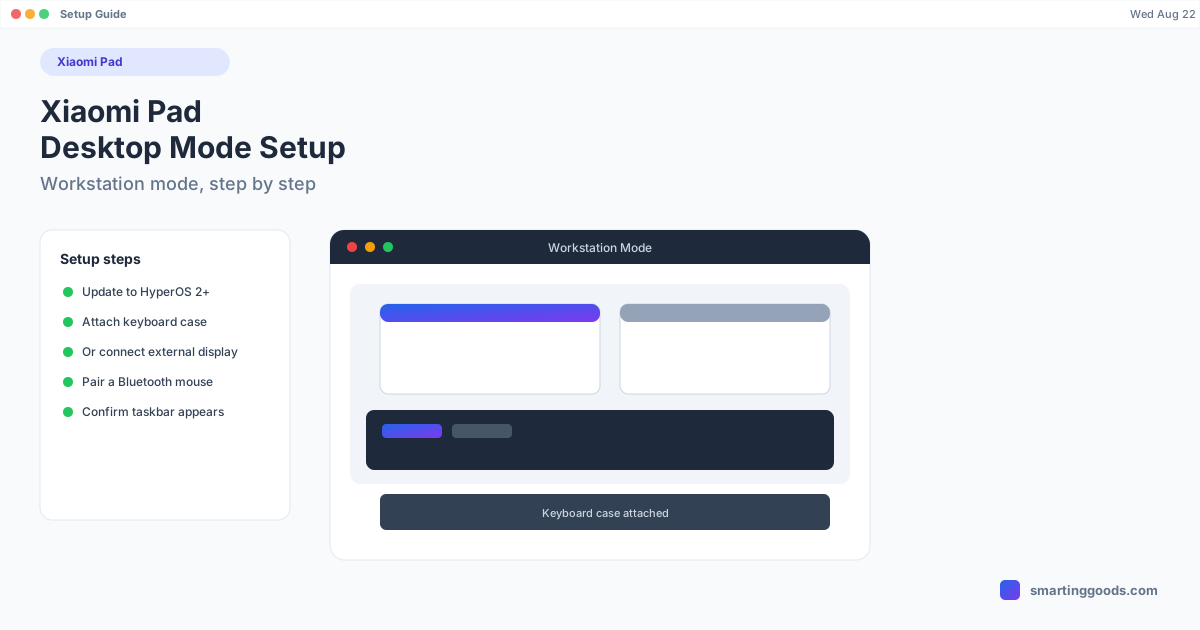
1. Update to HyperOS 2 or newer. Workstation mode won't appear on older software. Check Settings → About tablet → System version, and run any pending updates first.
2. Connect a trigger — keyboard case or external display. Workstation mode typically activates automatically when you attach a compatible keyboard case, or when you connect the tablet to an external monitor via USB-C (either directly with a USB-C to HDMI/DisplayPort cable, or through a compatible dock).
3. Confirm the layout switch. You should see the tablet UI reflow into a taskbar-plus-windows layout instead of the standard grid of app icons. Apps open as resizable, moveable windows rather than full-screen.
4. Pair a mouse if you don't have one already. Bluetooth mouse support in Workstation mode makes window management (resize, drag, snap) much closer to a real desktop experience. Without one, you're mostly limited to touch and keyboard shortcuts.
5. Adjust display output if using an external monitor. When mirrored to an external display, you can typically choose whether the tablet screen shows the same desktop layout or acts as a trackpad/secondary control surface — check the quick settings panel that appears when you connect.
Workstation Mode vs. Just Using Split Screen
It's worth being clear about what Workstation mode adds over Android's standard split-screen and pop-up window multitasking, which every Xiaomi Pad already has regardless of HyperOS version:
- Persistent taskbar — pinned and recent apps, closer to a real OS taskbar than Android's app switcher.
- Free-form window placement — drag, resize, and overlap windows rather than being locked to split-screen halves.
- Desktop-oriented shortcuts — keyboard shortcuts for window snapping and switching that don't exist in standard tablet mode.
If all you need is two apps side by side, split screen already does that without Workstation mode. Workstation mode is for when you want several floating windows, a taskbar, and a layout that behaves like a small laptop.
How PhoneDesk Fits In (If You Want This on a Mac)
Workstation mode is built for the tablet's own screen or an external monitor plugged directly into the tablet — it doesn't extend to a Mac. If what you actually want is your Android device's screen inside a window on your Mac, that's a different problem, and it's the one PhoneDesk solves.
PhoneDesk is a macOS menu bar app that puts your phone or tablet's screen into a real, resizable window on your Mac over USB or Wi-Fi — no dock, no HDMI adapter, no separate monitor. Desktop-mode window driving is currently confirmed for Samsung DEX (Galaxy Z Fold 6) and the Pixel 9 Pro's built-in desktop mode; we haven't specifically verified Xiaomi Pad Workstation mode support, so treat that combination as untested rather than guaranteed. Basic screen mirroring and control over adb works with most Android devices, Xiaomi Pad included, regardless of whether Workstation mode itself reflows correctly inside the window.
Frequently Asked Questions
Q: Does every Xiaomi Pad have Workstation mode? A: Only models running HyperOS 2 or newer. Older Xiaomi Pad generations on earlier software either lack it or have an earlier, more limited tablet desktop feature.
Q: Do I need Xiaomi's own keyboard case? A: No — any Bluetooth or USB-C keyboard should trigger and work with Workstation mode. Xiaomi's official keyboard case is convenient (folio-style, often connects automatically) but not required.
Q: Can I use Workstation mode without an external monitor? A: Yes. It works directly on the tablet's own screen once triggered by a connected keyboard, giving you the taskbar-and-windows layout on the Pad itself.
Q: Can I get my Xiaomi Pad's screen onto my Mac instead? A: PhoneDesk can mirror and control most Android tablets, Xiaomi Pad included, as a window on your Mac. Full desktop-mode window driving is confirmed on Samsung DEX and Pixel devices — Xiaomi Pad Workstation mode support hasn't been specifically verified yet.
The Bottom Line
Workstation mode is one of the more genuinely useful desktop-style features on an Android tablet, and it's a good reason to pick a recent Xiaomi Pad if tablet-as-laptop is your goal. Just confirm you're on HyperOS 2+ before assuming it's there. If your actual goal is getting an Android screen — Xiaomi Pad or otherwise — into a window on a Mac, see how PhoneDesk handles desktop mode and screen mirroring: $25 one-time, no subscription, 14-day refund.