Working From a Coffee Shop With Just Your Phone and a Mac
How to turn your Android phone into a real second workspace next to your Mac for coffee-shop work sessions — no extra monitor, no extra bag, and an honest look at what this setup can and can't do.
Working From a Coffee Shop With Just Your Phone and a Mac
You don't need a laptop bag stuffed with a backup monitor, a hub, and three chargers to get real work done from a coffee shop table. If you're already carrying an Android phone and a MacBook, you have most of what you need — the question is whether you're using the phone as anything more than a place notifications go to die.
Desktop mode changes that math. Instead of your phone sitting face-down next to your cortado while you do everything on the Mac's one screen, it becomes a second working surface — for note-taking, messaging, reading, and the kind of light work that doesn't need the Mac's full horsepower.
What "Phone as a Second Workspace" Actually Means
Desktop mode — Samsung DEX on Galaxy devices, or the built-in desktop mode on newer Pixels — turns your phone's Android apps into a windowed, mouse-and-keyboard-driven interface instead of a touch-only phone screen. On its own, that's usually shown on a TV or monitor via a dock. PhoneDesk skips the dock: it puts that same desktop-mode session inside a real, resizable window right on your Mac, driven over USB or Wi-Fi.
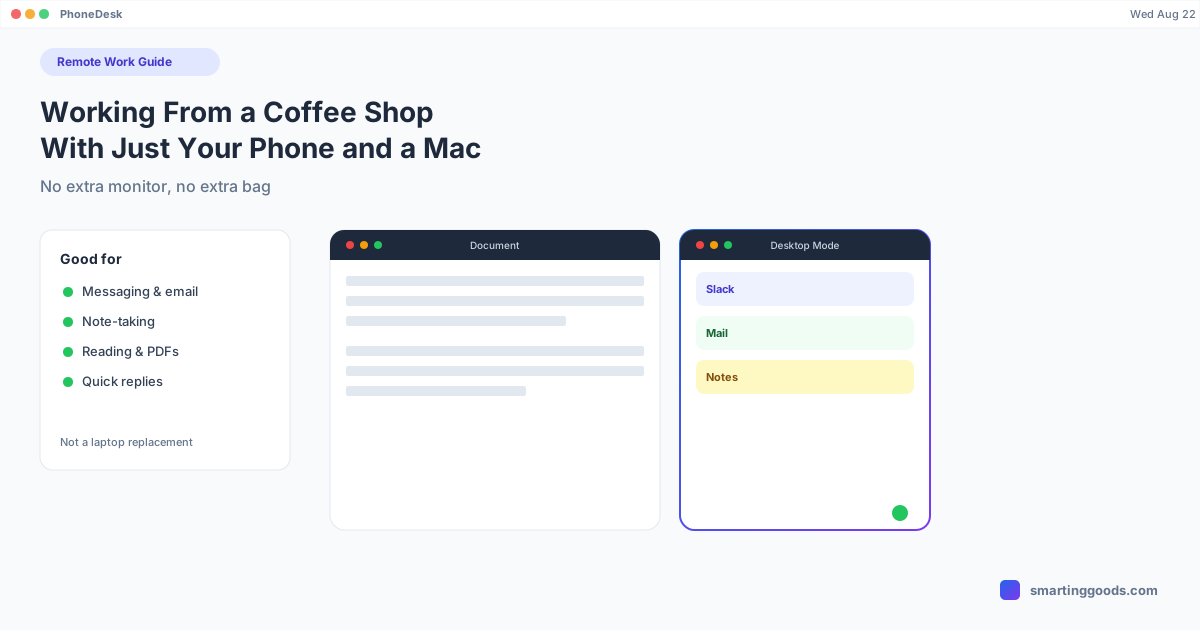
Practically, that means you can have your Mac running your main work — a document, a codebase, a design file — while a second window next to it is your phone's desktop mode running Slack, Gmail, or a notes app. You're not alt-tabbing between a tiny phone screen and your laptop; you're working across two windows on one machine, at a coffee shop table that only has room for one laptop anyway.
What This Setup Is Actually Good For
Messaging and email triage. Keeping a phone-desktop-mode window open with Slack or your inbox means you're not context-switching to a separate physical device every time a message comes in. You see it in your peripheral vision, glance over, respond, and go back to the Mac window without picking anything up.
Note-taking during a call or meeting. If you're on a video call on the Mac, a notes app running in the phone window next to it lets you type without alt-tabbing out of the call window and losing the person's face.
Reading and light research. Docs, PDFs, browser tabs for reference material — anything you're reading rather than heavily editing works fine in a phone-desktop-mode window. The screen real estate of the phone (once windowed and resized) is genuinely usable for reading, just not for a full IDE.
Quick replies without leaving your seat. Text messages, WhatsApp, anything tied to your phone number rather than a desktop app — desktop mode surfaces it right there instead of requiring you to physically pick up the phone.
Where It Falls Short — Be Honest With Yourself
This is not a laptop replacement, and it's not pretending to be one. A phone's chipset, even a flagship one, is not going to comfortably run a full IDE with a large project open, do serious video editing, or replace a second real monitor for detailed spreadsheet work. Desktop mode is built for lighter Android apps — it's not macOS running on your phone.
If your job is primarily heavy compute — compiling, rendering, multi-track audio — the phone window is for the stuff around that work, not the work itself. Treat it as a second surface for communication and light tasks, and let the Mac do the heavy lifting. That division of labor is exactly why this setup works: you're not asking the phone to do something it can't.
Battery is also a real factor in a multi-hour coffee shop session — running desktop mode continuously does draw more than the phone sitting idle. Plugging in when you can, or accepting a shorter session length, is part of the trade-off.
How PhoneDesk Fits Into This
PhoneDesk is a macOS menu bar app that makes this setup possible without an HDMI dock, a separate monitor, or fiddling with developer settings mid-session. Connect once — USB the first time, then Wi-Fi after that — and from then on it's one click from the menu bar to open your phone's desktop mode as a window on your Mac. No Dock icon, no extra app switching, just a dropdown.
It also handles the file side of a mobile work session: share a photo, PDF, or link from your phone and it lands straight in your Mac's Downloads folder or clipboard, no cable, no MTP mounting dance. If you're the kind of person who's emailed themselves a screenshot just to get it onto their laptop, that's the exact friction this removes.
See the full setup walkthrough on the PhoneDesk homepage, or jump straight to the Samsung DEX for Mac guide or Pixel desktop mode guide depending on your phone. For more on the overall workflow, see our phone-as-desktop starter guide.
Frequently Asked Questions
Q: Can I really do all my work this way, or is this just for note-taking? A: It depends on the work. Communication, notes, reading, and light browsing hold up well in a phone-desktop-mode window. Anything compute-heavy — coding in a large project, video editing, serious spreadsheet modeling — is still better done on the Mac itself. Use the phone window as a second surface, not a laptop replacement.
Q: Do I need Wi-Fi at the coffee shop for this to work? A: You need Wi-Fi if you want a fully wireless connection between phone and Mac, but that's your local network pairing (phone to Mac), not necessarily the coffee shop's Wi-Fi — many setups pair once at home over the same network and then reconnect automatically elsewhere, or you can plug in over USB anywhere.
Q: Does this drain my phone's battery fast? A: Extended desktop-mode sessions do use more battery than the phone sitting idle, since the screen and processor are active longer. Plugging in during longer sessions, lowering brightness, and closing background apps you're not using all help — see our battery guide for the full breakdown.
Q: How is this different from just using scrcpy or mirroring my phone screen? A: Basic screen mirroring shows your phone's touch interface shrunk into a window — still designed for a thumb, not a mouse. Desktop mode (DEX or Pixel's native version) is a genuinely different, mouse-and-keyboard-oriented interface that Android renders specifically for this use case. PhoneDesk drives that real desktop-mode session, not just a mirror of the phone screen.
The Bottom Line
A coffee shop table has room for one laptop and, if you set it up right, a genuinely useful second window running on your phone. You're not buying new hardware — you already own both devices. The only gap is software that puts your phone's desktop mode where you can actually use it alongside your Mac, which is what PhoneDesk is for.
See the full feature list and get started → — $25 one-time, no subscription, 14-day refund if it's not for you.