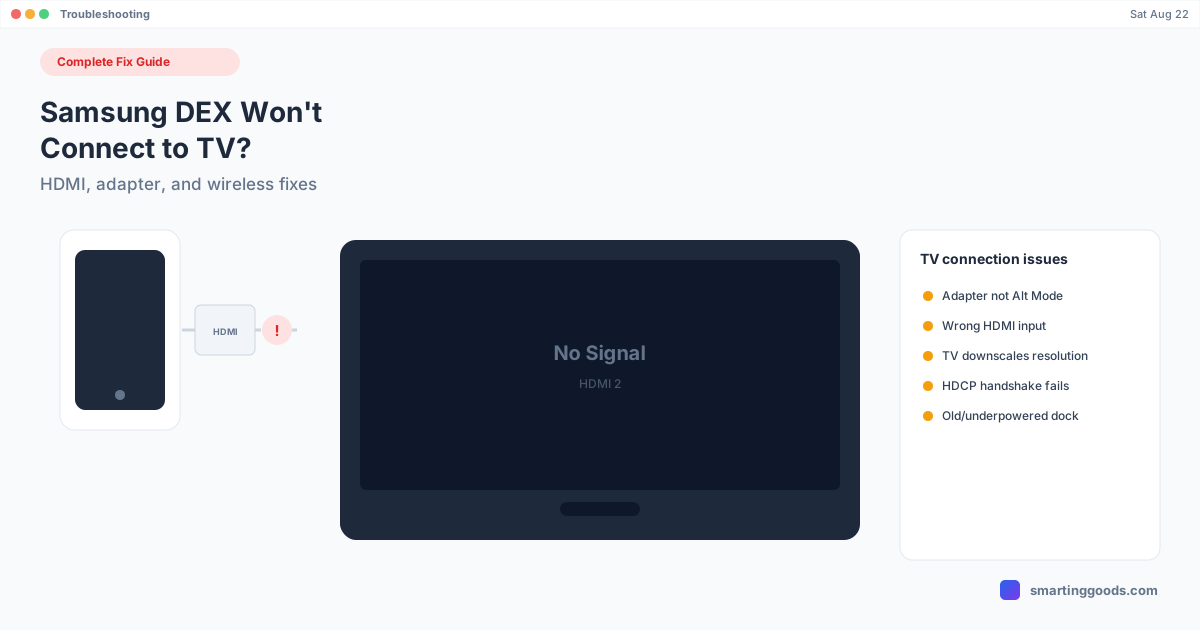
Samsung DEX Won't Connect to TV: Complete Fix Guide
DEX won't show up on your TV over HDMI or wirelessly? TVs fail differently than monitors — HDCP, input auto-switching, and downscaling all cause silent failures. Here's the full fix list.
Samsung DEX Won't Connect to TV: Complete Fix Guide
TVs fail differently than computer monitors when DEX won't connect, because TVs add failure points monitors don't have: HDCP copy-protection handshakes, aggressive input auto-switching, and built-in scalers that quietly downscale or reject an incoming signal instead of just displaying it. If you've tried the general DEX cable-and-power fixes and you're still staring at "No Signal" on a TV specifically, this covers the TV-specific causes.
This is scoped to TV connections — both cable (HDMI adapter/dock) and wireless casting. For dock and cable issues that aren't TV-specific, see Samsung DEX not connecting for the broader pairing failure guide.
Why TVs Are Harder Than Monitors for DEX
A computer monitor generally just displays whatever signal it receives. A TV runs a much more opinionated software stack on top of the HDMI input — HDCP content protection negotiation, automatic resolution scaling, input auto-detection that sometimes guesses wrong, and (on smart TVs) an OS layer that can interfere with a raw video signal in ways a dumb monitor never would. That's why the same dock and cable that work perfectly on a monitor can produce "No Signal" or a garbled picture on a TV.
Wired DEX-to-TV: Cable and Adapter Issues
1. The Adapter Doesn't Support HDCP
HDCP (High-bandwidth Digital Content Protection) is a handshake TVs require before displaying video from certain sources — and cheap, no-name USB-C to HDMI adapters frequently don't implement it correctly, or at all. This produces a specific symptom: the TV briefly flickers or shows a signal for a split second, then drops to "No Signal" or a black screen, because the HDCP handshake failed partway through.
Fix: use a name-brand adapter or dock (Samsung's own DEX Station/Pad, Anker, Belkin, or similar) rather than the cheapest option available — HDCP compliance is one of the most common corners cut in unbranded adapters.
2. Wrong HDMI Input, or the TV Auto-Switched Away
TVs with multiple HDMI ports and "auto input switching" enabled will sometimes jump to a different input the moment they detect any signal change elsewhere (a game console powering on, a soundbar reconnecting), pulling focus away from the DEX input right as you connect. This is genuinely common and easy to misdiagnose as a DEX failure.
Fix: manually select the correct HDMI input using the TV remote rather than relying on auto-detect, especially if you have other HDMI devices connected to the same TV.
3. TV Downscales or Rejects the Resolution DEX Is Sending
Some TVs — especially older 1080p sets receiving a 4K-capable signal, or budget TVs with limited EDID support — either downscale aggressively (producing a blurry or oddly-cropped DEX session) or reject the signal outright if it can't negotiate a resolution both sides agree on.
Fix: if picture quality is poor rather than completely absent, this is likely the cause — there's no phone-side setting to force a specific output resolution in DEX, so a different adapter (one with broader EDID compatibility) is usually the fix rather than a software tweak.
4. Underpowered Dock Can't Drive the TV's HDMI Requirements
TVs, especially larger ones, can be more demanding on the power budget of a passive adapter than a monitor is. If the dock briefly shows a signal and then drops, or never initializes at all, insufficient power delivery is a common cause — see the powered-hub fix in the general DEX connection guide for the full explanation.
Wireless DEX Casting to a Smart TV
If you're not using a cable at all and trying to cast DEX wirelessly to a Smart TV, the failure causes are almost entirely different — network configuration rather than cable/adapter issues. Same-network mismatches, router client isolation, and Wi-Fi Direct being disabled are the most common causes, and they're covered in full in the Samsung DEX wireless not working guide. The short version: both devices need to be on the exact same Wi-Fi network, and public or guest networks with client isolation enabled will block it entirely, with no fix available from the phone side.
Quick Reference: TV-Specific Failure Points
| Symptom | Likely cause |
|---|---|
| Brief flicker, then "No Signal" | HDCP handshake failing — try a name-brand adapter |
| TV shows a different input than expected | Auto-input-switching pulled focus away — select input manually |
| Blurry, cropped, or oddly scaled picture | TV downscaling or rejecting resolution — try a different adapter |
| Signal drops after a few seconds | Underpowered dock — use a powered USB-C hub |
| Casting wirelessly, TV never shows up | Network mismatch or router isolation — see wireless DEX guide |
| Works on a monitor, fails only on the TV | Almost certainly HDCP or EDID compatibility — TV-specific, not a general DEX bug |
When a TV Just Isn't a Good DEX Target
Some TVs — particularly older sets, budget models with limited HDMI compliance, or TVs with an aggressive built-in scaler you can't disable — are genuinely poor matches for DEX no matter which adapter you buy. If you've tried a name-brand dock, manually selected the right input, and you're still getting a flickering or rejected signal, that's a real hardware compatibility gap, not a setting you're missing.
If the actual goal was getting a bigger, more usable DEX screen rather than specifically a TV, it's worth considering a different destination entirely. PhoneDesk runs Samsung DEX as a window on a Mac instead — no HDCP handshake, no EDID negotiation, no TV scaler to fight, because a Mac's display doesn't impose the same content-protection and auto-switching behavior a TV does. It connects over USB or Wi-Fi and opens DEX as a resizable window you can use like any other Mac app.
See the setup in the Samsung DEX on Mac guide.
Frequently Asked Questions
Q: Why does DEX work fine on my monitor but not my TV, with the exact same adapter? A: TVs add HDCP handshakes, aggressive auto-input-switching, and resolution scaling that monitors generally don't — any of these can fail independently of the adapter or cable itself, which is why the same hardware behaves differently on each.
Q: My TV briefly shows a signal, then goes to "No Signal" — what's happening? A: This is the classic symptom of a failed HDCP handshake, usually caused by a cheap or non-compliant HDMI adapter. Switching to a name-brand adapter or official Samsung DEX dock resolves this in most cases.
Q: Can I fix a blurry or oddly-scaled DEX picture on my TV? A: This is typically the TV's EDID/resolution negotiation with your adapter, not something adjustable from the phone. Trying a different adapter with broader compatibility is the main lever you have.
Q: Is there a way to get a DEX-sized screen without dealing with TV compatibility issues? A: Yes — PhoneDesk runs DEX as a window on a Mac, which doesn't have the HDCP and EDID negotiation quirks TVs introduce. It's a $25 one-time license with a 14-day refund if it's not the right fit for your setup.
Bottom Line
TV-specific DEX failures come down to HDCP compliance, input auto-switching, and resolution negotiation — three things a computer monitor mostly doesn't impose, which is why the same setup can work on one display and fail on the other. A name-brand adapter and manually selecting the correct input fix most cases; some older or budget TVs are a real compatibility dead end no cable will solve.
PhoneDesk is a $25 one-time license — no subscription. See the full Samsung DEX on Mac setup → or check out everything PhoneDesk does →